
To access the power of the two-minute rule on iPhone, you must eliminate the input friction that slows down quick actions. On iOS, you can execute the two-minute rule by optimizing your text snippets, leveraging Siri Shortcuts, and using a clipboard manager like ClipboardAI to eliminate manual typing and context switching. By automating micro-tasks - like replying to standard emails, saving confirmation numbers, or filling out forms - you reclaim cognitive energy.
We have all been there: you copy a confirmation number from a flight ticket and need to paste it into your calendar, but you get a Slack message, switch apps, lose the copy, and spend five minutes searching for the email again. When micro-tasks require jumping between three different apps and typing on a cramped virtual keyboard, the two-minute rule breaks down. Instead of getting the task done instantly, we postpone it, leaving a trail of half-finished mental loops.
The Cost of Micro-Friction on iOS
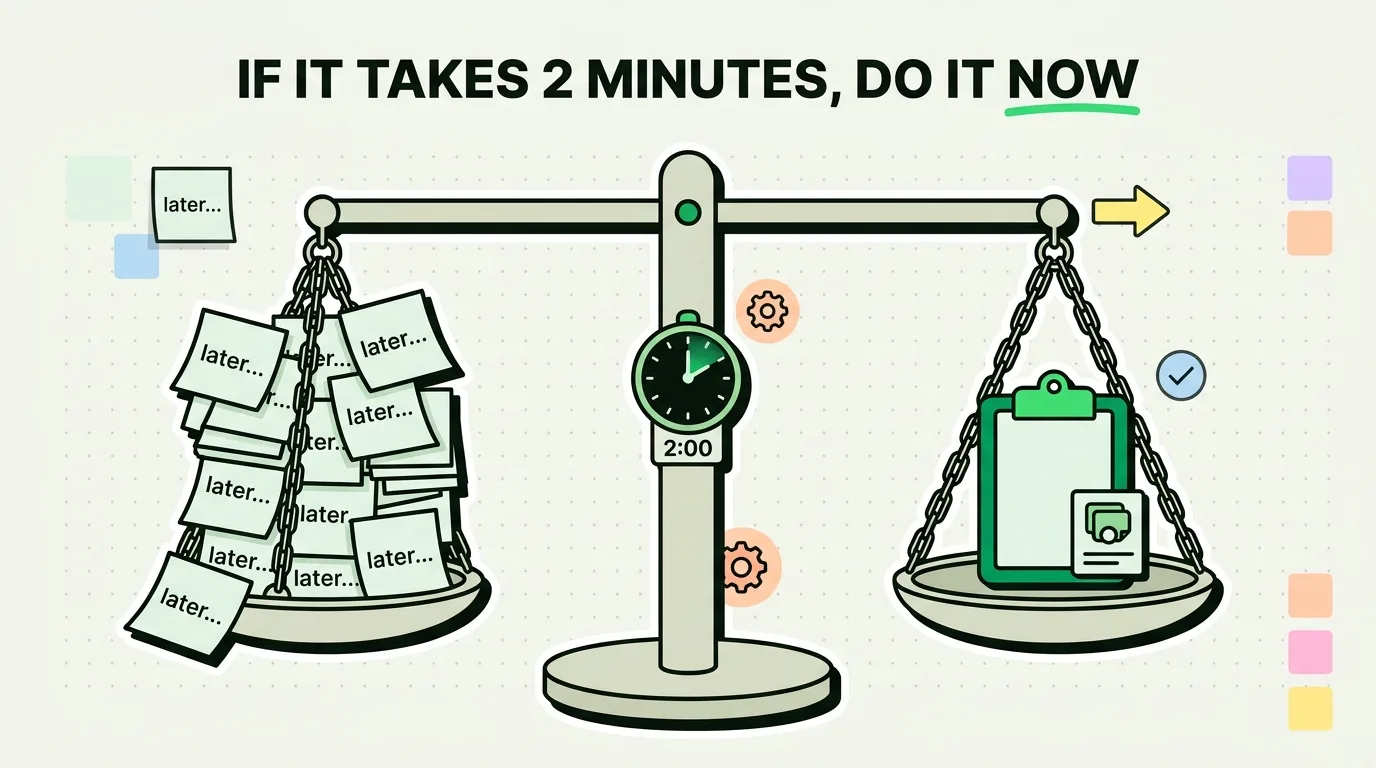
The two-minute rule - popularized by David Allen in his productivity methodology, Getting Things Done (GTD) - states that if a task takes less than two minutes to complete, you should do it immediately. The logic is simple: the cognitive overhead of tracking, scheduling, and remembering a tiny task is far greater than the time it takes to just finish it.
However, smartphones are distraction engines. When you open your iPhone to complete a quick task, you face two main barriers:
- Physical Friction: Typing long URLs, email addresses, or reference numbers on a touchscreen.
- Mental Friction: Swapping between Safari, Mail, and your calendar, which exposes you to notifications that pull you off course.
To make the two-minute rule work on mobile, you need to set up your system so that moving information takes seconds, not minutes.
3 Quick Wins for Instant Task Completion
You do not need to build complex systems to start saving time. These three iOS features can be configured in under five minutes and will immediately streamline your daily interactions.
1. Configure System Text Replacement
If you find yourself typing your email address, home address, or standard meeting links multiple times a day, stop typing them manually.
- Go to Settings > General > Keyboard > Text Replacement.
- Tap the + icon.
- Input your full email address in the Phrase field, and a short trigger (like
@@) in the Shortcut field. - Repeat this for your physical address (trigger:
adr), Zoom link (trigger:zml), or common phrases.
2. Leverage ClipboardAI Pinned Snippets
Native iOS text replacement is useful but limited to plain text without formatting or placeholders. For richer templates, use ClipboardAI. You can store formatted emails, customer support responses, and outreach messages in dedicated local categories. When a task arrives, swipe open the ClipboardAI keyboard, tap the template, and send it. You bypass the main app entirely.
3. Map Back Tap for Quick Capture
You can trigger shortcuts by tapping the back of your iPhone.
- Go to Settings > Accessibility > Touch > Back Tap.
- Select Double Tap or Triple Tap.
- Map it to take a screenshot, open your task manager, or trigger a custom Shortcut that appends your current clipboard to a running log file.
The 2-Minute iPhone Task Checklist & Automation Matrix
Use this matrix to identify tasks you can automate or streamline right now:
| Daily Task | Native iOS Method | Automated/Optimized Method | Weekly Time Reclaimed |
|---|---|---|---|
| Saving Confirmation Numbers | Open Mail -> Copy -> Open Calendar -> Create Event -> Paste | Copy number -> ClipboardAI parses date/time -> Auto-saves event details | 15 Minutes |
| Sending Standard Replies | Open Messages -> Type message manually -> Send | Tap text field -> Swipe to ClipboardAI keyboard -> Tap pinned response | 20 Minutes |
| Splitting Dinner Bills | Open Calculator -> Divide total -> Text friends account details | Trigger Siri Shortcut to parse bill photo -> Send pre-written payment text | 10 Minutes |
| Filing Expense Receipts | Take photo -> Open accounting app -> Upload -> Enter details | Share sheet shortcut: Photo -> Auto-saves to iCloud Drive & copies date | 25 Minutes |
Step-by-Step Workflow: The "Quick Log" Shortcut
One of the best ways to keep your mind clear is logging thoughts, tasks, or expenses immediately without opening a full database. Here is how to build a quick log system using Apple's built-in Shortcuts app:
- Open the Shortcuts app on your iPhone.
- Tap the + button in the top-right corner to create a new shortcut. Name it "Quick Log".
- Tap Add Action and search for Ask for Input. Select it.
- Set the prompt to "What do you want to log?".
- Add a second action: search for Append to Text File.
- Set the input to append the Provided Input from step 1 to a file named
daily_log.txtin your iCloud Drive folder. - Add a date timestamp at the beginning of the text line so you know exactly when you logged the item.
- Save the shortcut and add it as a widget to your home screen.
Now, whenever you have a quick idea or need to log an expense, tap the widget, type it in, and hit done. The task is captured in under 5 seconds, keeping you on track without opening a complex app.
Honest Caveats & System Limitations
While these tricks speed up your workflow, iOS has structural limitations that you must keep in mind:
- Sandbox Security: iOS prevents apps from reading your clipboard automatically in the background. While this is great for privacy, it means clipboard managers cannot run silent syncs without you occasionally opening the app or using their custom keyboards.
- RAM Management: If your iPhone is running low on memory, background apps may be terminated. If your clipboard app is closed by the OS, it won't capture copies until you launch it again.
- Keyboard Glitches: Third-party keyboards can occasionally fail to load if iOS is under heavy load. If this happens, switching back to the default Apple keyboard and back again usually resolves the issue.
Where ClipboardAI Fits (And Where It Does Not)
ClipboardAI is designed specifically to solve the "information transfer" problem. It excels at saving you from repetitive typing, organizing your frequently used templates, and bridging the gap between apps.
However, it is not a task manager or a full note-taking vault. Do not try to use it as a replacement for Todoist or Things. Use it as the utility belt that feeds information into those systems quickly so you can get back to what matters.
Frequently Asked Questions
Will using a third-party clipboard keyboard drain my battery?
No. ClipboardAI runs locally and only active keyboard extensions consume resources. Because it does not run heavy background location or tracking services, the impact on your battery life is negligible.
How does the 2-minute rule apply to emails?
If you can answer an email in under two minutes, do it immediately. For recurring questions, keep three template responses pinned in your ClipboardAI keyboard. This reduces the task duration from two minutes to five seconds.
Is my copied text secure when using custom clipboard tools?
ClipboardAI operates local-first. Your history is stored on your device, not on external servers. For maximum safety, you can configure the app's settings to ignore sensitive sources, such as password managers.