
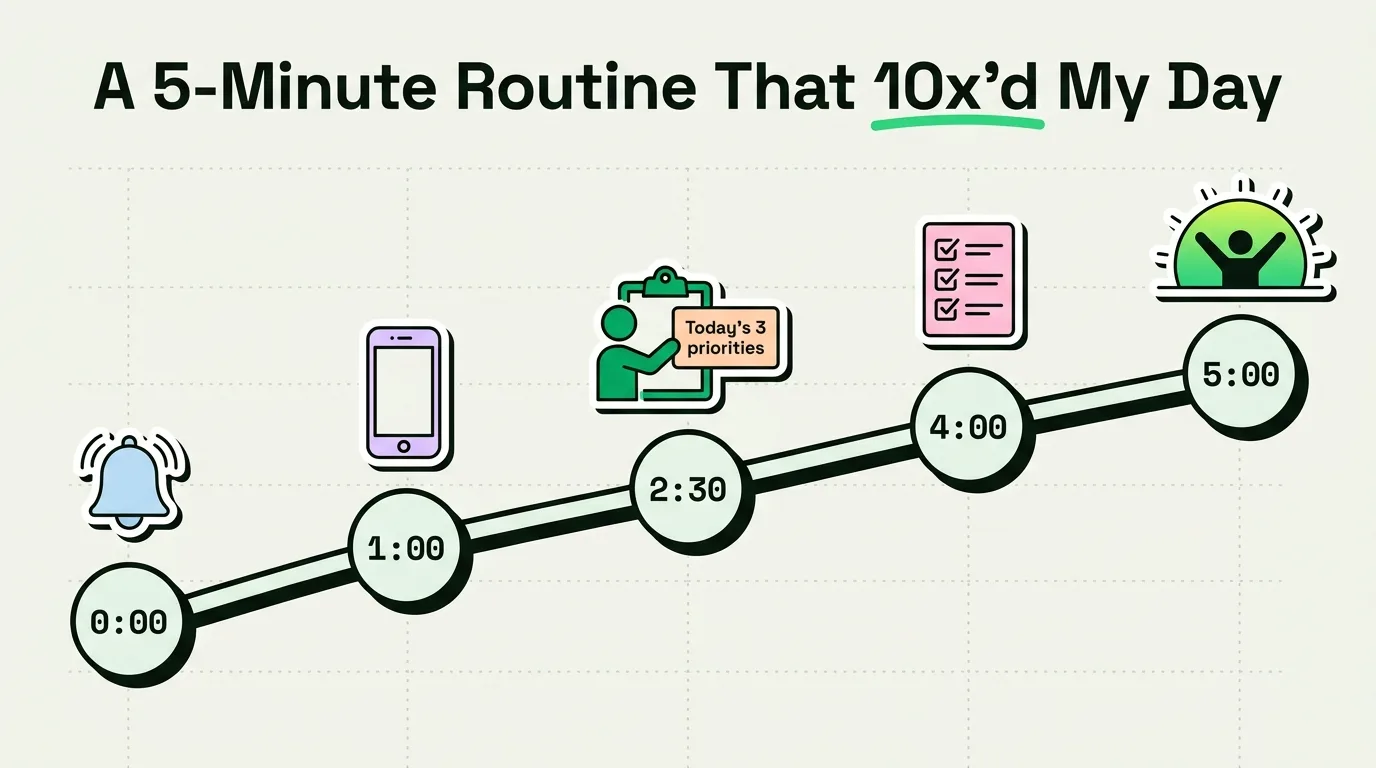
A productive morning iPhone routine starts by bypassing social media and spending five minutes on three high-yield steps: reviewing your calendar, clearing yesterday's clipboard logs, and pinning today's priority tasks. Using ClipboardAI alongside iOS Focus Modes ensures you capture daily references instantly without opening distracting apps. This prevents early-morning dopamine loops and primes your brain for deep work before you check your inbox.
Reaching for your phone first thing in the morning is typically regarded as a productivity sin. And it is - if you spend the first 30 minutes of your day scrolling social feeds, reading work emails, or checking news alerts. This floods your brain with dopamine and cortisol, leaving you reactive, distracted, and mentally fatigued before you even get out of bed.
However, you do not have to banish your phone from your morning. Instead, you can repurpose it as a deliberate workspace cockpit. By following a structured five-minute routine, you can set your priorities, organize your tools, and close down distractions.
The 5-Minute Morning Dashboard Checklist
This is the exact sequence to execute every morning:
| Time | Duration | Focus Area | iOS Action Steps | Objective |
|---|---|---|---|---|
| 0:00 - 1:00 | 1 Minute | Focus Isolation | Enable Morning Focus Mode; adjust screen brightness. | Block distractions; prevent reactive checking. |
| 1:00 - 2:30 | 1.5 Minutes | Calendar & Agenda Scan | Review calendar; copy address or link for the first meeting. | Mentally prepare for the day's timeline. |
| 2:30 - 3:30 | 1 Minute | Clipboard De-Clutter | Open ClipboardAI; delete temporary data; pin templates. | Create a clean digital workspace for text transfers. |
| 3:30 - 5:00 | 1.5 Minutes | The "One Big Thing" Log | Write down the single most important task in Apple Notes. | Anchor focus on one high-yield action item. |
Step-by-Step Breakdown of the 5-Minute Routine
Minute 1: Focus Activation and Screen Control
Before you look at a single notification, protect your mental space.
- Swipe down to open the Control Center and toggle your Morning Focus Mode active.
- Your Focus settings should be configured to hide all notification badges and block emails, Slack messages, and social media alerts.
- Keep your screen brightness low. Bright blue light first thing in the morning signals high alertness prematurely, leading to visual fatigue.
Minute 2: The Calendar and Location Setup
Scan your day’s timeline so you know exactly where you need to be and when.
- Open your built-in Calendar app. Look at your scheduled events.
- Locate your first physical meeting or Zoom call. Copy the location address or video conference URL.
- Keep this URL sitting ready in your clipboard. Having it immediately accessible saves you from digging through calendar descriptions or email threads right before your meeting starts.
Minute 3: Workspace Reset (The Clipboard Cleanup)
Just as you would not start a workday at a desk covered in yesterday's trash, do not start your digital workday with a cluttered clipboard buffer.
- Open your clipboard manager app.
- Clear out temporary snippets from yesterday, such as one-time verification codes, temporary tracking numbers, or random URLs you no longer need.
- Pin any standard response templates, invoice links, or reference docs you know you will need to paste today. By prepopulating your clipboard history, you eliminate search time later.
Minute 4: Defining the "One Big Thing"
Decide on your single highest-priority task before you check your incoming inbox. If you check email first, your priorities will be dictated by other people's requests.
- Open Apple Notes.
- At the top of your daily log note, write down your "One Big Thing" (OBT) for the day. This is the single task that, if completed, makes the day a success.
- Bold it. Highlight it. Make it the only item you see on your widget screen.
Minute 5: Activating App Limits
Before you start your morning work session, lock out the temptations.
- Go to Settings > Screen Time > App Limits (or use a dedicated Focus Filter).
- Activate limits on your social media and news apps for the next four hours.
- Putting physical boundaries on your device makes it significantly easier to resist clicking on red notification dots during your peak cognitive hours.
A Copy-Pastable Morning Planning Template
You can copy this template text and paste it into your favorite notes app (such as Apple Notes or Obsidian) to keep your mornings organized.
# Morning Alignment Log
Date: [YYYY-MM-DD]
Focus Mode Status: [Active]

## 1. Timeline Scan
- High-priority meeting: [Time] - [Topic]
- Meeting reference link/location: [Paste Here]

## 2. The One Big Thing (OBT)
- [Actionable, high-impact task to complete today]

## 3. Today's Snippet Kit (Pinned in ClipboardAI)
- [ ] Email outreach template
- [ ] Portfolio / project link
- [ ] Payment / calendar link

## 4. Digital Boundaries
- App Limits active until: [Time]
- Focus Mode active until: [Time]
Honest Caveats & System Pitfalls
Designing a morning routine on your phone requires addressing two major pitfalls:
- The Notification Slip: If you keep even a single notification channel open (such as personal text messages), you risk getting pulled into a conversation that derails your five-minute routine. Your Morning Focus must be absolute.
- Over-planning: Spending 20 minutes organizing a beautiful daily log is just another form of procrastination. Keep the routine strictly capped at five minutes. The goal is action, not administrative plotting.
- iCloud Sync Latency: If you copy an address on your iPhone during your routine, Apple's Universal Clipboard can occasionally take up to 10 seconds to sync to your Mac. Having a dedicated manager like ClipboardAI ensures the history is stored locally and syncs reliably.
How ClipboardAI Supports Your Morning
ClipboardAI serves as the transfer desk for your morning prep. Rather than opening Safari, navigating to your calendar, finding your email client, and copying links individually throughout the day, you can prep your clipboard stack in the morning. Open your morning dashboard, copy your links, email pitches, and zoom templates into ClipboardAI, and close the apps. Throughout the day, you can insert these assets via your custom keyboard in one tap, keeping you focused on deep work.
Frequently Asked Questions
What if I need to check my work email first thing in the morning?
Unless you are on call for server outages or critical operations, checking email first thing makes you reactive. Try pushing your email check to 9:00 AM, after you have completed at least one hour of focused work on your "One Big Thing".
How do I configure my iPhone to enable Focus Mode automatically?
Go to Settings > Focus > [Your Focus Mode]. Under Set a Schedule, tap Add Schedule. You can set it to activate based on time (e.g., 7:00 AM to 9:00 AM) or based on location (e.g., when you arrive at your office).
What notes app is best for morning logs?
Keep it simple. Apple Notes is ideal because it is fast, local-first, supports markdown formatting, and syncs instantly across your devices via iCloud.