
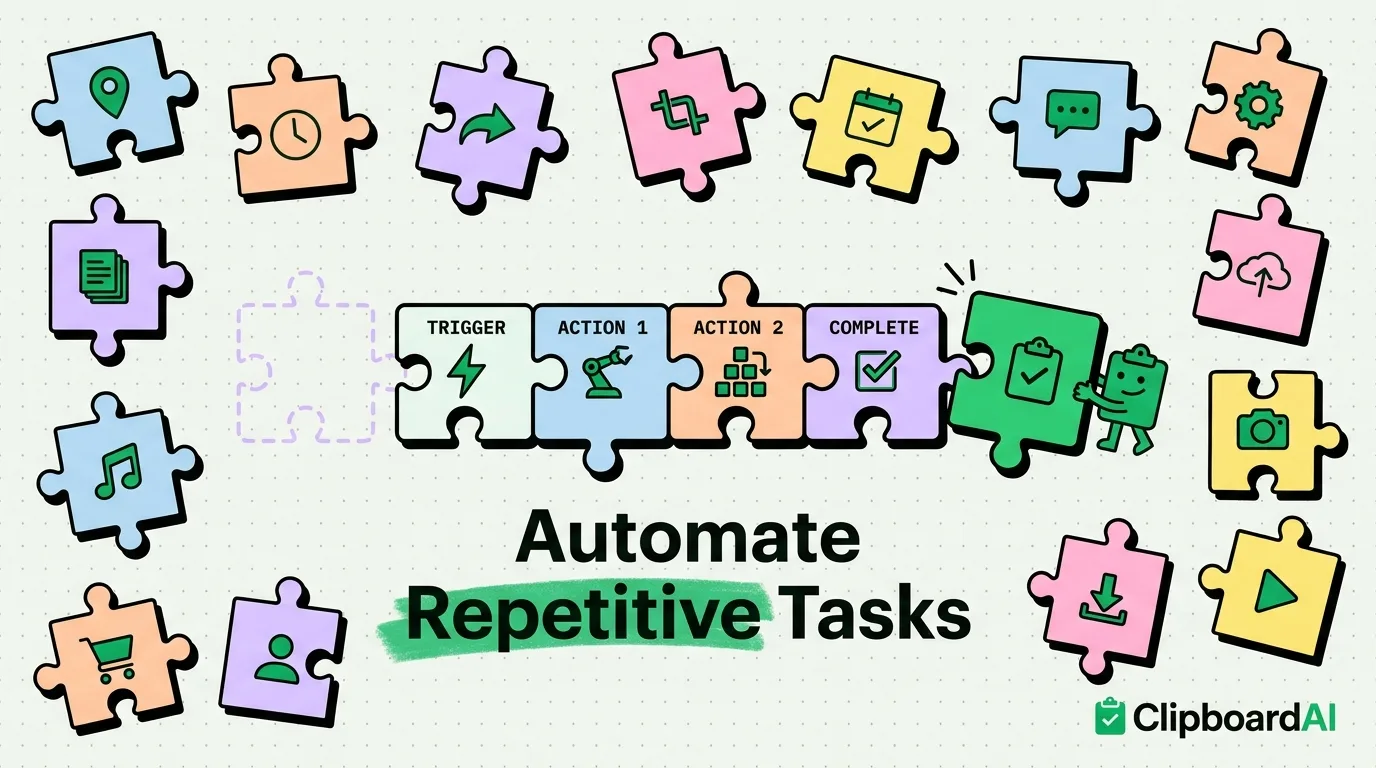
You can automate repetitive tasks on iPhone by using the built-in Apple Shortcuts app to connect system features with third-party utilities. By creating automated triggers for actions like sending arrival texts, logging expenses, batch-converting images, or scraping links from your clipboard, you bypass manual steps. Combining Shortcuts with a clipboard manager like ClipboardAI lets you capture and format multiple variables without leaving your active screen.
Automating your phone is not about writing complex code. It is about identifying the small, repetitive actions you perform multiple times a week - like renaming files, logging water intake, or messaging your ETA - and turning them into single-tap macros. iOS Shortcuts allows you to build these automations locally, connecting native apps with third-party extensions to save hours of manual tap time.
The 15 Automations Cheat Sheet
Here are 15 highly functional automations you can build in the Shortcuts app:
| Automation Name | Primary Trigger | Actions Executed | Complexity |
|---|---|---|---|
| 1. The "On My Way" Text | Home Screen Widget / Action Button | Calculates travel ETA to home -> Drafts text message -> Sends via Messages. | Low |
| 2. Batch URL Opener | Copy text with links -> Tap Shortcut | Extracts all URLs from clipboard -> Opens all links as separate tabs in Safari. | Low |
| 3. Clipboard to Notes Log | Double Back Tap | Grabs active clipboard string -> Appends it to "Inbox Log" note with timestamp. | Medium |
| 4. Calculate Bill & Share | Share Sheet (from Photos) | Reads bill total using OCR -> Asks for tip % -> Calculates split -> Opens Share. | High |
| 5. Strip Metadata & Share | Share Sheet (from Photos) | Copies photo -> Removes GPS/device metadata -> Saves clean copy -> Opens Share. | Medium |
| 6. PDF Compressor | Share Sheet (from Files) | Compresses file -> Saves to iCloud Drive -> Preps for email attachment. | Medium |
| 7. Share Wi-Fi QR Code | Siri Voice / Widget | Pulls current Wi-Fi network -> Generates QR code image -> Displays on screen. | Low |
| 8. Morning Voice Briefing | Wake Up Alarm Dismissed | Reads calendar events -> Announces weather -> Starts morning playlist. | High |
| 9. Log Water Intake | Shortcuts Widget | Prompts for volume input -> Appends data to Apple Health app database. | Medium |
| 10. Pomodoro Focus Timer | Home Screen Icon | Turns on Do Not Disturb for 25 minutes -> Starts focus playlist -> Logs start. | Low |
| 11. Meeting Agenda Prep | Calendar Event Starts | Pulls meeting invite description -> Creates outline note in Apple Notes. | Medium |
| 12. Markdown Linker | Share Sheet (from Safari) | Takes page title and URL -> Formats as Title -> Copies to clipboard. |
Low |
| 13. Text List to Reminders | Triggered from Clipboard | Reads list from clipboard -> Creates separate items in Reminders app. | Medium |
| 14. File Receipt Photos | Share Sheet (from Photos) | Re-saves image as PDF -> Asks for name -> Uploads to accounting Drive folder. | High |
| 15. Quick Voice Todo | Action Button Press | Records voice input -> Transcribes text -> Adds transcription to task list. | High |
3 Essential Automation Walkthroughs
Walkthrough 1: The "Clean and Share Photo" Shortcut
Sharing photos directly from your library exposes your location history and device metadata. Build this shortcut to strip location tags before sending.
- Open the Shortcuts app and tap + to create a new shortcut. Name it "Strip & Share".
- In the shortcut settings panel, toggle on Show in Share Sheet.
- Set the input to accept Shortcut Input (Photos and Media).
- Add the action Convert Image. Set it to convert the input image to JPEG, and toggle off Preserve Metadata.
- Add the action Share. Set it to share the newly converted image.
- Save the shortcut. Now, when you tap the share button on any photo in your library, select "Strip & Share" to send a clean copy.
Walkthrough 2: The Batch URL Opener
If you do research on your phone and copy a list of references, opening them one by one is slow.
- Create a new shortcut named "Open All Links".
- Add the action Get Clipboard.
- Add the action Get URLs from Input. This will scan the copied text block and isolate the web links.
- Add a Repeat with Each loop.
- Inside the loop, add the action Show Web Page. Set it to open the Repeat Item in Safari.
- Now, whenever you copy a document or chat containing multiple links, run this shortcut to boot them all in separate tabs instantly.
Walkthrough 3: The Automated Meeting Notepad
- Create a new shortcut named "Meeting Notes".
- Add the action Get Upcoming Events. Set it to pull the next 1 event from your calendar.
- Add the action Create Note. Set the body to populate with the event title, start time, and description notes.
- Set the note to save inside a folder named "Meetings" in Apple Notes.
- Map this shortcut to your home screen widget so you can prep a clean notebook page right as your meeting begins.
Honest Caveats & System Limitations
Before implementing these systems, keep these automation limitations in mind:
- The "Broken Hook" Risk: Automations that rely on scraping web structures or connecting to specific third-party app actions can fail if those apps change their API hooks during a system update. Be prepared to audit your shortcuts occasionally.
- Security Consent Prompts: To protect your privacy, iOS will prompt you for permission the first time a shortcut tries to read your location, write to iCloud Drive, or access your clipboard. You must approve these gates manually before the shortcut can run unattended.
- Sync Latency: Shortcuts saved on your iPhone should sync to your Mac and iPad via iCloud. However, latency issues can delay syncing, meaning changes made on one device may not be immediately available on another.
How ClipboardAI Complements iPhone Automations
ClipboardAI is designed to simplify the complex data transfers that shortcuts struggle to handle. While Apple Shortcuts are excellent for linear system triggers (like turning on a light or converting an image format), they struggle with semantic text sorting.
If you need to copy complex details (like customer information or spreadsheet tables) and paste them into unstructured web forms, ClipboardAI parses the data formats automatically. By using both tools - Shortcuts for system automations, and ClipboardAI for data-transfer efficiency - you build an optimal mobile system.
Frequently Asked Questions
Can I set a shortcut to run completely in the background without my confirmation?
Yes. Inside the Shortcuts app under the Automation tab, you can set triggers (like arriving at a location or connecting to Wi-Fi) to run "Immediately" without asking. However, some triggers (like receiving an SMS) still require manual confirmation for security.
How do I share my custom shortcuts with other users?
Open the shortcut editor, tap the share button at the bottom of the screen, and select Copy iCloud Link. Anyone with the link can import your shortcut directly into their Shortcuts library.
Why does my shortcut stop running halfway through a process?
This is typically caused by a memory limit or a time-out error. If a shortcut takes longer than 30 seconds to complete or requires excessive RAM to process large files, iOS will terminate the task in the background.