
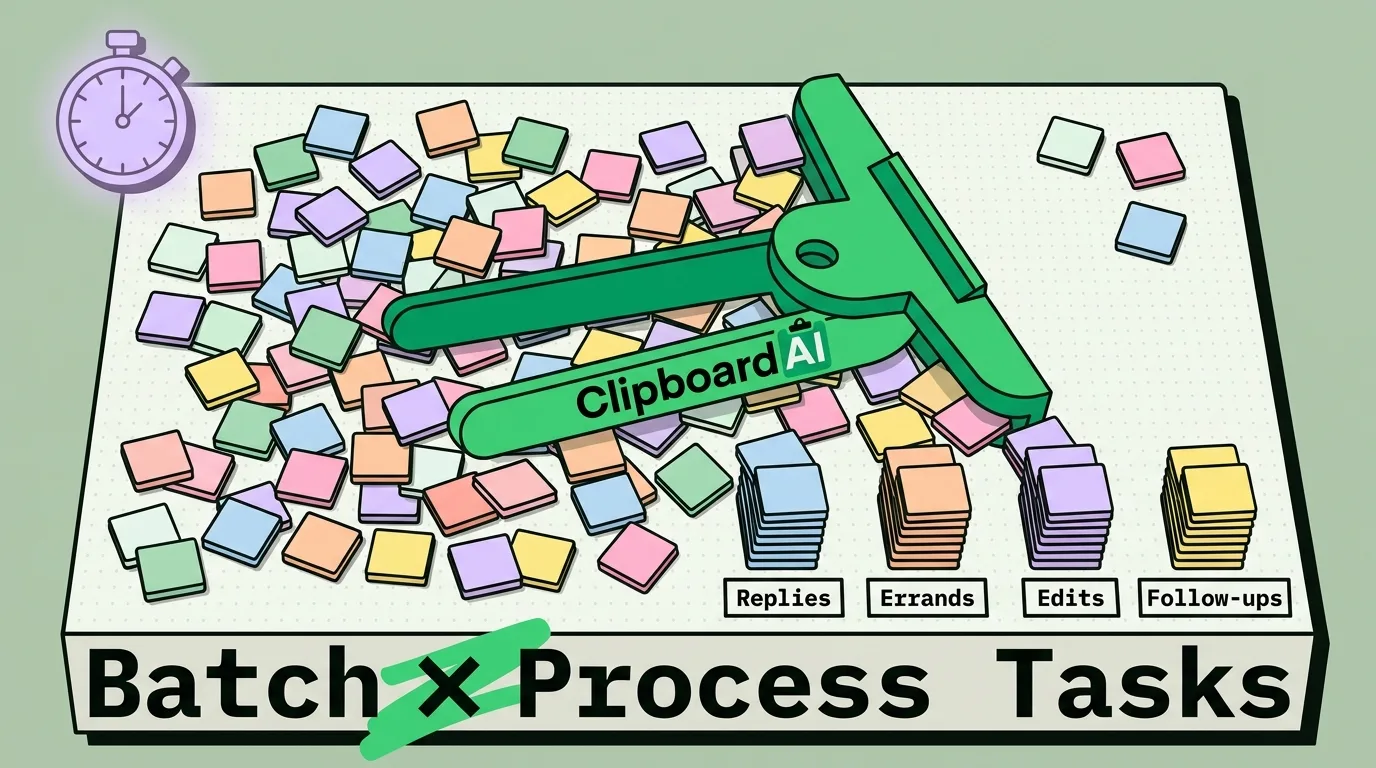
To batch process tasks on iPhone, group similar activities - like replying to messages, filing expenses, or processing links - into dedicated time blocks instead of handling them as they arrive. Pair this approach with Focus Modes to block interruptions and use ClipboardAI's custom folders to collect and paste multiple files or snippets consecutively without switching apps.
Our phones force us into a state of reactive fragmentation. We reply to one email, get a WhatsApp ping, check a bank balance, jump back to the email, and then look for a tracking link in Safari. Every time you switch between these apps, your brain pays a cognitive tax. Research shows it can take up to 23 minutes to regain deep focus after a single distraction. Batch processing is the antidote to this constant context switching.
The iPhone Task-Batching Strategy Matrix
Use this matrix to structure your daily phone interactions:
| Task Category | Recommended Time Block | iOS Focus Configuration | Key Tool / Workflow | Batch Output |
|---|---|---|---|---|
| Communication | 2-3 times daily (30 Mins) | Work Focus: Allows notifications only from designated VIPs. | Canned template replies pinned in ClipboardAI custom keyboard. | Wipes out email/Slack backlogs in one go. |
| Receipts & Expenses | Friday afternoons (15 Mins) | Personal Focus: Silent notifications on all social channels. | Siri Share Sheet Shortcut to convert photo to PDF and name it. | Automatically files all weekly expense images. |
| Research & Reading | Evening block (45 Mins) | Reading Focus: Hides app badges; blocks incoming calls. | Safari Shared Group tabs; ClipboardAI URL collector. | Processes all saved reading links without app-switching. |
| Admin & Form Work | Morning task block (20 Mins) | Deep Work Focus: Lock screen app restrictions active. | ClipboardAI Sequential Paste (paste Excel rows to web fields). | Fills out client reports and spreadsheets in minutes. |
The Science of Context Switching on Mobile
Context switching refers to the act of jumping between unrelated tasks. On a desktop computer, we switch tasks by moving windows. On a mobile phone, the friction is higher: you must physically swipe home, locate the next app icon, wait for it to boot, and orient yourself on a smaller screen.
This friction leads to micro-procrastination - tapping social icons during the transition. By batching your tasks, you complete all actions of a specific type (e.g., replying to 10 messages) while your brain is already adjusted to that mode of thinking, reducing cognitive fatigue.
3 Workflows to Batch on iPhone
Workflow 1: Batching Link Collections
Instead of saving links individually to a read-later app every time you browse:
- When researching in Safari, copy the URL of every interesting article you find.
- Let ClipboardAI collect these links in your history folder.
- At the end of your day, open ClipboardAI, select all collected links, and export them directly to your bookmark manager or read-later app at once. You keep your browser tab count clean throughout the day.
Workflow 2: Form Filing with Sequential Paste
If you need to move data (like address lists or inventory counts) from a spreadsheet into a web form:
- Copy the entire row of data cells from your source spreadsheet.
- In ClipboardAI, configure Sequential Paste mode.
- Navigate to the web form. Press paste in the first field. ClipboardAI automatically inputs the first item, moves to the next field, and inputs the second item. You do not need to switch back and forth for each block of text.
Workflow 3: Canned Email/Slack Replying
If you receive similar queries throughout the day:
- Write 3 to 5 standard reply templates.
- Store these templates in your ClipboardAI custom keyboard under a category named "Replies".
- Schedule 30 minutes at 11:00 AM and 4:00 PM to handle communication. Open your inbox, swipe to the custom keyboard, and paste the relevant replies. You can clear a large inbox backlog without typing on your touchscreen.
Honest Caveats & System Limitations
While batch processing improves efficiency, keep these limitations in mind:
- The "Urgency" Conflict: If your job requires immediate crisis response (e.g., on-call server support or real-time client assistance), you cannot batch communication. This system is not appropriate for roles where response speed is the primary metric.
- Notification Summary Lag: Using iOS's Notification Summary to batch alerts means you will not see messages until the scheduled summary times. If someone sends an urgent personal message, it will be delayed. Customize your Focus whitelist to allow emergency calls from family.
- Keyboard Extension Delays: Third-party keyboards can take a split second longer to load than the native Apple keyboard. If you are typing a single word, native input is faster. Save the ClipboardAI keyboard for your batch-pasting sessions.
Where ClipboardAI Fits
ClipboardAI is designed specifically to eliminate the "app-switching" friction that makes batching difficult. By keeping a historical log of your copies, categorizing templates, and offering sequential pasting tools, it acts as a buffer that holds your variables. This allows you to collect data in one app block, and dump it in the next app block, without constantly toggling between them.
Frequently Asked Questions
How do I set up iOS Notification Summary?
Go to Settings > Notifications > Scheduled Summary. Toggle it on and select the times you want to receive your notification batches (e.g., 8:00 AM, 12:00 PM, and 6:00 PM). Select which apps should be included in the summary.
Will batching tasks cause me to miss calendar alerts?
No. Calendar invites, alarms, and emergency alerts bypass Focus Mode restrictions and Scheduled Summaries, ensuring you will not miss scheduled meetings.
What is the maximum number of items ClipboardAI can paste sequentially?
ClipboardAI's sequential paste engine can hold and process dozens of copied variables at once, making it ideal for moving standard tabular data rows into web form fields.