
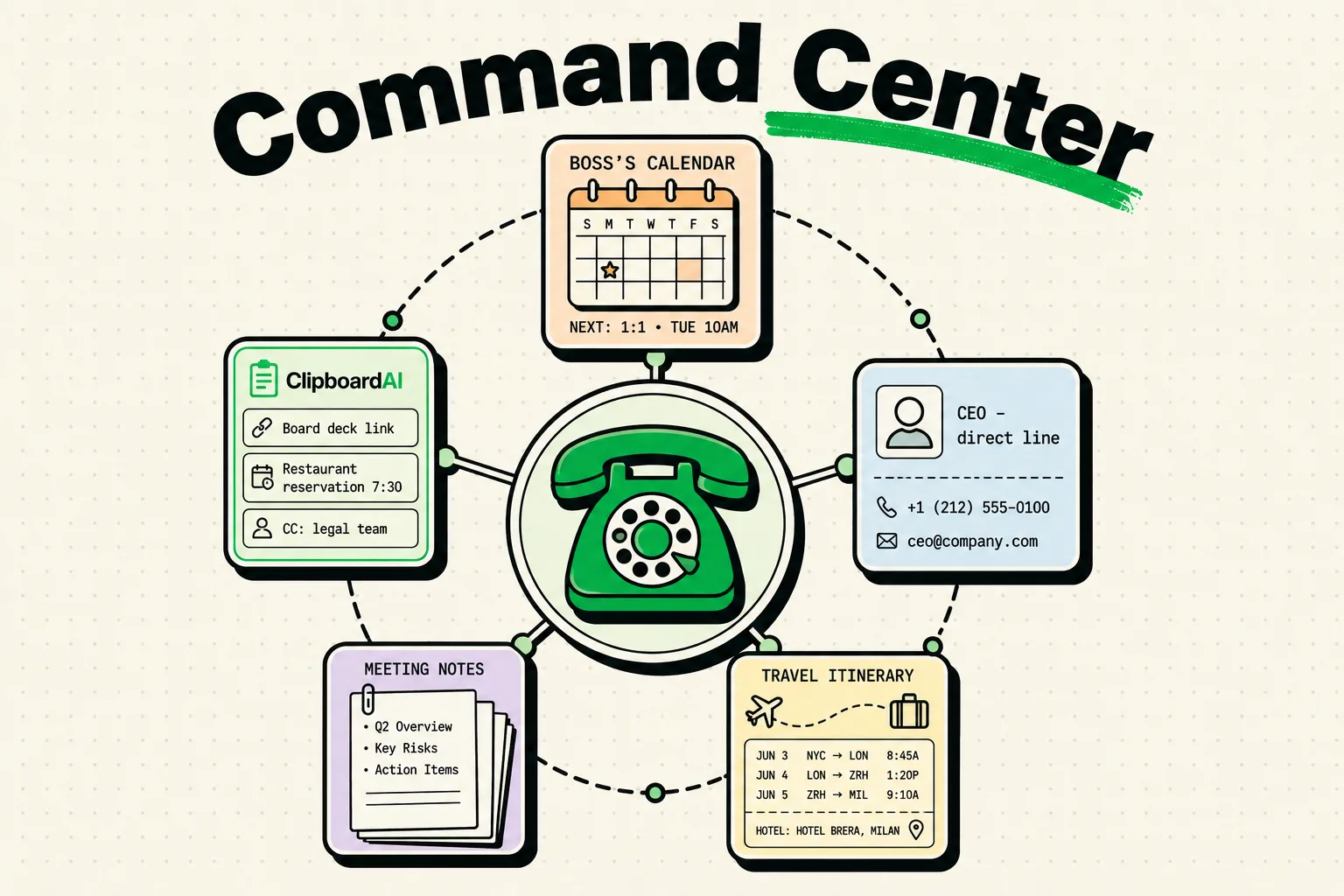
To manage executive schedules, coordinate travel, and handle corporate communications efficiently, Executive Assistants (EAs) use clipboard managers like ClipboardAI on iPhone and Mac to store scheduling links, travel itineraries, and contact details. Because iOS natively keeps only a single copied item, EAs benefit from a clipboard history manager that preserves meeting details and corporate bio text blocks for rapid distribution, preventing critical logistics from being overwritten.
Here is a comprehensive guide to building a secure, high-efficiency administrative system with your clipboard history tools.
The Chaos of Managing Multiple Calendars and Contacts
Executive Assistants act as the communications hub for busy corporate leaders. On any given day, an EA manages multiple calendar systems, books flights and hotels, formats board presentations, and draft messages to stakeholders on behalf of their executive.
Under standard single-item clipboard constraints, administrative work becomes slow and fragmented:
- You copy an executive’s scheduling availability block to paste into an email to a board member.
- You switch to your calendar and realize you need to copy the Zoom meeting link to insert into the invite.
- You copy the Zoom link. The executive's availability options are now gone from your clipboard memory.
- When coordinating with a second stakeholder five minutes later, you must open the calendar, search for the times again, write them down, or copy them a second time.
This constant back-and-forth context switching is a major productivity drain. In an EA role, there is zero margin for error. A single typo in a Zoom meeting ID, a transposed flight number, or an incorrect hotel check-in date can derail an executive's entire travel plan or cause them to miss a board meeting.
Required Value Artifact: The EA Scheduling & Travel Snippet Pack
Keep these essential templates pinned inside ClipboardAI for rapid access. You can insert them into calendar invites, emails, or chat windows using the mobile keyboard extension or desktop hotkeys.
1. Executive Availability & Scheduling Template
Use this template to send multiple meeting options to clients or board members. Keep it pinned and adjust the dates and times as needed:
Hi [First Name],

Here are a few times that work for [Executive's Name] next week (all times listed in [Time Zone: e.g., EST]):

- Monday, [Date]: [Start Time] - [End Time]
- Wednesday, [Date]: [Start Time] - [End Time]
- Thursday, [Date]: [Start Time] - [End Time]

Please let me know which slot works best for your team, and I will send over a calendar invite with Zoom details.

Best,
[Your Name]
Executive Assistant to [Executive's Name]
2. Standard Zoom Meeting Invitation Details
Save your executive's personal meeting room details as a permanent clip to avoid hunting for them inside Zoom:
Topic: Meeting with [Executive's Name]
Join Zoom Meeting: [Zoom Room URL Link]
Meeting ID: [ID Number]
Passcode: [Passcode]
One tap mobile: [Mobile Dial-In Link]
3. Travel Itinerary Summary Block
When booking travel, copy all travel details and compile them into this standard layout to send to your executive:
✈️ TRAVEL ITINERARY DETAILS
- Traveler: [Executive's Name]
- Departure Date: [Date]
- Flight: [Airline] [Flight Number] ([Dep City] to [Arr City])
- Departure Time: [Time] | Arrival Time: [Time]
- Confirmation Code: [Code]
- Hotel: [Hotel Name] | Address: [Hotel Address]
- Confirmation Number: [Code]
- Car Service Reservation: [Provider Name] | Driver Contact: [Phone]
Executive Assistant Clipboard Security Checklist
Because EAs handle highly sensitive information - including executive passport numbers, corporate banking credentials, private calendar links, and personal contact details - clipboard security is a critical priority. Implement these four guardrails:
- [ ] Exclude Password vaults (Mac): On Mac, ClipboardAI automatically skips apps like 1Password that already mark their copies with the nspasteboard.org privacy tags, no setup needed. For any other vault, open
ClipboardAI > Settings > Excluded Appson Mac and add it to the list. This blocks the app from logging any copied credentials while it's frontmost. This exclusion capability is Mac-only; there is no equivalent setting on iPhone or iPad. - [ ] Disable Universal Clipboard on Shared Accounts: If you use the same Apple ID as your executive or share a staging machine, go to Settings > General > AirDrop & Handoff and toggle off Handoff. This prevents your copied text streams from automatically appearing on their screen in real-time.
- [ ] Cleanse History Log Weekly: Get into the habit of clearing your temporary clipboard history log at the end of every week. If you copy a sensitive corporate credit card number or travel document ID, swipe to delete it from the history app database immediately after pasting it.
- [ ] Overwrite Secure RAM Manually: After pasting a highly confidential detail, highlight any random public word on your screen (like "Meeting" or the letter "x") and copy it. This replaces the secure string in your system's active pasteboard memory.
Tool Analysis: Clipboard Options for EAs
Here is a comparison of different clipboard managers based on administrative workflow needs:
| Management Feature | Native Clipboard | Paste App | ClipboardAI |
|---|---|---|---|
| History Capacity | Single item only | Infinite history | Infinite history |
| Organization Mode | None | Visual board cards | Nested search folders (e.g., Travel, Bios) |
| iOS Keyboard Extension | No | No | Yes (Paste pins directly from keyboard) |
| Offline Privacy Mode | Yes | No (iCloud required) | Yes (Sync optional, local database) |
| Auto-Ignore Lists | No | Manual rules only | Automatic app bundle ID ignoring |
Advanced Clipboard Tips for Corporate Coordinators
By designing your clipboard workspace around these strategies, you can scale your daily administrative support:
1. Sequential Booking Processing
When booking flights, hotels, and rental cars for a trip:
- Copy the flight details, then the hotel confirmation, then the car reservation details in succession.
- ClipboardAI registers all three bookings in your history queue.
- Open your tracking spreadsheet or email draft.
- Use the history list to paste the entries into the layout in order, without leaving the draft window to toggle tabs.
2. Standard Plain Text Formatting
Corporate communications must look polished. Copying bio paragraphs or press releases from websites often carries over hidden HTML styling or weird font sizes.
- The Solution: Set ClipboardAI to Plain Text Paste by default. This strips all source formatting, ensuring your documents remain consistent and readable.
3. Pinned Corporate Bios and Headshots
EAs frequently submit bios and photos for speaking engagements, PR events, or board meetings. Create a folder named Executive Assets and pin different bio variations (50-word, 100-word, and 250-word versions) and headshot file links.
Honest Caveats: Operating System & Application Limitations
Every software tool runs into technical guardrails, and we want to be completely clear about these limits:
- iOS Sandbox Restrictions: On iPhone and iPad, Apple’s security sandbox prevents background apps from reading your system clipboard. If you copy a phone number in Safari on your iPhone, you must open the ClipboardAI keyboard or launch the app to pull that copy into your history database.
- Large File Memory Limits: Copying giant PowerPoint slides or folder paths to your clipboard writes large amounts of binary data to your device's active RAM. Clipboard managers are optimized for text, links, and lightweight SVGs. Trying to cache massive assets inside your history tool can cause application lag.
- iCloud Universal Sync Latency: Apple's Handoff feature allows you to copy on your Mac and paste on your iPhone. However, if your network connection is weak, you may experience a 3-5 second delay. For heavy travel booking workflows, we recommend working locally on your primary device.
Setting Up Your Administrative Workspace
To establish a structured and secure clipboard setup, implement this 10-minute workflow:
- Install ClipboardAI on your computer and phone.
- Configure Security Settings (Mac): Add your corporate password manager, banking apps, and travel portal accounts to the Excluded Apps list in Mac Settings. This ignore list exists on Mac only.
- Build Target Folders: Create custom folders named
Meeting Availability,Travel Logistics, andCorporate Bio Assets. - Enable the Keyboard Extension: Activate the ClipboardAI custom keyboard on your mobile phone to insert scheduling links and contact details with a single tap while coordinating events on the go.