
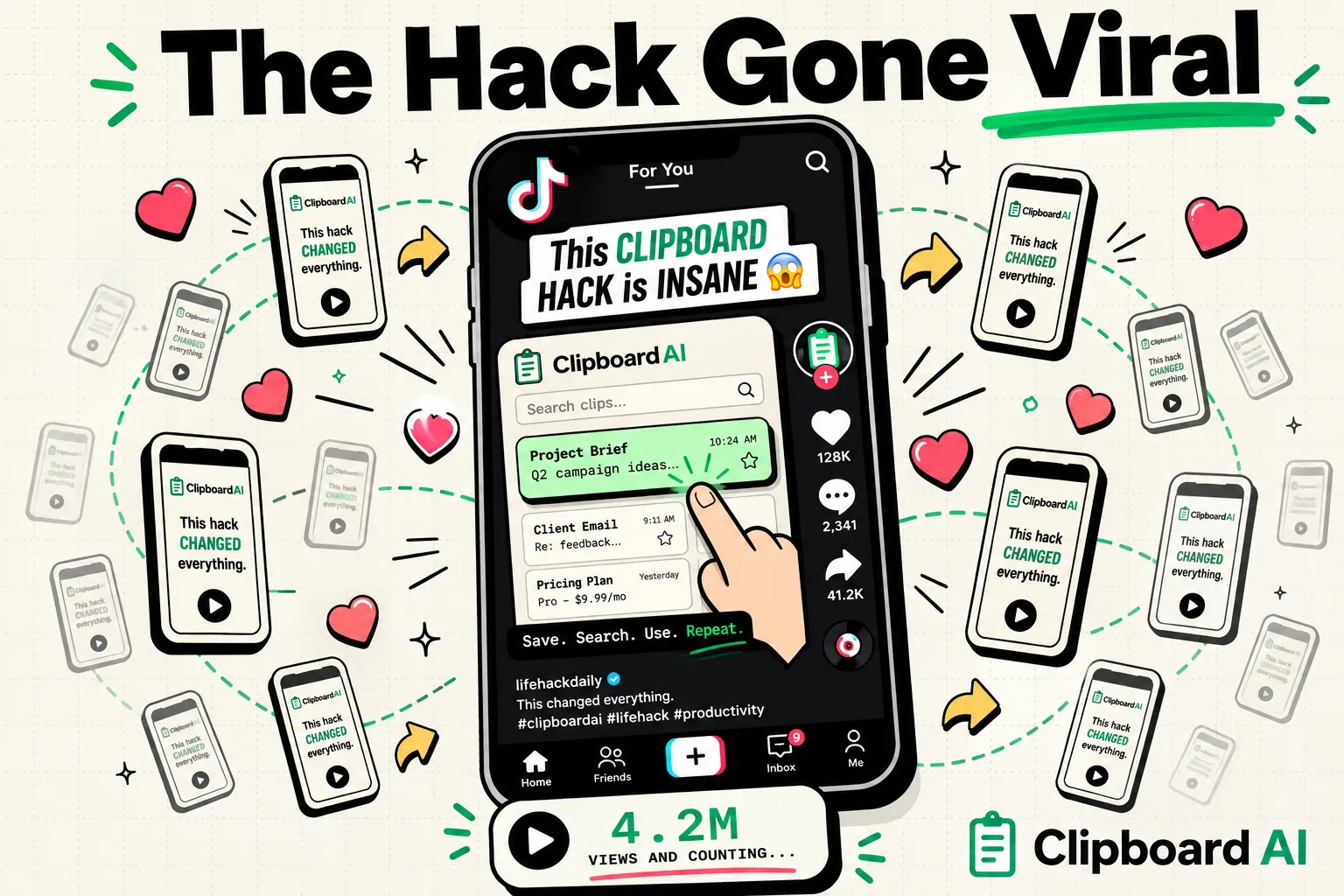
A TikTok video with 4 million views showed a "hidden iPhone clipboard trick" that supposedly lets you access a secret clipboard history Apple buried in the system. The comment section was full of people saying it changed their lives. It does not do what the video claims - but the underlying behavior it accidentally demonstrates is real and worth understanding.
Here is the honest breakdown.
The Viral Trick (And What It Actually Shows)
The most-shared clipboard trick goes like this: open any text field, long-press to bring up the paste menu, and tap a small icon that appears above it. The video claims this opens "Apple's secret clipboard history."
What actually happens: If you are on iOS 16 or later, long-pressing a text field and tapping the clipboard icon opens a single-item clipboard preview - not a history. It shows you what is currently on your system clipboard so you can decide whether to paste it. That is it. One item. No history. No secret storage.
Apple has never built a multi-item clipboard history into iOS. Every iOS version since the original iPhone has maintained exactly one clipboard slot. This is a deliberate iOS design decision, not an oversight.
The trick is real. The "secret clipboard history" framing is fiction.
The Tricks That Actually Work on iPhone
Trick 1: The Clipboard Preview Pop-up (iOS 16+)
Long-press any text field → look for the small clipboard icon that appears above the paste menu. Tapping it shows your current clipboard contents before you commit to pasting. Useful when you are not sure whether you overwrote something important.
Limitation: Only shows the current item. No history.
Trick 2: Shake to Undo (Not Clipboard, But Related)
Shake your iPhone immediately after pasting text. iOS will offer to "Undo Paste" - reverting the text to what was there before. Not a clipboard trick, but a recovery move that many users do not know about.
Limitation: Only undoes the most recent paste. No multi-step history.
Trick 3: Live Text as a Clipboard Workaround
Point your camera at any text - a whiteboard, a printed document, a computer screen - and iOS will recognize the text using Live Text. Long-press the recognized text to select and copy it. This gives you a way to "copy" text from physical sources into your clipboard.
Limitation: Requires pointing your camera at the source. Cannot retrieve previously copied text.
The Trick That TikTok Should Have Shown Instead
The real version of the "clipboard history" trick everyone wants is: install a clipboard manager.
When you have ClipboardAI installed, opening the app or using the ClipboardAI keyboard shows your full history - every item you have copied, searchable, retrievable, and available even after you have copied dozens of other things since.
The "viral trick" is popular because it gestures at a real need: people want to retrieve something they copied earlier. iOS does not provide this natively. ClipboardAI does.
Three Clipboard Tricks Worth Actually Sharing
1. Paste and Match Style (Mac) On Mac, instead of ⌘V (which pastes with source formatting), use ⌘⇧⌥V (Edit → Paste and Match Style). This strips the original font, size, and color, leaving plain text that matches your document's style. Eliminates the most common copy-paste formatting headache.
2. Copy Without Tracking Parameters When you copy a URL from Safari or Chrome, it often includes ?utm_source=...&utm_campaign=... parameters. Before pasting a link in a message, open it in Safari's address bar, wait for the page to load (which strips the trackers in some cases), then copy the clean URL from the address bar.
3. The ClipboardAI Search Trick If you copied something specific a few days ago and need it back, open ClipboardAI and search for any word from that text. ClipboardAI full-text indexes everything - even partial fragments - so you do not need to remember exactly what you copied or when.