
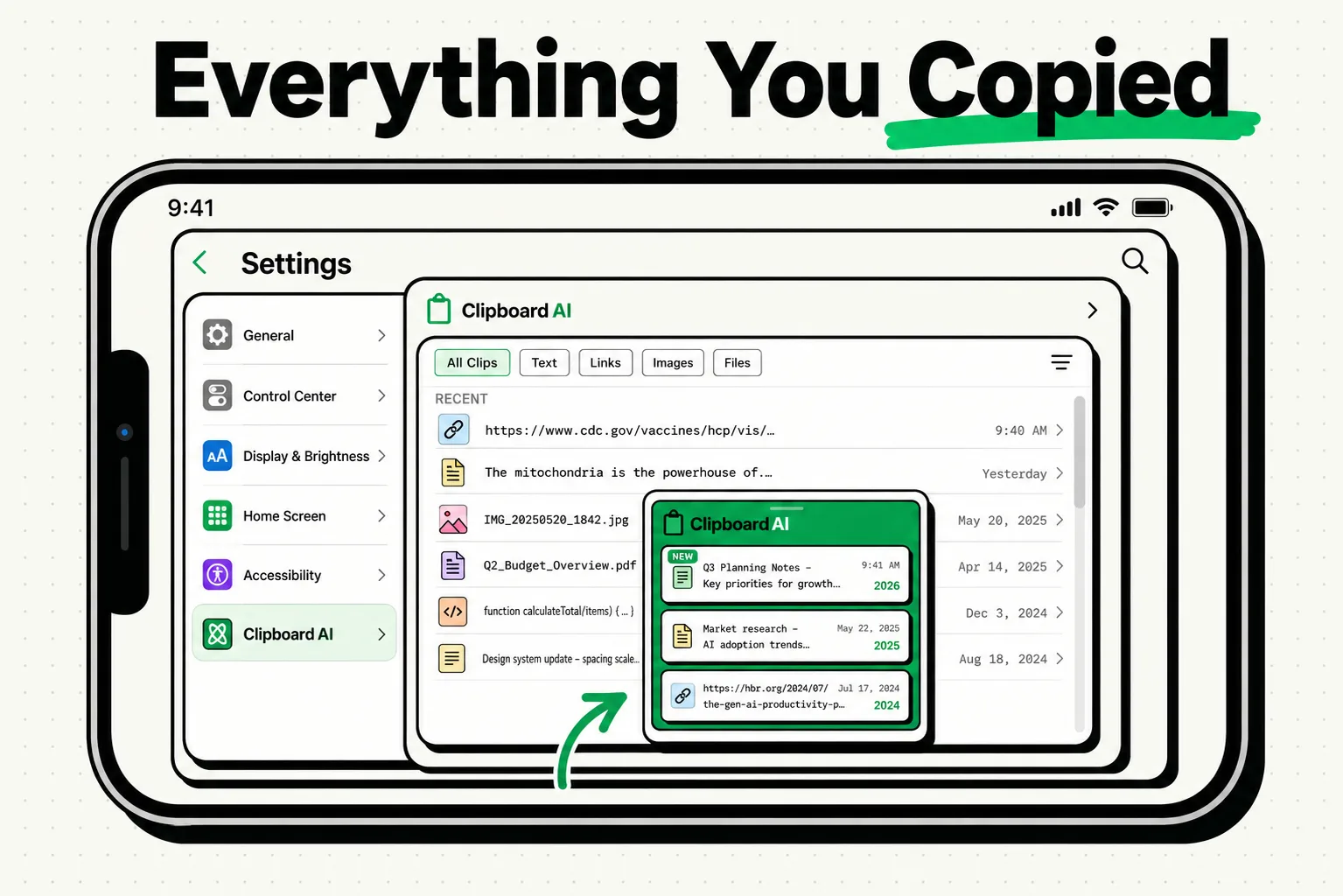
Clipboard history is a digital log of all text, links, and images you have recently copied. While iOS and macOS natively only hold a single copied item in memory, using a clipboard manager like ClipboardAI allows you to access a complete history of your past copies. This guide explains how to access, search, and manage your clipboard history on Apple devices, preventing lost data and speeding up your digital workflows.
The Technology Behind Copy-Paste
At its core, a computer or phone clipboard is a designated portion of the system's Random Access Memory (RAM). When you select text and tap "Copy," the operating system writes that string into memory.
By default, both Apple's iOS and Google's Android feature a single-slot clipboard. When you copy a new string of text, the system clears the previous address location in RAM and overwrites it. If you copy a client's address, then immediately copy their phone number, the address is permanently lost unless you toggle back to the source app to copy it again.
A clipboard manager acts as an active listener. It sits alongside the operating system, capturing each copy command and copying the string into a secure, structured local database. This database stores your clips over time, allowing you to access a list of past items instead of just your most recent copy.
Required Value Artifact: Clipboard Access Matrix
Here is how to access your clipboard history across different operating systems and applications in 2026:
| Platform / Method | Access Command | Maximum History Capacity | Data Expiry Rules | Local Database Security |
|---|---|---|---|---|
| Native iOS / iPadOS | No native UI (Requires keyboard workaround) | 1 item | Immediate upon next copy | Kept in system volatile RAM |
| Native macOS | Finder > Edit > Show Clipboard |
1 item | Immediate upon next copy | Kept in system volatile RAM |
| Windows 11 (Native) | Windows Key + V |
Last 25 copied items | Cleared on system reboot | Local unencrypted database |
| SwiftKey / Gboard (iOS) | Keyboard tool tray tab | Up to 1 hour (pinned items stay) | Automatically expires after 60 mins | Keyboard app storage |
| ClipboardAI (iOS & Mac) | Custom keyboard overlay / Cmd + Option + V |
Unlimited (Customizable) | Never expires unless deleted | Local secure SQLite database |
Why You Need a History Log
Most of us perform hundreds of copies and pastes a day. Without a historical log, this simple action is a major source of friction:
- Information Recovery: We have all copied something important, gotten distracted, copied something else, and realized we lost the original text. A history database acts as a safety net.
- Bulk Data Entry: If you are moving names, addresses, and tracking numbers from an email into an excel sheet, a single-slot clipboard forces you to switch apps six times. With a history manager, you can copy all three items sequentially, switch apps once, and paste them in order.
- Template Storage: If you find yourself typing the same support response, invoice layout, or email signature multiple times a day, you can pin these items in your clipboard history folder for instant retrieval.
How to Get Started on iPhone and Mac
Because Apple prioritize security and sandbox isolation, setting up a clipboard history on Apple devices requires a few specific steps:
On Your iPhone & iPad
Apple does not provide a built-in dashboard to view past copies. To set this up:
- Download a dedicated utility like ClipboardAI.
- Go to
Settings > General > Keyboard > Keyboardsand selectAdd New Keyboard. - Choose ClipboardAI and enable "Allow Full Access." This permission is required so the keyboard extension can communicate with your device's clipboard database.
- When typing in Safari, Mail, or Messages, tap the Globe icon on your keyboard to switch to the clipboard layout. You will see a chronological list of everything you've copied.
On Your Mac
If you are working on macOS:
- Open ClipboardAI and configure your system hotkey (we recommend
Cmd + Option + V). - Press the hotkey in any application (Word, Slack, or Safari) to pull up a lightweight window over your active cursor.
- Scroll through your recent copies, select the clip you need, and press Enter to paste it directly into your document.
Honest Caveats: Security & OS Restrictions
While a history log is highly convenient, it is important to understand the security trade-offs and operating system limitations:
- Sensitive Data Logging: If you use a password manager (like 1Password or Bitwarden) and copy a password to paste it into a website, a standard clipboard manager will save that password into its history. The Fix: Ensure your clipboard utility is set to ignore password containers and sensitive financial applications.
- Apple's Background Execution Rules: iOS halts third-party processes when they run in the background. If you copy text in Safari, you must open the ClipboardAI keyboard or launch the app to pull the clip into the local SQLite database.
- iCloud Sync Latency: If you use Universal Clipboard to share copies between your Mac and iPhone, the transfer relies on local Bluetooth and Wi-Fi handshakes. If your devices are on different Wi-Fi bands, you may experience a 3-5 second delay.
Organizing Your Clipboard
To keep your history database from becoming cluttered, we recommend implementing a simple organization habit:
- Pins: Keep your top 5-10 most used templates permanently pinned at the top.
- Auto-Purge: Set your clipboard history to auto-delete items older than 30 days. This keeps the database fast and ensures you don't accumulate outdated tracking codes or temporary draft paragraphs.
- Manual Purge: If you copy bank account numbers or personal addresses, delete them immediately from your history view by swiping left on the clip card.