
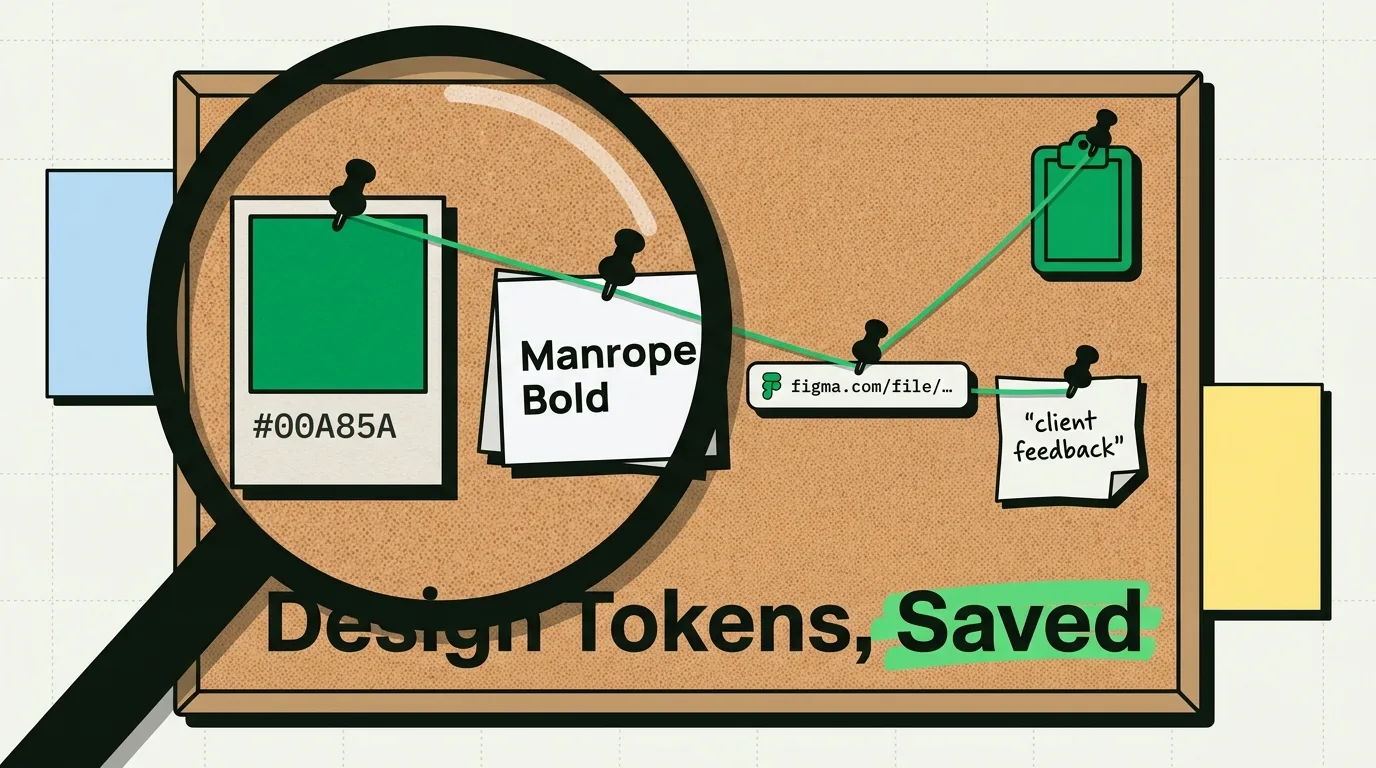
Design work runs on two rails simultaneously: creative exploration and precision spec management. The creative rail is intuitive - you have got visual judgment and taste for that. The spec rail is painful - hex codes, font names, component tokens, spacing values, asset attribution links, client-approved copy strings that must not be altered. This is where designers bleed time: hunting for exact values, re-opening reference tabs, copy-pasting the same HEX from the same color guide for the fifteenth time.
ClipboardAI eliminates the hunting. Here is the setup.
The Designer's Clipboard Pain Points
Designers copy and re-copy the same finite set of values across every project: brand colors, typeface names, spacing scales, icon dimensions, client-approved taglines. Without a clipboard manager, each of these requires navigating back to a reference: a Figma design system, a brand guide PDF, a shared Google Doc. With ClipboardAI, each value is pinned and available in every app with a single tap.
The bigger problem: mid-flow interruption. You are in Figma, you need a hex code from your brand guide open in a browser tab, you switch, you copy the hex, you switch back - and you discover the design system requires a different format (HSL vs. HEX, or 8-digit RGBA vs. 6-digit HEX). That single lookup cost you 90 seconds of context. Multiply by 20 lookups in a working day and you have lost half an hour to friction that your clipboard manager can eliminate.
The Designer's Pinned Snippet Kit
Brand Color Library (Paste-Ready)
## Primary Colors - HEX
Primary: #[hex]
Primary Dark: #[hex]
Primary Light: #[hex]
Accent: #[hex]
Background: #[hex]
Surface: #[hex]
Text Primary: #[hex]
Text Secondary: #[hex]
Error: #[hex]
Success: #[hex]

## Primary Colors - RGB (for print)
Primary: rgb([R], [G], [B])
Primary Dark: rgb([R], [G], [B])

## Primary Colors - HSL
Primary: hsl([H]deg, [S]%, [L]%)
Typography Tokens
## Type Scale - Design System
Display: 57px / 64px line-height / -0.25px tracking
H1: 45px / 52px / 0px
H2: 36px / 44px / 0px
H3: 32px / 40px / 0px
H4: 28px / 36px / 0px
Body Large: 16px / 24px / 0.5px
Body: 14px / 20px / 0.25px
Label: 11px / 16px / 0.5px

## Fonts in Use
Primary: [Font Name] - [Weight]: [300/400/500/600/700]
Secondary: [Font Name] - [Weight]: [300/400]
Monospace: [Font Name] - [Weight]: [400]
Spacing and Layout Tokens
## 8pt Grid Scale
4px / 8px / 12px / 16px / 24px / 32px / 48px / 64px / 96px / 128px

## Component Border Radius
Button: 8px (or full-pill: 100px)
Card: 12px
Modal: 16px
Input: 6px
Badge: 4px

## Standard Breakpoints
Mobile: < 768px
Tablet: 768px - 1199px
Desktop: ≥ 1200px
Wide: ≥ 1440px
Export Specs for Handoff
## iOS Asset Export Specs
App Icon: 1024 × 1024px PNG, no transparency, no rounded corners
@1x: 44px / @2x: 88px / @3x: 132px (for standard UI elements)
Splash Screen: 1290 × 2796 (iPhone 15 Pro Max), 1179 × 2556 (iPhone 15)

## Web Image Formats
Hero: WebP, max 200kb, 1440 × 810px
Card thumbnail: WebP, max 80kb, 400 × 300px
Avatar: PNG, 96 × 96px or 128 × 128px with transparency
Cross-App Design Workflow With ClipboardAI
Figma → Notion (project documentation): Copy component names and spec descriptions from Figma Dev Mode, retrieve from ClipboardAI in Notion without leaving your writing flow.
Adobe CC → Webflow/Framer (design-to-code): Copy CSS values from Adobe XD's code view, paste into Framer or Webflow property panels. ClipboardAI holds multiple values simultaneously so you can paste margin, padding, font-size, and color values in quick succession without returning to the source.
Reference images → attribution tracking: When you copy an image source URL for attribution, ClipboardAI logs it with a timestamp. This creates an automatic log of every reference you used during a project - useful for attribution docs and client deliverables.
Client-Approved Copy Management
When a client approves exact copy - a tagline, a legal disclaimer, a brand name with specific capitalization - that approved text must be reproduced exactly. Not paraphrased, not abbreviated, not corrected even if it looks wrong to you.
Pin client-approved copy in a dedicated "Client Copy - APPROVED" category in ClipboardAI. Add a note tag indicating the approval date. Any copy from that category can be pasted with confidence that it matches what was approved.
## [Client Name] - Approved Tagline (approved [date])
"[Exact approved tagline as signed off]"

## [Client Name] - Legal Disclaimer (approved [date])
[Exact legal text]

## [Client Name] - Product Names (case-sensitive)
Product A: "[Exact Name]" (not "[Alternative Spelling]")
Product B: "[Exact Name]"
This single habit eliminates the category of revision where a client says "that's not what we approved" because somewhere in the workflow the approved copy was paraphrased.