
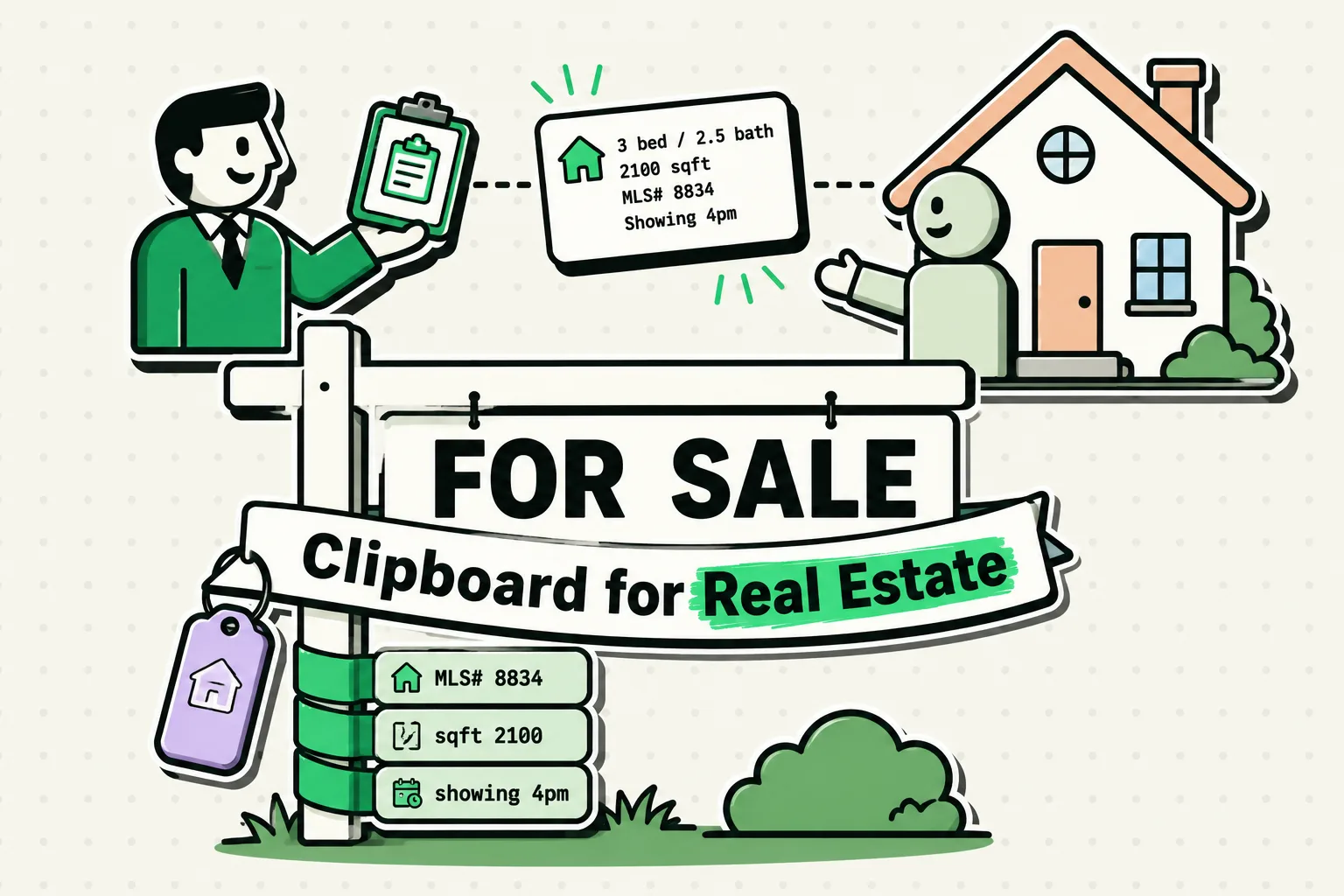
Real estate agents can save three to five hours a week by using a clipboard manager like ClipboardAI to store and reuse property addresses, lockbox codes, and client details on their iPhones. Instead of switching constantly between MLS portals, Maps, text messages, and CRMs, a clipboard manager keeps a running history of everything you copy, allowing you to paste any piece of information instantly. This turns your mobile device into a quick-access workspace for field transactions and client showings.
The Chaos of the Mobile Real Estate Workflow
Being a real estate agent means operating out of your car, using your phone as a mobile office. On any given afternoon, you are juggling MLS lookups, Zillow links, client text messages, GPS navigation, and digital signing apps.
This environment makes you a heavy copy-paste user. You copy a property address from an MLS sheet, paste it into Google Maps, and drive over. Then you need to text that same address to your buyer. But because you just copied the listing agent's gate code, the address is gone from your clipboard. You have to open the MLS app again, wait for it to load, search for the property, and re-copy the address.
This friction is more than a minor annoyance. This repetitive app-switching breaks your focus and wastes valuable minutes between client meetings.
3 Core Workflows Saved by a Clipboard History
A dedicated clipboard history utility solves these frustrations by preserving a timeline of your copied data. Here is how our team uses ClipboardAI to streamline field work:
1. Showing Day Preparation
Before you start a showing run, take five minutes at your desk or in your parked car to open your MLS portal. Copy the details for all the properties on your itinerary:
- The street addresses
- The lockbox and gate codes
- The listing agents' contact numbers
- Specific access instructions ("Lockbox on side gas meter, beware of dog")
With ClipboardAI running, every item is saved in your history and automatically categorized. When you arrive at a property, you do not need to log back into the MLS or dig through emails. Simply open the clipboard widget or custom keyboard, tap the gate code, paste it, tap the listing agent's number if you need to call them, and copy the address directly into your navigation app.
2. Rapid Comp Sharing
When walking a property with a client, they often ask about nearby listings. If you have previously researched comparable sales and copied their listing links, they remain in your clipboard history. You can pull up those links and text them to your client instantly, without needing to run a live database search in front of them.
3. CRM and Database Updates on the Go
When you get a new lead via phone or email while out in the field, copy their contact details. Even if you do not have time to log into your CRM immediately, the information is stored in your clipboard history. At the end of the day, you can open your CRM on your laptop or iPad, access your synced clipboard history, and transfer all new leads into your client pipeline.
Value Artifact: Realtor's On-Device Snippet & Template Kit
Use these pre-formatted snippets inside ClipboardAI’s pinned categories. Fill in the bracketed info once, pin it, and paste it from your custom keyboard in seconds:
| Template Name | Snippet Text | Best Used For |
|---|---|---|
| Showing Confirmation | "Hi [Name], confirming our showing today at [Time] for [Address]. I'll meet you by the front entrance. Let me know if you are running late!" | Sending quick reminders to buyers before showing appointments. |
| Agent Access Request | "Hi [Agent Name], this is [My Name] with [Brokerage]. I'd like to request a showing for [Address] on [Date] around [Time]. Is that window clear?" | Coordinating schedules with listing agents via SMS. |
| Showing Feedback | "Hi [Agent Name], thanks for letting us show [Address] today. My buyers loved the [Feature], but were concerned about the [Concern]. We appreciate your time!" | Sending structured, professional feedback to listing agents. |
| Lockbox & Gate Guide | "Access details for [Address]: Gate code is #[GateCode]. Lockbox is located [Location] and the code is [LockCode]. Please turn off lights when leaving." | Storing temporary access details for yourself or sharing with showing assistants. |
| Office & Billing Details | "Brokerage: [Firm Name] \| Office License: [Num] \| My License: [Num] \| Office Address: [Address] \| Email: [Email]" | Pasting required licensing and brokerage numbers into state contract forms. |
How Standard iOS Clipboard Compares to ClipboardAI
| Feature | Built-in iOS Clipboard | ClipboardAI |
|---|---|---|
| Item Storage Capacity | Exactly 1 item | Unlimited (or user-defined cleanup window) |
| Data Categorization | None (overwrites on next copy) | Automatic detection of addresses, URLs, and phone numbers |
| Custom Templates | Keyboard Text Replacement (hard to edit) | Unlimited pinned clips categorized in custom folders |
| Search History | No | Instant full-text search across all past copies |
| Universal Sync | Instant overwriting sync across devices | Device-to-device iCloud sync with history preservation |
| Keyboard Extension | No | Custom keyboard for quick-inserting snippets in any app |
Honest Caveats & Sensitive Data Privacy
While a clipboard manager is a massive productivity booster, real estate transactions involve highly sensitive data. Here are the security rules you must follow:
- Never Copy Financial Credentials: Do not copy client Social Security Numbers, bank routing numbers, or mortgage pre-approval letters to your clipboard. Clipboard history files are stored on-device, but copying this data increases the risk of accidental leaks or background scraping.
- Universal Clipboard Overlap: If you use Apple's Universal Clipboard, anything you copy on your iPhone is accessible on your Mac. If your Mac is left unlocked in a shared office space, your copied text history can be read by anyone walking by. Turn off Universal Clipboard in your Apple settings if you work in open environments.
- Auto-Delete Old Clips: Set a local data retention limit in your ClipboardAI settings (e.g., 30 days, the shortest available window). This ensures old client details and gate codes are automatically purged from your local memory log.
Setting Up Your Clipboard Flow in 5 Minutes
Ready to get set up? Follow these steps to optimize your phone for real estate transactions:
- Download the App: Install ClipboardAI from the iOS App Store.
- Enable the Custom Keyboard: Go to your iPhone’s Settings > General > Keyboard > Keyboards > Add New Keyboard... and select ClipboardAI. Tap the keyboard and toggle on Allow Full Access so it can read your saved templates.
- Configure Your Auto-Clear: In the ClipboardAI settings menu, select Settings > Auto-Delete Old Clips and choose a clear window (we recommend 30 Days, the shortest available option, for field agents).
- Create Your Folders: Set up three category folders: Active Listings, Client Templates, and License Info.
- Start Copying: Run your business normally. When you need to paste a past listing address, switch to the ClipboardAI keyboard, tap the address, and watch it paste instantly.
Frequently Asked Questions
Can I copy multiple addresses at once and paste them separately?
Yes. You can copy each address one after the other from your MLS portal. ClipboardAI will save each one as a distinct item in your history. When you open your map app, simply tap each address from your history list to navigate to them in sequence.
Is ClipboardAI safe to use with client contact info?
Yes. ClipboardAI processes all copy history on your local device. No clipboard logs are sent to external databases or servers, keeping your client phone numbers and email addresses private and secure.
What should I do if my clipboard keyboard doesn't appear?
Make sure you have enabled "Allow Full Access" in your iOS keyboard settings. iOS requires this permission for third-party keyboards to display saved snippets and communicate with their main container app.