
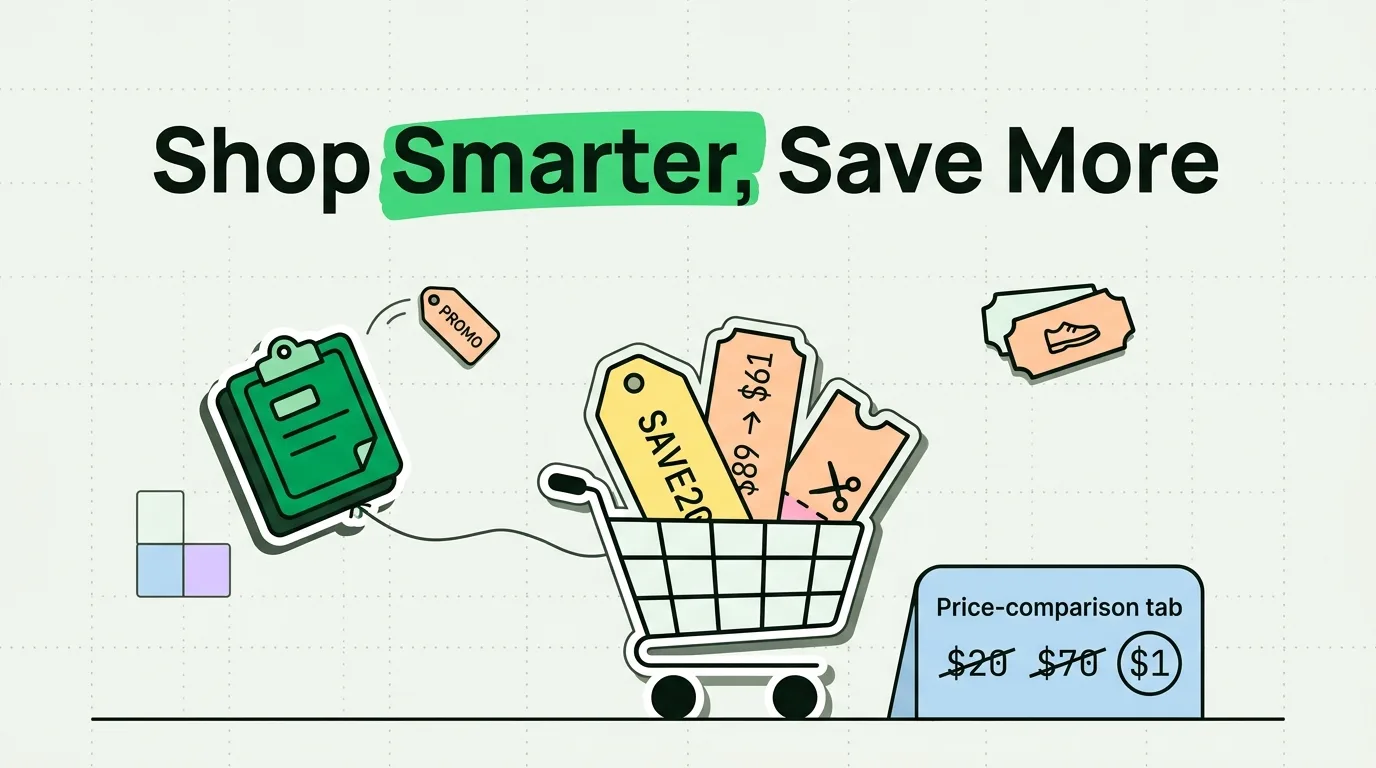
If you shop online from your iPhone, you have lost a promo code to the single-item clipboard. You copy a 20% off code from an email, open Safari to browse, copy a product link to compare against another store, and by the time you reach checkout the code is gone, overwritten by whatever you copied last. A clipboard manager like ClipboardAI fixes this by saving everything you copy in order, so the code, the price, and the link are all still there when you need them.
This guide covers the specific workflows that make clipboard history useful for shopping: promo codes, price comparison, shipping addresses, and gift-buying for other people.
Why the Checkout Moment Keeps Failing You
iOS gives you exactly one clipboard slot. Every copy replaces the last one, with no history and no undo. Shopping is one of the few everyday tasks that reliably breaks this model, because a normal checkout involves copying several unrelated things in sequence:
- Copy the promo code from an email.
- Copy the product page URL to send to a friend for a second opinion.
- Copy a comparison price from a competing store.
- Go back to checkout and paste, expecting the code.
By step 4, the code from step 1 is gone. This is not a memory problem, it is a design limitation, and it is the reason a persistent clipboard history is worth installing before your next big purchase, not after.
Value Artifact: The Shopping Clipboard Setup Checklist
Use this once, before your next shopping session, to turn ClipboardAI into an actual shopping tool rather than a passive history log.
[ ] Install ClipboardAI and enable the keyboard extension
    (Settings > General > Keyboard > Keyboards > Add New Keyboard, then
    turn on Allow Full Access so you can paste saved clips from any app)
[ ] Pin your most-used shipping addresses (home, work, a frequent gift
    recipient) so you are not retyping them at every checkout
[ ] Pin any standing discount codes you reuse often (student, loyalty,
    referral) so they sit at the top of your history
[ ] Turn on iCloud sync if you shop on both iPhone and iPad, so a code
    copied on one device is available on the other
[ ] Know the search shortcut: open ClipboardAI and type a store name or
    partial code to pull up everything you have copied related to it
That is the entire setup. Everything after this is just copying normally and letting the app catch what you would otherwise lose.
Promo Codes: Copy Now, Use Later
The moment you see a promo code, whether in an email, a text, an Instagram story, or a banner ad, copy it. You do not need to use it immediately. ClipboardAI saves it and tags it under the "Codes" category automatically, based on the pattern of the text (short alphanumeric strings read differently than a full sentence or a URL).
Pin the codes you will reuse. A standing 15% educator discount or a referral code you hand out regularly belongs at the top of your history, not buried under a week of other copies.
Search instead of scroll. If you vaguely remember copying a code from a specific store weeks ago, search for the store name in ClipboardAI. The search runs across your entire history, not just recent items.
Comparing Prices Across Stores Without Losing Any of Them
Price comparison on a phone is normally a memory exercise: open store A, note the price, switch to store B, try to remember store A's number. A clipboard history turns this into a simple list.
- Open Store A, find the product, copy the price or the product URL.
- Open Store B, copy the same for the identical or comparable item.
- Repeat for any additional stores.
- Open ClipboardAI and scroll your recent clips. Every price and link you copied is there in order.
- Tap the link for the winning store to go straight to it.
You are not doing anything differently than you already do when comparison shopping. The only change is that nothing you copy disappears before you are done comparing.
Gift Shopping for Other People
Gift shopping adds clipboard traffic beyond your own purchases: a sibling texts a wishlist link, a parent sends an updated mailing address, someone shares a free-shipping code, a friend sends a referral link. On stock iOS, only the last of these survives. With a clipboard history, all of them are saved, roughly time-ordered, and each one is easy to find again because ClipboardAI automatically separates links, addresses, and codes into their own categories.
Pin frequently used shipping addresses. If you regularly ship to the same handful of people, addresses you have copied before stay accessible instead of requiring you to ask again or dig through old messages.
What This Does Not Do
Being accurate here matters more than being complete, so a few honest limits:
- It will not detect or validate expired codes. ClipboardAI stores what you copy indefinitely, but it has no way to know whether a promo code is still active. You still have to try it at checkout.
- It will not auto-fill payment fields. Card numbers and CVVs should never be typed into a clipboard manager's history. Use Apple Pay, autofill from your password manager, or type card details directly. If you do copy a card number by accident, open ClipboardAI and delete that clip.
- It is not a price-tracking service. It will not alert you when a price drops. It only shows you what you have already copied. If you want automated price alerts, that is a separate category of tool (like a browser extension that watches a product page), and ClipboardAI does not attempt to replace it.
Frequently Asked Questions
How do I save a promo code so I don't lose it before checkout?
Copy it as soon as you see it. With ClipboardAI installed, it is saved automatically to your history under "Codes," independent of whatever you copy afterward. Pin it if it is a code you will reuse.
Can a clipboard manager compare prices for me automatically?
No. It saves whatever prices or links you manually copy from each store, in the order you copied them, so you can review them side by side. It does not scrape prices or track them on its own.
Is it safe to copy shipping addresses into a clipboard manager?
Yes, this is one of the more benign uses. Addresses are not sensitive in the way passwords or card numbers are. ClipboardAI stores your history locally on your device (and via iCloud if you turn on sync), the same protection level as your Photos or Notes data.
Should I ever copy a credit card number into a clipboard manager?
No. Enter payment details directly, or use Apple Pay or a password manager's autofill, which never touches the system clipboard. If a card number ends up in your clipboard history by accident, delete that specific clip right away.