
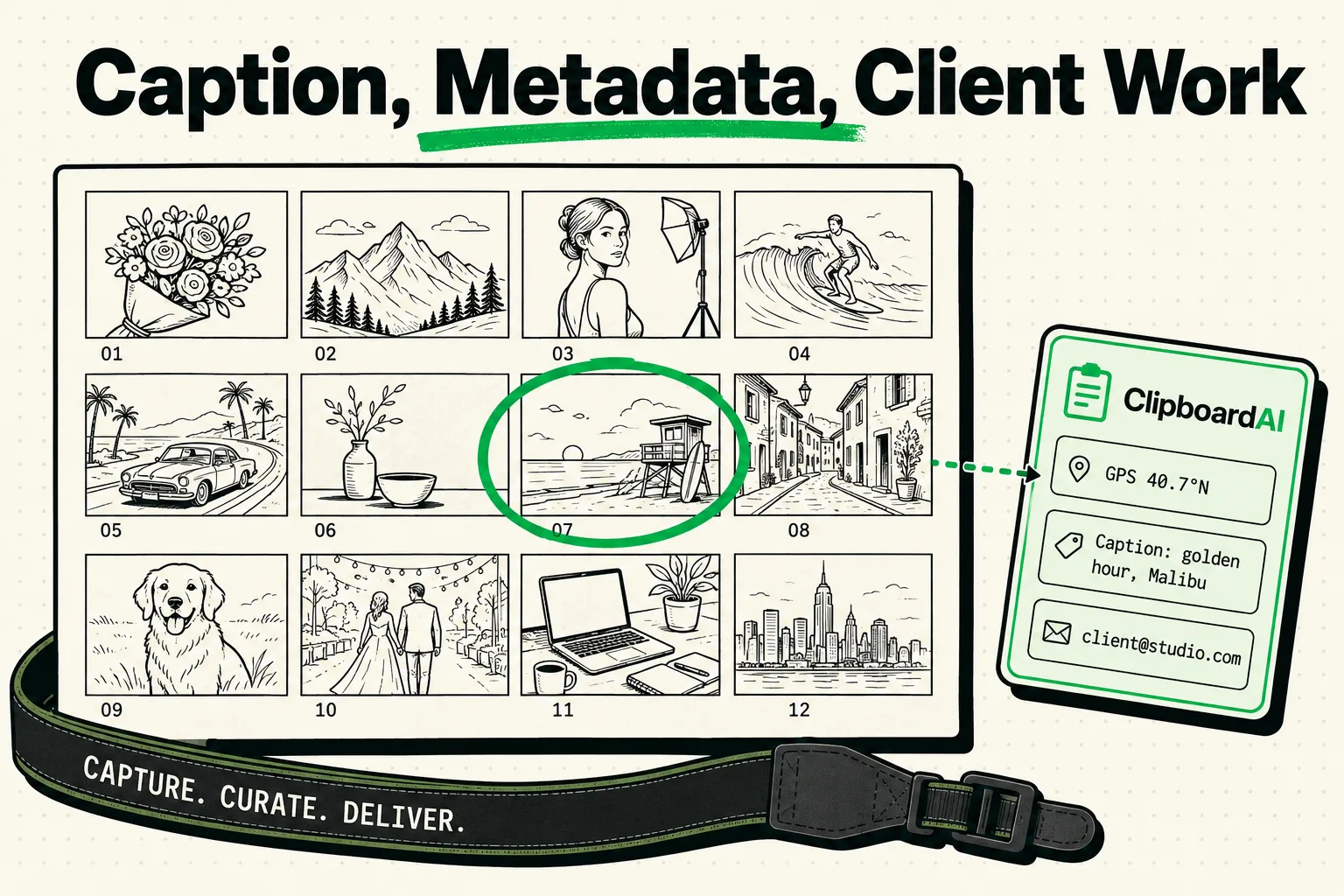
Photographers manage massive amounts of text metadata daily: image descriptions, camera settings, GPS shoot locations, client contact info, and social media hashtag bundles. A clipboard manager for photographers saves every copied detail into a secure, searchable archive. Rather than losing your client's address because you copied a portfolio link, tools like ClipboardAI keep your history accessible. This streamlines your workflow between Lightroom, client emails, shoot lists, and social media platforms.
From importing files to finalizing client deliveries, a photographer's job is split between the creative process of editing and the administrative tasks of run-sheets and marketing. The standard system clipboard only holds one item at a time, forcing you to hop back and forth between Lightroom, your calendar, maps, and your email client. A dedicated clipboard history tool keeps your focus on the editing canvas. In this guide, we will outline how to set up your clipboard workspace to eliminate repetitive administrative work.
Moving Beyond Single-Item Constraints in Photography
Consider the friction of delivering a gallery to a client:
- You copy the private Pixieset or Lightroom Web link.
- You switch to your email or messaging app to paste it.
- You need to copy the custom download PIN from the catalog portal.
- You press copy. The gallery link is now overwritten and gone.
- If you need to send the link to a second contact, you have to go all the way back to Pixieset, copy it again, and jump back.
A clipboard manager solves this. You can copy the gallery link, the PIN code, the pricing invoice total, and the client's home address in quick succession. They are saved as distinct items in your history. You can then paste them into your email body or client database without a single tab-switch.
Required Value Artifact: The Photographer's Metadata & Social Kit
We have built a template kit of standard social media tags, client invoice notes, and image metadata blocks. You can copy these directly into ClipboardAI, tag or categorize them, and keep them pinned for your mobile and desktop workflows.
1. Client Session Run-Sheet Template
Copy and pin this block to organize shoot details on the go:
### 📸 Session Run-Sheet
- **Client Name:** [Client]
- **Date & Time:** [Date] @ [Time]
- **Location Link:** [Paste Google Maps Link]
- **Shot List Highlights:**
  - [ ] Wide establishing landscape shot
  - [ ] Close-up detail / rings / gear
  - [ ] Standard portraits (smiling at camera)
  - [ ] Candid movement shots
- **Delivery Timeline:** [e.g., 2 weeks for proofs, 4 weeks for final gallery]
2. Social Media Hashtag Bundles
Keep these pinned in your clipboard manager to quickly paste into Instagram, Threads, or portfolio descriptions:
- Landscape & Travel Photography:
#landscapephotography #earthfocus #visualsofearth #roamtheplanet #artofvisuals #natgeotravel #travelphotography #lensculture - Portrait & Fashion Photography:
#portraitpage #portraitmood #discoverportraits #makeportraits #fashionphotography #studioshoot #naturallightportrait #chasingportraits - Wedding & Event Photography:
#weddingphotography #weddinginspiration #brideandgroom #junebugweddings #dirtybootsandmessyhair #belovedstories #elopementphotographer
3. Photography Pricing & Deliverables Table
Keep a quick rates sheet inside your clipboard to answer pricing questions on the spot:
| Package Title | Price Point | Deliverables Included | Retouching Scope | Turnaround Time |
|---|---|---|---|---|
| Mini Session | $250 | 15 High-res JPEG files, 1-hour shoot, 1 location | Standard color grade & lighting adjustment | 5 business days |
| Full Portrait | $450 | 40 High-res JPEGs, 2-hour shoot, 2 locations, online gallery | Color grade + basic skin retouching | 10 business days |
| Commercial Brand | $1,200 | 100 JPEGs, full commercial usage license, half-day shoot | High-end skin & object cleaning, compositing | 14 business days |
| Wedding Core | $3,500 | 500+ JPEGs, 8 hours coverage, second shooter, print box | Complete gallery color consistency suite | 6-8 weeks |
Practical Ways ClipboardAI Enhances Your Photography Business
By deploying ClipboardAI, we can automate and accelerate several tedious tasks:
1. Batch Uploading Image Captions
If you are uploading a series of photos to your portfolio site, Adobe Stock, or a stock photography portal like Shutterstock, you often need to copy and paste the same descriptions, copyright strings, and location tags across multiple forms.
- Instead of typing them out or re-copying for every image, you can pin your standard copyright template and key search tags in ClipboardAI.
- When you move to the next image page, pull up the clipboard keyboard or hotkey and paste the tags instantly.
2. Quick Location Sharing during Shoots
When coordinate hunting for outdoor portraits or landscape shoots, you need to send exact locations to your clients.
- If you copy a set of coordinates from Google Maps, ClipboardAI saves it.
- If the client texts you that they are lost, you don't need to exit your messaging thread and reopen Google Maps to fetch the pin. Open your clipboard keyboard extension and paste the exact saved coordinates.
3. Preserving EXIF and Camera Setting Logs
If you write blogs or run a social media account showing behind-the-scenes settings, you constantly copy EXIF data from Lightroom (e.g., Canon R5, 85mm f/1.2, 1/250s, ISO 100).
- Copying this data once keeps it in your clipboard history, allowing you to paste it into social captions, YouTube descriptions, or tutorial guides later in the day without reopening Lightroom.
Honest Caveats: What a Clipboard Manager Cannot Do
It is important to understand the technical boundaries of clipboard management when dealing with heavy media:
- No RAW Image Copying: A clipboard manager is designed for text, links, code, and small image file snippets or previews. It is not a storage solution for 50MB RAW files or large TIFF exports. Attempting to copy a folder of high-resolution images to cache them inside ClipboardAI will not work and can freeze the OS buffer. Keep your heavy media files inside Lightroom, Photoshop, or Finder.
- Apple Sandbox Restrictions (iOS): Because Apple blocks background apps from reading system memory, your iPhone’s ClipboardAI app cannot silently capture copies when closed. You must access the app's widget or use the custom keyboard extension to trigger the saving and retrieving of copied text.
- Metadata Stripping on Paste: Some social media platforms or client portals strip rich text formatting when pasting. ClipboardAI stores items exactly as copied, but if the target app does not support formatting, it will paste as plain text.
Configuring ClipboardAI for Your Photography Business
Follow these quick setup steps to get running:
- Install ClipboardAI on your computer and mobile device.
- Turn on Syncing: Verify that clipboard sync is enabled across your devices so you can copy metadata on your computer and paste it directly into mobile publishing apps.
- Pin Your Templates: Copy the run-sheets and hashtag bundles from this article, open ClipboardAI, and pin them for fast access.
- Create Projects Categories: Group items into folders like "Client Comm Templates," "Social Hashtags," and "EXIF Presets."