
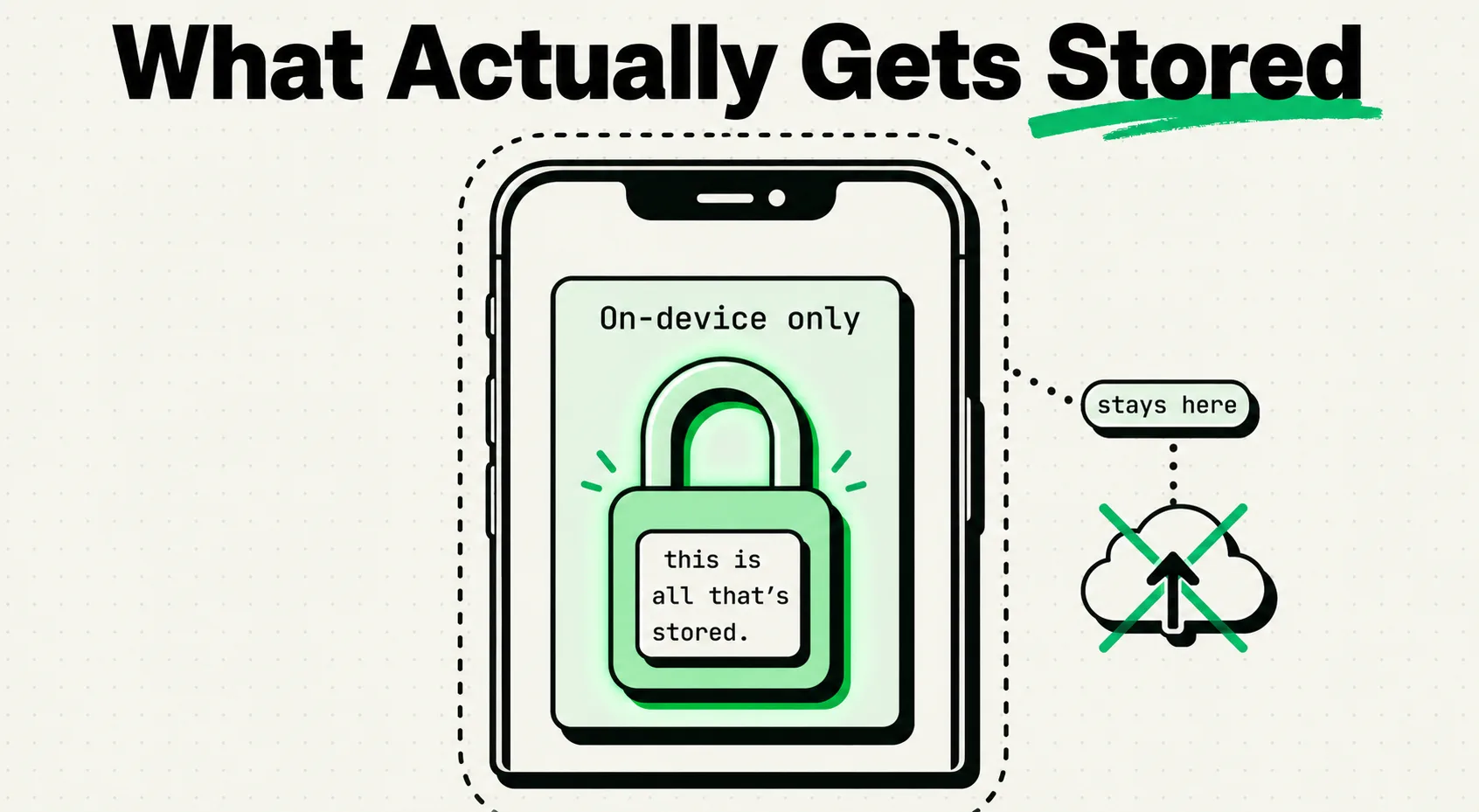
A local clipboard manager like ClipboardAI stores your copied text, images, and links within an encrypted, on-device database on your iPhone or iPad, meaning no data is sent to external servers or third parties. Unlike cloud-based clipboard utilities that sync your history to remote databases, on-device storage ensures that your sensitive professional templates, contact logs, and personal clips remain under your physical control. Understanding the security settings of your clipboard manager is critical to protecting your digital footprint.
The Clipboard Security Landscape
Every time you tap "Copy" on your phone, the system places that information into a temporary memory block called the clipboard. By default, iOS only keeps one item in this block. When you copy something new, the old item is permanently deleted from your system memory.
While this default behavior is secure, it is highly restrictive for productivity. A clipboard manager solves this by listening to your copy actions and saving the data to a local history database.
However, storing a history of everything you copy introduces a potential security risk. Throughout a typical week, you copy passwords, Wi-Fi keys, physical addresses, private emails, and financial details. If your clipboard history database is unmanaged, it can become a target. Knowing what is logged, where it is stored, and how to set expiration rules is vital to securing your device.
On-Device Storage vs. Cloud Storage: The Privacy Divide
When choosing a clipboard manager, the most critical decision is whether to use an on-device utility or a cloud-synced app.
- On-Device Storage (Local): This model, used by ClipboardAI, processes and stores all your copy history locally on your physical device. The database is protected by the operating system’s sandbox rules and hardware encryption (like Apple’s Secure Enclave). No data is transmitted to cloud networks, meaning your information cannot be leaked via a remote server breach.
- Cloud Storage (Remote Sync): Some clipboard managers sync your history to their own cloud servers to allow access across different devices (like syncing a clip from your Windows PC to your iPhone). This introduces a significant privacy risk. If the developer's server is breached, or if their database is not securely configured, your entire plain-text copy history could be exposed.
Value Artifact: Clipboard Privacy Settings & Audit Checklist
Use this checklist to perform a complete security audit on your clipboard manager and ensure your sensitive information remains secure:
1. Security Configuration Checklist
- Verify Storage Location: Confirm in the app's privacy policy that all clipboard history is processed on-device (local storage) and not synced to proprietary external servers.
- Configure Password Manager Filters: ClipboardAI automatically recognizes and excludes copies from password managers that mark themselves as sensitive using the industry-standard nspasteboard.org convention (most modern managers like 1Password and Bitwarden do this). On Mac, you can also manually add specific apps to an Excluded Apps list in Settings for extra assurance; this manual list is not currently available on iOS.
- Enable Local Encryption: Ensure the clipboard manager's database is encrypted when your phone is locked.
- Set Expiration Limits: Change the global Auto-Delete Old Clips setting from "Never" to a shorter window (like 30 Days, the shortest available option) to prevent database bloat.
- Turn Off Diagnostic Reporting: Disable anonymous analytical and crash log sharing within the app settings to keep metadata private.
- Audit Universal Clipboard settings: Under iOS General settings, evaluate if you need cross-device clipboard sync enabled, and disable it if you share devices.
2. Recommended Settings Configurations Matrix
| Settings Parameter | High-Security Setup | Balanced Setup | Risk Mitigation |
|---|---|---|---|
| History Retention | 30 Days (Auto-Purge, shortest available) | 60 Days (Auto-Purge) | Limits the life of sensitive plain-text clippings. |
| Exclusion Lists | Block all financial & password apps | Block password managers only | Prevents credentials from entering history logs. |
| Biometric Lock | On (FaceID required to open) | Off (Device passcode only) | Adds a second layer of defense if your device is unlocked. |
| iCloud Sync | Off (Local device only) | On (Secure Apple ID sync) | Prevents data replication across shared office devices. |
Background Scraping: A Hidden iOS Threat
Historically, any application running in the foreground could read your system clipboard without prompting. If you copied a password from a text file, a rogue app could scan your clipboard the moment you opened it.
Apple mitigated this threat in iOS 16 by introducing a permission popup ("App would like to paste from..."). While this popup blocks unauthorized background access, it does not prevent you from accidentally pasting sensitive data or authorize third-party keyboards from logging keys.
To maintain security:
- Never copy passwords manually: Use the native Apple AutoFill keyboard integration, which bypasses the system clipboard entirely.
- Review keyboard permissions: Only grant "Full Access" to trusted keyboard extensions that have verified, local-only data privacy policies.
Technical Disclaimer & Honest Security Caveats
Even with a secure, on-device clipboard manager, there are structural limitations you must understand:
- The Local Database Threat: On-device databases are secure, but they are not bulletproof. If a malicious actor gains root access to your device (via jailbreaking or an unpatched operating system exploit), they can bypass sandbox rules and read your plain-text clipboard history database. Always keep your iOS version updated to patch security vulnerabilities.
- Backup Exposure: When you back up your iPhone to an unencrypted computer or cloud service, your local databases are included in the backup file. If that backup is compromised, your clipboard history can be extracted. Enable backup encryption in iTunes/Finder and secure your iCloud account with two-factor authentication.
- Sync Latency on Delete: When you delete a clip from your history, it takes a few seconds to sync the deletion command to your other devices. During this sync latency window, the clip may still be readable on a connected iPad or Mac.
Frequently Asked Questions
Can I block specific apps from being logged?
On Mac, yes: ClipboardAI lets you configure an Excluded Apps list by bundle ID, so text copied from specific apps is ignored and kept out of your clipboard history. This manual blocklist is not currently available on iOS, though password managers that follow the nspasteboard.org convention are automatically excluded on both platforms.
Does ClipboardAI share my clips with AI engines?
No. ClipboardAI does not send your data to external artificial intelligence APIs for processing. The "AI" features (like identifying phone numbers, links, or addresses) are handled locally on your device using native Apple machine learning frameworks.
How do I verify that no data is leaving my device?
You can disable cellular and Wi-Fi data access for ClipboardAI in your iPhone’s settings menu. The app will continue to log, search, and pin your copies normally, proving that no network connection is required to run the tool.