
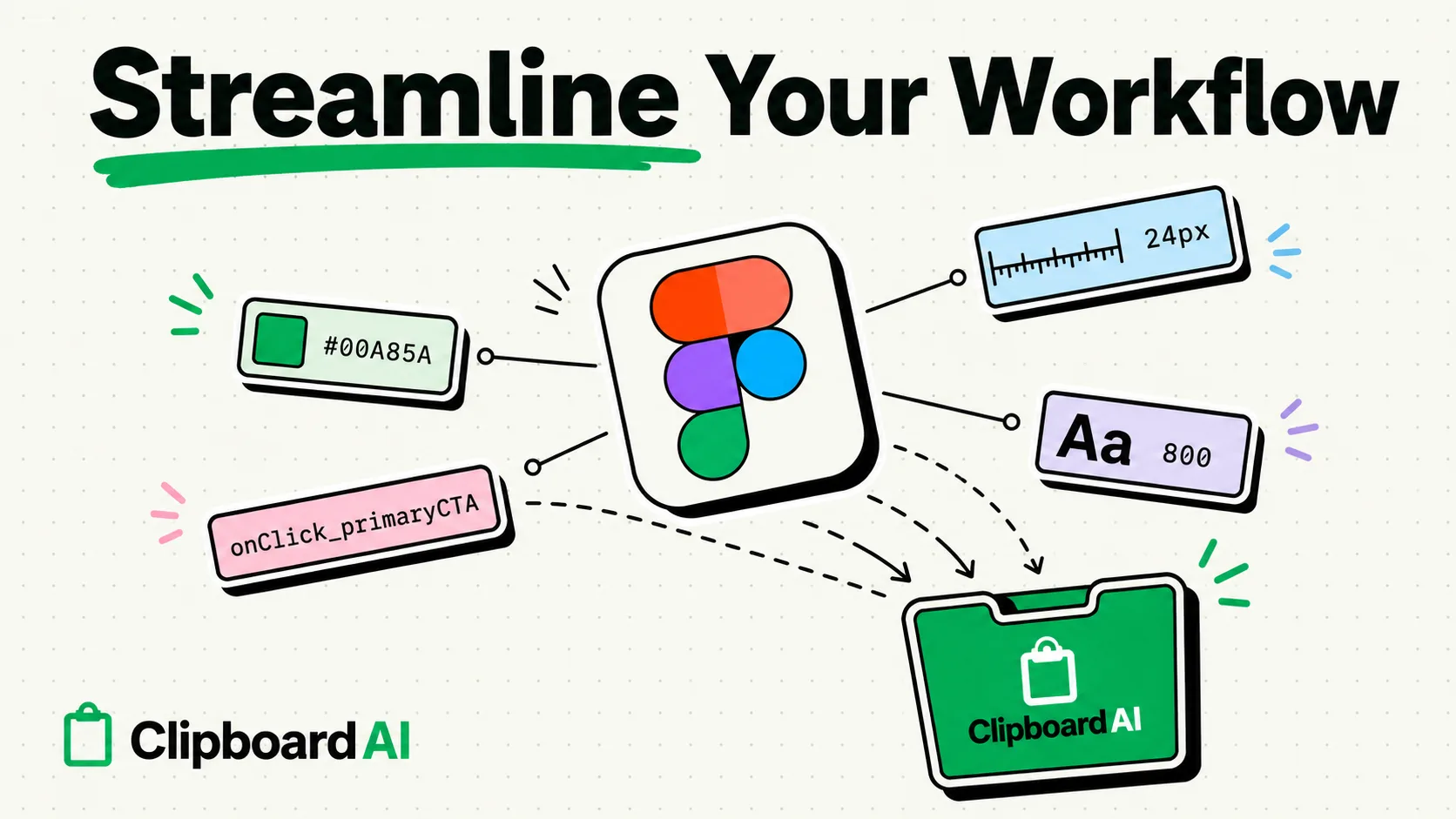
Copying and pasting is the invisible engine of the product design workflow. From color hex codes and SVG XML blocks to microcopy variations, user testing insights, and developer-facing specs, UX designers transfer hundreds of snippets daily. Without a dedicated clipboard manager, you are locked in a frustrating cycle of endless context-switching between Figma, Slack, Jira, and Google Docs, because copying any new item immediately deletes your last one.
A clipboard manager solves this by archiving everything you copy in a searchable database. Using a clipboard manager like ClipboardAI allows UX designers to store, retrieve, and organize design assets directly from their device's memory. Instead of hunting down a hex code in a style guide or re-exporting an icon, you can search your clipboard history to retrieve it in seconds. In this guide, we will look at how to construct a fast, friction-free clipboard setup designed specifically for the realities of modern product design.
The Chaos of Single-Item Clipboard Workflows in Product Design
When you are designing in Figma, Sketch, or Adobe XD, your workflow is highly non-linear. You are not just writing text; you are juggling structural, visual, and textual data simultaneously.
Consider the steps of a typical handoff or copywriting task without a history buffer:
- You copy a HEX code (
#FF5A5F) from your color library. - You paste it into your CSS stylesheet or code editor.
- You need to copy a microcopy CTA ("Get Started Today") from your UX copy document to replace placeholder text.
- You press copy. The hex code is now gone from your clipboard memory.
- Five minutes later, you need the hex code again. You must switch back to Figma, navigate to the specific frame, find the style panel, highlight the hex code, copy it, switch back, and paste it.
This constant bouncing between screens drains your cognitive load and causes micro-distractions that pull you out of deep work. If you do this dozens of times a day, you are losing hours of creative energy to pure clerical work.
Required Value Artifact: The UX Designer's Clipboard Template Kit
To help you get started, we have assembled a copy-pastable template kit of frequently used markdown structures and design specs. You can copy these into ClipboardAI, pin them, and access them instantly via the ClipboardAI keyboard extension or desktop app.
1. Jira Bug Report & Spec Handoff Template
Copy and pin this snippet for rapid documentation when handoff specs or design QA changes are needed:
### 🎨 Design Spec Update
- **Feature/Screen:** [Name]
- **Figma Link:** [Paste Link]
- **Key Changes:**
  - [ ] Update primary button color to `#2A6F97`
  - [ ] Adjust padding-top from `16px` to `24px` on mobile layouts
- **Assets Needed:** [SVG Icon / PNG Export]
- **Accessibility Target:** WCAG AA Pass (4.5:1 ratio)
2. Standard Lorem Ipsum Blocks
Instead of opening a lorem ipsum generator site, keep these pinned for quick microcopy prototyping:
- Short Phrase (1-5 words):
Click here to learn more - Medium Sentence (10-15 words):
Discover our new collection of sustainable products designed to fit your daily lifestyle. - Standard Paragraph:
Lorem ipsum dolor sit amet, consectetur adipiscing elit. Sed do eiusmod tempor incididunt ut labore et dolore magna aliqua. Ut enim ad minim veniam, quis nostrud exercitation ullamco laboris nisi ut aliquip ex ea commodo consequat.
3. Hex Code & Theme Map Matrix
Create a quick cheat sheet inside your clipboard manager of your current active project's color tokens:
| Token Name | Hex Code | Usage | Accessibility Notes |
|---|---|---|---|
| Primary Accent | #3B82F6 |
Primary buttons, active links, focus rings | WCAG AA compliant on white |
| Background Neutral | #F3F4F6 |
Card backgrounds, page splitters, input fields | Contrast ratio 4.5:1 |
| Text Dark | #111827 |
Headings, body text, readable descriptions | Charcoal alternative |
| System Success | #10B981 |
Validation checkmarks, success banners | Emerald green |
| System Warning | #EF4444 |
Error states, validation failure text | Crimson red |
How ClipboardAI Accelerates UX Design Workflows
By using ClipboardAI, we can optimize specific parts of our design and research sprints:
1. Organizing User Testing Feedback
During a live user session, you are likely taking raw notes in a document while copy-pasting direct quotes from users. When you copy multiple quotes back-to-back, ClipboardAI automatically groups them. You don't have to keep switching to your analysis spreadsheet to paste them one by one. You can copy five different quotes in a row, open your spreadsheet, and paste them sequentially from your history.
2. Bypassing SVG Export Overhead
If you need to share a vector icon with a developer or drop it into a Webflow project, you do not need to export the file, save it to your downloads folder, and drag it in.
- In Figma, right-click the frame and select Copy as > Copy as SVG.
- This copies the raw XML vector code to your clipboard.
- ClipboardAI catches this XML block. You can paste it directly into an editor, Webflow, or a GitHub ticket, and it will render as a vector graphic.
3. Swift Microcopy Prototyping
Designers frequently test different copy variants in layouts. You might copy three variations of a button label:
- "Book Now"
- "Reserve Table"
- "Find a Table"
With ClipboardAI, you can keep all three variants active in your clipboard history and paste them one by one into different mockup screens to see which layout looks most balanced.
A Day in the Life of a Clipboard-Enabled Designer
Let's look at how this changes your day-to-day workflow:
Morning: Creative Discovery and Benchmarking
You start your day by gathering design inspiration. As you browse sites like Dribbble, Behance, or Mobbin, you copy links to design layouts, screenshots, and typography references. Instead of pasting these one by one into a messy Figma scratchboard, you just copy them continuously. ClipboardAI runs in the background, logging every link. When you are ready to compile, you open Figma, bring up your history, and drag the references into your board together.
Afternoon: High-Fidelity Mockups and Copy Alignment
You are refining a checkout screen. You need to pull real product SKUs, product pricing, and system errors from a product requirements document (PRD). You copy the active SKU numbers, the pricing tiers, and the exact error strings from the PRD. In Figma, you select the text layer, bring up ClipboardAI, and paste the exact strings without typing a single character manually. This eliminates typos and speeds up your screen design by 50%.
Late Afternoon: Handoff and Design QA
You need to pass styling specifications to the engineering team. You copy the Figma component link, copy the custom CSS styling rules (like box-shadows or border-radii), and copy the developer's Slack handle. You paste them into your Jira ticket directly from your clipboard history. There is no need to navigate back to Figma to re-copy the links or CSS properties.
Honest Caveats: Operating System & Application Limitations
No software tool is magic, and we want to be completely clear about where clipboard managers run into structural walls:
- The Huge Asset Trap: Copying massive image layers or giant high-res frames in Figma writes binary data to your computer’s RAM. Clipboard managers are optimized for text, links, hex codes, and lightweight SVGs. Trying to cache a 50MB canvas layer inside a clipboard manager can cause application slowdowns or crash the clipboard helper. We recommend using standard drag-and-drop or export functions for large raster graphics.
- Apple's Background Sandbox (iOS): On iPhone and iPad, Apple’s sandbox prevents third-party apps from running silently in the background and reading the clipboard. To access your history on iOS, you must swipe down to open the ClipboardAI widget or use the ClipboardAI custom keyboard extension to retrieve your clips.
- Universal Clipboard Latency: If you copy on your Mac and expect it to appear instantly on your iPhone's ClipboardAI app via iCloud, you will occasionally encounter a 2-3 second sync lag depending on your local network speed. For heavy workflows, on-device copy-paste is far more reliable.
Setting Up Your UX Design Clipboard Workspace
To make this workflow second nature, spend 10 minutes setting up your clipboard rules:
- Install ClipboardAI on your computer and phone.
- Configure Exclusions (Mac): On Mac, ClipboardAI automatically skips password managers like 1Password that mark their copies with the nspasteboard.org privacy tags, no setup required. Open
Settings > Excluded Appson Mac to manually add any other app (e.g., Bitwarden) to the ignore list so secure credentials are never saved in your design history. This setting is available on Mac only, not iPhone or iPad. - Set Up Custom Categories: Create folders for "Color Tokens," "UX Microcopy," and "Jira Templates."
- Pin Critical Links: Pin your Figma library links, design system documentation, and your project's staging site URLs so they are always one keystroke away.