
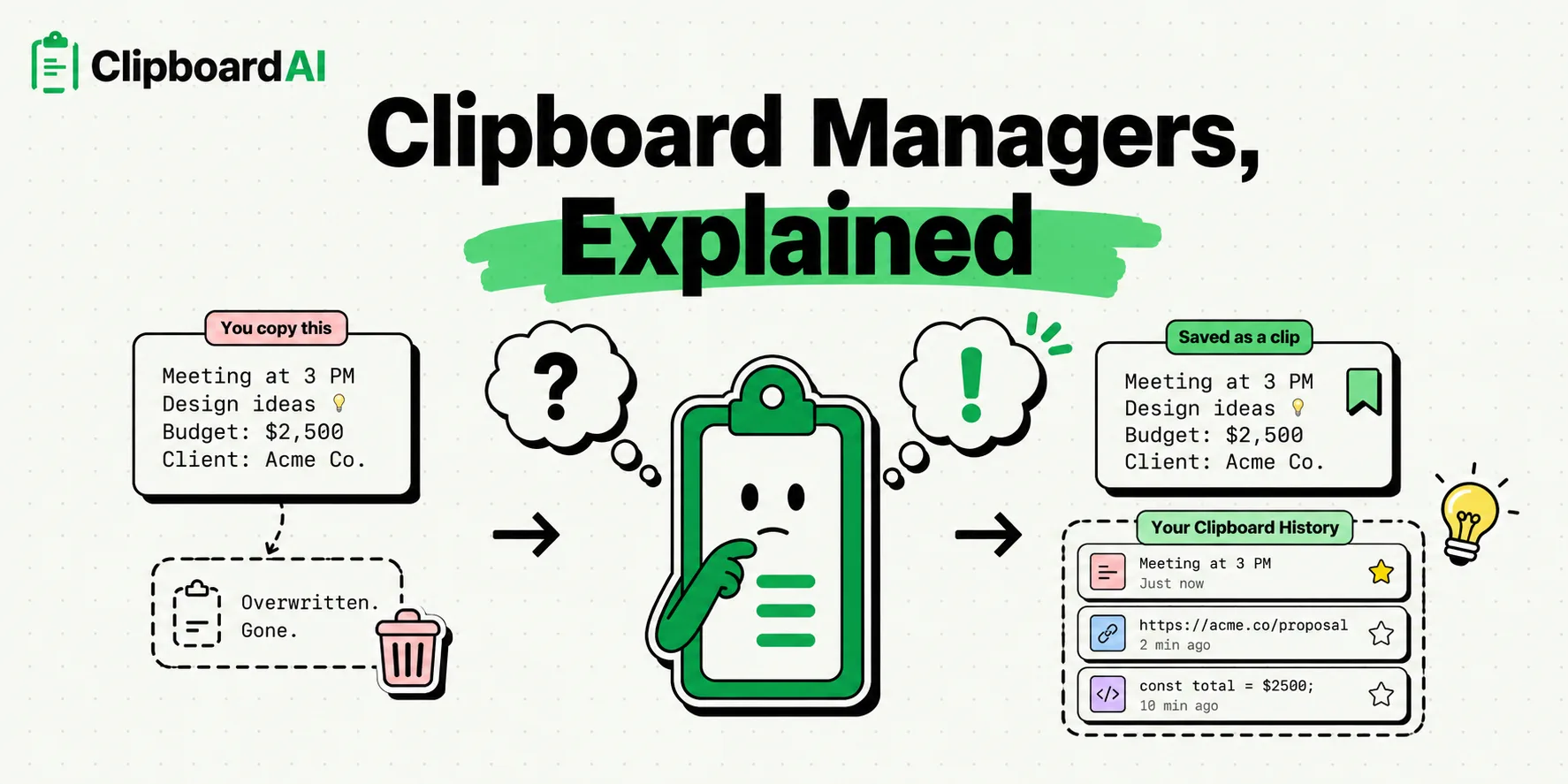
A clipboard manager is a productivity tool that records every item you copy - including text, links, and images - into a persistent, searchable history database. While standard phone and desktop operating systems only hold a single copied item at a time (overwriting your previous copy whenever you copy something new), a clipboard utility like ClipboardAI acts as a continuous archive, allowing you to quickly retrieve, organize, and paste previous snippets whenever you need them.
Here is a plain-English guide to understanding how clipboard managers work, why they are essential for modern workflows, and how to choose the right one for your privacy needs.
How the Clipboard Works Under the Hood
Every time you tap "Copy" on your phone or press Cmd + C on your keyboard, your device writes that data to a temporary storage space in its Random Access Memory (RAM). This space is called the system pasteboard or clipboard.
The default system clipboard has two major limitations:
- It is Volatile: RAM requires power to maintain data. If your phone reboots or runs out of battery, your copied content disappears.
- It is Single-Channel: It can only hold one thing at a time. The moment you copy a new line of text, the previous item is wiped from the pasteboard.
A clipboard manager runs parallel to the operating system's pasteboard API. Whenever it detects a new write command to the system clipboard, it copies the data and saves it into a local, structured database. This turns your volatile single-copy clipboard into an organized, permanent history folder.
Required Value Artifact: The Clipboard Manager Security Checklist
Because a clipboard manager stores everything you copy, selecting a secure app is critical. Use this checklist to audit any utility before installing it on your personal or work devices:
- Local-First Architecture: Does the app store clipboard history locally on your device's hard drive/flash memory rather than syncing it to a corporate database by default? (Local storage is much safer for sensitive drafts).
- Application Exclusions: Can you configure the app to ignore password managers (like 1Password, Bitwarden) and security portals?
- Data Type Filtering: Can you set the utility to auto-purge complex files (like image binaries or large PDFs) to prevent system storage bloat?
- Encrypted Local Storage: Is the history database encrypted on-device (e.g., using system-level file system encryption)?
- Manual Clear Actions: Does the app provide an easy way to delete individual clips (like a swipe-to-delete gesture) or purge your entire history logs in a single tap?
- Opt-in Cloud Syncing: If the app offers cross-device syncing, is it optional and run over encrypted protocols (like Apple's iCloud Keychain)?
Key Benefits of Using a Clipboard History
If you spend your day working on digital documents, using a clipboard manager provides three major productivity upgrades:
1. Eliminating App-Switching Friction
Imagine you need to grab a client's name, email, and billing address from an email draft and paste them into an invoice tool. Without a history log, you must switch between the two apps six times (Copy Name -> Switch -> Paste Name -> Switch -> Copy Email... and so on). With a clipboard manager, you copy all three fields in a row, switch apps once, and paste them sequentially from your history.
2. Safeguarding Your Work
If you write emails, code snippets, or long social media posts on your phone, you know how easily mobile apps can crash. Copying your text as you write ensures it is preserved in your clipboard database, providing a local backup if your primary writing application glitches.
3. Pinned Short-cuts and Templates
If you type the same phrases or templates repeatedly (like your phone number, email address, directions to your office, or customer service scripts), you can keep them pinned in your clipboard manager for instant access. Instead of typing them out or pulling up a notes app, you can paste them in one tap using a mobile keyboard extension.
Honest Caveats: Operating System Barriers & Limitations
No utility is perfect, and it is important to understand where clipboard managers face technical limits due to security parameters:
- iOS Sandboxing Rules: Apple's mobile operating system does not allow third-party apps to listen to your clipboard in the background. If you copy a web link in Safari on your iPhone, you must open the ClipboardAI keyboard layout or launch the primary app to pull that copy into your persistent database.
- Storage Performance: Storing thousands of text clips and screenshots can consume disk space. We recommend setting a history limit (e.g., maximum 100 clips or auto-deleting items older than 30 days) to keep your local database fast and light.
- Sensitive Info Logs: Clipboard managers log whatever you copy. If you copy a credit card number or a security verification code, it will be stored in your history. You must remember to manually swipe-delete these sensitive clips or configure your app to ignore secure utility apps.
Selecting and Setting Up Your Clipboard Tool
If you are ready to set up your clipboard productivity workflow, we recommend a simple four-step process:
- Install ClipboardAI on your computer and phone to cover both desktop and mobile workflows.
- Configure App Exclusions: Open the settings panel and add your password managers, secure messaging apps, and banking portals to the ignore list.
- Build Pinned Folders: Create folders for your most-used templates, like
Social Links,Client Responses, orCode Blocks. - Enable the Keyboard Extension on iOS: Go to your device's keyboard settings and add ClipboardAI, enabling full access so you can paste history cards straight from your native keyboard dock.