
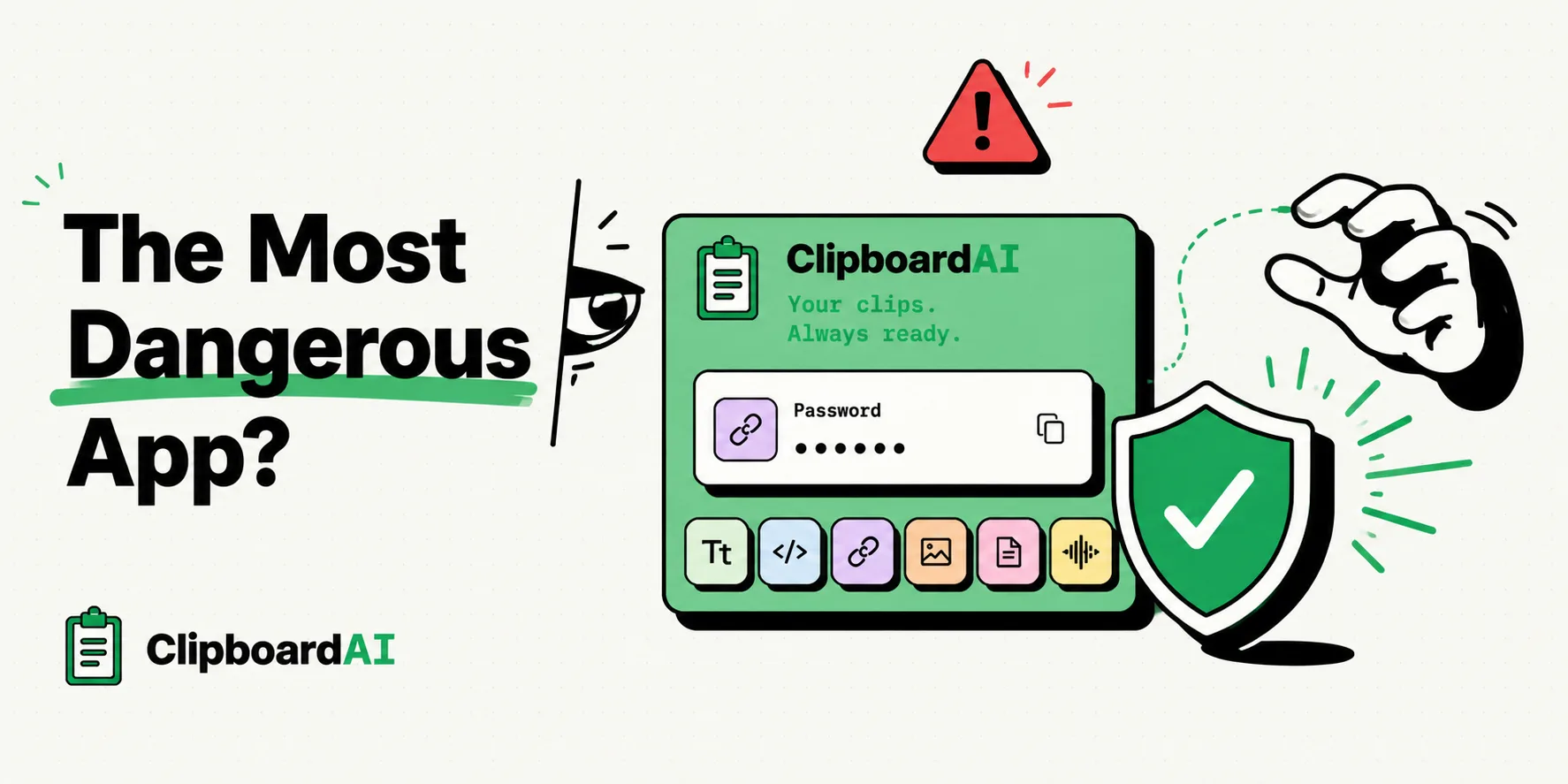
You have probably seen the alarmist headlines: "Your Clipboard is Leaking Your Secrets!" or "The Hidden App Scraping Your Banking Details." They make it sound like your phone's copy-paste buffer is a rogue agent actively working to sell your digital life to the highest bidder.
To access your clipboard history on iPhone, you must use a third-party clipboard manager. iOS itself does not have a native clipboard history viewer. By default, iOS only saves your single most recently copied item. This limitation actually protects you, but the system clipboard is still a target for snooping apps.
Let’s strip away the clickbait and look at the actual technical mechanics. Is your clipboard really "dangerous"? If so, what can you do to make it safe?
The Myth vs. The Reality
The claim that the clipboard is a "dangerous app" is technically incorrect: the clipboard is not an app at all. It is a shared system service managed by your operating system (RAM).
Here is the difference between clipboard panic and actual technical risk:
- The Myth: Background apps are constantly monitoring what you copy and sending it to a remote database.
- The Reality: On both iOS and Android, background apps are sandboxed. They cannot access the clipboard while closed. An app can only read your clipboard when it is active in the foreground.
                  CLIPBOARD PRIVACY BOUNDARIES
┌───────────────────────────────┬───────────────────────────────┐
│        WHAT APPS CAN DO       │      WHAT APPS CANNOT DO      │
├───────────────────────────────┼───────────────────────────────┤
│ Read clipboard when active in │ Monitor clipboard in the      │
│ the foreground.               │ background.                   │
│                               │                               │
│ Programmatically paste if user│ Read pasteboard without       │
│ triggers a paste event.       │ triggering an iOS system alert│
└───────────────────────────────┴───────────────────────────────┘
Why the Clipboard is a Target
If the clipboard is sandbox-protected, why does it remain a security focal point?
1. The Plaintext Enclave
When you copy a password, credit card number, or social security number, it is stored in the system pasteboard in plaintext. The clipboard does not encrypt its contents while they reside in RAM. If you copy a password and immediately open a shopping app, that active app can read the password before you copy anything else.
2. Universal Clipboard Syncing
Apple's Universal Clipboard allows you to copy text on your iPhone and paste it on your Mac. While convenient, this sync occurs over local Wi-Fi and Bluetooth via iCloud. If someone else is logged into your Apple ID or using a shared family Mac, they can access your active pasteboard stream without warning.
3. Custom Keyboard Permissions
Many clipboard managers run as custom iOS keyboards. To function, they require you to enable "Allow Full Access" in iOS settings. This permission allows the keyboard to write data to shared directories and transmit keystrokes over the network. If the keyboard app is malicious, your keystrokes and history are exposed.
How to Secure Your Clipboard (Without Losing Convenience)
You do not need to disable copy-paste to protect your privacy. Implement these four practical controls:
1. Pay Attention to iOS Paste Banners
Since iOS 14, Apple displays a visual pill-shaped banner at the top of the screen whenever an app reads the clipboard: "App pasted from Safari".
- If you open a newly installed app (like a game or utility) and immediately see this banner without tapping "Paste", the app is scraping your active clipboard.
- Go to Settings > [App Name] > Paste from Other Apps and change the option to Ask or Deny.
2. Keep Password Managers Locked Down
Never copy passwords manually if you can avoid it. Use AutoFill (iOS Keychain or password manager browser integrations) which injects the password directly into the input fields without writing it to the system clipboard RAM. If you must copy a password, ensure your password manager is set to auto-wipe the clipboard after 30 seconds.
3. Overwrite Your Clipboard Manually
If you copy a sensitive detail (like a bank routing number), overwrite the RAM immediately. Open any text field, type a single character (like the letter "x"), highlight it, and copy it. This deletes the sensitive data from the system's active memory slot.
4. Enable Safe Filters in Clipboard Managers (Mac)
If you use a third-party clipboard manager like ClipboardAI on Mac, make sure app-level exclusions are set up:
- ClipboardAI automatically recognizes the nspasteboard.org "transient/concealed/auto-generated" markers that apps like 1Password, KeePassXC, and BetterTouchTool already stamp on sensitive copies - no configuration needed.
- Open ClipboardAI > Settings > Excluded Apps on Mac and add any other password manager or banking app you use, so nothing copied while it's frontmost gets saved.
- There is no automatic content-based filter that detects credit card or SSN patterns in copied text, and no equivalent exclusion setting exists on iPhone or iPad. On those platforms, avoid copying sensitive strings in the first place and rely on AutoFill instead.