
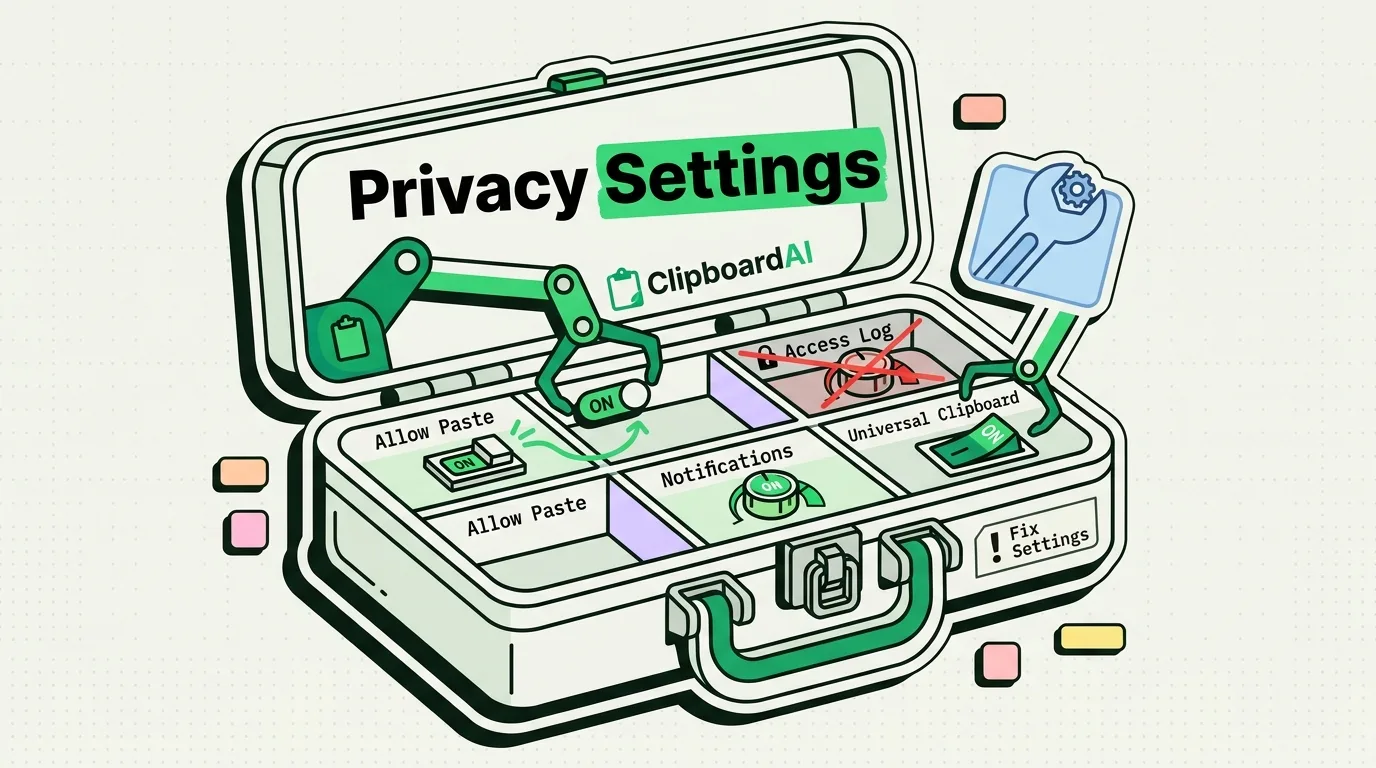
There is no single "Clipboard Privacy" screen on iPhone. The controls that actually govern who can read your clipboard are spread across per-app settings, a general privacy report, and a Handoff toggle buried in General settings. This is a walkthrough of each one, what it actually does, and how to set it up in about ten minutes.
Why This Is Scattered Instead of Centralized
Unlike Photos or Location, which have one clear permission per app, clipboard access on iOS was historically unrestricted: any app could read whatever was last copied, with no prompt and no log. Apple has added protections gradually since iOS 14, but each one lives in a different place, so there is no shortcut - you have to know where to look.
Setting 1: Paste Permissions (Per App)
Starting in iOS 16, when an app tries to read clipboard content that was copied somewhere else, iOS can show a permission dialog before allowing it.
Where to find it: Go to Settings > [App Name] and look for Paste from Other Apps. The options are:
- Ask: The app must request permission each time it tries to read cross-app clipboard content. Recommended default for most apps.
- Deny: The app never gets clipboard access and you will not see a dialog for it.
- Allow: The app reads clipboard content without asking. Reserve this for apps you fully trust and use constantly for pasting, like your email client or browser.
Not every app exposes this setting - it depends on whether the app has requested the relevant capability. If you do not see "Paste from Other Apps" under a given app, it likely has not asked for that access.
How to configure it: Set everything to "Ask" for a week and see which apps actually prompt you during real use. Apps that never trigger a prompt do not need broader access. Set anything with no legitimate reason to read your clipboard - most games, most single-purpose utilities - to "Deny."
Setting 2: App Privacy Report
Where to find it: Settings > Privacy & Security > App Privacy Report. Turn it on if it is not already active.
This report shows which apps have accessed sensitive data and contacted specific domains recently. It does not break out clipboard access as its own line item, but it is useful for spotting apps with broadly aggressive data access patterns worth a closer look, and it is worth a periodic skim rather than a one-time setup step.
Setting 3: Universal Clipboard (via Handoff)
Universal Clipboard lets you copy something on one Apple device and paste it on another, signed into the same Apple ID and nearby. It is a genuinely useful feature and it is entirely Apple's, not a third-party add-on.
Where to find it: Settings > General > AirPlay & Handoff, toggle Handoff. There is no separate on/off switch just for the clipboard - Handoff governs it along with other continuity features.
The tradeoff: with Handoff on, anything you copy on your Mac is briefly available to paste on your iPhone and vice versa. If one device in your Apple ID ecosystem is compromised or running an untrustworthy app with clipboard access, the exposure extends to that device too. For most people this convenience is worth it. If you regularly copy highly sensitive material and do not need cross-device paste, turning Handoff off removes this specific path, at the cost of losing Universal Clipboard and other Handoff features together.
Setting 4: Lockdown Mode (High-Risk Users Only)
Where to find it: Settings > Privacy & Security > Lockdown Mode.
This is Apple's most aggressive protection tier, built for people who may be targeted by sophisticated, state-level attacks - journalists and activists are the commonly cited example. It restricts a wide range of functionality, including some clipboard-adjacent behaviors, and Apple does not publish the exact list of restrictions in detail. For the overwhelming majority of iPhone users, this is unnecessary overhead. The paste-permission settings above cover ordinary clipboard privacy needs.
Value Artifact: The Ten-Minute Setup Checklist
[ ] Update iOS to the latest version
    Settings > General > Software Update
[ ] Set "Paste from Other Apps" to Ask or Deny for non-essential apps
    Settings > [App Name] > Paste from Other Apps
[ ] Turn on App Privacy Report
    Settings > Privacy & Security > App Privacy Report
[ ] Decide on Handoff based on your own risk tolerance
    Settings > General > AirPlay & Handoff
[ ] Turn on AutoFill for passwords so credentials skip the clipboard
    Settings > Passwords > AutoFill Passwords
[ ] If you use a password manager, confirm its clipboard auto-clear
    timer is enabled (check that app's own settings)
[ ] Install a clipboard manager if you want visibility into what
    you've copied and the ability to delete individual clips
Honest Caveats
- These settings do not create a visible clipboard access log. Beyond the App Privacy Report's general data-access summary, iOS does not give you a per-app history of "app X read your clipboard at time Y." The paste-notification banner is your real-time signal; there is no retroactive audit trail beyond that report.
- A clipboard manager adds history and organization, not new OS-level security. ClipboardAI stores what you copy locally on your device, and, only if you turn on sync, through your own private iCloud account using Apple's CloudKit, encrypted in transit and at rest, with nothing ever routed to a ClipboardAI server. It does not change how iOS grants or denies clipboard access to other apps - that is still governed entirely by the settings above.
- There is no built-in auto-delete timer for the system clipboard itself. iOS holds your last copy until you copy something new or restart the device. If you want copied items to expire automatically, that has to come from an app with its own retention setting, not from iOS.
Frequently Asked Questions
Where are clipboard privacy settings on iPhone?
There is no single settings page for this. Paste permissions live under each individual app's settings; broader privacy monitoring is under Settings > Privacy & Security > App Privacy Report; and cross-device clipboard sharing is controlled through Settings > General > AirPlay & Handoff.
Should I deny every app clipboard access?
No. Some apps need it legitimately, like a browser you regularly paste URLs into or a banking app where you paste a one-time code. Deny access for apps that have no plausible reason to read your clipboard, and use "Ask" as the default for everything else.
Does turning off Handoff disable Universal Clipboard?
Yes. Universal Clipboard is part of Handoff. Turning off Handoff in Settings > General > AirPlay & Handoff stops clipboard content from being shared between your Apple devices, along with other continuity features.
Can I set my iPhone clipboard to auto-delete after a set time?
Not through iOS itself - there is no built-in expiration timer for the clipboard. Some clipboard manager apps offer their own retention settings for the history they keep, but that is a feature of the app, not of iOS.