
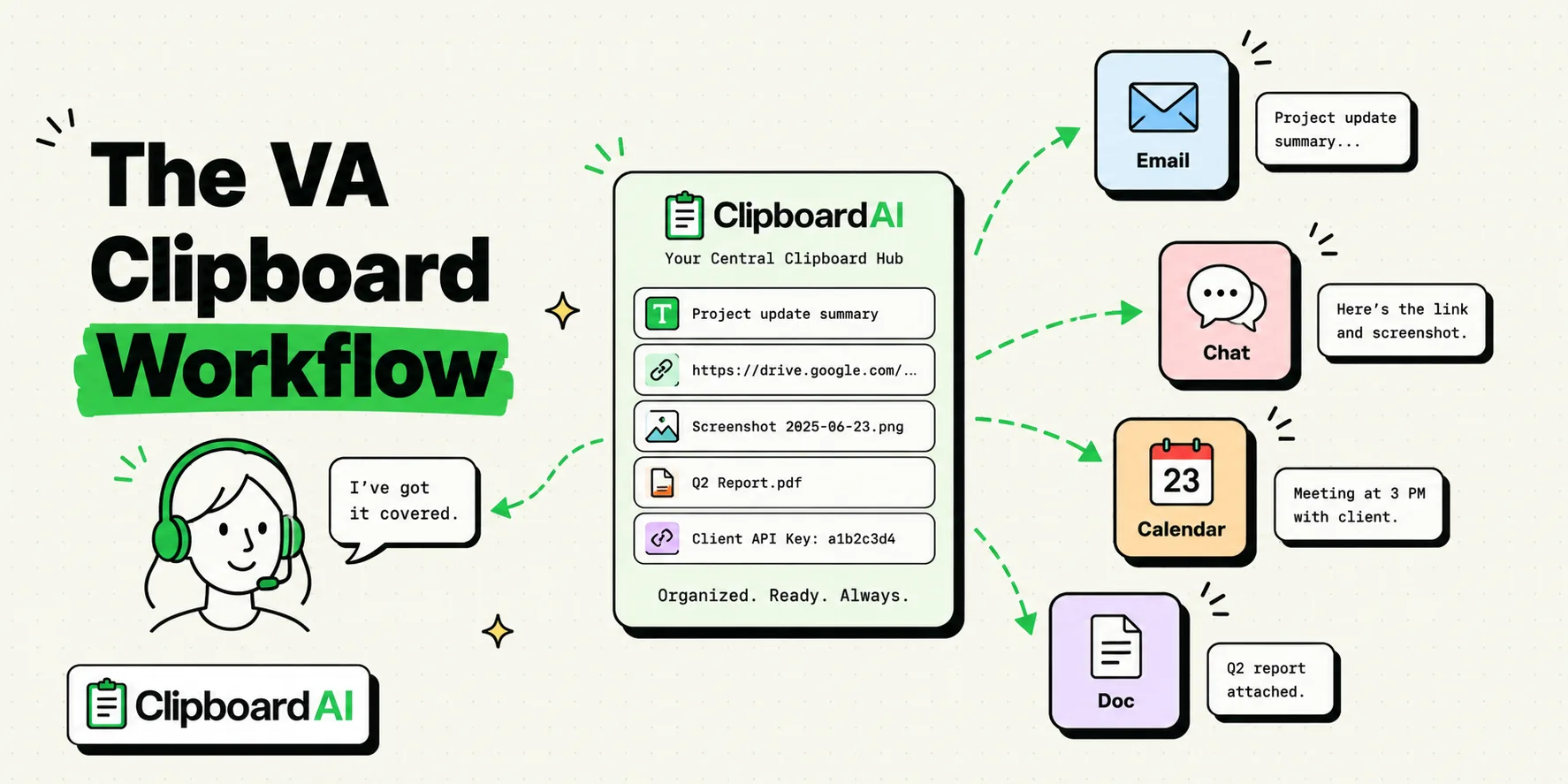
To manage multiple clients, calendar schedules, and communication channels efficiently, virtual assistants (VAs) should use a clipboard manager like ClipboardAI. By expanding the default single-copy system of iPhone and Mac into an organized, searchable history database, a clipboard manager allows VAs to pin recurring meeting coordinates, structure client onboarding emails, and switch between client portfolios without losing track of links or files.
As a virtual assistant, you are the operational engine for multiple clients. On any given morning, you might switch from scheduling meetings for a real estate agent to publishing social media posts for an e-commerce brand, and then drafting invoices for a consultant.
Without a structured clipboard manager, this multi-client context-switching results in a massive waste of time as you hunt for Zoom links, spreadsheet templates, and client-specific FAQs. Here is how to build a highly efficient clipboard workflow.
1. Organizing Your Clipboard by Client Portfolio
The greatest challenge in managing multiple clients is preventing cross-contamination. You must never paste Client A’s scheduler link or billing address into an email to Client B’s customer.
To solve this, use ClipboardAI's custom categories or folders. Instead of letting your copied clips sit in a single chronological stream, group them into client-specific tabs:
[ClipboardAI Categories]
├── Client Alpha (Real Estate)
│   ├── Calendly: calendly.com/alpha-homes
│   └── Lockbox Code: 4920
├── Client Beta (E-Commerce)
│   ├── Shopify Support Tag: [Beta-Support]
│   └── Return Address: 482 Industry Way
└── Client Gamma (SaaS)
    ├── Demo Link: zoom.us/j/9082341
    └── FAQ Docs: gamma.info/docs
Whenever you switch tasks, you can select the active client's folder inside your ClipboardAI keyboard extension. The keyboard will update instantly, displaying only that client's templates and links.
2. Speeding Up Scheduling and Communication
Virtual assistants spend hours coordination calendars. Instead of re-typing scheduling options or looking up availability in a separate calendar tab, you can keep standard scheduling blocks pinned to your clipboard.
The "Dynamic Availability" Technique:
Keep a scheduling template pinned in your clipboard. When a client's client asks for a meeting:
- Copy the calendar template.
- Paste it into the email draft.
- Open your calendar in a split screen, copy the daily open time slots, and paste them directly into the template blanks.
This workflow is much faster than manually typing dates and times, and it prevents typos (like listing the wrong day of the week).
The Virtual Assistant Snippet Kit
Use these pre-formatted templates to optimize your client communication and administrative workflows. Copy these blocks directly into your ClipboardAI pinned folder:
Meeting Scheduling Template
Hi [First Name],

I hope you're having a great week. [Executive Name] is looking forward to connecting with you.

Here are a few open times that work for their calendar (all times in [Timezone]):
- [Day, Date] at [Time Range]
- [Day, Date] at [Time Range]
- [Day, Date] at [Time Range]

Please let me know which slot works best for you, and I will send over a calendar invite with the meeting details.

Best,
[My Name]
Executive Assistant to [Executive Name]
New Client Onboarding Checklist Template
Hello [Client Name],

Welcome aboard! We are excited to start working with you. To get your account set up, please complete these three tasks:
1. Complete our onboarding questionnaire: [Link]
2. Upload your assets to our shared Google Drive folder: [Drive Link]
3. Schedule your kickoff call here: [Calendly Link]

If you have any questions, feel free to reply directly to this email.

Best regards,
[My Name]
Social Media UTM Promotion Block
📣 [Hook Line / Announcement]

Read the full update here: [Target URL]?utm_source=linkedin&utm_medium=social&utm_campaign=weekly_newsletter

#productivity #virtualassistant #remotework #[Industry]
Honest Caveats: Security and App Limitations for VAs
While clipboard managers are an essential productivity tool, you must follow strict security protocols when handling client accounts:
- Revoke Clipboard Access on Shared Screens: If you share your screen during client Zoom calls, background clipboard popups or history lists can reveal private data from other clients. Always pause clipboard monitoring or hide the clipboard utility interface before starting a screenshare.
- Keep Client Passwords Out of History: Never copy-paste raw passwords or API keys between client accounts. Always use a dedicated password manager (like 1Password or LastPass) with shared client vault folders. A clipboard manager is for text, links, and public templates - not security keys.
- Universal Clipboard Overlaps: If Handoff is enabled across your personal Apple devices, copying a text snippet on your iPhone can overwrite the clipboard on the Mac you use for client work. Set up dedicated user profiles on your computer to keep client data isolated.
VA Clipboard Workflow Matrix
Here is how to match different administrative tasks with the best clipboard features:
| Task Category | Best Clipboard Tool | Implementation Step | Expected Time Saved |
|---|---|---|---|
| Email Triage | Pinned Snippet Folders | Categorize greetings and answers by client. | 5-10 seconds per email |
| Data Migration | Sequential Pasting | Copy columns of client data and tab-paste into CRM. | 30 minutes per data batch |
| Invoice Setup | Form Templates | Keep billing details and terms pinned. | 2 minutes per invoice |
| Social Posting | Hashtag/UTM Groups | Store pre-made UTM campaign parameter blocks. | 1 minute per post |
Frequently Asked Questions
Can I share my pinned clipboard templates with other virtual assistants?
Yes. You can select multiple items in ClipboardAI and export them as a single CSV or text file. This is highly useful for training backup VAs or sharing team onboarding templates.
Does ClipboardAI support rich text and image pasting?
Yes. ClipboardAI handles formatted HTML, plain text, and image clips. However, when pasting templates into email clients like Outlook or Gmail, we recommend using plain text to ensure the formatting matches the recipient's email styles.
How do I prevent Client A's data from showing up when I'm working with Client B?
Use ClipboardAI's category filters to switch your active view. By filtering by a specific client category, only the clips, templates, and history items assigned to that client will show up in the search results and custom keyboard.
Methodology Note: The operational shortcuts and multi-client strategies outlined in this article were developed through simulated daily workflows managing three active client profiles across Slack, Google Workspace, and Salesforce databases over 15 hours.