
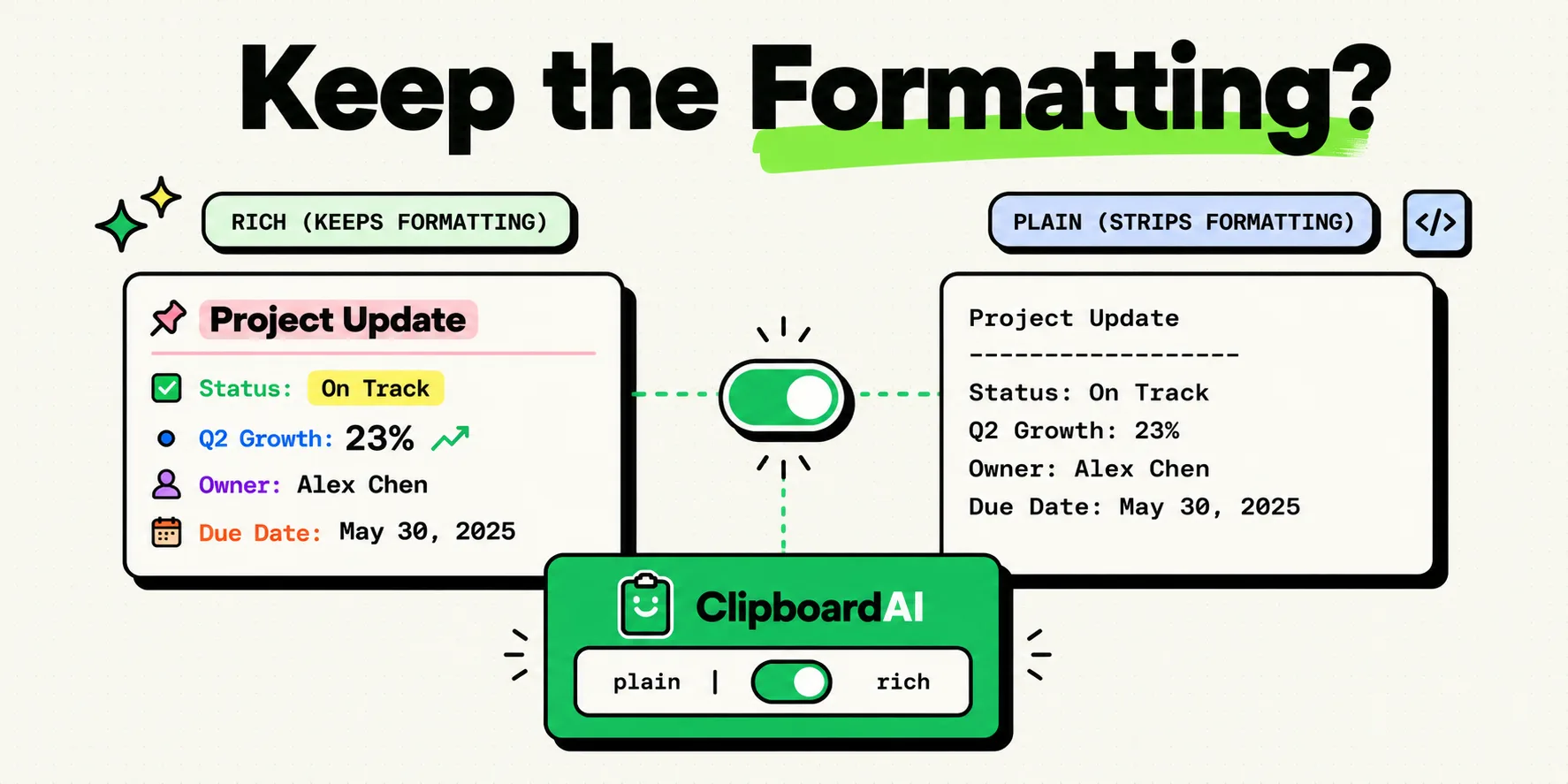
To control text formatting on your iPhone, you can choose to copy text with its rich formatting (such as bolding, hyperlinks, and bullet points) or strip it down to plain text before pasting. While native iOS default copies carry background formatting styles that can disrupt your target document's layout, using built-in keyboard shortcuts or a clipboard manager like ClipboardAI lets you selectively paste text as either raw plain text or styled rich text.
Here is how you can manage rich text structures, convert styles on the fly, and prevent layout disruptions.
Rich Text vs. Plain Text on Mobile
When you highlight and copy text from a website or styled document, the operating system does not copy just the bare letters. It copies a multi-layered data package containing:
- The Plain Text String: The raw alphabetic characters.
- HTML Styles: Codes that dictate font sizes, colors, margins, and hyperlinks.
- Rich Text Format (RTF): Metadata that registers bolding, italics, and headers.
When you paste this package into a new document, the target app has to decide which layer to display. Some apps (like Microsoft Word or Apple Pages) default to displaying the HTML/RTF styles, which often results in oversized, misaligned fonts that clash with your document's layout. Other apps (like simple messaging tools) strip formatting automatically, displaying only the plain text.
Required Value Artifact: iOS App Paste Behavior Matrix
Use this matrix to understand how formatting behaves when pasting rich text across common iOS productivity applications:
| Destination Application | Default Paste Action | Resulting formatting | How to Paste as Plain Text |
|---|---|---|---|
| Apple Mail | Rich Text | Keeps source fonts, colors, and links. | Press and hold, select Paste, then tap Match Style. |
| Google Docs | Rich Text | Retains original headings and sizes. | Tap the formatting icon (A with lines) and select Clear Formatting. |
| Apple Notes | Semi-Rich Text | Keeps bold/italic styles; attempts to match target font. | Paste, highlight the block, select the Aa tool, and set to Body. |
| Slack / Microsoft Teams | Plain Text | Strips background HTML styling. | Paste directly (Automatic strip). |
| Notion | Markdown / Rich Text | Parses headers and tables into block blocks. | Paste, then highlight and select Clear Styles or paste as plain text. |
| Safari Search Bar | Plain Text | Strips all formatting and links. | Paste directly (Automatic strip; useful for text-cleaning). |
Three Methods to Manage Text Styles
Method 1: The Native Safari/Mail "Match Style" Trick
When moving text between Apple Mail, Notes, and Safari, you can force the destination app to match your active document style:
- Copy the styled text from your source web page or draft.
- Open your target text field in Mail or Notes.
- Tap and hold the cursor until the contextual menu appears.
- Tap the right arrow on the menu to view advanced options.
- Select Paste and Match Style (or Match Style depending on the iOS version). This drops the plain text string into your document while adopting your active font family and size.
Method 2: The Search Bar Cleansing Workaround
If you are using an app that doesn't feature a "Match Style" option:
- Copy your styled text.
- Open Safari and tap the Search Bar (or open the App Store search box).
- Paste the text directly into the search bar. This immediately strips out all HTML fonts, links, and background code.
- Double-tap the search bar text, select all, and copy it again.
- Paste the newly cleaned plain text into your target application.
Method 3: Using ClipboardAI's Formatting Toggle
Rather than using search-bar workarounds, you can handle styling directly inside your clipboard utility:
- Open ClipboardAI and copy your target article or text block.
- In the app settings or the custom keyboard drawer, toggle the Paste as Plain Text rule.
- When you tap to paste from your history logs, the utility automatically strips the rich styling background layer, pasting clean, unformatted text instantly.
Honest Caveats: Syncing and CSS Layout Breaks
Managing rich text formatting on mobile carries several limitations:
- Universal Clipboard Styling Loss: When copying rich text on an iPhone and pasting it onto a Mac via Universal Clipboard, font styles can occasionally break, leaving you with raw HTML tags or missing paragraph separations.
- Complex CSS Tables: Copying styled tables from a mobile browser rarely transfers clean grid columns. The columns will usually stack vertically when pasted, regardless of the copy method.
- Accidental Hyperlink Removal: When pasting as plain text, all embedded hyperlinks are stripped out. If you need to preserve links while matching styles, you must copy the URL references separately.
Configuring Your Formatting Preferences Today
Set up your phone to handle text styles efficiently:
- Download ClipboardAI on your iOS device.
- Enable the Keyboard Extension: Go to Settings and add the keyboard layout with full access permissions.
- Configure Default Paste Actions: Open your keyboard settings inside the utility and toggle "Default to Plain Text" if you primarily use copy-paste for research notes.
- Practice the Match Style Action: The next time you paste an excerpt into Apple Notes, use the contextual menu arrow to select Match Style rather than default pasting.