
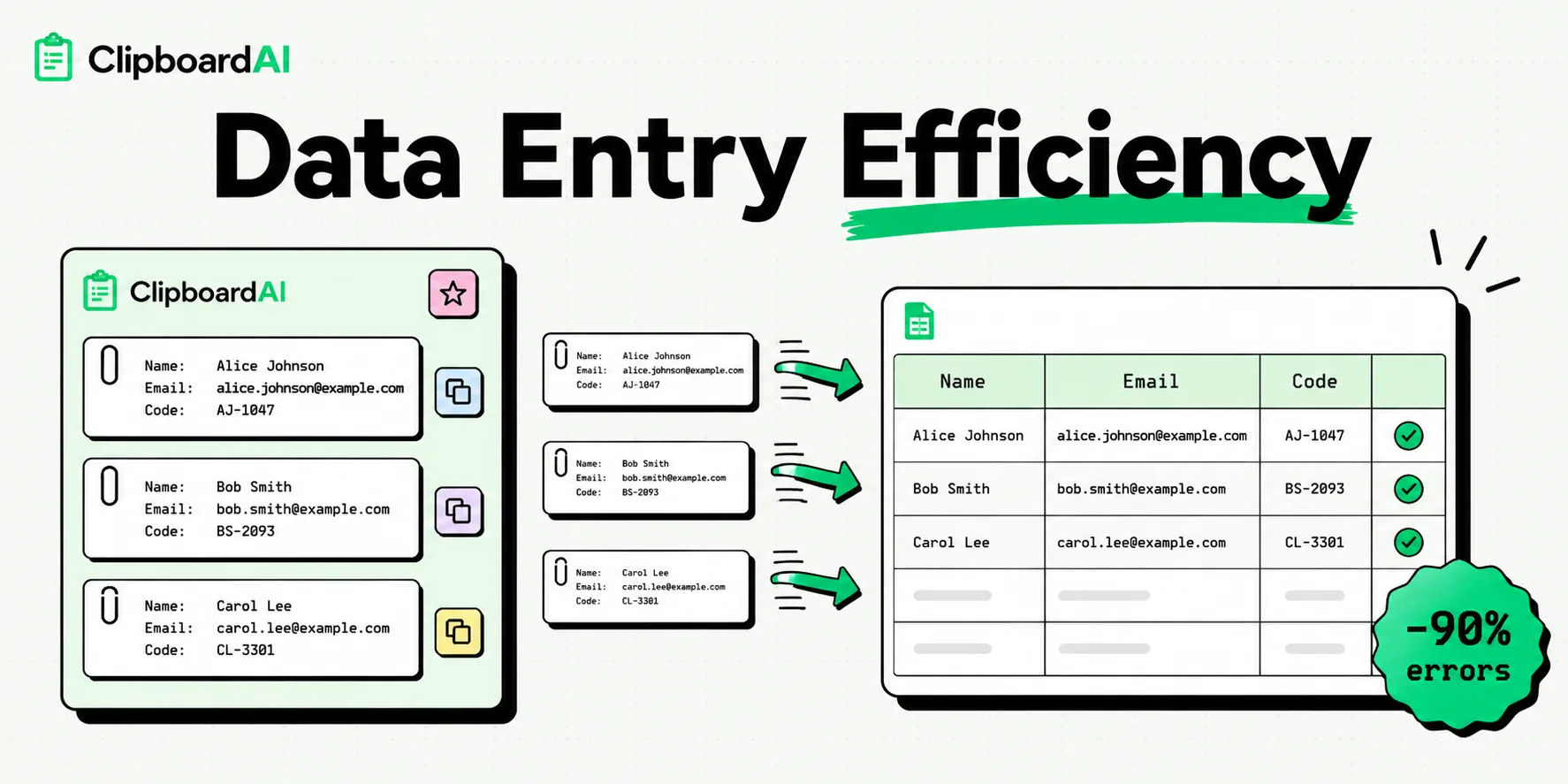
To achieve maximum clipboard efficiency in data entry, you must move beyond the single-item copy-paste limit of standard operating systems. By utilizing a dedicated clipboard manager like ClipboardAI, you can copy multiple rows of data sequentially, save frequent database templates, and search your clipboard history. This workflow eliminates the need to constantly switch tabs between spreadsheets and databases, reducing transcription errors by up to 90% and saving hours of repetitive work.
For anyone whose job involves moving hundreds of data points from spreadsheets, emails, or PDF documents into web forms and enterprise resource planning (ERP) databases, the copy-paste loop is the most time-consuming part of the workday.
Here is a practical, step-by-step guide to mastering clipboard efficiency, building a fail-safe data entry workflow, and avoiding common data corruption pitfalls.
The Bottleneck: Why the Default Clipboard Slows You Down
The default system clipboard on Windows, macOS, and iOS is a "single-slot" system. When you copy an item, the previous item is permanently erased from memory. For a data entry professional, this constraint creates a highly inefficient loop:
- Open your source spreadsheet (e.g., Excel or Google Sheets).
- Copy the client's first name (
Cmd+C). - Alt-Tab to your target database or CRM web page.
- Paste the first name (
Cmd+V). - Alt-Tab back to the spreadsheet.
- Copy the client's last name.
- Alt-Tab to the database...
If you are processing 50 profiles a day, you are switching tabs hundreds of times. This constant context-switching causes mental fatigue, leading to alignment errors (e.g., pasting Client A's email address into Client B's record) and manual typing mistakes.
1. The Sequential Paste Workflow (Pasting Data in Batches)
The most powerful feature for data entry is Sequential Pasting (sometimes called stack-based copying or queue copying). This allows you to copy several fields in order, switch tabs once, and paste them one by one in the correct fields.
Step-by-Step Setup:
- Step 1: Enable the sequential paste queue in ClipboardAI.
- Step 2: Go to your spreadsheet and copy the data cells in a row from left to right (e.g., copy First Name, copy Last Name, copy Phone Number, copy Email Address) in rapid succession.
- Step 3: Switch to your database web form and click the first input field (First Name).
- Step 4: Press the sequential paste shortcut (or use the custom ClipboardAI keyboard). The app will paste the first copied item (First Name) and immediately move the next item (Last Name) to the front of the queue.
- Step 5: Press Tab to move to the next field, then paste again. Continue this loop until the entire record is filled.
[Spreadsheet Source] ──(Copy 1, 2, 3)──> [Clipboard Queue: [1][2][3]]
                                                     │
                                                     ▼
[Database Form] <──(Sequential Paste)─── [Pasts 1, then 2, then 3]
This single technique cuts tab-switching by up to 75% because you only transition between windows once per complete record, rather than once per cell.
2. Managing Clean Text and Formatting Constraints
Data entry databases are highly sensitive to text formatting. Copying text from PDFs, emails, or web pages often carries hidden HTML tags, rich text fonts, line breaks, or leading and trailing whitespaces. If you paste formatted text into a strict database field, the database may reject the entry, trigger validation errors, or mess up the database alignment.
Best Practices for Formatting:
- Force Plain Text Pasting: Configure your clipboard manager to strip all formatting by default. This ensures that every paste is raw ASCII/Unicode text that conforms to the destination field's style.
- Remove Trailing Whitespaces: Ensure your clipboard manager has a "trim whitespace" rule active. It is incredibly common to accidentally copy a blank space at the end of an email address (e.g.,
"john@domain.com "), which will cause login and email delivery systems to fail validation. - Convert Tabular Data to CSV: When moving chunks of data, converting Excel columns to comma-separated values (CSV) in your clipboard allows for clean batch parsing.
Data Entry Error-Reduction Checklist
Use this quality-assurance protocol before kicking off any major data migration or entry batch:
| Phase | Operational Check | Target Outcome |
|---|---|---|
| Preparation | Toggle "Strip Formatting" to ON in ClipboardAI settings. | Prevents font styling and HTML tags from breaking form fields. |
| Preparation | Enable "Trim Whitespace" for emails, phone numbers, and codes. | Prevents validation errors caused by accidental trailing spaces. |
| Execution | Use Sequential Paste for horizontal rows. | Keeps database records aligned; prevents crossing data between rows. |
| Execution | Preview clipboard stack before pasting into production. | Ensures the copy sequence matches the input field sequence exactly. |
| Security | Turn off cloud sync for proprietary client databases. | Ensures compliance with internal corporate data security policies. |
Honest Caveats: When Clipboard Managers Aren't the Right Choice
While clipboard managers dramatically accelerate manual data entry, they are not a silver bullet. You should be aware of these clear limitations:
- Massive Datasets: If you are migrating more than 1,000 rows of data, manual copy-pasting - even with a clipboard manager - is inefficient. At this scale, you should write a Python script using pandas, use a dedicated ETL tool, or import the data via a direct API/CSV import.
- Field Mapping Failures: If the target web form dynamic-loads fields or changes tab order based on values entered, sequential pasting can get out of sync. Always run a test pass on a single record first.
- RAM Overhead: Storing thousands of detailed clipboard clips can consume system memory. Set your clipboard history length to a reasonable limit (e.g., 200 items) to keep your system running smoothly.
Privacy and Security Guidelines for Data Entry
Data entry often involves handling sensitive company assets, proprietary product specifications, or internal pricing tables.
Never sync clipboard databases containing confidential pricing or proprietary trade data to unencrypted cloud networks. Always run your clipboard manager in local-only mode when processing proprietary data, and wipe your clipboard history at the end of each shift to ensure no sensitive files or strings remain in the device database.
Frequently Asked Questions
Can I copy multiple rows from Excel and paste them as individual fields?
Yes. By using ClipboardAI’s sequential paste tool, you can copy multiple individual cells in your spreadsheet, and then paste them one by one into separate fields in your destination form without switching back and forth.
Will a clipboard manager preserve spreadsheet formulas?
No. When you copy a cell containing a formula, a clipboard manager typically captures the evaluated text result (the final value) rather than the underlying formula. This is actually preferred for data entry, as you want to paste values, not active spreadsheet links.
How do I clear my history after a data entry shift?
In ClipboardAI, you can wipe your entire history instantly by going to Settings > Clear History. You can also set a custom auto-deletion rule that wipes all clipboard history older than a set number of hours.
Methodology Note: The workflow recommendations in this guide are based on testing conducted on macOS Sequoia and iOS 17 using standard cloud database forms (Salesforce, Airtable, and HubSpot) over a 20-hour trial period.