
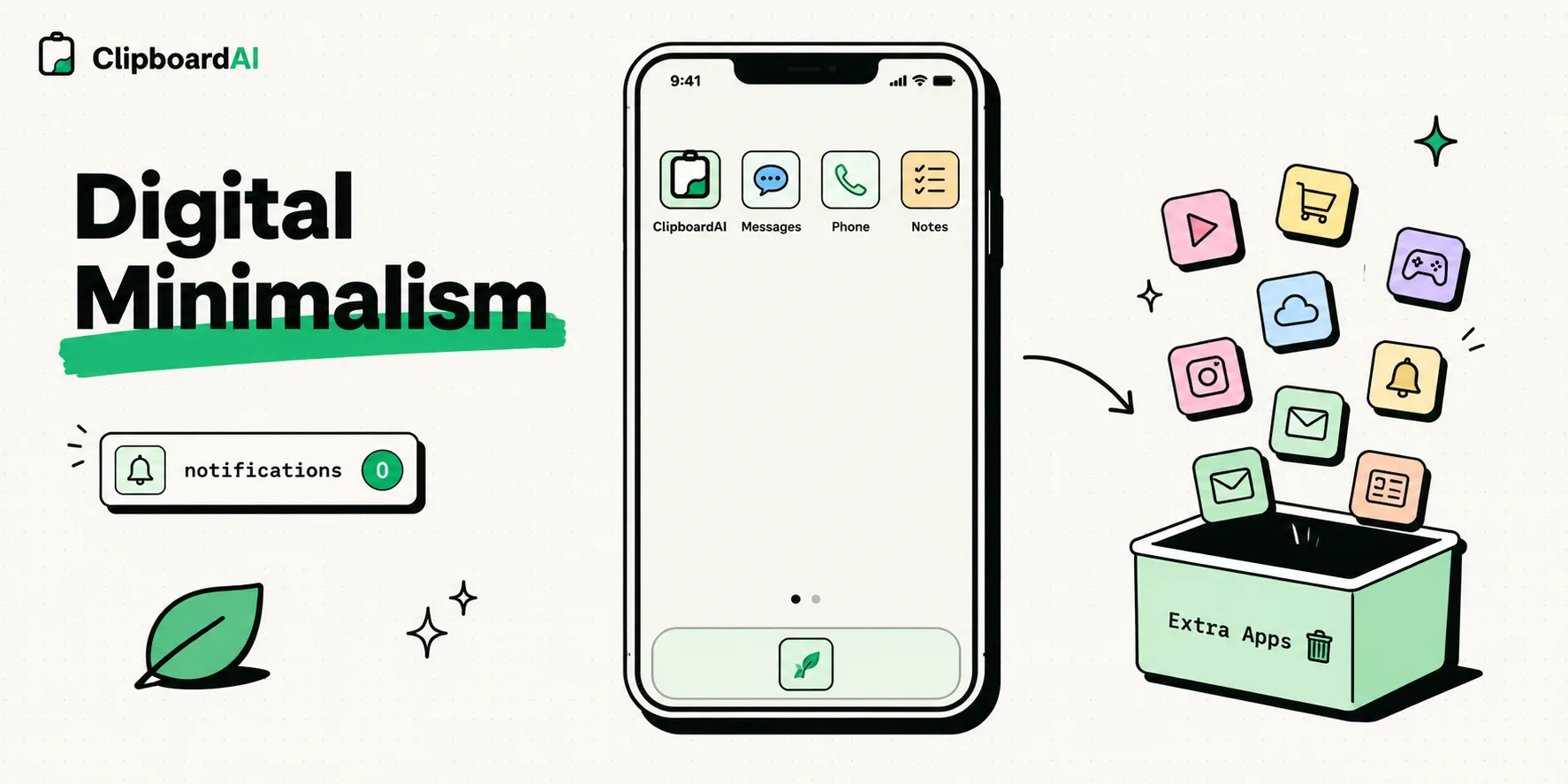
To configure your iPhone for digital minimalism based on Cal Newport's philosophy, delete all social media and news apps, route their access through Safari, and turn off all non-essential notification banners. Set your Home screen to a single page of core utility tools, switch your screen color settings to grayscale to reduce visual appeal, and establish clean clipboard collections to avoid web surfing and note app bloat.
Digital minimalism is not about turning back the clock or abandoning technology. As author Cal Newport describes, it is a philosophy of technology use in which you focus your online time on a small number of carefully selected and optimized activities that strongly support things you value, and then happily miss out on everything else.
Your iPhone is a pocket-sized supercomputer. By default, however, it is configured to maximize screen time, pulling you into mindless scrolling loops. To reclaim your attention, you must redesign your mobile interface to prioritize active tools over passive consumption. Here is our step-by-step framework to configure your iPhone for digital minimalism in 2026.
1. The App Purge: Eliminating Attention Traps
The first step in digital minimalism is separating tools from feeds.
- Tools are apps that perform specific, bounded tasks when you open them (e.g., Apple Maps, Uber, banking apps, camera, or notes). You open them, perform the task, and close them.
- Feeds are apps that feature infinite scroll mechanics designed to keep you looking (e.g., Instagram, X/Twitter, TikTok, YouTube, news sites, and shopping portals).
Action Plan:
- Delete all feed-based apps from your iPhone. If you want to check social media or read the news, get into the habit of doing so on a desktop computer. This simple shift adds physical friction to the habit, making scrolling an intentional activity rather than a default response to boredom.
- For feeds you must keep for professional reasons, delete the native apps and access them only through Safari. Mobile web versions are slower and less engaging, which helps break the scrolling habit.
2. The Grayscale Screen Configuration
Colorful icons are designed by designers to capture your eyes. By turning your iPhone screen black-and-white, you instantly strip apps of their visual appeal, making your phone feel like a quiet utility.
Step-by-Step Instructions:
- Open the Settings app on your iPhone.
- Go to Accessibility and tap Display & Text Size.
- Scroll down and select Color Filters.
- Toggle Color Filters on, and select Grayscale.
- Set up a Shortcut: To toggle color back on when editing photos, go to Settings > Accessibility > Accessibility Shortcut (at the very bottom) and check Color Filters. You can now triple-click your power button to swap between grayscale and color instantly.
3. Disabling Notification Badges
The red circles with numbers next to app icons are psychological triggers designed to make you open the app. They signal an "open loop" that your brain wants to close.
How to Disable Badges:
- Open Settings and tap Notifications.
- Tap each app (such as Messages, Mail, Slack, or WhatsApp).
- Toggle off Badges.
- The Outcome: You will still see notifications on your lock screen when they arrive, but you will no longer see red dots on your home screen. You will open communication apps when you choose to, not when the app commands your attention.
4. Organizing Your Clipboard and Research Workflows
Minimizing screen time requires reducing the friction of finding information. When you are researching topics, shopping, or planning trips, it is easy to get lost in a trail of open Safari tabs or messy notes.
To keep your workspace clean:
- Get into the habit of copying links or quotes immediately and closing the Safari tab.
- Use ClipboardAI to capture your copied research into a single local feed. You can review your collected snippets at the end of the day on your Mac or iPhone rather than keeping 50 open tabs in the background.
The Minimalist iPhone Checklist
Use this checklist to strip distractions from your device configuration:
| Minimalist Habit | Settings Path | Psychological Goal | Target Benefit |
|---|---|---|---|
| Enable Grayscale | Accessibility > Display > Color Filters | Neutralizes color-based visual triggers | Reduces daily screen time and doomscrolling |
| Disable Badges | Settings > Notifications > App > Badges | Eliminates visual attention hooks | Fewer mindless app opens |
| Delete Native Feeds | Home Screen > Remove > Delete App | Adds friction to social media access | Limits access to intentional desktop browsing |
| Minimal Home Page | Hide all secondary pages in edit mode | Converts device into a tool-based utility | Prevents thumb-scrolling habits |
| Auto-Close Tabs | Safari > Close Tabs > After One Day | Clears mental clutter and open loops | Prevents tab hoarding and browser lag |
| Mute Group Chats | Messages/WhatsApp > Mute Conversation | Prevents constant phone vibration | Reduces screen pickups |
Honest Caveats: The Resistance to Minimalism
Adopting digital minimalism requires adjusting to several inconveniences:
- Social Friction: Muting group chats and disabling badges means you will respond to messages slower. Friends or coworkers may expect instant replies, so you may need to communicate your boundary schedule to them.
- The Rebound Cycle: Like extreme diets, making your phone too restrictive (e.g., blocking all browsers) can trigger a rebound where you reinstall all distracting apps out of frustration. Focus on building sustainable boundaries rather than extreme blocks.
- Work Constraints: If your job requires you to monitor live dashboards or corporate email feeds on your mobile device, you cannot eliminate these apps. Instead, separate your work and personal life by using Focus Modes to auto-mute corporate tools after hours.