
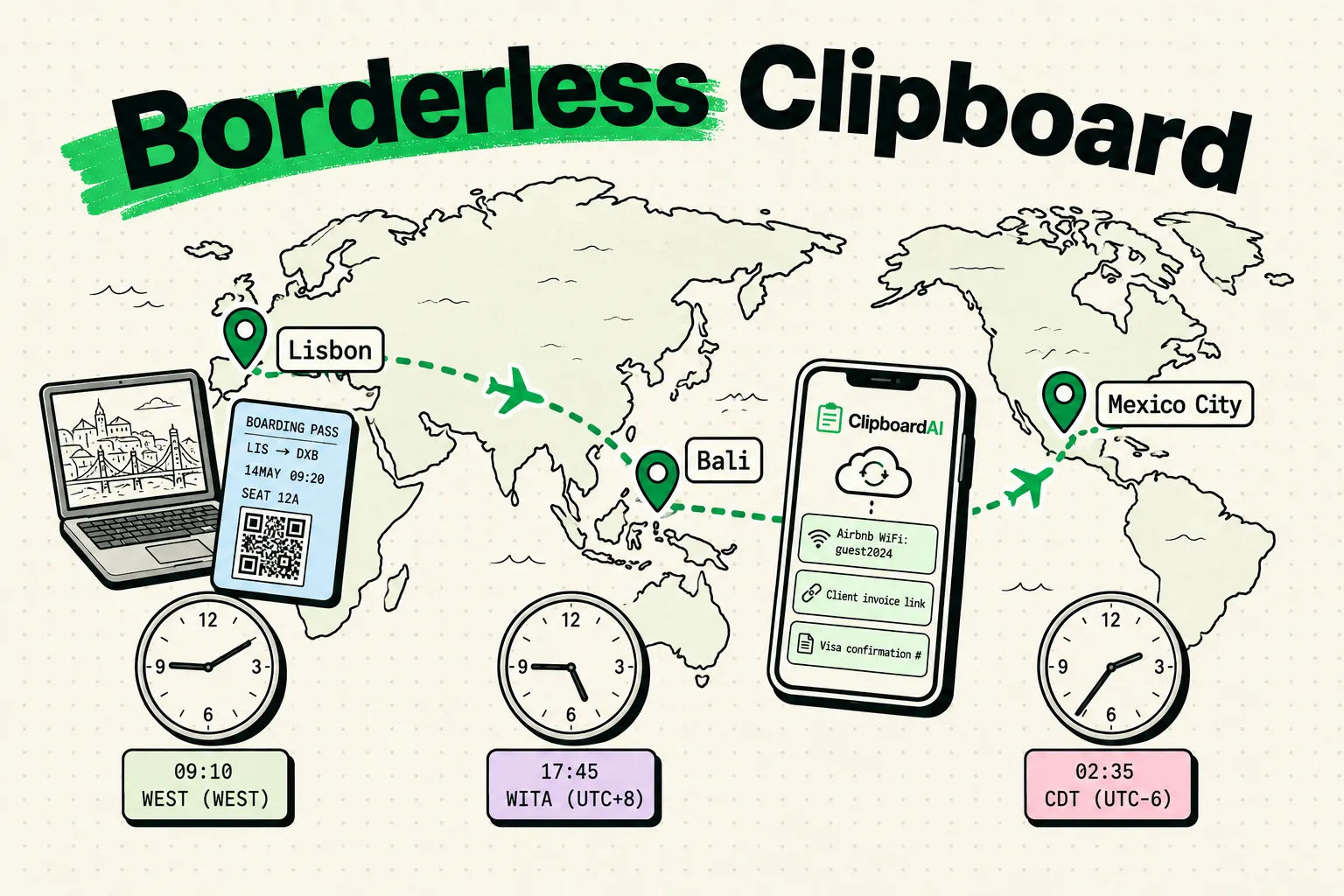
You're in a co-working space in Lisbon, on a call with a client in Tokyo, trying to book a bus to Porto for tomorrow, and every one of those tasks wants your clipboard at the same time - a booking code, a client's project note, a WiFi password you'll need again in ten minutes. The fix isn't a new app for each thing; it's a short, deliberate list of clips worth pinning before you need them, built once and updated as you move. Below is that list, organized by what actually breaks a travel day versus what's just convenient.
The direct version
Before your next border crossing or city change, spend five minutes pinning these in your clipboard manager: your passport number and expiry, travel insurance policy number, an emergency contact, your standard client email templates, your invoice/payment details, and your home address for official forms. Everything else on this page is detail on why each category earns its place and what to add as you go.
The core kit: pin these once, keep them forever
| Category | What to pin | Why it's worth pinning specifically |
|---|---|---|
| Identity | Passport number + expiry date | Needed for visa forms, hotel check-in, insurance claims - asked for constantly, easy to mistype from memory |
| Safety | Travel insurance policy number, emergency contact | You want this reachable with zero friction if something goes wrong, not buried in an email search |
| Home base | Your home address (for official/tax forms), a fixed phone number | Forms assume you have one address; nomads often don't have it memorized when asked unexpectedly |
| Money | Payment links (PayPal, Wise, bank transfer details) per client | Different clients pay through different rails - having each ready prevents payment delays |
| Client work | 2-3 email templates (project update, invoice follow-up, scheduling) | Limited overlap hours means you can't compose from scratch every time |
Pin these once, and update the identity and safety rows only when they actually change (new passport, new policy).
What to add and drop as you move
The kit above is static. The next layer changes every time you land somewhere new:
- Current WiFi password - cafes, co-working spaces, and Airbnbs all have different ones, and you'll need to re-enter it after every disconnect. Save it once per location instead of asking twice.
- Local emergency number - not every country uses 911; know the local equivalent before you need it, not while you need it.
- Accommodation address in the local language - essential for taxis and delivery. Typing it correctly from memory in a language you don't speak is where this usually goes wrong.
- Embassy or consulate address for your passport country, in that city.
A clipboard manager with automatic categorization (ClipboardAI sorts by Links, Addresses, Phone Numbers, and Codes as you copy) means these get filed without you doing manual folder work between flights - genuinely useful when you're jet-lagged and just want the WiFi password, not a filing exercise.
Client communication across time zones
If your overlap window with a client is two hours, composing every email from scratch inside that window is how you lose most of it to typing instead of talking. The fix is the same one freelancers everywhere use: write your 2-3 most common messages once, pin them, and personalize on send.
Template: Project update
Hi [Name], quick update on [project]: [status]. Next step is [action], targeting [date]. Let me know if anything needs to shift.

Template: Time zone note
[City] is [Timezone] ([UTC offset]). Your [time] is my [time].

Template: Invoice follow-up
Hi [Name], following up on invoice #[number] sent [date]. Let me know if you need anything else from me to process it.
Also worth pinning: a one-line time zone conversion note for your current base against your main clients, so you're not doing timezone math half-awake. "Lisbon = EST +5, JST -8" pasted at the top of a planning note prevents the actual scheduling disasters, not the templates.
Honest caveats
- A clipboard manager is not accounting software. Your clipboard history can be a useful supplementary record of client interactions when tax season arrives, but it is not a replacement for proper invoicing or bookkeeping tools. Don't rely on it as your only financial record.
- Don't pin your passport number if you're worried about device loss. Pinning it locally is convenient, but weigh that against what happens if your phone is stolen unlocked. Everything stays on your device by default, and if you turn on sync it runs through your own private iCloud account, encrypted in transit and at rest by Apple at the same tier as iCloud Photos or Notes, with nothing passing through a ClipboardAI server. That's solid for travel logistics, though for your very most sensitive identity documents a dedicated secure vault app is still the natural home.
- WiFi passwords pile up fast and are rarely worth keeping long-term. Set an auto-delete window (30 days or longer, depending on your ClipboardAI settings) so last month's cafe password in Chiang Mai doesn't clutter searches six months later in Mexico City.
- This kit assumes iPhone/iPad/Mac only. ClipboardAI has no Windows client, so if part of your setup runs Windows, your synced clipboard kit won't follow you there.
Frequently Asked Questions
What should digital nomads keep pinned in a clipboard manager?
Passport number and expiry, travel insurance policy number, an emergency contact, home address, 2-3 client email templates, and payment details for each active client. Add current WiFi passwords and local emergency numbers as you move.
How do digital nomads manage multiple clients' payment details?
Pin each client's payment method (PayPal, Wise, bank transfer info) separately rather than digging through old emails each time an invoice is due. Label them clearly so you don't send the wrong account to the wrong client.
Is it safe to store passport information in a clipboard manager?
It's convenient but worth weighing against your device's own security (passcode, Face ID) and whether sync is enabled. Everything stays on your device by default, and sync runs through your own private iCloud account, encrypted in transit and at rest by Apple at the same tier as iCloud Photos or Notes, with nothing passing through a ClipboardAI server. That's solid for travel logistics, though for your very most sensitive documents a dedicated secure vault app is still the natural home.
Does ClipboardAI work across iPhone, iPad, and a Windows laptop?
No. ClipboardAI is Mac, iPhone, and iPad only - there is no Windows client, so a mixed Apple/Windows setup won't get a fully synced clipboard across every device.