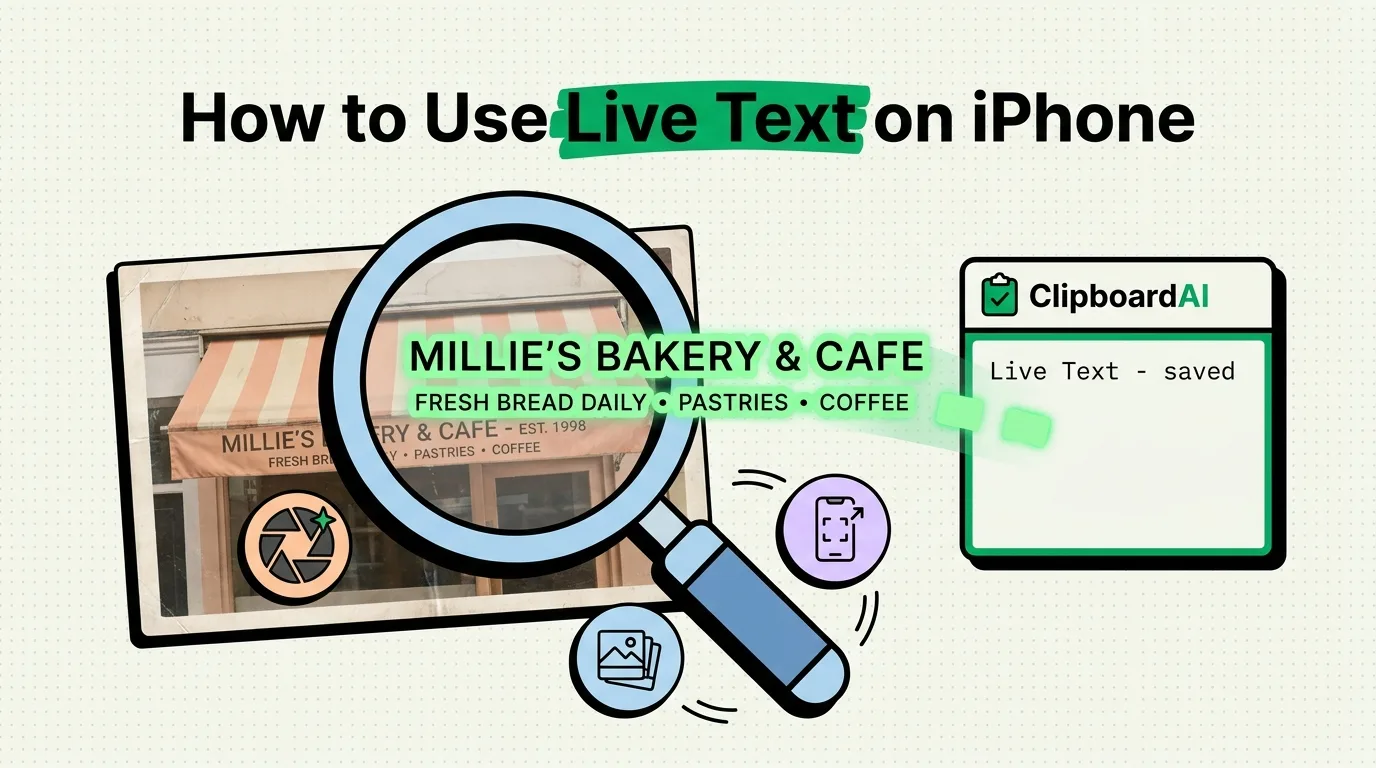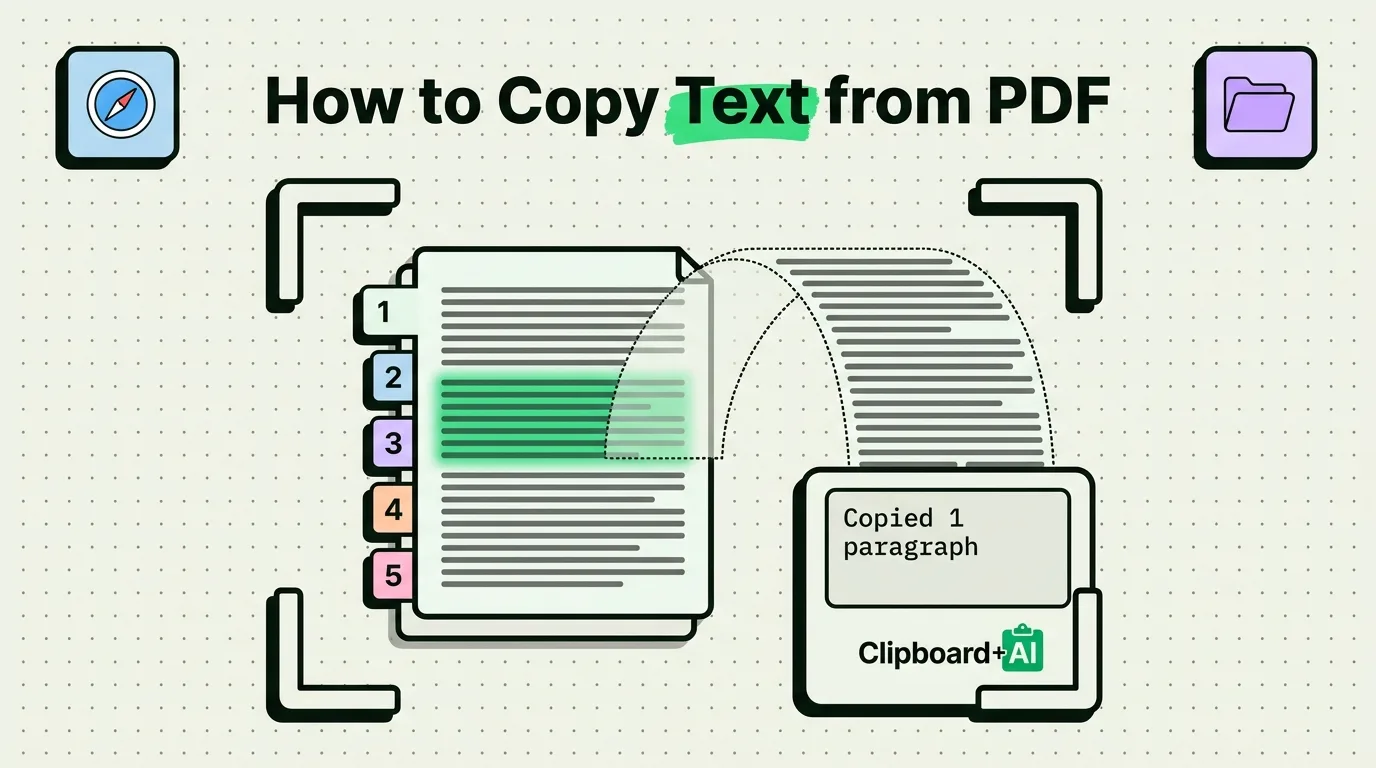

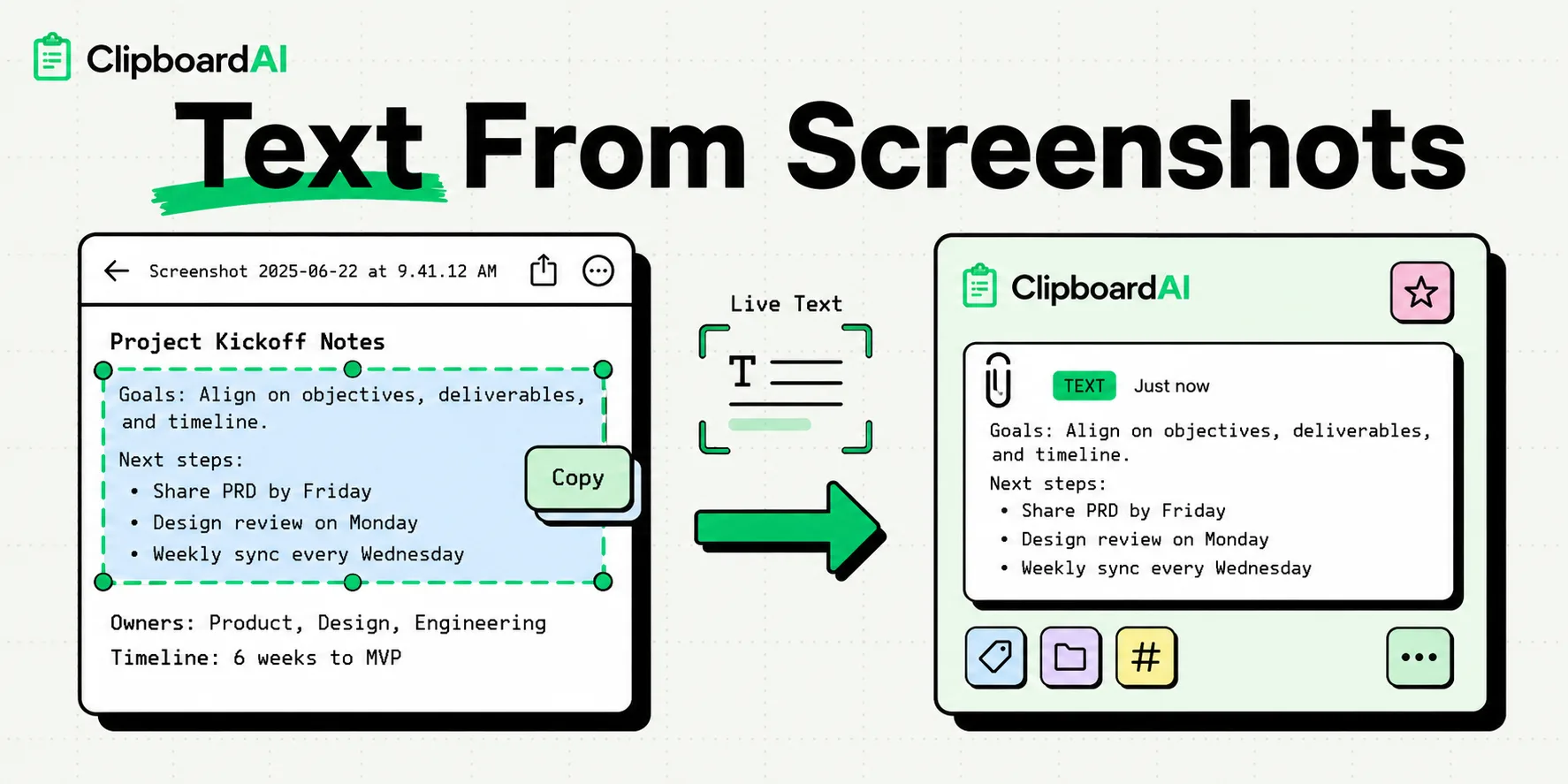
To copy text from a screenshot on iPhone, open it in Photos, tap the Live Text button in the lower-right corner of the picture, touch and hold the words you want, and tap Copy. Live Text reads the image on the device, and Apple lists it for iPhone XS and later on iOS 15 or later, so every iPhone that runs iOS 26 or iOS 27 has it. The same steps work on photos, paused videos, the Camera viewfinder and images in Safari.
Copy the text in four taps
- Open Photos and tap the screenshot. On iOS 27, every screenshot is gathered under Collections > Media Types > Screenshots.
- Tap the Live Text button in the lower-right corner of the image, a small frame with lines of text inside it. Every word iOS found is highlighted.
- Touch and hold a word, then drag the grab points over the part you want, or tap Select All.
- Tap Copy. The text is on your clipboard, ready to paste into a message, a note or a form.
Step 2 is optional: touching and holding a word in any photo starts a Live Text selection by itself. The button is still worth a tap, because it highlights everything iOS recognized and lines up quick actions along the bottom of the screen.
Act on a number or link without copying it
Often you do not need the text at all, only what it points to. A recognized phone number, email address, website, street address or price turns into a quick action: tap it to call, write, open the page, get directions or convert the currency. Select a phrase and you also get Translate, Look Up, Search the web and Share next to Copy.
Live Text reads a picture when you open it, so a screenshot from three years ago works as well as one from this morning.
Copy text an app will not let you select
Some apps lock their words away: a story that disappears, a slide inside a video player, a screen that renders text as an image. Take a screenshot instead by pressing the side button and the volume up button together, open it, and lift the text with Live Text. What the app would not hand over, the screenshot gives up.
Other places Live Text works
- The Camera. Point it at a menu, a sign or a serial number. When a yellow frame appears around the text, tap the Live Text button and select what you need, without taking a photo. The switch for this is Settings > Camera > Show Detected Text.
- Paused videos. Pause on the frame with the text, then tap the Live Text button or touch and hold a word. Text in video needs iOS 16 or later.
- Safari and Quick Look. Touch and hold the text inside an image on a web page, or in a picture you open from Files or Mail.
- Notes. In a note, the Attachment button's Scan Text option types the words the camera sees straight into the note. For whole pages, see scanning documents to PDF on iPhone.
The full tour of the feature, including translation and supported languages, is in how to use Live Text on iPhone.
What changed in iOS 26 and iOS 27
On iPhones with Apple Intelligence, which means iPhone 15 Pro and later, iOS 26 turned the screenshot buttons into a doorway to Visual Intelligence. Take a screenshot and tools appear along the bottom of the full-screen preview: search for what is on screen, ask a question about it, add an event to Calendar, or tap Summarize or Read Aloud for the text. Apple's guide for that screen lists no copy command, so when you need the exact words, save the screenshot and use Live Text in Photos. Apple's screen capture settings can also switch you back to the small thumbnail in the corner.
iOS 27 lets a shortcut run when a screenshot is captured, one of several new automation triggers in the Shortcuts app. A three-action shortcut copies a screenshot's text without opening Photos: Get Latest Screenshots set to 1, Extract Text from Image, then Copy to Clipboard. Run it from Back Tap or the Action Button, or attach it to the new trigger. Apple has not yet documented whether that trigger can run without asking first. The clipboard shortcuts guide has the build steps and eleven more recipes.
Keep the text after you copy it
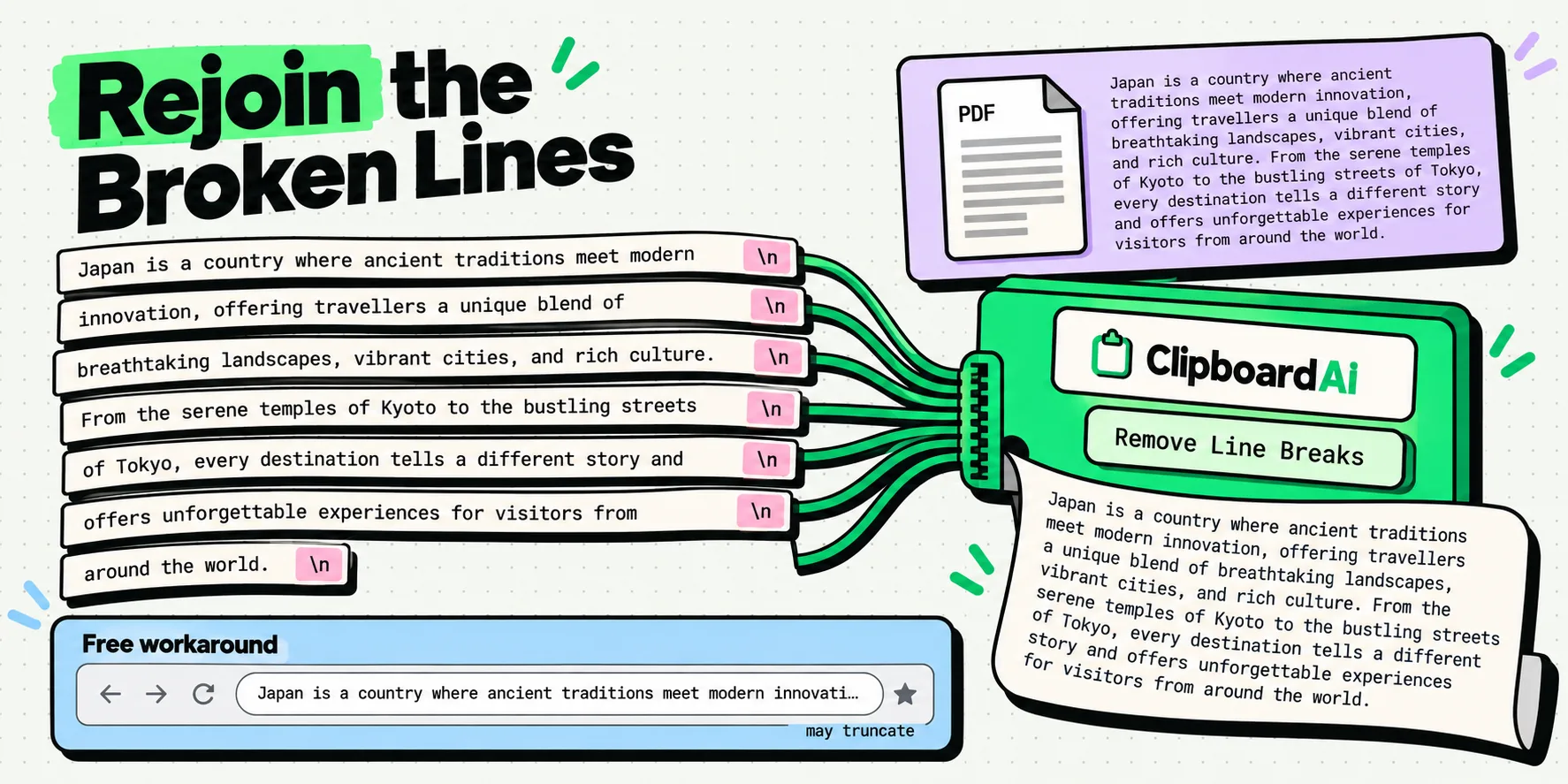
Live Text copies once and forgets. The iPhone clipboard holds a single item, so your next copy replaces the text you lifted; why the iPhone keeps only one copy explains the design.
Clipboard AI's text-in-images feature keeps it instead. Save the screenshot to Clipboard AI, from the Share sheet in Photos or by copying the image and switching to the Clipboard AI keyboard, and the app reads the words on the device with Apple's Vision framework, with nothing uploaded. Open the clip and the Text in Image section underneath has a Copy Text button; drag across part of the text and that selection is saved as its own clip. Phone numbers, addresses, links, dates, amounts, and tracking and flight numbers become chips you tap to copy or hold to call, open or track. On iOS 26 and later, a table in a screenshot comes out with a Copy Table button that pastes real cells into Numbers or Sheets. Search then reaches the words inside every image you saved, so a screenshot turns up weeks later when you type a word that only appears in it. All of this is free.
Send the text to your Mac or iPad
Universal Clipboard moves your latest copy to a nearby Mac or iPad signed in to the same Apple Account, with Bluetooth, Wi-Fi and Handoff on, but only one item and only for a short time. If you are pulling text from several screenshots into a document on the Mac, save each one to Clipboard AI as you go; with Clipboard AI Pro and iCloud sync, the screenshots and their recognized text are waiting in the Mac app under Command-Shift-V. More ways to work with text in pictures are collected in the text from images and PDFs guides.
When Live Text misses the words
- Small or blurry text. Zoom in to make selecting easier. If the words still are not recognized, the image may be too low in resolution, so take a fresh screenshot at a larger size.
- Handwriting and decorative fonts. Clean printed text reads best; handwriting and ornate lettering are hit and miss.
- The language or region. Live Text is not available in every language or region. Apple keeps the current list on its iOS Feature Availability page.
- Switched off. Check Settings > General > Language & Region > Live Text, and for the camera, Settings > Camera > Show Detected Text.
Frequently Asked Questions
Does every screenshot get a Live Text button?
No. The button only appears when iOS finds text it can read, so a screenshot of a photo or a game may not show one. If it is missing on images that clearly contain words, Live Text is probably switched off for that language, or the language is not supported in your region yet.
Can I search my photos for the text inside them?
Yes. Since iOS 15, Spotlight can find text and handwriting in your photos, so typing a word from a screenshot into iPhone search can bring the picture up. Inside Clipboard AI, search does the same for the images you save there.
Does Live Text work without an internet connection?
Yes. Apple describes Live Text as on-device intelligence, so reading and copying the words happens on the iPhone itself, even in airplane mode. Searching the web for a selection is the part that needs a connection.
Can I copy text from a screenshot on an iPad?
Yes. Apple lists Live Text for iPad (8th generation), iPad mini (5th generation), iPad Air (3rd generation) and later, every iPad Pro 11-inch, and iPad Pro 12.9-inch from the 3rd generation on, running iPadOS 15.1 or later. The steps in Photos are the same as on iPhone.
Sources
- Apple Support, “Copy and translate text from photos on your iPhone or iPad”, May 1, 2026
- Apple Support, “Interact with content in a photo or video on iPhone”, iPhone User Guide for iOS 27 and 26, read October 5, 2026
- Apple Support, “Use Live Text with your iPhone camera”, read October 5, 2026
- Apple Support, “Take a screenshot on iPhone”, read October 5, 2026
- Apple Support, “Learn about what’s on your iPhone screen with Visual Intelligence”, read October 5, 2026
- Apple Support, “Scan text and documents in Notes using the iPhone camera”, read October 5, 2026
- Apple Newsroom, “iOS 15 brings powerful new features to stay connected, focus, explore, and more”, June 7, 2021
- Apple Newsroom, “Apple elevates the iPhone experience with iOS 26”, June 9, 2025
- MacRumors, “iOS 27 Makes the Shortcuts App Much Less Intimidating”, June 26, 2026
- MacRumors, “50 New Things Your iPhone Can Do in iOS 27”, September 23, 2026
- Matthew Cassinelli, “Extract Text from Image”, Shortcuts action reference, read October 5, 2026
- Apple Support, “Use Universal Clipboard to copy and paste between your Apple devices”, February 18, 2026