
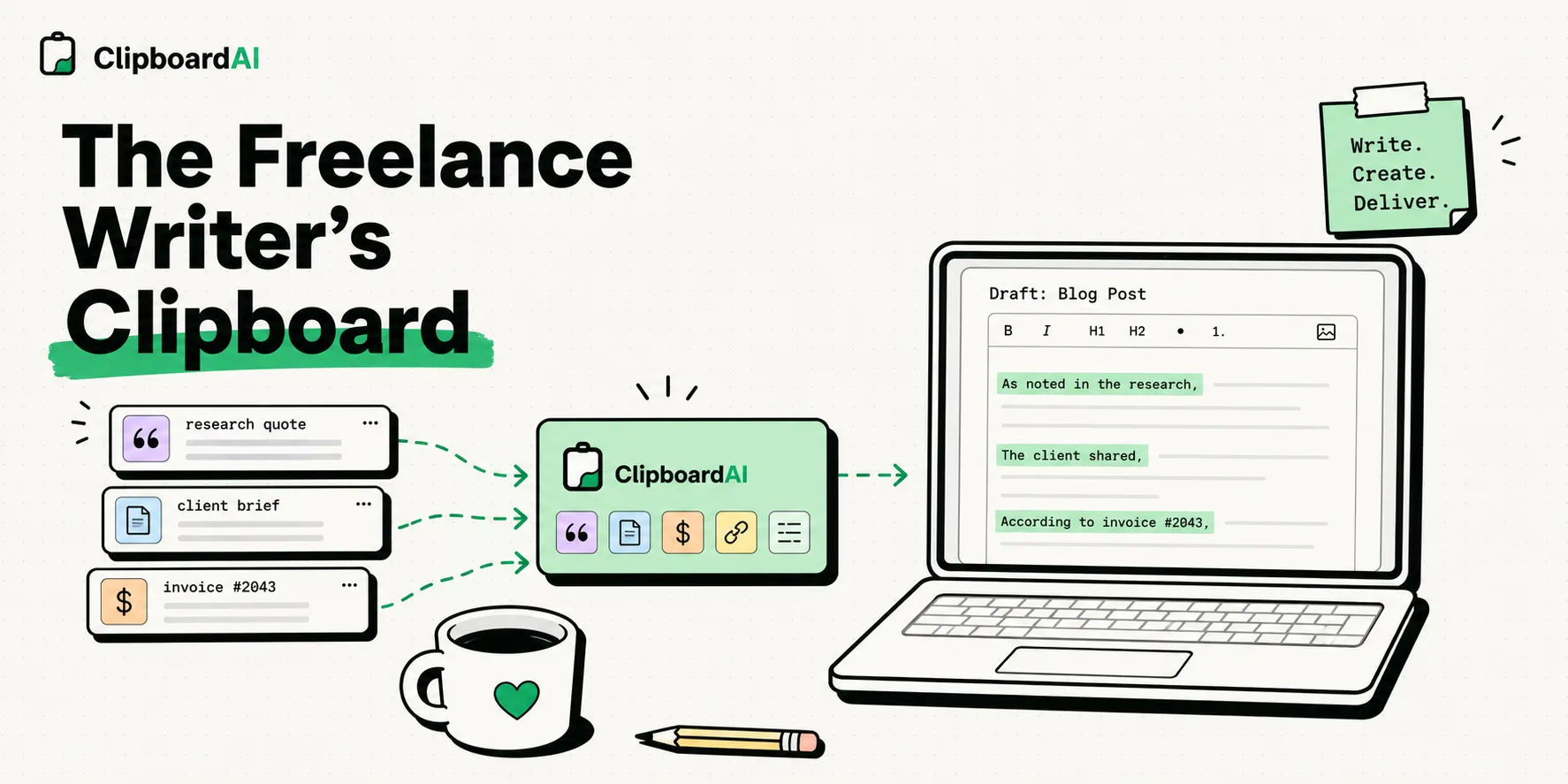
To optimize your freelance writing workflow, using a clipboard manager like ClipboardAI on your iPhone and Mac is the single most effective way to store research clippings, quotes, and pitch templates without overwriting them. Because iOS natively limits the clipboard to a single copied item, a dedicated tool prevents you from losing vital source links and text snippets when moving between your web browser, research notes, and word processors.
Here is a practical guide to optimizing your writing workflow, preventing lost research, and speeding up client pitches.
The Chaos of Single-Copy Writing Workflows
Writing professionally is rarely a linear process. Whether you are drafting a 2,000-word deep dive, compiling an interview-driven profile, or sending out pitches to editors, you are constantly collecting, moving, and organizing text.
Consider the classic research-to-draft workflow without a clipboard manager:
- You read an academic study PDF and copy a key statistic: "73% of freelance writers report client acquisition is their primary bottleneck."
- You open your Google Doc and paste it.
- You switch back to Safari to copy the URL of the study for citation.
- You copy the URL. The statistic is now gone from your device's active memory.
- If you need to quote a different section of that same study, you must toggle back and forth between the PDF and the document, repeating this sequence for every single quote, name, title, and link.
This constant tab-switching creates cognitive friction. Every time you leave your drafting environment to retrieve a link or double-check the spelling of a source's name, you invite micro-distractions. Studies on cognitive load show that it takes an average of 23 minutes to regain deep focus after a context switch. For freelance writers working on tight word-rate deadlines, this loss of momentum translates directly to a lower hourly income.
Required Value Artifact: The Freelance Writer's Workflow Snippet Pack
To save you from typing the same snippets repeatedly, copy and pin these templates directly into ClipboardAI. You can access them instantly via the custom iOS keyboard extension or your desktop app overlay.
1. Research Citation Template
Keep this structure pinned so you can format your source citations in markdown or plain text as you research, rather than cleaning them up during editing:
"[Quote]" - Source: [Name], [Author Title]
Article/Book: [Document Title]
Source URL: [URL]
Accessed: [Date]
Key Takeaway: [Snippet]
2. The Editor Pitch Follow-Up Block
Don't retype your pitch reminders. Customize this block and pin it:
Hi [Editor Name],

Just following up on my pitch for "[Proposed Article Title]" sent on [Date].

I know your team is planning the upcoming editorial calendar, and I'd love to help fill the [Category/Topic] slot. The draft would run roughly [Word Count] words and include interviews with [Expert Name 1] and [Expert Name 2].

Looking forward to your thoughts!

Best,
[Your Name]
Portfolio: [Portfolio Link]
3. Markdown Formatting Shortcuts
For writers who draft in markdown editors like Bear, Ulysses, or Obsidian, keep these code structures pinned:
- Markdown Link Builder:
[URL] - Blockquote with Citation:
  > "[Pasted Quote]"
  >
> - *[Source Name]*, [Source Title] ([Source URL])- Affiliate Disclosure Template:
*Disclosure: We recommend tools we believe in. Some links in this article contain affiliate tracking codes, meaning we earn a small commission if you upgrade.*Writing Workflow Tool Comparison
Not all copy-paste configurations are equal. Here is how the native system clipboard compares to dedicated clipboard utilities for writing workflows:
| Management Method | Text Format Controls | Organization System | Sync Method | Privacy Status | Best Suited For |
|---|---|---|---|---|---|
| Native iOS/macOS Clipboard | None (Pastes with source formatting) | None | Universal Clipboard (Volatile iCloud sync) | Local RAM (volatiles vanish on reboot) | Single-use web searches and simple texts. |
| Paste App | Rich Text / Plain Text toggle | Visual board layout | Required iCloud sync | Cloud-dependent | Visual creators who want to see card previews of clips. |
| ClipboardAI | Automatic Plain Text Stripping | Custom nested categories (e.g., Pitches, Quotes) | Optional iCloud sync (SQLite base) | On-device local database (Safe for unreleased drafts) | High-volume freelance writers, bloggers, and copywriters. |
Speeding Up Your Daily Writing Sprint
By utilizing a clipboard manager like ClipboardAI, we can optimize the three key stages of the freelance writing process:
1. Sequential Quote Harvesting
Instead of copy-pasting every quote one by one as you read through a source document:
- Turn on ClipboardAI.
- Read your source material (e.g., an interview transcript or public study).
- Copy every relevant quote, statistic, and source name back-to-back without switching apps.
- ClipboardAI logs each copy sequentially.
- Open your drafting app. Pull up your clipboard history and paste the quotes directly into your outline in one go.
2. Instant Formatting Stripping
One of the most annoying aspects of copy-pasting is styling mismatch. When you copy a quote from a webpage, it often carries over background colors, massive font sizes, or serif typefaces that clash with your draft.
- The ClipboardAI Fix: ClipboardAI includes a "Paste as Plain Text" default rule. It automatically strips styling metadata, allowing you to paste text that seamlessly matches the format of your active editor.
3. Rapid Pitching and Outreach
Sending pitches to multiple publications requires personalization, but the structural format remains the same. Keep your introductory paragraph, bio block, and portfolio links pinned in your clipboard manager. Use the custom keyboard on your iPhone to quickly construct outreach emails while waiting in line or on the go, inserting links with a single tap instead of searching your notes app.
A Day in the Life of a Clipboard-Enabled Writer
Here is how this productivity system coordinates your workflow throughout a typical workday:
Morning: Pitching and Marketing
You start the day by following up on pitches and applying to new contract writing opportunities. Instead of opening three different tabs to copy your bio, your resume link, and your top three published articles, you bring up your pinned folders. With a few taps on your keyboard, you customize your outreach letter, insert the links in order, and send them off.
Midday: High-Speed Researching
You are writing an article about AI productivity. You need to gather quotes from a developer forum, a corporate press release, and a tech blog. You read the pages, copying statistics and quotes as you scroll. You do not worry about losing anything; your clipboard history is keeping track. When you open your drafting tool, you arrange your research notes, drag in the references, and start structure planning immediately.
Late Afternoon: Editing and Client Submissions
Your draft is complete, and you are ready to file the piece. You copy your standard submission notes, the staging URL where you uploaded the draft, and your invoice template. You paste these details into your client portal or email client. You review your clipboard history to verify you didn't leave any client addresses or bank details in active RAM, then clear the temporary history logs.
Honest Caveats: Operating System & Application Limitations
No utility is without limits, and we want to document where clipboard managers face barriers:
- iOS Background Restraints: Apple's security sandbox does not allow third-party apps to run silently in the background and read your clipboard. If you copy text in Safari on your iPhone, you must open the ClipboardAI keyboard or launch the app to pull those copies into your history database.
- Universal Clipboard Latency: Using Apple's Handoff feature to copy on an iPhone and paste on a Mac works, but it suffers from Bluetooth/Wi-Fi latency. If your connection is weak, you may experience a 3-5 second delay. For bulk citation workflows, we recommend working locally on your primary device.
- Large File Copying: If you accidentally copy a massive high-resolution screenshot or a large video file while drafting, it writes binary data to your system memory. Ensure your clipboard manager filters out files larger than 10MB to prevent application lag.
Setting Up Your Writer's Clipboard System
To build a streamlined writing environment, spend a few minutes configuring your tools:
- Download ClipboardAI on your Mac and iPhone.
- Exclude Sensitive Applications: Navigate to
Settings > Securityand add your password manager and banking apps to the ignore list. - Build Pinned Folders: Create folders named
Active Project Quotes,Pitch Templates, andBio Links. - Learn the Keyboard Shortcut: On your computer, memorize the hotkey (e.g.,
Cmd + Option + V) to summon your history overlay instantly. On your phone, enable the ClipboardAI keyboard in your iOS settings.