
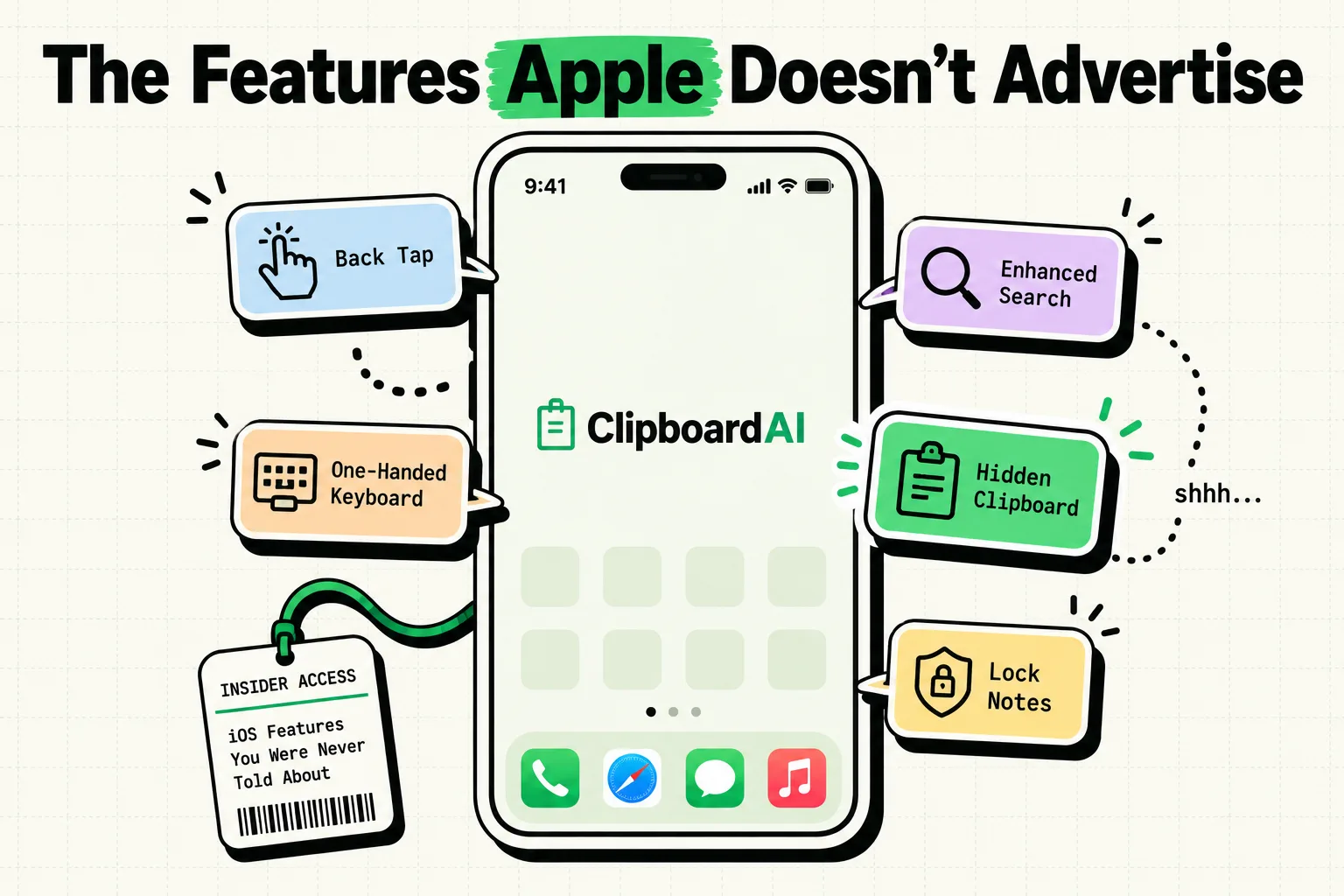
Quick Answer
The best hidden iPhone features for daily productivity are Back Tap, Text Replacement, Live Text, Focus filters, keyboard text selection, widgets, Shortcuts automations, and a searchable clipboard history. None of them are dramatic on their own. Together, they remove dozens of tiny taps, swipes, searches, and "where did that go?" moments.
This is not an insider list or a collection of novelty tricks. These are the features worth setting up because they survive contact with a normal Tuesday.
1. Back Tap for Capture
Back Tap lets you double-tap or triple-tap the back of your iPhone to run an action. It lives in Settings > Accessibility > Touch > Back Tap.
The useful setup is not flashy. Assign double tap to something you actually do: open the camera, start a note, run a Shortcut, or open ClipboardAI. If you save copied text often, Back Tap can become a quick "capture this before I forget" button.
Best use: quick capture, screenshots, opening a notes workflow, or launching your clipboard history.
2. Text Replacement for Tiny Repeats
Text Replacement is the iPhone feature people ignore until they realize how often they type the same things. Find it under Settings > General > Keyboard > Text Replacement.
Create short triggers for small, safe snippets: your email, a sign-off, a scheduling phrase, a support reply, or a common address line. For example, @@ can expand into your email address, and omw can expand into "On my way, be there in 10."
Use Text Replacement for tiny snippets. Use a clipboard manager for larger reusable blocks, links, screenshots, and anything you want searchable later.
3. Live Text for Copying the Real World
Live Text turns text inside photos, screenshots, camera views, and paused videos into selectable text. It is quietly one of the best iPhone features because the world is full of text trapped in images: Wi-Fi signs, receipts, posters, tracking numbers, slides, restaurant menus, whiteboards.
Open a photo or screenshot, press on the text, select what you need, and copy it. If you use ClipboardAI, that copied text can become searchable instead of disappearing the next time you copy something else.
Best use: extracting addresses, codes, notes from slides, serial numbers, and text from screenshots.
4. The Spacebar Trackpad Trick
Long-press the spacebar while typing and your keyboard turns into a tiny trackpad. Slide your finger to move the cursor precisely through text. It is one of those features that feels boring until the first time you stop rage-tapping between two letters.
On some iPhone models and iOS versions, you can also use gestures to select text more precisely once the cursor is active. The main win is simple: editing text becomes calmer.
Best use: fixing typos, editing long messages, selecting a line before copying it.
5. Focus Modes That Change the Phone, Not Just Notifications
Focus Modes are more than "Do Not Disturb with a nicer name." A good Focus setup changes which people can reach you, which apps can interrupt you, which Home Screen appears, and which Lock Screen widgets are visible.
Try three simple Focus modes before making twelve complicated ones:
| Focus | Allow | Hide |
|---|---|---|
| Work | Calendar, Slack, email, task manager | Shopping, social, games |
| Personal | Family, friends, photos, music | Work apps and badges |
| Deep Work | Timer, notes, browser, clipboard | Almost everything else |
The trick is to make each mode remove a decision. When Work Focus starts, your phone should stop asking, "Do you want to wander off?"
6. Widgets for Things You Actually Reopen
Widgets are useful when they remove a repeated app-opening loop. A good widget answers a question or starts an action: next meeting, weather, timer, package tracking, clipboard history, habit status, battery levels.
A bad widget is just a tiny billboard. If you tap it and then still have to dig through the app, remove it.
Best setup: one Lock Screen widget for urgent context, one Home Screen stack for daily tools, and one clipboard or notes widget for things you keep reusing.
7. Shortcuts for One-Breath Tasks
Shortcuts can become a hobby, which is both delightful and dangerous. Start with tasks you can explain in one breath: "Open my commute apps," "Text my ETA," "Save this link," "Start a focus timer," "Copy my meeting template."
If a Shortcut takes longer to maintain than the task it saves, retire it. The point is less ceremony, not a home automation thesis.
8. Searchable Clipboard History
The iPhone system clipboard only keeps the current item. That is fine until you copy a code, then a link, then realize you still needed the code. A clipboard manager gives copied items a memory.
ClipboardAI saves copied text, links, phone numbers, addresses, images, and codes into a searchable history. The useful daily move is pinning the things you reuse: email, address, meeting link, support response, invoice note, prompt, or shipping details.
Best use: anything you copy more than once, anything you might lose, and anything you need from another app without breaking focus.
The 15-Minute Setup
If you want the highest return with the least fiddling, do this:
Minute 1-3: Add three Text Replacements: email, phone, and a common phrase.
Minute 4-6: Set Back Tap to open a capture tool or run one useful Shortcut.
Minute 7-9: Create one Work Focus and hide your most distracting Home Screen.
Minute 10-12: Add one widget stack with calendar, timer, and a tool you actually reopen.
Minute 13-15: Install a clipboard manager, pin your top five repeated snippets, and copy one screenshot text with Live Text.
Frequently Asked Questions
What hidden iPhone feature saves the most time?
Text Replacement saves the most time for repeated typing. Live Text saves the most time when you need text from screenshots or photos. Clipboard history saves the most frustration when you lose something you already copied.
Do these features work on every iPhone?
Most work on modern iPhones, but exact availability depends on your iOS version and device. Check Settings for Back Tap, Focus, Text Replacement, and Live Text options.
Is a clipboard manager a built-in iPhone feature?
No. iOS has a system clipboard, but it does not show a full clipboard history. To search old copies or save multiple copied items, you need a clipboard manager app.
What should I set up first?
Start with Text Replacement and clipboard history. They are easy to understand, quick to set up, and useful immediately.