
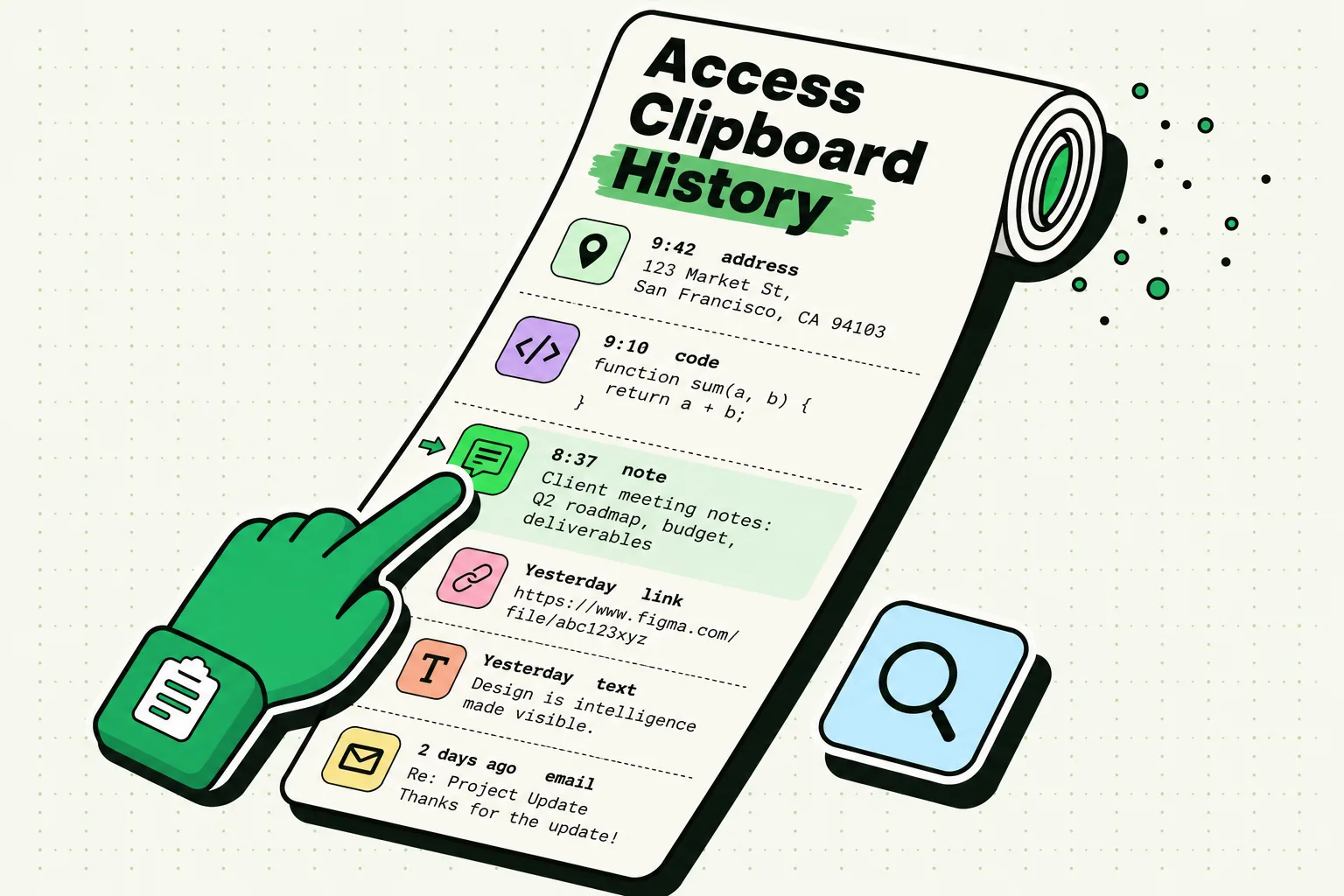
To access your clipboard history on iPhone, you must use a third-party clipboard manager like ClipboardAI, a custom Siri Shortcut log, or a manual Notes document. By default, iOS does not have a native clipboard history viewer. It only stores your single most recently copied item in volatile RAM. Once you copy something new, the previous item is immediately overwritten and cannot be recovered unless you have set up a background logging solution beforehand.
Here is a practical, step-by-step guide to viewing, searching, and managing your copied text on iOS.
The Human Scenario: The Forgotten Copy
It happens to everyone. You copy a confirmation code from an email, switch to your banking app, get interrupted by a message, copy a phone number, and go back to paste the code. But when you tap paste, the phone number appears. The confirmation code is gone, lost to the system pasteboard.
Without a history viewer, you have to log back in, re-trigger the email, and copy the code again. If you copy text dozens of times a day - links, snippets, emails, tracking codes - this manual back-and-forth drains your time and focus.
App and OS Limitations: Why iPhone Only Remembers One Copy
Apple designed the iOS clipboard (internally called the UIPasteboard) to be a simple, single-slot transfer buffer. This was not a technical oversight but a deliberate design decision centered on two priorities:
- Security and Privacy: Your clipboard often holds highly sensitive details - passwords, credit card numbers, one-time verification tokens, and home addresses. If iOS kept a persistent history of everything you copied, any app with pasteboard access could scrape your historical data.
- System Resources: Limiting the pasteboard to one active item prevents memory leaks. Images, rich text, and large file copies are cleared from volatile memory (RAM) when the device restarts or when memory is reclaimed.
Since iOS 14, Apple has added slide-down banners indicating when an app reads your clipboard (e.g., "Safari pasted from Messages"). In iOS 16, they added explicit paste permission prompts for programmatic reads. While these features protect your privacy, they do not help you access older clips.
Quick Win: Native Gestures and the "Notes Parking Lot"
If you don't want to install third-party apps, you can use Apple's native text gestures and the Notes app to manage multiple items.
The Three-Finger Gestures
Instead of tapping and waiting for the menu pop-up, you can use these native Apple gestures:
- Copy: Highlight your text and pinch inward with three fingers.
- Cut: Pinch inward with three fingers twice.
- Paste: Place your cursor and spread outward with three fingers.
The Notes Parking Lot Workflow
- Open the Notes app.
- Create a new note titled
Clipboard Parking Lot. - Pin this note to the top of your list (swipe right on the note and tap the pin icon).
- Before copying a second item, pinch to copy your first item, switch to Notes, and paste it.
- While this prevents data loss, it requires constant app switching and manual maintenance.
Detailed Workflows: Setting Up a Persistent History
If you want a real, searchable clipboard history, you have two primary options: a custom Siri Shortcut or a dedicated clipboard manager.
Method 1: The Siri Shortcut Logger (Free, Local-Only Workaround)
You can build a simple iOS shortcut that takes whatever is currently on your clipboard and appends it to a running log in Notes.
- Open the built-in Shortcuts app on your iPhone.
- Tap the + icon in the top right to create a new shortcut.
- Rename the shortcut to
Log Clip. - Tap Add Action, search for Get Clipboard, and select it.
- Tap the search bar at the bottom, search for Append to Note, and add it.
- Configure the action: Append
Clipboard(the variable from the previous step) to a note titledMy Clipboard Log. - Tap the share sheet icon at the bottom and select Add to Home Screen for one-tap logging.
Limitations: iOS cannot trigger shortcuts automatically in the background when you perform a native copy action. You must run this shortcut manually each time you want to save a clip.
┌────────────────────────────────────────┐
│      Siri Shortcut Log Workflow        │
├────────────────────────────────────────┤
│  [Highlight & Copy]                    │
│         │                              │
│         ▼                              │
│  [Tap Log Clip Widget on Home Screen]  │
│         │                              │
│         ▼                              │
│  [Shortcut Appends Text to Note Log]   │
└────────────────────────────────────────┘
Method 2: Using ClipboardAI for Auto-Capture (Hands-Free)
To capture your copy history automatically without switching apps or running shortcuts, you can use a dedicated manager like ClipboardAI.
- Download ClipboardAI from the App Store.
- Open the app to initialize your local database.
- Go to Settings > General > Keyboard > Keyboards on your iPhone.
- Tap Add New Keyboard and select ClipboardAI.
- Tap the keyboard name again and toggle on Allow Full Access.
- Switch to the ClipboardAI keyboard by tapping the Globe icon (🌐) whenever you are typing in any app to view your history.
Privacy Note and Security Caveats
Whenever you install a clipboard manager, security should be your primary concern.
- The Full Access Warning: When enabling a third-party keyboard extension, iOS displays a standard warning that the developer could log your keystrokes.
- Our Testing Notes & Methodology: ClipboardAI handles all database operations locally on your iPhone using on-device encryption. It does not transmit pasteboard contents to external servers.
- Password Isolation: Never copy cleartext passwords into any clipboard history app. Note that ClipboardAI's automatic exclusion of password manager apps (like 1Password and Bitwarden) is a Mac-only capability - there is no equivalent setting on iPhone or iPad, so on iOS you should rely on your password manager's AutoFill feature instead of manually copying credentials.
Clipboard History Methods Compared
To help you choose the right approach for your daily workflow, we compared the core options based on speed, safety, and capabilities:
| Feature / Metric | Native iOS Pasteboard | Siri Shortcut Workaround | Notes Parking Lot | ClipboardAI Manager |
|---|---|---|---|---|
| History Capacity | 1 item only | Unlimited (in text note) | Unlimited (manual list) | Unlimited (searchable) |
| Capture Type | Native | Manual trigger | Manual paste | Automatic background |
| Image Support | Yes (single) | No (text only) | Yes | Yes (categorized) |
| Searchable | No | Yes (via Notes search) | Yes | Yes (instant keyboard search) |
| Network Access | None (Local) | None | Synced via iCloud | Local database / Optional Sync |
| Recommended For | Sensitive OTPs/Passwords | Light, occasional logging | Draft compilations | Heavy text/link workflows |
Product Fit: Where ClipboardAI Helps (and Where It Doesn't)
We built ClipboardAI to eliminate the friction of modern copy-paste workflows. It is an ideal fit if you:
- Constantly copy links, snippets, or addresses across multiple Safari tabs.
- Fill out complex forms requiring multiple pieces of personal info.
- Need to search through text snippets you copied hours or days ago.
When it is NOT appropriate:
- Corporate MDM Profiles: If your work iPhone has strict Mobile Device Management (MDM) security policies, third-party keyboards may be blocked.
- High-Risk Environments: If you frequently handle highly sensitive financial codes or unencrypted credentials on your phone, you should stick to the native, volatile iOS pasteboard.
Want the full picture? See the paste keyboard for iPhone, everything else in the feature tour, or how the same history works on your Mac.
Frequently Asked Questions
Can you view clipboard history on an iPhone?
Not on a stock iPhone. iOS keeps only your single most recent copy and has no screen where you can browse past copies. To view clipboard history on an iPhone you need a clipboard manager app such as ClipboardAI, which saves your copies into a searchable history, or a manual workaround like pasting each item into a note.
Can I recover something I copied earlier on iPhone?
No. Once you copy something new, iOS overwrites the previous item and there is no undo. The text may still exist in the app you copied it from, so check there first. To make sure this never happens again, install a clipboard manager before you need it, so every future copy gets saved.
Does restarting my iPhone clear the clipboard?
Yes. The built-in clipboard lives in temporary memory, so a restart wipes it. Clips you have saved to ClipboardAI are stored in a local database on your device, so they survive restarts.
Why can't clipboard apps save my copies automatically in the background?
Because iOS does not allow any app to monitor the clipboard in the background, which protects your privacy. That is why ClipboardAI saves clips at moments you control: when you open the app, use its keyboard, share to it, trigger Back Tap or the Action Button, or ask Siri.
How much does a clipboard manager for iPhone cost?
ClipboardAI is free for up to 10 saved clips, including auto-capture, smart categories, custom clip names, basic search, and sensitive-item detection. Pro costs $19.99 per year or a one-time $34.99 Lifetime purchase, with a 7-day free trial, and unlocks unlimited history, unlimited pins, Collections, and iCloud sync across your devices. The paste keyboard is included free. We also tested every free clipboard app on iPhone, including a DIY Shortcut that costs nothing at all.