
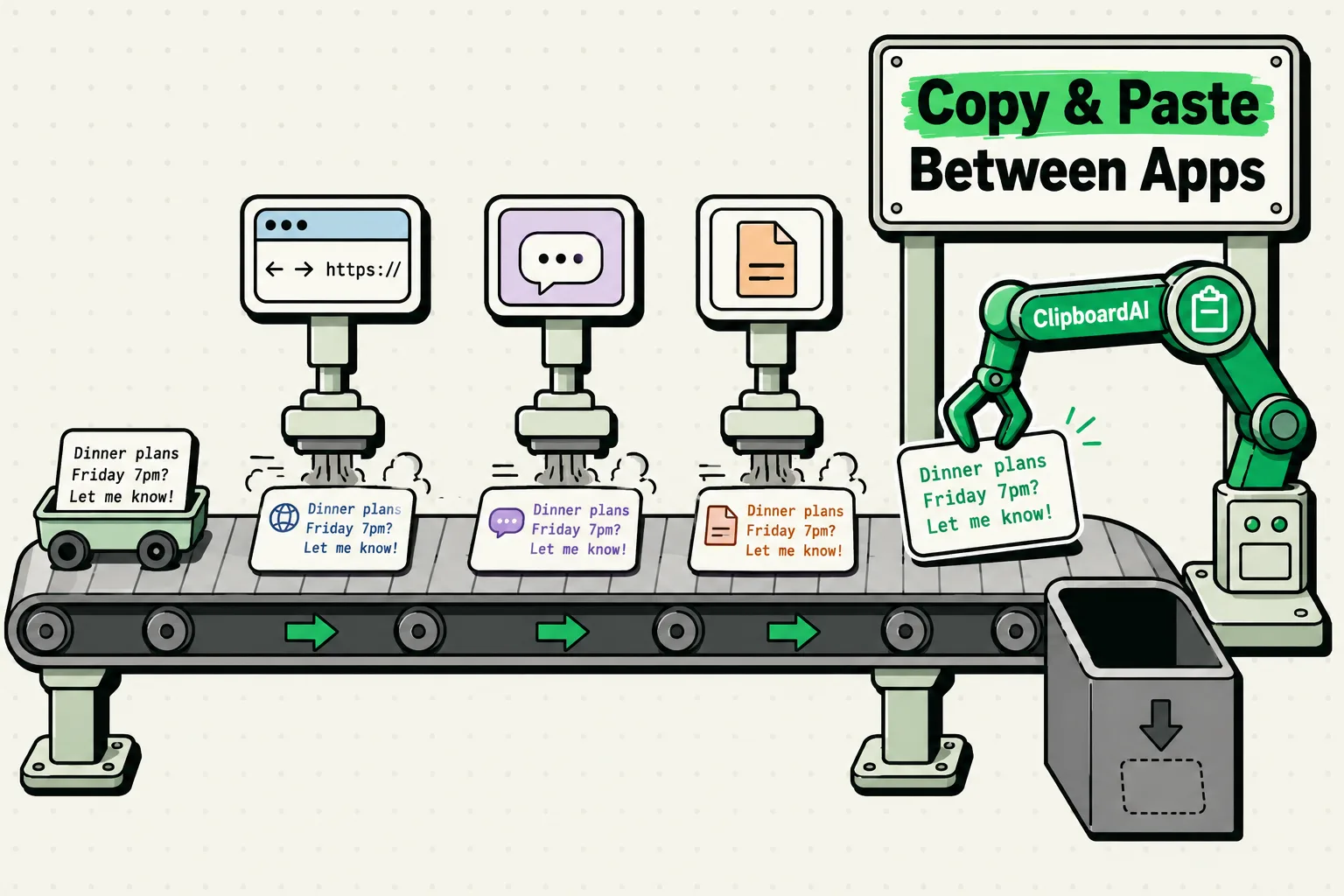
There are five distinct ways to move content between apps on iPhone - standard copy-paste, drag and drop, Share Sheet, Text Replacement, and a clipboard manager - and most people only use the first one, which is also the one with the sharpest limitation: it holds exactly one item, and copying anything new erases whatever was there. Here's every method, when each one actually beats the others, and what changed in iOS 16 that makes apps ask permission before they can read your clipboard at all.
The direct version
For a single item going to a single destination, standard copy-paste or drag and drop is fine. For moving several pieces of information at once - filling out a form from multiple sources, say - the single-item pasteboard becomes the bottleneck, and that's specifically the problem a clipboard manager with history solves.
Method comparison: which one to use when
| Situation | Best method | Why |
|---|---|---|
| One quick copy, one paste, right now | Standard copy-paste | Fastest for a single item, no setup |
| Moving text or an image between two apps you can see on screen (iPad, Split View) | Drag and drop | Skips the clipboard entirely, one continuous gesture |
| Sending content directly into a specific app (not into a text field) | Share Sheet | Bypasses paste entirely - goes straight to Messages, Mail, a specific app |
| Something you paste constantly, unchanged (email address, short phrase) | Text Replacement | No app switch needed, expands as you type |
| Filling a form from 4+ sources, or anything where the previous copy keeps getting overwritten | Clipboard manager (ClipboardAI) | Only option that preserves more than one item at a time |
Standard copy and paste, step by step
Copy:
- Long-press the text to select it - a magnifying loupe helps position your cursor precisely.
- Drag the blue selection handles to adjust exactly what's highlighted.
- Tap Copy in the contextual menu.
Shortcuts: double-tap a word to select just that word, triple-tap to select a full paragraph.
Paste in the destination app:
- Long-press the text field.
- Tap Paste.
If you use an external keyboard, Cmd+C and Cmd+V work exactly as they do on a Mac, along with Cmd+X (cut), Cmd+A (select all), and Cmd+Z (undo).
Drag and drop: skip the clipboard entirely
Available since iOS 15, drag and drop moves content without touching the pasteboard at all:
- Long-press the content until it visually lifts.
- Keep holding with one finger; use a second finger to swipe up to the app switcher (or to a second app in Split View on iPad) and open the destination.
- Release to drop the content in place.
Works for text selections, images, links, files from the Files app, and even contacts or calendar events. It's most useful on iPad, where you can hold two apps on screen simultaneously and drag directly between them without ever leaving either app.
The single-clipboard problem, concretely
Say you're filling out a form that needs your name, email, phone number, and address, each copied from a different source. With the stock pasteboard, that's a minimum of eight app switches - copy, switch to form, paste, switch back, copy the next field, repeat - and if you copy two things in a row before pasting the first, the first one is simply gone.
A clipboard manager removes the overwrite problem specifically: ClipboardAI saves everything you copy in order, so you can copy all four items back to back from their sources, then switch to the form once and paste each one in sequence from your history instead of the single active pasteboard slot.
Universal Clipboard: across iPhone, iPad, and Mac
Apple's own Continuity feature, separate from any third-party app, lets you copy on one device and paste on another nearby device:
Requirements:
- Same Apple ID signed in on all devices
- Bluetooth and Wi-Fi on for all devices
- Handoff enabled (Settings → General → AirPlay & Handoff)
- Devices within roughly 30 feet of each other
Copy on one device, paste on the other - the content is available for about two minutes, so don't dawdle. If it's not working: toggle Bluetooth and Wi-Fi off and on, confirm Handoff is enabled, and restart both devices if it still fails.
Universal Clipboard moves the single most recent item - it isn't a history sync. If you want your full clipboard history (not just the last item) to follow you across devices, that's a separate feature: ClipboardAI's iCloud sync keeps your entire history available on every signed-in device, moving through your own private iCloud account, encrypted in transit and at rest by Apple, and never touching a ClipboardAI server.
iOS 16+ paste permissions
If your iPhone asks "Allow Paste from [App Name]?", that's the paste-permission system Apple introduced in iOS 16 to stop apps from silently reading your clipboard. Manage it per app: Settings → [App Name] → Paste from Other Apps, choose Ask, Deny, or Allow. Setting trusted apps to Allow removes the repeated prompt.
Honest caveats
- Drag and drop needs both apps visible or reachable in one gesture. On iPhone specifically (versus iPad's Split View), it's less practical than on a bigger screen, since you're relying on the app switcher mid-drag rather than seeing both apps at once.
- Share Sheet only works for apps that register as share destinations. Not everything you might want to send content to appears there, and some apps need to be opened once before iOS lists them as an option.
- A clipboard manager doesn't eliminate the paste-permission prompt. Even with ClipboardAI's keyboard extension or app open, the destination app can still ask iOS for clipboard-read permission under iOS 16+ rules - that's an OS-level protection, not something any app can bypass.
Frequently Asked Questions
How do I copy and paste between two apps on iPhone?
Long-press to select text, tap Copy, switch to the destination app, long-press the text field, and tap Paste. The copied content stays available until you copy something new, which overwrites it.
Can I copy multiple items between apps on iPhone at once?
Not with the stock clipboard - it holds one item. A clipboard manager like ClipboardAI saves everything you copy in sequence so you can paste several previously-copied items without re-copying each one from its source.
Does drag and drop work on iPhone, not just iPad?
Yes, since iOS 15, though it's more practical on iPad where you can see both apps in Split View simultaneously rather than relying on the app switcher mid-drag.
Why does my iPhone ask permission before pasting?
Since iOS 16, Apple requires apps to ask before reading your clipboard, as a privacy protection against silent clipboard scraping. Manage per-app behavior in Settings → [App Name] → Paste from Other Apps.
What's the difference between Universal Clipboard and a clipboard manager's sync?
Universal Clipboard (Apple's own feature) moves only the single most recent copied item between nearby devices for about two minutes. A clipboard manager's sync, like ClipboardAI's, keeps your entire history available across devices continuously, not just the last item.