
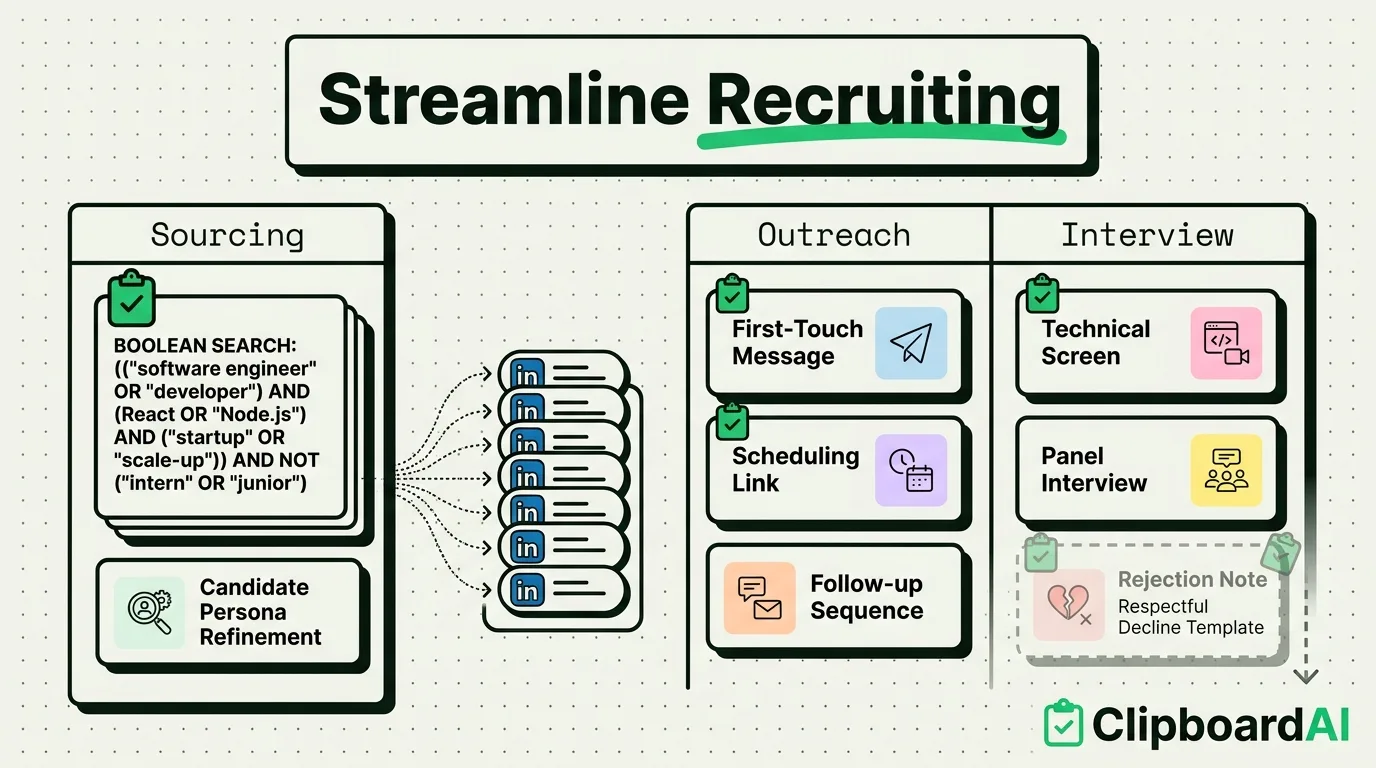
The Recruiting Copy-Paste Problem
A recruiter running three open reqs juggles job descriptions, boolean search strings, canned outreach messages, and scheduling links, often across LinkedIn Recruiter, an ATS, email, and a calendar tool in the same hour. iPhone and Mac both cap the native clipboard at one item, so copying a candidate's phone number to text them erases the boolean search string you were about to reuse. The fix is not a new process, it is keeping a running, searchable history of what you copy so nothing has to be re-typed or re-found.
Required Value Artifact: Recruiter Snippet Kit
These are templates worth pinning as saved clips so they are one paste away instead of retyped per candidate. Fill in the brackets once, then reuse.
1. Boolean Search String Template
("[Job Title]" OR "[Alt Title 1]" OR "[Alt Title 2]") AND ("[Required Skill]") AND ("[Location]" OR "Remote") NOT "[Exclusion Term]"2. First-Touch Outreach Message
Hi [First Name], I came across your background in [specific skill/project] and think you'd be a strong fit for [Role] at [Company]. Open to a 15-minute call this week to share more?3. Interview Scheduling Reply
Thanks for your interest in [Role]! Here's a link to grab a time that works for you: [Scheduling Link]. The call will be with [Interviewer Name], [Interviewer Title], and should take about [Duration].4. Rejection Note (Post-Interview)
Thank you for taking the time to speak with our team about [Role]. We've decided to move forward with another candidate whose background more closely matched this specific role. We'll keep your resume on file for future openings that fit your experience.Setting Up the Workflow
Install ClipboardAI on iPhone (enable the keyboard's Full Access toggle so it can save what you copy) and Mac (menu-bar history plus the Cmd-Shift-V floating panel). Pin the four templates above so they sit at the top of your history instead of scrolling past newer copies. As you work a req, everything else you copy, a candidate's LinkedIn URL, a phone number, a specific quote from their resume, gets saved automatically and is searchable later without reopening the source tab.
A Real Screening Session
Screening ten LinkedIn profiles against one req in one sitting: copy each candidate's profile URL, then a one-line note on fit, then their phone number if you plan to reach out. On a native clipboard, each copy erases the last, so recruiters usually paste into a separate spreadsheet mid-session to avoid losing anything, which breaks flow. With a saved history, all ten URLs, notes, and numbers stay searchable in one place, and pasting the pinned outreach template to the three strongest candidates takes one tap each instead of retyping the message three times.
Honest Caveats
- This is not an ATS replacement. Clipboard history is a short-term working buffer, not a system of record. Candidate data that needs to persist (interview scores, offer status, compliance documentation) belongs in your actual ATS, not in clipboard history.
- Your candidate data stays yours. Everything you copy is stored on-device by default. ClipboardAI's optional cross-device sync (iPhone to Mac) runs through your own private iCloud account, encrypted in transit and at rest, the same protection tier as your Photos and Notes. No clip content ever passes through or lands on a ClipboardAI server, there is no account to create, and you can leave sync off entirely for a fully on-device setup.
- On Mac only, you can exclude specific apps (like your ATS login page or a password manager) from being captured at all, via Settings > Excluded Apps. There is no equivalent exclusion list on iPhone/iPad.
Frequently Asked Questions
Is it safe to store candidate information in a clipboard manager?
Treat it as a short-term working buffer, not storage. Keep official candidate records in your ATS. Use clipboard history for the temporary copy-paste work of outreach and screening, and rely on your Auto-Delete Old Clips setting (Never, 30 days, 60 days, 3 months, 6 months, or 1 year) to keep the history from growing indefinitely.
Can I share a snippet kit with the rest of my recruiting team?
ClipboardAI's pinned snippets are per-device/per-account, not team-shared. To standardize templates across a team, distribute the text (for example, in a shared doc) and have each recruiter pin their own copy.
Does this work across LinkedIn Recruiter, an ATS, and email in one session?
Yes. Clipboard history works system-wide, independent of which app you copied from, so a boolean string copied from a LinkedIn search and a scheduling link copied from your ATS both show up in the same searchable history.