
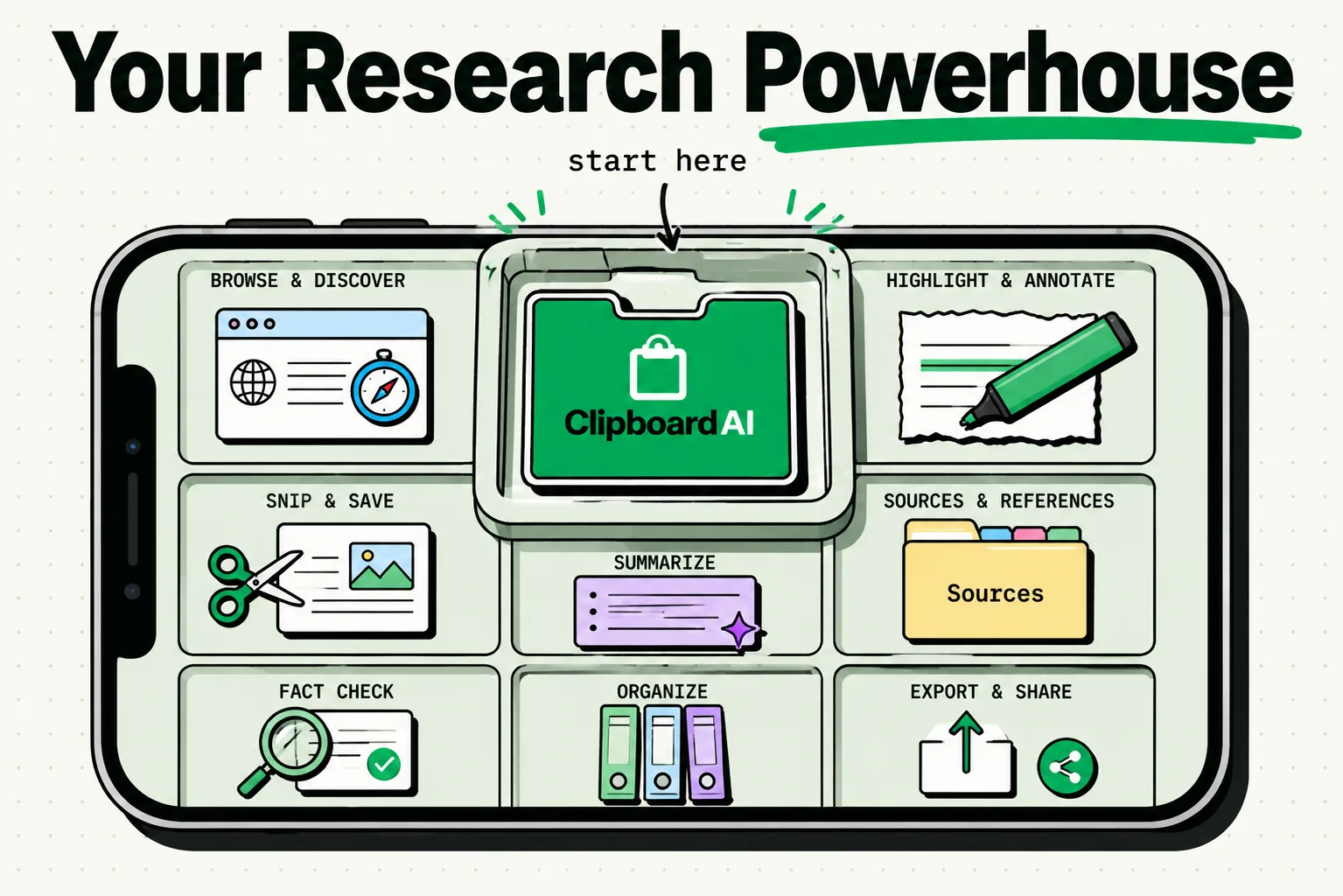
To turn your iPhone into a research powerhouse, you must pair Safari's advanced reader view and tab groups with local database tools like Apple Notes, Notion, and a multi-item clipboard manager like ClipboardAI. ClipboardAI acts as the central capture funnel, working in the background to log every copied snippet, quote, and reference URL without requiring constant app-switching, so you can synthesize and compile your notes without interruption.
The Friction of Mobile Research
Research is fundamentally a process of extraction. You explore sources, isolate statistics, save reference links, and compile quotes.
On a desktop computer, this is handled through split screens, citation extensions, and tab management.
On an iPhone, this workflow is traditionally highly inefficient. The default iOS clipboard holds only one item at a time. If you find a paragraph you want to quote and a link you want to cite, you have to switch back and forth between Safari and your notes app repeatedly. This constant app-switching creates cognitive fatigue, leading to lost tabs and incomplete notes.
You can solve this bottleneck by configuring your iPhone with tools that work together as a single system.
The Mobile Research App Stack
A functional mobile research setup requires three distinct components: a reader browser, a capture funnel, and a storage database. Our team uses the following combination:
| Category | Recommended Tool | Role in Setup | Key Configuration |
|---|---|---|---|
| Reader Browser | Safari | Strips out advertisements, handles PDFs, and manages project tabs. | Enable Reader Mode automatically for academic sites and publications. |
| Capture Funnel | ClipboardAI | Silently logs every copied paragraph, link, and fact in the background. | Install the Keyboard Extension for quick access to your clips. |
| Storage Database | Apple Notes | Houses raw research notes and acts as a canvas for initial drafting. | Create a folder structure like [Project Name] / Sources. |
| Synthesis Hub | Notion | Serves as your database for structured citations and final compilation. | Use templates with relational fields for author, URL, and category tags. |
5 Steps to Execute Mobile Research Without Friction
Use this structured setup checklist to execute your next research session on iOS:
- Establish Safari Tab Groups: Create a dedicated Tab Group in Safari named after your research project. This isolates your sources from your daily browsing.
- Launch ClipboardAI in the Background: Ensure the clipboard database is active. Keep it running to log every copy action automatically.
- Utilize Auto-Reader Mode: Tap the aA button in Safari's URL bar, select Website Settings, and toggle Use Reader Automatically for your primary reading sites.
- Copy the Citation Metadata First: Before copying passages from an article, copy the URL and page title. This keeps your source and quotes chronologically adjacent in your clipboard.
- Process Pinned Clips Daily: At the end of a research session, open ClipboardAI, review the logged snippets, pin the key findings, and export them directly to Apple Notes or Notion.
Advanced Capture Techniques on iOS
1. Extracting Text from Physical Books (OCR)
If you are researching from physical books or library documents, do not type out quotes. Use the built-in iOS Live Text scanner:
  [Physical Page] ──(iPhone Camera)──> [Live Text OCR Engine]
                                               │
                                       (Copy Action)
                                               │
                                               ▼
  [ClipboardAI Database Log] <──(Auto Categorized)── Type: Plain Text
                                                      Timestamped Log
Simply point your camera at the text, tap the scanner icon in the bottom-right corner, select the paragraph, and tap copy. ClipboardAI will capture the OCR text block offline, making it searchable alongside your digital clippings.
2. PDF Annotation and Clipping
When reading research PDFs inside the iOS Files app, use the markup tools to highlight text before copying. Highlighting ensures that the text layer of the PDF is correctly initialized in memory, preventing the copied string from losing its spaces or introducing garbled characters.
System Caveats and Performance Trade-offs
A mobile-centric research system has three clear constraints:
- PDF Layout Breaks: Complex multi-column academic PDFs often copy text out of order, bringing header rows or footer notes into the middle of your paragraph. Always review text copied from PDFs.
- iCloud Sync Latency: If you use Handoff to sync your clipboard history between your iPhone and Mac, network delays can occasionally cause a copied item on the iPhone to overwrite a clip on the Mac, or vice versa.
- Storage Footprint: Logging high-resolution web page screenshots inside your clipboard history can consume local flash storage. Configure ClipboardAI to clean up image clips older than three days while keeping text clips permanent.
Frequently Asked Questions
Can I search inside the text of my copied research quotes?
Yes. ClipboardAI indexes the text content of all copied snippets. You can type keywords into the search bar, and the app will isolate the quotes matching those terms, complete with the timestamp of when they were copied.
How do I paste a list of research links into a document at once?
Open ClipboardAI, navigate to the Links tab, select the checkmarks next to your target URLs, and select Copy Selected. You can then paste them into your document as a clean, bulleted list.
Does Safari Reader Mode remove citations?
Reader Mode strips out website navigation, sidebars, and ads, but it leaves inline superscript citations, footnotes, and bibliography sections intact, keeping your citation trails clear.
How does on-device OCR impact my iPhone's battery life?
The Apple Neural Engine handles OCR operations (Live Text) in hardware, which is highly efficient. However, running the camera continuously to scan text blocks will drain the battery faster than reading digital PDFs.