
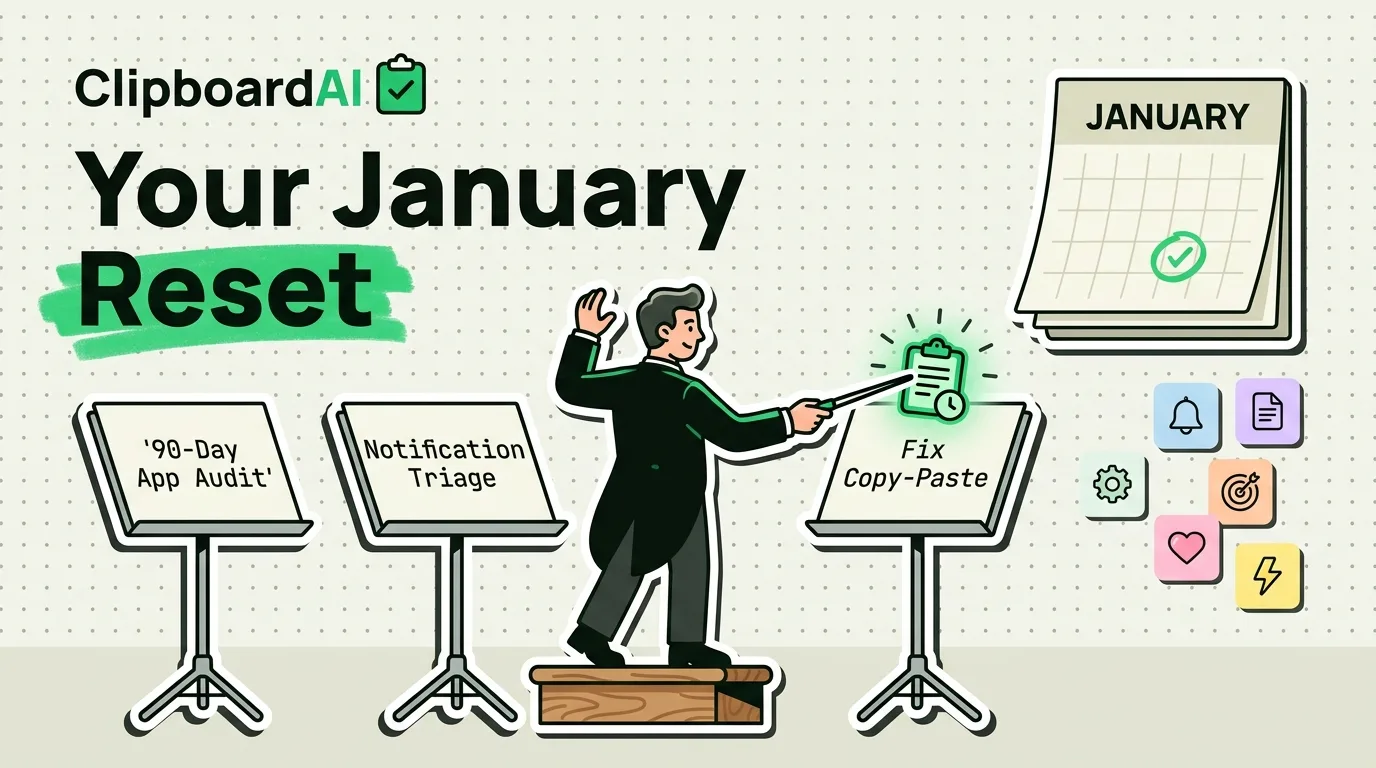
The Bottom Line
A useful January iPhone reset has three parts: delete or offload apps you did not open in the last 90 days, turn off notifications for anything that is not a person messaging you, and fix the one workflow that wastes the most time every single day. For most people that third item is copy-paste, because iOS only remembers your single most recent copy and silently throws away everything before it.
Step 1: The 90-Day App Audit
Open Settings > General > iPhone Storage. iOS already sorts every app by how recently you used it and shows the exact size on disk. Scroll to anything you have not opened in three months. For each one, decide fast: delete it, or if you are worried about losing data, use "Offload App" instead, which removes the app binary but keeps its documents and data so you can reinstall later without losing anything.
Do not stop at games and one-off utility apps. Check subscription apps specifically. Settings > [your name] > Subscriptions shows every active App Store subscription in one list. It is common to find at least one you forgot you were paying for.
Step 2: Notification Triage
Go to Settings > Notifications. Instead of reviewing every app one by one, use this rule: if the notification does not come from a real person contacting you directly (texts, calls, calendar invites), it should be Silenced or set to deliver quietly, not shown on the Lock Screen with a sound.
| Notification type | Recommended setting | Why |
|---|---|---|
| Messages, Phone, FaceTime | Immediate delivery, sound on | Real people, time-sensitive |
| Calendar, Reminders | Immediate delivery | Self-scheduled, low volume |
| News, social apps, games | Scheduled Summary | Batches non-urgent noise into one or two daily digests |
| Shopping and promo apps | Off entirely | Pure interruption, no time sensitivity |
Scheduled Summary (Settings > Notifications > Scheduled Summary) is the setting most people miss. It groups low-priority app notifications into one or two batches a day instead of letting them interrupt you in real time.
Step 3: Fix the Copy-Paste Workflow
Here is the part of your daily routine that iOS never improved: copy a tracking number, then copy an address, and the tracking number is gone. iOS's UIPasteboard holds exactly one item. There is no built-in history, no way to see what you copied an hour ago, and no way to search past clips.
ClipboardAI fixes this by saving everything you copy, automatically sorted into categories like links, phone numbers, and codes, with full-text search across your history. On iPhone it works two ways: through the main app, and through a custom keyboard (with Full Access enabled) so you can paste from your history inside any app without switching away from what you are typing. The free tier is a solid starting point, and a 7-day free trial lets you test the full history before deciding if you want to keep it.
If you want your clipboard history to stop growing forever, set Auto-Delete Old Clips (in ClipboardAI settings) to 30 days, 60 days, 3 months, 6 months, or 1 year. There is no shorter option than 30 days, so if you need clips gone same-day, delete them manually.
Your January Reset Checklist
- Check Settings > General > iPhone Storage, offload or delete anything unused for 90+ days
- Check Settings > [name] > Subscriptions, cancel anything you forgot about
- Set Scheduled Summary for non-essential app notifications
- Turn off Lock Screen notifications for shopping and promo apps entirely
- Install a clipboard manager if you regularly lose copied text mid-task
- Set an Auto-Delete window for clipboard history so old clips do not pile up
What This Reset Will Not Fix
A phone reset will not fix a habit problem. If you check your phone out of boredom rather than need, Screen Time app limits address that more directly than notification settings do. And clipboard history syncing between iPhone, iPad, and Mac runs through your own private iCloud account, encrypted in transit and at rest, the same protection tier as your Photos and Notes. It never passes through a ClipboardAI server, and you can leave sync off entirely for a fully on-device setup.
Frequently Asked Questions
How often should I do a full iPhone reset like this?
Once a year is enough for the app and subscription audit. Notification settings and clipboard habits are worth revisiting any time your workflow changes, like starting a new job.
Does offloading an app delete my data?
No. Offload App removes the app itself but keeps its documents and data in place. Reinstalling the app restores everything, as long as you do it before iOS decides to clear the offloaded data for storage space (which only happens under storage pressure).
Do I need a clipboard manager if I rarely copy things?
Probably not. It matters most for people who copy more than a few things per day, like tracking numbers, addresses, verification codes, or text they are moving between apps.