
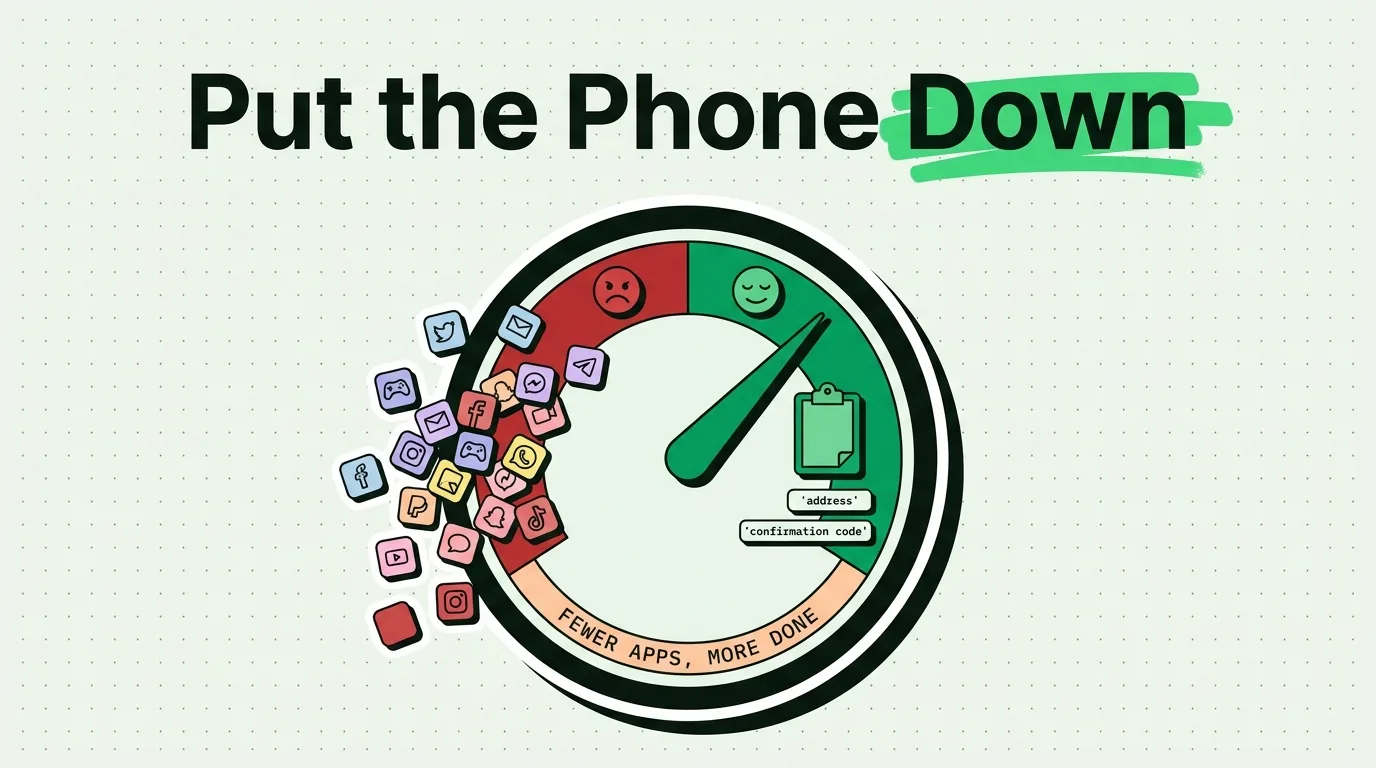
Reducing screen time without losing productivity means cutting the time you spend on repetitive phone tasks, not the time you spend on useful ones. Most people's screen time is inflated by three things: re-finding information you already looked up once, switching apps to move a piece of text from one place to another, and reacting to notifications instead of choosing when to check your phone. Fix those three and your total screen time drops even though you have changed nothing about what you actually need to get done.
This guide skips the "just use Screen Time limits" advice you have already tried and focuses on where the wasted minutes actually come from.
The Scenario: Four App Switches for One Address
You are texting a friend and they send you an address for dinner. You copy it, switch to Maps, paste it to check the drive time. Now you need to text the address to someone else too, but you already copied the drive time estimate from Maps to check something. So you switch back to Messages, scroll to find the original address, copy it again, switch to the new conversation, paste.
That is four app switches and two copy operations to move one piece of text between two people. None of it was optional. None of it needed AI or a productivity system. It happened because the iPhone clipboard holds exactly one item, and the moment you copied the drive time, the address was gone.
This is not a willpower problem. It is a tooling gap, and it is a bigger source of wasted screen time than most people realize, because it happens dozens of times a day in increments too small to notice individually.
Passive Screen Time vs. Active Screen Time
Not all screen time is the enemy. It helps to split it into two categories before you try to cut it:
- Passive screen time: scrolling a feed with no goal, refreshing an app out of habit, watching videos with no intention of finishing them.
- Active screen time: responding to a specific message, looking up a specific fact, completing a specific task.
Cutting passive screen time is a habits problem (Focus modes, notification limits, moving apps off your home screen). Cutting active screen time is an efficiency problem: doing the same task in fewer steps and fewer app switches. Most screen-time advice only addresses the first category. This guide focuses on the second, because it is the part most people have not already tried to fix.
Step 1: Find Your Redundant App Switches
Open Settings > Screen Time and look at your most-used apps for a week. Then, separately, spend one day paying attention to a specific pattern: how many times do you open an app a second time because you needed something you had already looked up once?
Common culprits:
- Reopening Safari to re-copy a link you copied five minutes ago, because you copied something else in between
- Reopening Mail to re-find a confirmation code you already saw once
- Reopening Messages to re-copy an address someone already sent you
None of these show up as "wasted time" in Screen Time's reporting. They show up as legitimate app usage. But they are pure overhead: work you are doing a second time because the first copy did not stick around.
Step 2: Stop Re-Copying the Same Information
This is the single highest-leverage fix, and it does not require new habits, timers, or discipline. A clipboard manager holds more than one item, so information does not disappear the moment you copy something else.
On iPhone and iPad, ClipboardAI saves what you copy and lets you pull any of it back from the keyboard extension, without switching back to the original app. Copy the address, then copy the drive time, and both are still there. Auto-categorization sorts them (addresses, links, phone numbers, emails) so you are not scrolling a flat list to find one item.
This does not touch passive scrolling at all. It only removes the specific tax of re-finding and re-copying things you already had. If four app switches become one, that is real, measurable screen time removed, even though your actual tasks did not change.
Step 3: Build a Notification Strategy
Notifications drive most phone pickups, and every pickup is a chance to drift into something unrelated to why you picked up the phone.
Set up dedicated Focus modes (Settings > Focus):
- Work Focus: only work apps and key contacts, scheduled for work hours
- Personal Focus: family, friends, personal apps; blocks work email and Slack
- Deep Work Focus: only phone calls from favorites, nothing else
Turn on Scheduled Summary (Settings > Notifications > Scheduled Summary) for anything you want to see eventually but not immediately: news, social apps, promotional notifications. They arrive as a digest at times you set instead of interrupting you all day.
Turn off badge counts for apps where the exact number does not change what you do (Settings > Notifications > [App] > Badges). A "23" on your Mail icon does not tell you anything actionable; it just makes you feel behind.
Step 4: Automate the Genuinely Repetitive Tasks
The Shortcuts app can absorb some of the multi-step busywork:
- A shortcut that opens your task manager and creates a task pre-filled with your current clipboard content
- A morning shortcut that shows calendar, weather, and today's tasks in one screen instead of three app opens
- Text Replacement (Settings > General > Keyboard > Text Replacement) for short static strings like your email address or a canned reply
Text Replacement and a clipboard manager solve different problems: Text Replacement is best for short, fixed strings you type from scratch. A clipboard history is best for anything you copied from somewhere else, or anything too long or variable to type as a shortcut. Used together, they cover most repetitive typing.
Step 5: Batch and Time-Box Phone Sessions
Three habits that consistently reduce total screen time without any app changes:
- State your purpose before you unlock the phone. "I'm checking two emails" is a different session than opening the phone with no goal.
- Time-box phone tasks. Give email 15 minutes, messages 10 minutes. When the timer ends, stop.
- Batch similar tasks. Process all your messages in one pass instead of checking messages, then email, then messages again.
What Actually Moves the Needle: A Comparison
| Strategy | Effort to start | Where the time savings come from | Limitation |
|---|---|---|---|
| Screen Time app limits | Low | Forces a stopping point | Does not reduce the work itself, just caps it |
| Focus modes | Medium (one-time setup) | Fewer pickups from notifications | Does not help with app-switching during active use |
| Text Replacement | Low | Faster typing of fixed phrases | Only works for static, memorized strings |
| Clipboard manager (ClipboardAI) | Low | Removes re-copying and re-finding information | Does not address passive scrolling at all |
| Time-boxing | Medium (requires discipline) | Prevents tasks expanding to fill open time | Requires you to actually stop when the timer ends |
None of these alone solves the whole problem. Focus modes handle interruptions; a clipboard manager handles redundant app-switching; time-boxing handles open-ended tasks. Screen time drops when you stack these, not when you pick one.
Honest Limits
A clipboard manager will not stop you from opening a social app out of habit. It only removes the friction from tasks you are already doing on purpose. If your screen time problem is mostly passive scrolling, Focus modes, app limits, and moving apps off your home screen will do more for you than any productivity tool. If your screen time problem is mostly re-finding and re-copying things during active work, that is the specific gap a clipboard history closes.
Frequently Asked Questions
Does using a clipboard manager actually reduce screen time?
It reduces a specific kind of screen time: the app switches and re-searches you do because you already overwrote something you copied. It does nothing for passive scrolling, which needs Focus modes and app limits instead.
What is the fastest change to make first?
Audit your Screen Time report for one day and count how many app reopens are you re-finding something you already looked at once. That number tells you whether a clipboard manager or a notification overhaul will help more.
Do I need to delete apps to reduce screen time?
No. Moving distracting apps off your home screen and into a folder on a later page reduces impulsive opens more effectively than deleting apps, since you can always reinstall something you deleted.