
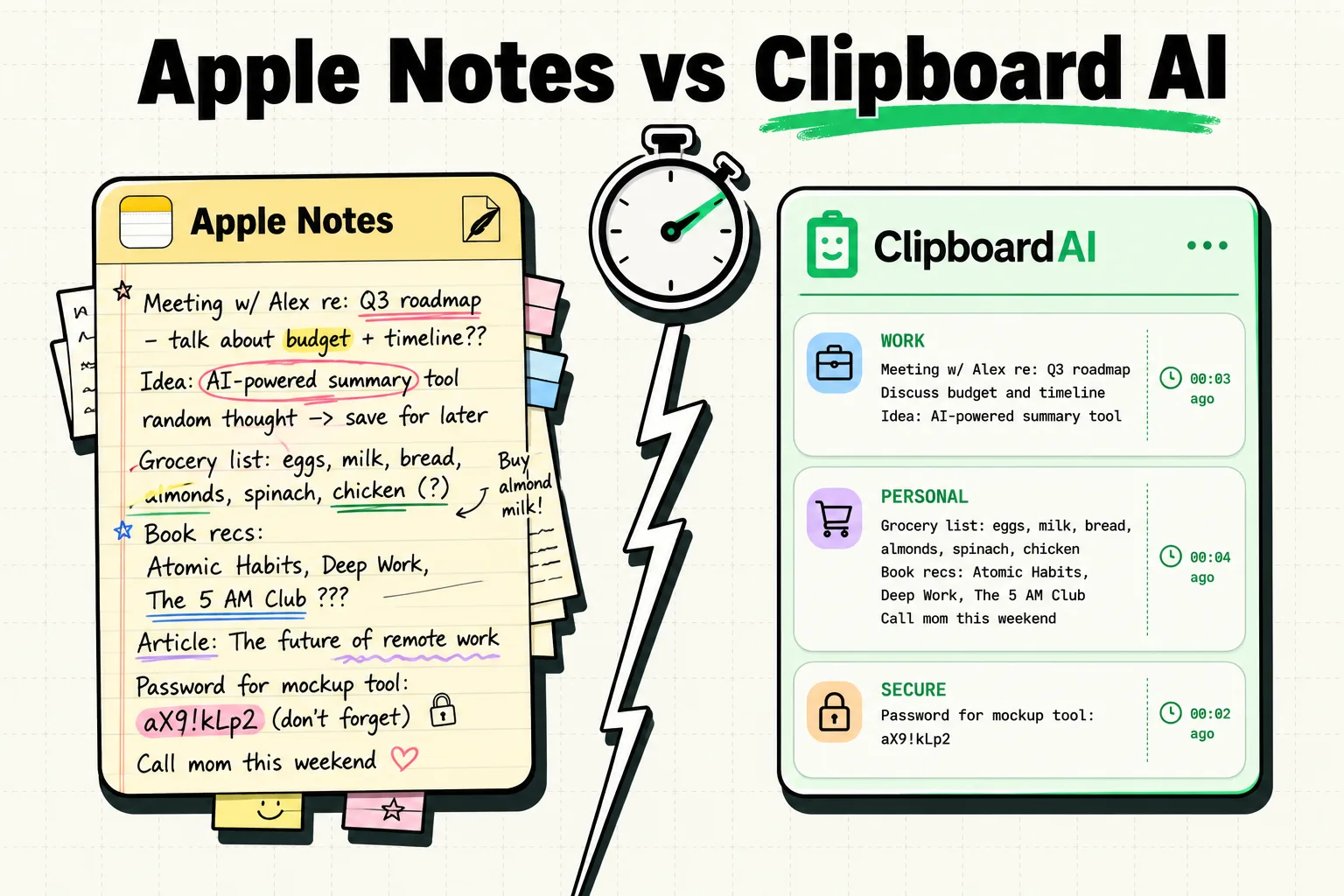
For saving something you just copied, ClipboardAI is faster because it requires no action at all: it captures every copy automatically, while Apple Notes requires you to open the app, create or find a note, and paste manually each time. But that's a narrow comparison. Apple Notes is a full-featured, genuinely excellent note-taking app, and ClipboardAI doesn't try to compete with it on long-form writing, document scanning, or collaboration. The honest answer is that they solve different problems, and the best setup uses both. If you are weighing up free tools generally, here are the free clipboard apps worth installing.
The problem with using Notes as a clipboard catch-all
Here's a familiar sequence: you copy a phone number from a text message and think "I should save this." You open Apple Notes, tap the plus button, paste, maybe add a title, and save. Then you do it again for an address. And again for a link. By the end of the day you've either got a dozen untitled notes cluttering the Notes app, or - more likely - you gave up after the second one and lost the rest.
Apple Notes wasn't built to catch fast, incidental copies. It was built for deliberate writing. Using it as a clipboard history is possible, but it asks you to make an active decision to save every single time, and the moments you're most likely to skip that step are exactly the moments you'll regret it later.
Speed comparison: saving something you just copied
Apple Notes workflow: copy the item, open Notes (roughly 1-2 seconds), tap new note or select an existing one (1-2 seconds), paste (1 second), optionally add a title (a few seconds), switch back to your previous app (1-2 seconds). Call it 7-12 seconds of deliberate effort per item, assuming you remember to do it at all.
ClipboardAI workflow: copy the item. That's the whole workflow - it's captured automatically and categorized in the background, with nothing further required from you.
The real difference isn't just speed, it's that Apple Notes requires a decision every time ("is this worth saving?") while ClipboardAI removes that decision entirely: everything is saved, and the only decision you make later is whether to go find it.
Organization: manual structure vs. automatic sorting
Apple Notes gives you folders, tags, and smart folders, which is a genuinely deep organizational system if you maintain it: nested folders, inline images, tables, handwriting recognition, document scanning, and real-time collaborative sharing. The tradeoff is that all of that structure requires upkeep. Most people start with good intentions and end up with hundreds of untitled notes in a single folder.
ClipboardAI organizes automatically and shallowly: every copy is sorted the instant you make it into a fixed set of categories (links, phone numbers, emails, addresses, plain text). There's no folder-building, no tagging, no titling, but there's also a ceiling on how deep that organization goes. If you need nested project folders or the ability to combine text with images and tables in one document, Notes is doing something ClipboardAI was never designed to do.
Where Apple Notes clearly wins
- Long-form writing. Meeting notes, journal entries, project plans. Apple Notes is a real text editor; ClipboardAI stores snippets, it doesn't help you write.
- Document scanning. Apple Notes' built-in scanner produces clean, searchable PDFs and is genuinely one of the better scanning tools on any phone.
- Real-time collaboration. Shared notes with live editing, useful for shopping lists, family planning, or team notes.
- Rich content. Tables, checklists, drawings, embedded files, inline images - content types a clipboard manager isn't built to hold.
- Long-term, intentional storage. Notes is meant for things you want to keep for months or years. ClipboardAI is built for recent history rather than permanent archiving.
Where ClipboardAI clearly wins
- Automatic capture. You never have to remember to save anything, which matters because the things people lose are exactly the things they didn't think to save in the moment.
- Keyboard extension access. Paste from clipboard history without switching apps: two taps versus Notes' full app-switch, find-note, copy, switch-back, paste sequence.
- OTP and verification codes. Codes copied from SMS, email, or an authenticator app are captured and categorized automatically, without you having to open Notes at all.
- Content-type filtering. Need every phone number you copied today? Open the Phone Numbers category. In Notes, that means searching through notes and hoping you titled them usefully.
A practical two-layer system
The two apps aren't really competing for the same job. A workable setup treats ClipboardAI as short-term capture and Notes as long-term archive:
- Everything you copy during the day goes into ClipboardAI automatically - links, phone numbers, addresses, codes, snippets - with zero effort.
- When you find something worth keeping, copy it from your ClipboardAI history and paste it into an organized Apple Notes folder. This keeps Notes intentional rather than cluttered with every stray copy.
Think of ClipboardAI as short-term memory and Notes as long-term memory. You need both, the same way your own memory works better with both a working memory and a place to write things down permanently.
Which tool for which scenario
| Scenario | Better tool | Why |
|---|---|---|
| Copying a phone number to call later | ClipboardAI | Saved automatically, categorized under Phone Numbers |
| Writing meeting notes during a call | Apple Notes | Needs a real text editor, not a clipboard history |
| Saving a recipe URL you'll want later | ClipboardAI, then Notes if you want to annotate it | Capture is automatic; annotation needs a real editor |
| Collecting shipping tracking numbers | ClipboardAI | All saved and searchable without manual entry |
| Planning a trip with a partner | Apple Notes | Shared, collaborative editing |
| Copying multiple items to fill out a form | ClipboardAI | Keyboard extension lets you paste each one without switching apps |
Honest limitations
- Heavy copiers will want more history than the free tier keeps. You can try ClipboardAI's full history free for 7 days to see how much you actually use.
- ClipboardAI can't capture in the background silently. You need the app open, its widget active, or its keyboard extension invoked for a new copy to register - an iOS platform restriction, not a design choice.
- Sync between the two apps is manual. There's no direct integration; moving something from ClipboardAI into Notes means copying it out and pasting it in, the same as moving it from any other app.
Frequently asked questions
Is ClipboardAI better than Apple Notes for saving things?
For quick, automatic capture of things you copy, yes; nothing is lost by default. Apple Notes is better for long-form writing, deep organization, and content you intend to write or edit rather than just store. They're built for different jobs.
Can I use Apple Notes as a clipboard manager?
You can paste items into Apple Notes manually, but it requires opening the app and creating or selecting a note every time. It works as a workaround, not as a substitute for automatic capture.
Does ClipboardAI sync with Apple Notes directly?
No, there's no direct integration. You can copy content from one and paste it into the other, and both sync independently across your devices via iCloud.
Should I use Apple Notes or ClipboardAI for saving links?
For links you want to keep long-term with your own notes or context, Apple Notes. For links you copy throughout the day and want quick, unplanned access to, ClipboardAI, since it captures them without you having to decide to save them.
Does Apple Notes have a clipboard history feature?
No. Apple Notes has no automatic clipboard tracking; every save is a manual action. For automatic clipboard history, you need a dedicated clipboard manager.