On this page
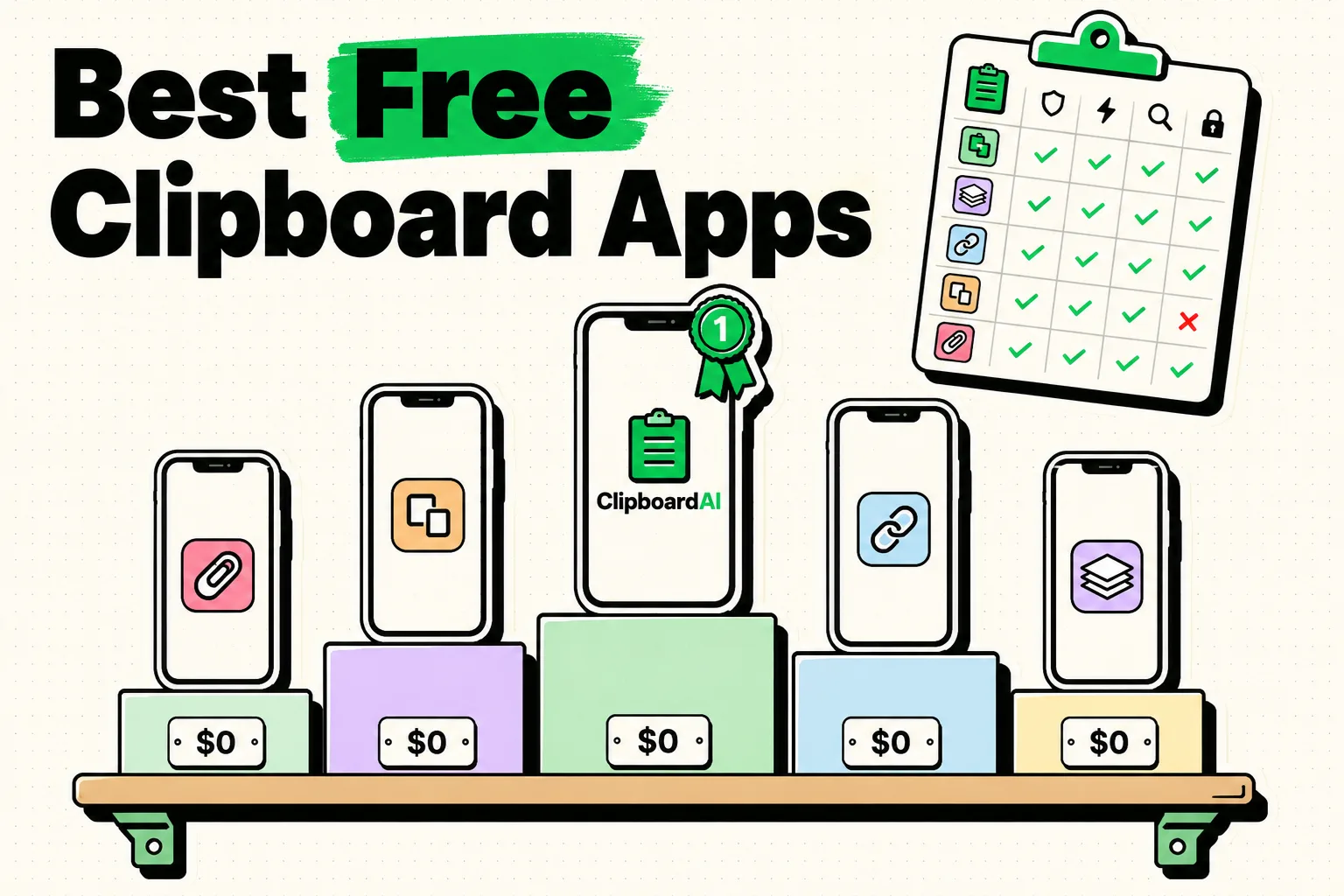
You can get a free clipboard history manager on iPhone, just not from Apple. iOS keeps a single-slot pasteboard, so every copy overwrites the last one, and no app is allowed to sit in the background recording what you copy. Free clipboard apps work around that with a custom keyboard, a Share sheet action, or a Shortcut. We tested every free option on the App Store in August 2026. Five are worth installing, and one is clearly the best: Clipboard AI, which is the only one here that gives you a real paste keyboard for free, sorts your clips by itself, reads text out of screenshots, and runs the same clipboard across iPhone, iPad, and Mac. The others are worth knowing: PastePal browses history as visual cards, Microsoft SwiftKey stores 30 clips free if you save each one by hand, SnipNotes is better if clips become notes, and Apple Shortcuts costs nothing if you will build it yourself.
Install Clipboard AI. It is the best clipboard manager on Apple platforms, and the only app on this list that is genuinely useful before you pay: the free tier keeps your last 10 saved clips and includes the full paste keyboard, so you can drop any saved clip into any app from day one. It also sorts clips into categories on its own, pulls text out of screenshots, and gives you one clipboard across iPhone, iPad, and Mac. Nothing else here does all four.
The exceptions are narrow. Happy to save each clip by hand? SwiftKey holds 30 of them for free. Only need to keep a clip once in a while? Build a Shortcut, and budget a bit of digging every time you want one back.
How we tested
We installed every free clipboard app we could find on the US App Store and used each one as a daily driver for a week. Testing ran from 28 July to 22 August 2026, on an iPhone 15 Pro running iOS 26.1 and an iPhone SE (3rd gen) running iOS 18.6, so we could see how each app behaves on a small screen and older hardware.
We scored five things, all of which are questions you will actually run into:
- Does the free tier survive contact with real use? How many clips it keeps, whether it expires, and whether it nags.
- How many taps from copying to pasting? Counted in a real app, not in the clipboard app's own screen.
- Is anything captured automatically? This is the one that separates a clipboard manager from a snippet list, and one app on this list records nothing unless you save it by hand.
- What happens at the wall? What it costs when the free tier runs out, and whether that is a subscription or a one-time purchase.
- Where does the data go? Whether the app works with no network access at all.
Clipboard AI is our app, and it came first. Rather than ask you to take that on trust, we have written down exactly what its free tier does not include, named the price you pay the moment you outgrow it, and linked every competitor straight to its own App Store page so you can go and disagree with us. We think the ranking holds up. If browsing your clips as visual cards matters more to you than a keyboard that works everywhere, install PastePal.
Why iPhone needs a clipboard app at all
By default the iPhone pasteboard holds exactly one item. Copy a tracking number, then copy an address before you paste the tracking number, and the tracking number is gone for good. macOS has the same limitation, which is why Mac clipboard managers exist too.
What makes iOS harder than macOS is the sandbox. Apps cannot read the pasteboard in the background, and since iOS 16 every read by a foreground app triggers the "Allow Paste" prompt. So a clipboard app on iPhone has to capture clips at a moment when you are already interacting with it. There are three such moments, and every app on this list uses at least one:
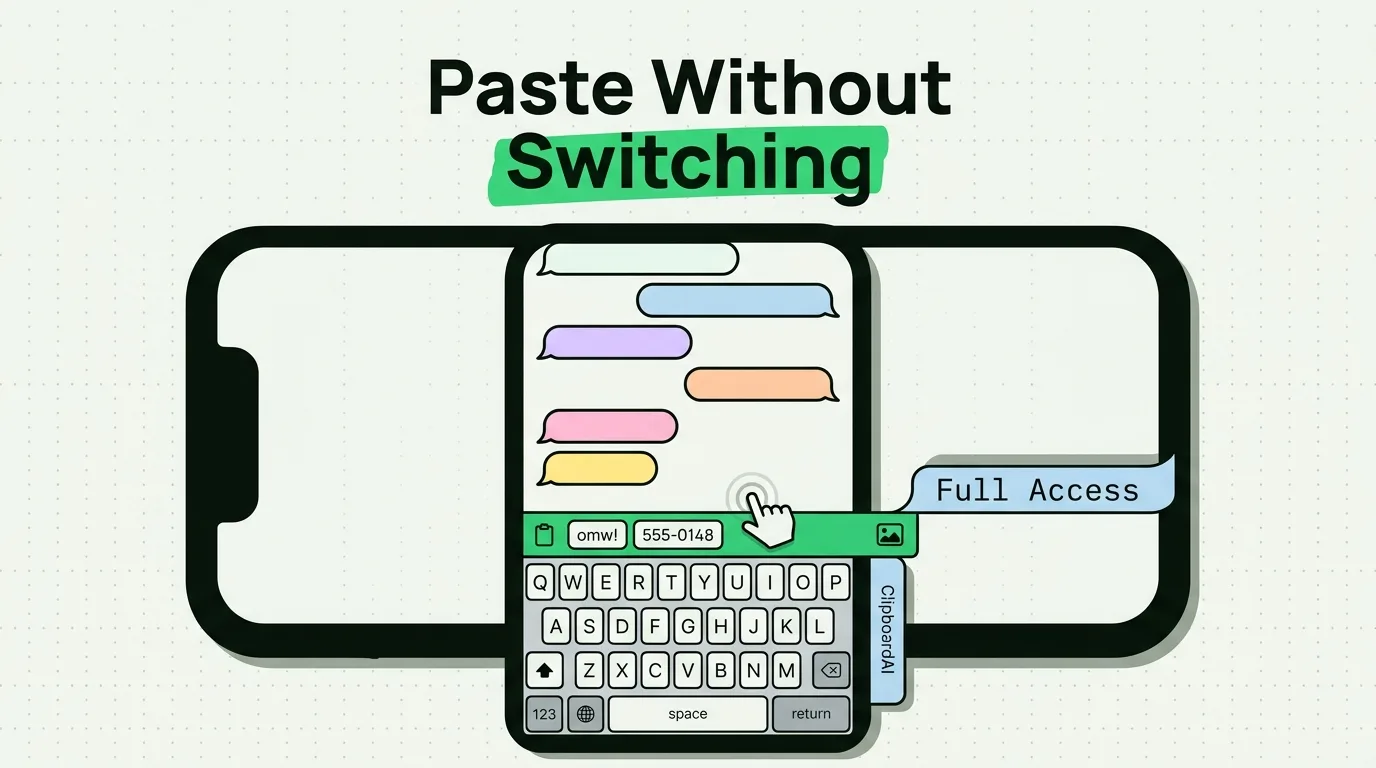
- A custom keyboard. When you switch to the app's keyboard, it is on screen and allowed to show your saved clips for one-tap insertion. This is the fastest route, and the reason the paste keyboard matters more than any other feature on iPhone.
- The Share sheet. You send text, a link, or an image to the clipboard app deliberately. Reliable, but it is several taps and you have to remember to do it.
- The Action Button, Back Tap, or Siri. One press saves whatever is on the pasteboard, without leaving the app you are in. This is the closest iOS gets to automatic capture, and it is the route we built for: Clipboard AI installs its own Save Clip action, so there is nothing to assemble in Shortcuts first. Here is how to set it up in about a minute.
Any app claiming to silently log everything you copy on iPhone, with no keyboard and no Share sheet step, is either mistaken or describing its Mac app.
Free iPhone clipboard apps compared
Six things a clipboard manager either does or it does not. Free-tier limits differ and are covered app by app below; this is about what each one can do at all.
| App | Saves itself | Keyboard | Auto-sorts | Image text | Search | iPhone, iPad, Mac | Score |
|---|---|---|---|---|---|---|---|
| Clipboard AI | ✓ | ✓ | ✓ | ✓ | ✓ | ✓ | 6 / 6 |
| PastePal | ✓ | ✓ | ✕ | ✕ | ✓ | ✓ | 4 / 6 |
| SnipNotes | ✓ | ✕ | ✕ | ✕ | ✓ | ✓ | 3 / 6 |
| Microsoft SwiftKey | ✕ | ✓ | ✕ | ✕ | ✕ | ✕ | 1 / 6 |
| Apple Shortcuts | ✕ | ✕ | ✕ | ✕ | ✕ | ✓ | 1 / 6 |
Checked on the US App Store, 27 August 2026, against each app's own documentation. "Saves automatically" means it files a clip the moment it sees one, instead of making you save each one by hand.
1. Clipboard AI: the best clipboard manager on iPhone, iPad, and Mac
Clipboard AI is our app, so weigh that as you read. It is first for a reason we can point at: it is the only clipboard manager here that puts the fastest way to use your history, the paste keyboard, on the free tier. On every other paid app we tested, the thing that makes a clipboard manager worth having is the thing you have to buy first.
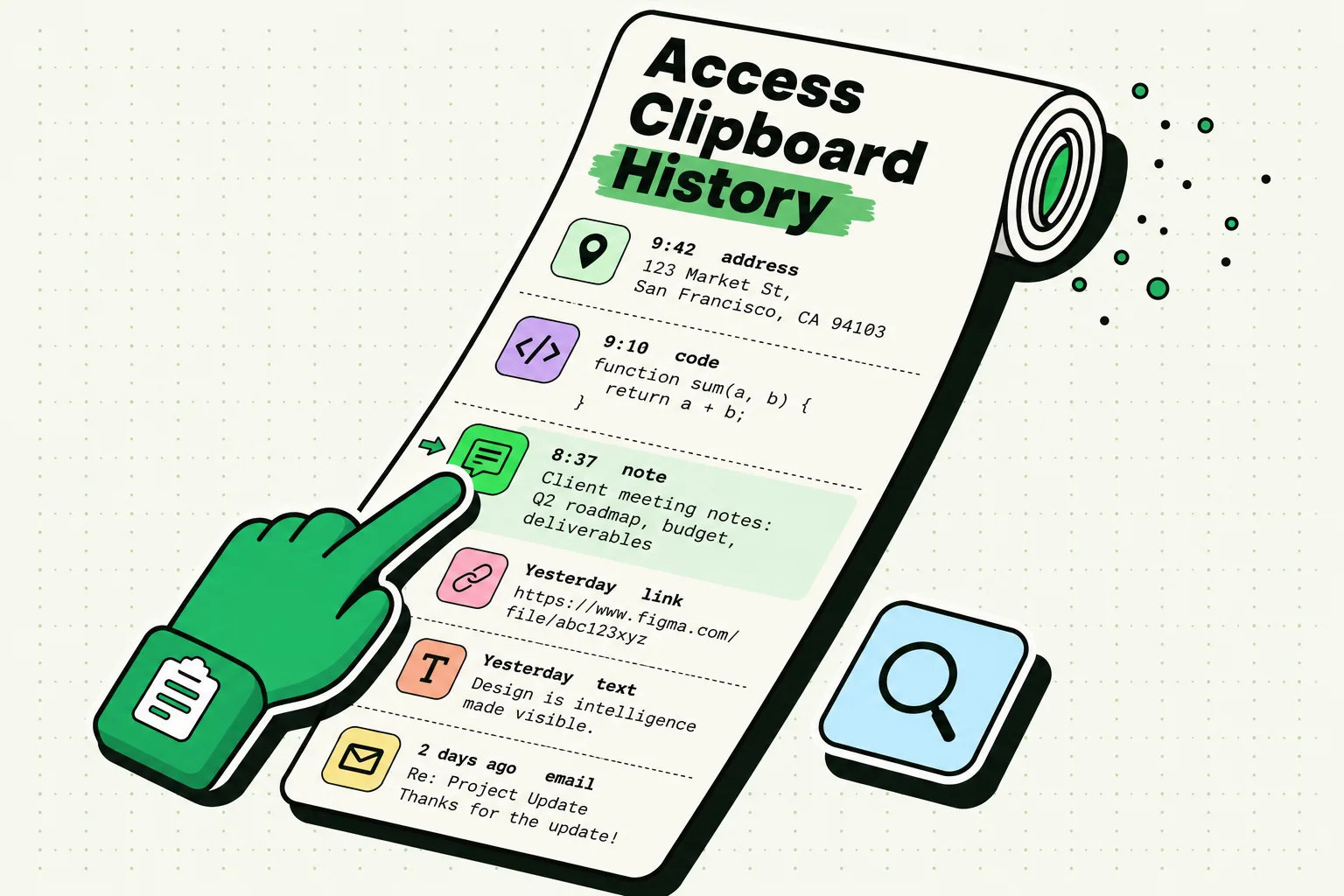
What that adds up to in practice is small and repeats all day. The address you keep retyping, the client reply you rewrite every Tuesday, the two-factor code you copy on your phone and need on your Mac, the wifi password, the tracking number, the prompt you feed ChatGPT twice a week. Copy each of those once and they stop being work.
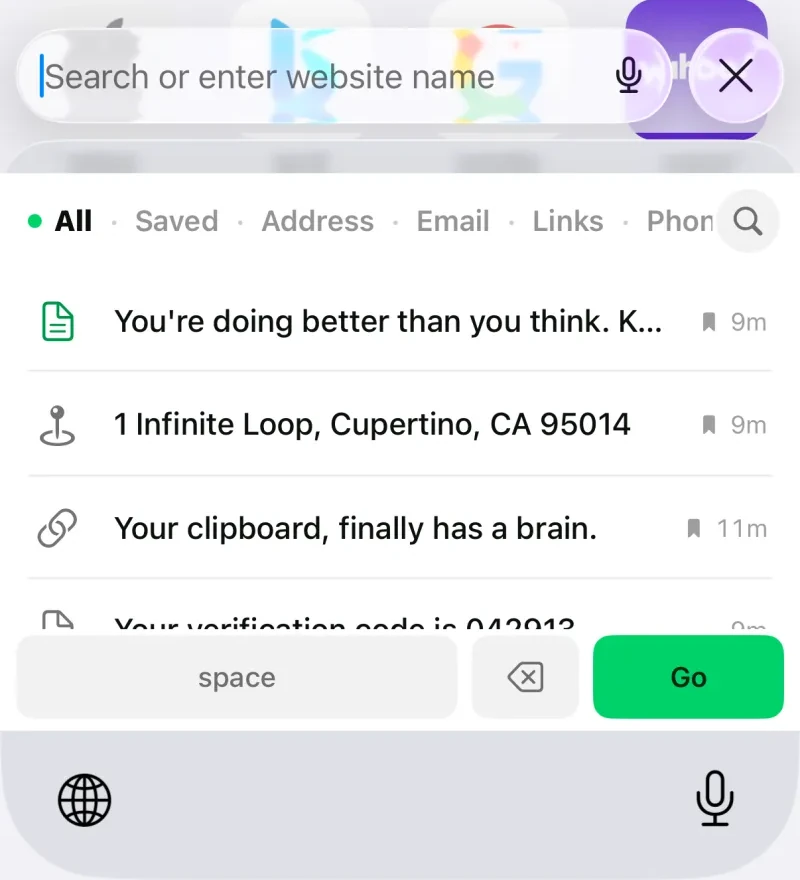
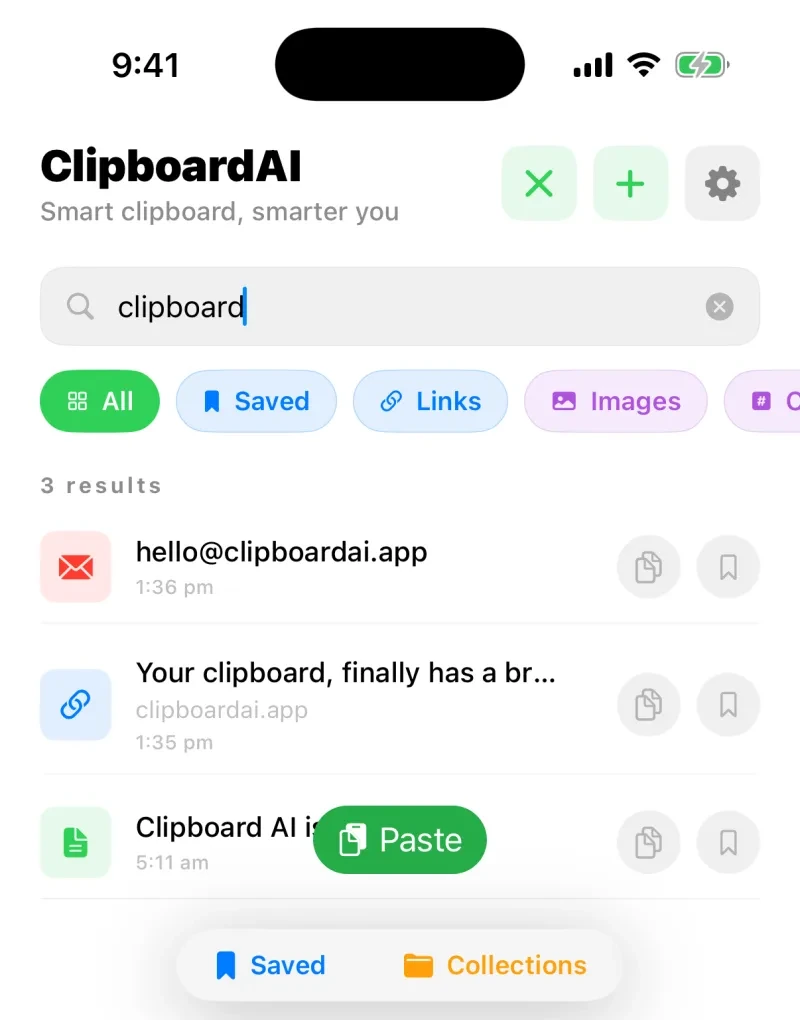
- It organises itself. Every clip is sorted into links, phone numbers, emails, addresses, codes, text, and images the moment you save it, on your device, with no tagging on your part. You can also give a clip a name, so "Invoice footer" is what you see in the list while the real text is what gets pasted.
- It reads screenshots. Copy the text out of a receipt, a slide, or a photo of a whiteboard, all or just the part you want, with on-device recognition. Your images become searchable too. None of the other apps on this list does this.
- It is one clipboard across three devices. Copy on your iPhone, paste on your Mac seconds later, or the other way round. On the Mac it lives in the menu bar with a Command Shift V panel that finds a clip from a year ago in a couple of seconds, and batch and sequential paste for dropping several clips in order. iPad gets the same app and the same keyboard.
- Saving takes no thought. The keyboard, the Share sheet, the Action Button, Back Tap, or Siri. Press once and whatever you copied is filed.
- It is on your home screen too. Four widgets: Recent Clips, Pinned Clips, a category overview, and a small Quick Capture tile that files your clipboard in one tap. There is also a Save Clipboard control for Control Center and the Lock Screen, so saving never needs the app open at all.
- It never phones home. The keyboard extension makes no network calls at all, and the sorting and text recognition run on your iPhone. If you turn sync on, it goes through your own private iCloud, not our servers. There are no analytics SDKs in the app.
- One purchase covers everything. Pro is $19.99 a year, which works out at $1.67 a month, or $34.99 once for Lifetime. Either way that one purchase covers iPhone, iPad, and Mac. Paste is $29.99 a year, or $2.50 a month for the same job, with no lifetime option at all. There is also a $4.99 monthly plan if you would rather pay as you go.
What the free tier includes: your last 10 saved clips, auto-capture, smart categories, custom clip names, search, and the full paste keyboard. No ads, no countdown, no card. What it does not: the 10-clip cap is real, so clip 11 replaces clip 1 until you upgrade. Pins stop at 5. iCloud sync across your devices and Collections are Pro.
Ten clips is deliberately enough to answer the only question that matters at this stage, which is whether having your clipboard one tap away changes how your day goes. For most people it takes about a week, and by then the cap is the thing you want gone rather than the thing you resent. Rated 5.0 on the App Store, from 22 ratings.

Stop losing what you copy
Free on iPhone, iPad, and Mac. 10 saved clips, the full paste keyboard, no card. Rated 5.0 on the App Store.
2. PastePal: best visual history
PastePal is the most visually polished clipboard manager on iPhone, and the one to pick if you would rather browse your history as a wall of cards than search it. Rated 4.1 from 177 ratings, last updated 8 August 2026.
- How it works: Widgets, a Share sheet extension, and its own keyboard. Clips render as preview cards showing the icon of the app you copied from, which makes scanning a long history genuinely faster than reading a list of text.
- What the free tier includes: Recent history, the keyboard extension, and widgets, with a cap on how many clips stay active at once and periodic prompts to upgrade.
- What it costs after that: $14.99 as a one-time purchase, which is the best value on this list if you never want to think about a subscription again.
- Privacy: Stores locally, syncs through your own iCloud if you upgrade, so clips are not passing through a third-party server.
- The catch: The free tier is more of a demo than a usable plan, and the upgrade prompts are frequent enough to notice.
3. Microsoft SwiftKey: free, but you save every clip by hand
SwiftKey is a keyboard first and a clipboard manager a distant second, and it is completely free with no paid tier. It earns a place because it costs nothing and you may already have it, but be clear about what it does on iPhone: it saves nothing on its own.
- How it works: Copying does not file anything. To keep a clip you copy the text, tap the + icon to open the SwiftKey toolbar, choose Clipboard, and tap Save on the prompt that appears. Miss that step and the text is gone within the hour. You can also type a clip in by hand through the pencil icon.
- What the free tier includes: Everything there is. SwiftKey holds up to 30 saved clips, each up to 1,000 characters. What you saved deliberately stays; what you merely copied expires after one hour.
- What it costs after that: Nothing. There is no upgrade.
- Privacy: Worth correcting a claim that circulates widely, including in an earlier version of this article: Cloud Clipboard is an Android feature. Microsoft's own documentation states clips cannot be synced to iOS, so on iPhone the SwiftKey clipboard stays on your device.
- The catch: It is not a clipboard history, it is a manual snippet list. Nothing you copy is recorded unless you stop and save it, which means the clip you end up wishing you had kept is precisely the one you will not have kept, because you did not know at the time that you would want it. That is the entire argument for automatic capture.
4. SnipNotes: best when clips need to become notes
SnipNotes is a notebook that happens to capture your clipboard, which makes it the right pick if what you copy is research rather than throwaway strings. Version 6.1.1, February 2026, with apps for iPhone, iPad, Mac, and Apple Watch.
- How it works: Capture through the Share sheet, a widget, or Siri. It detects what a clip is, a phone number, an address, a link, and attaches the matching action, so an address gets a Maps button.
- What the free tier includes: Local notes and clips with categories and tags, on one device.
- What it costs after that: In-app purchases from $1.99. SnipNotes Plus, which adds iCloud sync and voice recordings, is a subscription.
- Privacy: Local by default, iCloud when you enable sync.
- The catch: No keyboard extension, so pasting means leaving the app you are in, opening SnipNotes, copying, and coming back. That is a note-taking workflow, not a clipboard one.
5. Apple Shortcuts: the 100% free DIY option
If you only need to keep the odd clip now and then, and you do not mind doing a little of the work yourself, Shortcuts can log what you copy into a plain text file in your iCloud Drive, for nothing. It suits low volume and patience. If you copy things dozens of times a day, the time you spend saving and then hunting for each clip will cost you far more than any of the apps above.
New Shortcut, then add Get Clipboard, then Get Text from Input, then Append to Text File pointing at a file in iCloud Drive. Name it "Save Clip". Assign it to the Action Button in Settings, or to Back Tap under Accessibility, and one press files whatever you just copied.
- What it includes: Unlimited history, because it is a text file. No ads, no tracking, no limits.
- What it costs: Nothing, ever.
- Privacy: Everything stays in your own iCloud Drive. Worth saying that this is not the only way to keep clips off other people's servers: Clipboard AI's keyboard makes no network calls either, and its sorting runs on your phone.
- The catch: Retrieval, every single time. You get an append-only text file with no search worth the name, no categories, and no way to paste from it without opening Files, finding the file, scrolling to the right line, and copying it by hand. Reckon on fifteen to twenty seconds to get back a clip that a keyboard would give you in one tap. It is excellent at capture and poor at everything after.
What "Allow Full Access" actually does
When you add any clipboard keyboard, iOS asks you to turn on Allow Full Access, and the wording it uses can read as alarming. It is worth a minute to understand, because what it is doing is simpler and more ordinary than the prompt suggests.
Your clipboard history lives in the app. The keyboard is a separate little program, and iOS keeps the two apart unless you say otherwise, which is why a newly added clipboard keyboard opens empty. Full Access is the switch that lets the keyboard read your own saved clips, from your own app, on your own phone. Turning it on does not send anything anywhere.
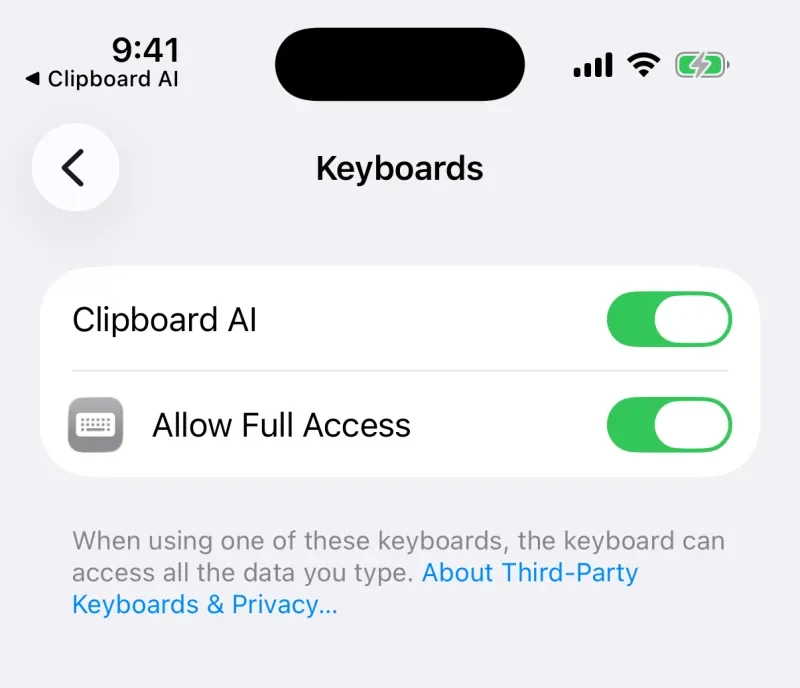
The reason Apple words the prompt so broadly is that the same switch is also what would let a keyboard reach the internet, and iOS cannot know in advance which keyboards do. That is a fair thing to be thoughtful about, and it is easy to check. Three things tell you most of what you need to know:
- The App Store privacy label. "Data Not Collected" is a declaration the developer makes to Apple, not a marketing line. If a keyboard gathers usage data or identifiers, it has to say so there.
- Whether it needs the internet at all. A clipboard keyboard has no reason to make network calls. Clipboard AI's keyboard makes none, which is why it behaves exactly the same in airplane mode.
- Where the clever features run. Anything described as AI that runs on a server means your text travels to that server. Clipboard AI sorts clips and reads text out of images on your iPhone itself.
One good habit whatever you install: let AutoFill handle passwords instead of copying them. It puts credentials straight into the field, so they never reach the clipboard at all. If you would like the specifics for ours, here is exactly what the Clipboard AI keyboard can and cannot see.
What we left off, and why
Several things that turn up in searches for free iPhone clipboard apps are not free, not clipboard managers, or not on iPhone. Ruling them out is usually more useful than another entry on the list.
- Universal Clipboard. Apple's own feature, and genuinely free, but it is not a history. It copies on one device and pastes on another within about two minutes, one item at a time. Useful, and not a clipboard manager. If it has stopped working, that is usually fixable.
- The Notes app. Suggested constantly as a free workaround. It stores text well and captures nothing automatically, so every clip is a manual paste into a note. That is a filing cabinet, not a clipboard.
- Paste. A good app and a common recommendation, but at $29.99 a year it is the most expensive option in the category and has no free tier, so it does not belong on a list of free apps.
- Pastebot. Frequently listed as an iPhone clipboard manager. It is Mac only. There is no iPhone app.
- Yoink. A shelf for dragging files and text between apps, which is a genuinely different job from keeping a searchable history.
- Clipboard widgets bundled into utility apps. We tried several. All of them capture only when you open the widget, which means they miss the copy you actually wanted.
Which free clipboard app should you pick
For almost everyone the answer is Clipboard AI, and the cases where it is not are narrow and specific.
- You copy things all day and want them back instantly: Clipboard AI. The keyboard is free, so the fastest workflow is the one you get without paying, and clips sort themselves so you are never scrolling to find anything.
- You use more than one Apple device: Clipboard AI, without much competition. One clipboard on iPhone, iPad, and Mac, one purchase for all three, and a Lifetime option so it never becomes another subscription. Paste costs $29.99 every year for the same job.
- You screenshot things instead of writing them down: Clipboard AI. It is the only app here that reads the text out of an image, on device, and lets you search inside your screenshots afterwards.
- You handle sensitive information: Clipboard AI. The keyboard makes no network calls, the sorting runs on your phone, and sync uses your own iCloud rather than anyone's server.
- You want your clipboard on the home screen: Clipboard AI. Four widgets, Recent Clips, Pinned Clips, a category overview, and a one-tap Quick Capture, plus a Save Clipboard control you can put in Control Center or on the Lock Screen.
- You would rather browse your history as a wall of cards than search it: PastePal, and budget $14.99 for the one-time upgrade.
- You already use SwiftKey and will happily save each clip by hand: Its clipboard is free and holds 30. Just know it records nothing on its own, so anything you forget to save is gone within the hour.
- What you copy is research that becomes notes: SnipNotes.
- You save a clip once or twice a week and would rather spend time than money: The Shortcuts route. It captures well, retrieves slowly, and costs nothing.
If you want the paid options weighed against each other rather than the free ones, our full comparison of every iPhone clipboard manager goes deeper on sync speed, search, and price.
Frequently asked questions
Is there a completely free clipboard manager for iPhone?
Yes, two, with caveats. Microsoft SwiftKey's clipboard is free with no paid tier, but on iPhone it records nothing automatically: you open its toolbar and tap Save for each clip, it holds 30, and anything unsaved is gone within the hour. A Shortcut that appends your clipboard to a text file in iCloud Drive is free and unlimited, but has no search and no quick way to paste. Every dedicated clipboard app has a paid tier; the question is how usable the free one is before you reach it.
Why do clipboard apps miss things I copy?
Because iOS does not let any app read the pasteboard in the background. A clip is only saved at a moment you are already interacting with the app: opening it, switching to its keyboard, tapping its widget, using the Share sheet, or running a Shortcut. Any iPhone app claiming to record everything automatically is describing behaviour iOS does not permit. What an app can do is make that moment take one press. Clipboard AI ships a ready-made Save Clip action, so you can put it on the Action Button, on Back Tap, or in Control Center, or just ask Siri, with no Shortcut to build first. Copy, press once, carry on.
Can a free clipboard app steal my passwords?
A well-made one will not, and two easy habits keep you comfortably on the safe side. First, check the App Store privacy label and favour keyboards that make no network calls, since a keyboard with nowhere to send data cannot send any. Clipboard AI's keyboard makes none. Second, let AutoFill handle your passwords instead of copying them, so they never reach the clipboard for any app to see.
Does clipboard history sync between iPhone and Mac for free?
Not for free in any app we tested, because sync is the one feature that genuinely costs a developer money to run. What differs is the price of getting it. Clipboard AI is $19.99 a year, about $1.67 a month, or $34.99 once for Lifetime, and either way that one purchase covers iPhone, iPad, and Mac. Paste charges $29.99 a year, about $2.50 a month, with no lifetime option. Apple's Universal Clipboard is free but carries one item at a time and keeps no history at all.
How many clips does the free Clipboard AI tier keep?
Ten saved clips. The eleventh replaces the first. The free tier also includes auto-capture, smart categories, custom clip names, search, and the full paste keyboard. Pro lifts the cap and adds iCloud sync for $19.99 a year, which is about $1.67 a month, or $34.99 once for Lifetime.
How do I clear my iPhone clipboard history?
In Clipboard AI, open Settings and choose Clear History, or delete a single clip to erase its contents immediately. In SwiftKey, open the clipboard panel and remove clips individually. For the Shortcuts method, delete the text file in Files under iCloud Drive. To clear the system pasteboard itself, copy a single blank space.