
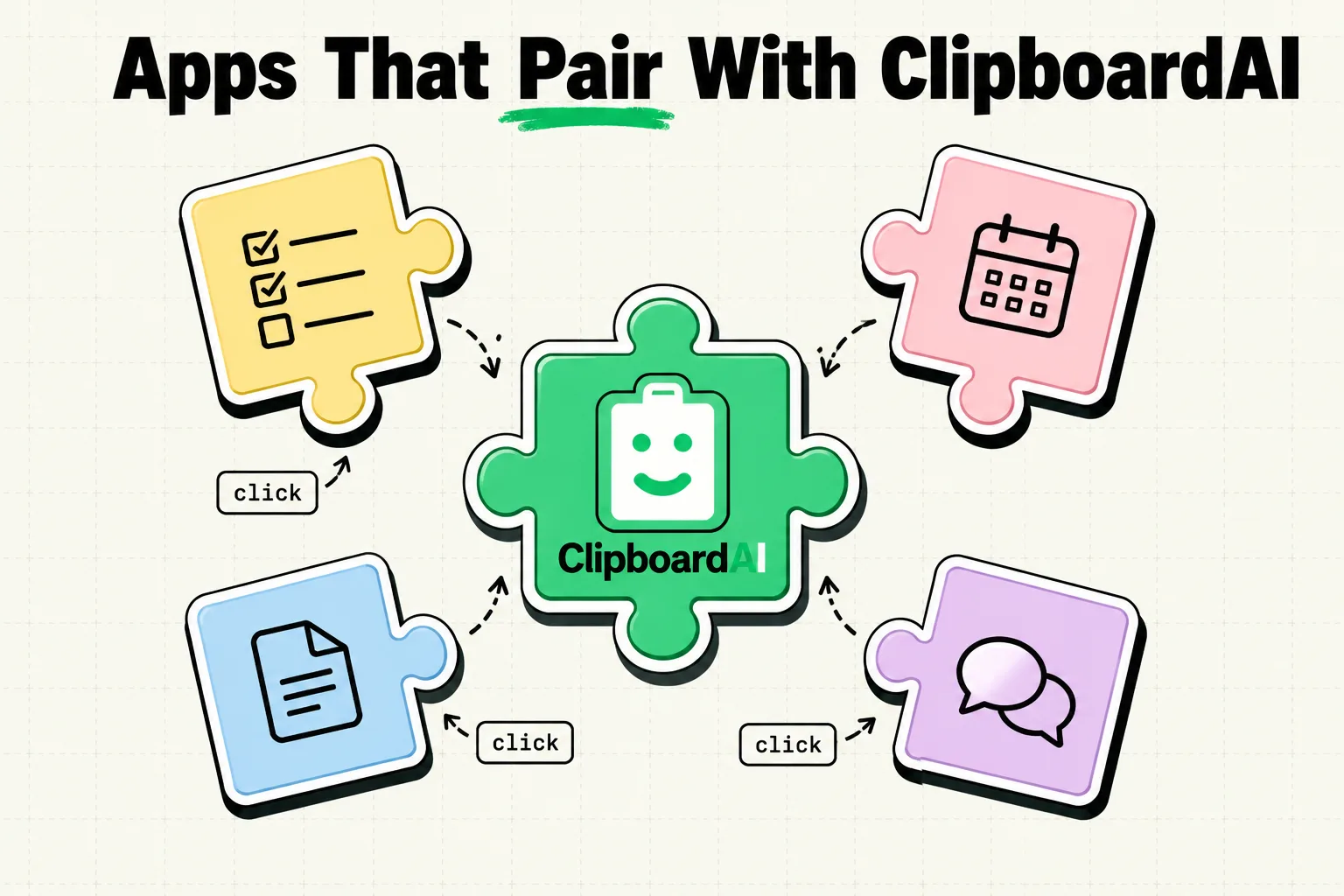
A clipboard manager does not add features to other apps. What it does is remove the tax of losing information mid-task: the address you copied that vanished the moment you copied something else, the five quotes you meant to save but only kept the last one. Some apps generate enough copy-paste traffic that this tax is bigger than usual, and pairing them with a clipboard history noticeably changes how those apps feel to use. Here are five, with the specific mechanism for each, not just a vague "it helps."
1. Notion (or any note/wiki app): Batch Research Instead of Round-Tripping
The problem without a clipboard manager: you're reading an article, find a quote worth saving, copy it, switch to Notion, find the right page, paste, switch back to the article, find another quote, copy it, switch to Notion again. Five quotes means ten app switches.
What changes with ClipboardAI: copy everything first. Read the whole article, copying every quote, statistic, and link worth keeping. Each copy is saved automatically and sorted by type. When you're done reading, switch to Notion once, open the keyboard extension, and paste each saved item in sequence. Five quotes, one switch instead of five round-trips.
The mechanism, precisely: this only works because the clipboard manager holds more than one item. Without it, copying quote #2 destroys quote #1, forcing the one-at-a-time pattern in the first place.
2. Apple Shortcuts: Automations That Reference History, Not Just "the Clipboard"
Shortcuts can already read and set the current clipboard. That's useful but limited to whatever is on the clipboard right now. Pairing Shortcuts with clipboard history changes what's possible: build a shortcut that pulls a specific saved item (say, your most recently copied URL) rather than only whatever happens to be on the clipboard at the moment the shortcut runs.
A concrete example: a "Save for Later" shortcut that grabs the current Safari URL and appends it to a reading-list note, triggered by Back Tap. This still relies on the current clipboard, but works more reliably when you're not worried about a stray copy overwriting it before the shortcut fires.
Honest limit: Shortcuts cannot browse ClipboardAI's full saved history through the Shortcuts action interface the way you can inside the app itself. The integration is at the level of "read/set current clipboard," not "query the whole history."
3. Safari: A Passive Link Collector
The problem: comparison shopping across five product pages means copying five links, and only the last one survives if you're relying on the system clipboard alone.
What changes: every link copied from Safari lands in ClipboardAI's Links category automatically. At the end of a browsing session, every link you copied is still there, sorted, with no bookmarking step and no "Save to Reading List" menu required.
Where this actually helps most: comparing prices or options across multiple tabs, where you need several links available at once rather than one at a time.
4. Mail: Processing Several Emails Without Losing Details
Email generates a steady stream of things worth copying: a tracking number, a meeting link, a phone number, a confirmation code. Each is a casualty if you're copying one thing after another with a single-slot clipboard.
What changes: open one email, copy the tracking number; open the next, copy the meeting link; open a third, copy a phone number. All three survive, sorted into their respective categories (Codes-like text, Links, Phone Numbers) rather than only the last one surviving.
This turns email processing into a batch task: skim the inbox copying anything relevant, then use what you copied whenever you actually need it, instead of processing one email fully before moving to the next just to avoid losing what you copied.
5. Calendar Apps: Assembling an Event From Multiple Sources
Creating a calendar event often means pulling from several places: a Zoom link from an email, an address from a text message, a phone number from a contact card. Each source requires a copy, and a single-slot clipboard means only the last one makes it into the event.
What changes: copy the Zoom link, the address, and the phone number from their three separate sources, in any order, without losing any of them. Then open Calendar, create the event, and paste each detail from your saved history using the keyboard extension.
The Actual Pattern Across All Five
Every pairing above works for the same underlying reason: a clipboard manager turns "copy one thing, immediately use it, then copy the next thing" into "copy everything relevant, then process it in one pass." That only matters for apps and workflows that involve copying multiple pieces of information before you're done. If your daily use is copying one thing and immediately pasting it once, a clipboard history adds little. If you regularly copy several things in sequence before you're done with a task, it removes a real and repeated point of friction.
Honest Limits
- ClipboardAI does not integrate with these apps beyond the standard iOS clipboard and its own keyboard extension. There is no direct API connection to Notion, Mail, or Calendar; the mechanism is always "copy normally, retrieve from history later."
- The Shortcuts integration is limited to the current clipboard item through Shortcuts actions, not a browsable history within a Shortcut.
- None of this replaces dedicated integrations those apps might build themselves (like Notion's native web clipper); it's a general-purpose safety net that works the same way regardless of which app you're in.
Frequently Asked Questions
Does ClipboardAI integrate directly with apps like Notion or Slack?
No. It works through the standard iOS clipboard and its own keyboard extension in any app, not through app-specific integrations or APIs.
Which pairing helps the most for a typical user?
Whichever app generates the most sequential copying for you. For most people that's either email (copying multiple details per message) or a browser (comparison shopping, research).
Can Shortcuts access my full ClipboardAI history, not just the current clipboard?
Shortcuts' built-in clipboard actions read and set only the current system clipboard, not ClipboardAI's saved history. Browsing full history requires opening the app or its keyboard extension.