
Sometimes you want to save a copy without even opening Clipboard AI. Press the Action Button, double tap the back of your iPhone, or ask Siri, and your copy lands in the app on its own. Here is how to set up each one.
iPhone will not let an app read your clipboard in the background, so these are the fastest hands-free ways to hand a copy over. For the everyday ways to save, see How to capture and save clips.
Start with the shortcut
The Action Button and Back Tap both run a shortcut, so add it once first. The ready-made Save Clip To ClipboardAI shortcut saves whatever you copied, quietly in place, without opening the app. That is exactly what you want from a button or a gesture.
Tap the link, then tap Add Shortcut. It lands in your Shortcuts library, ready to assign to a button or a gesture.
The shortcut was rebuilt twice over the summer: once in June so a message copied from WhatsApp, Notes, or Mail lands as clean text, and once in July so large images save without a hiccup and a post copied from X or Bluesky saves as a link rather than a preview image. An older copy keeps working for plain text and images, but it misses those fixes. Tap the button above, add the new one, and point your Action Button or Back Tap at it. The guide under Save without opening the app in the app's Settings always carries the current version.
In the Shortcuts app, create a new shortcut with Get Clipboard followed by the Save Text to Clipboard AI action. There is a Save Image to Clipboard AI action too, for screenshots and photos.
Press the Action Button
On an iPhone with an Action Button, assign the shortcut once and a single press saves whatever you copied. Here is the whole flow, tap by tap.
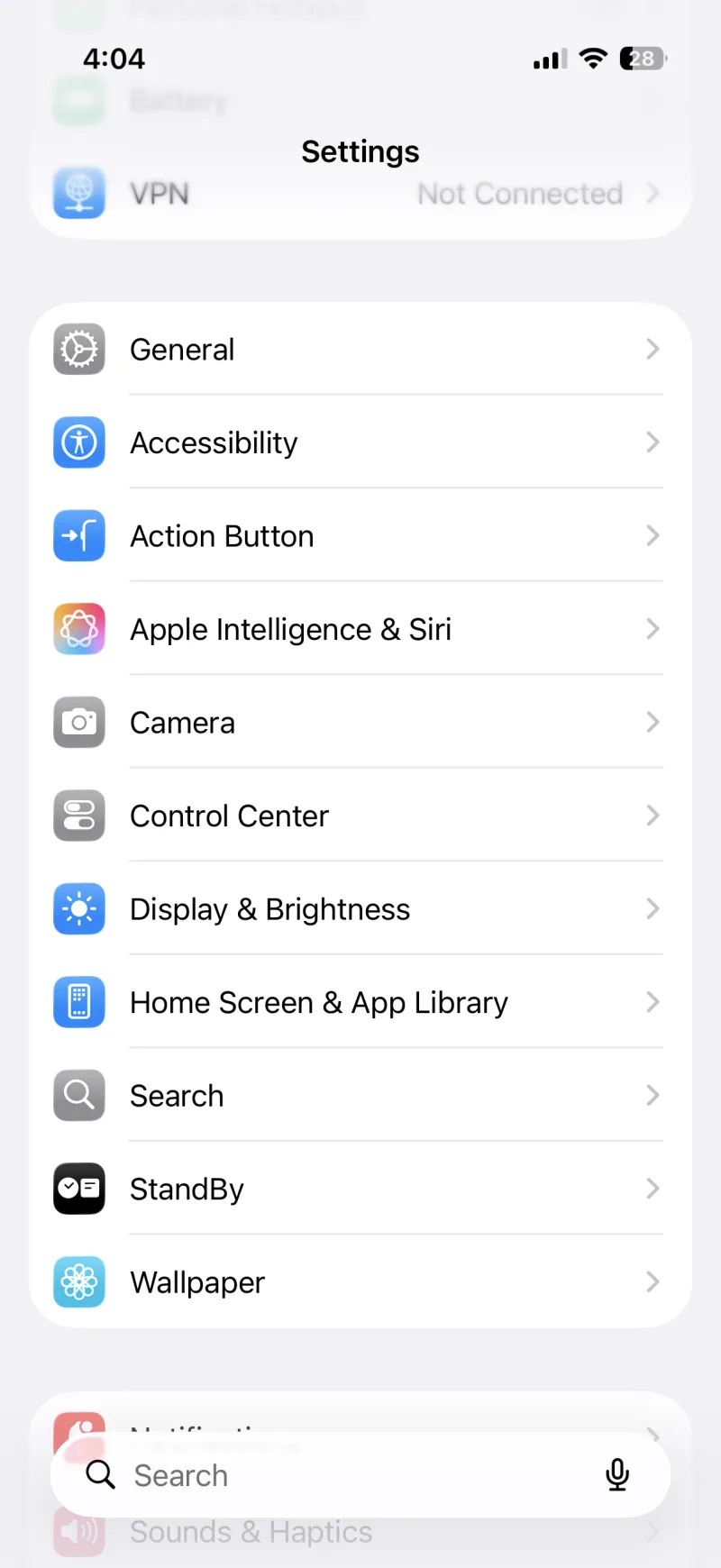
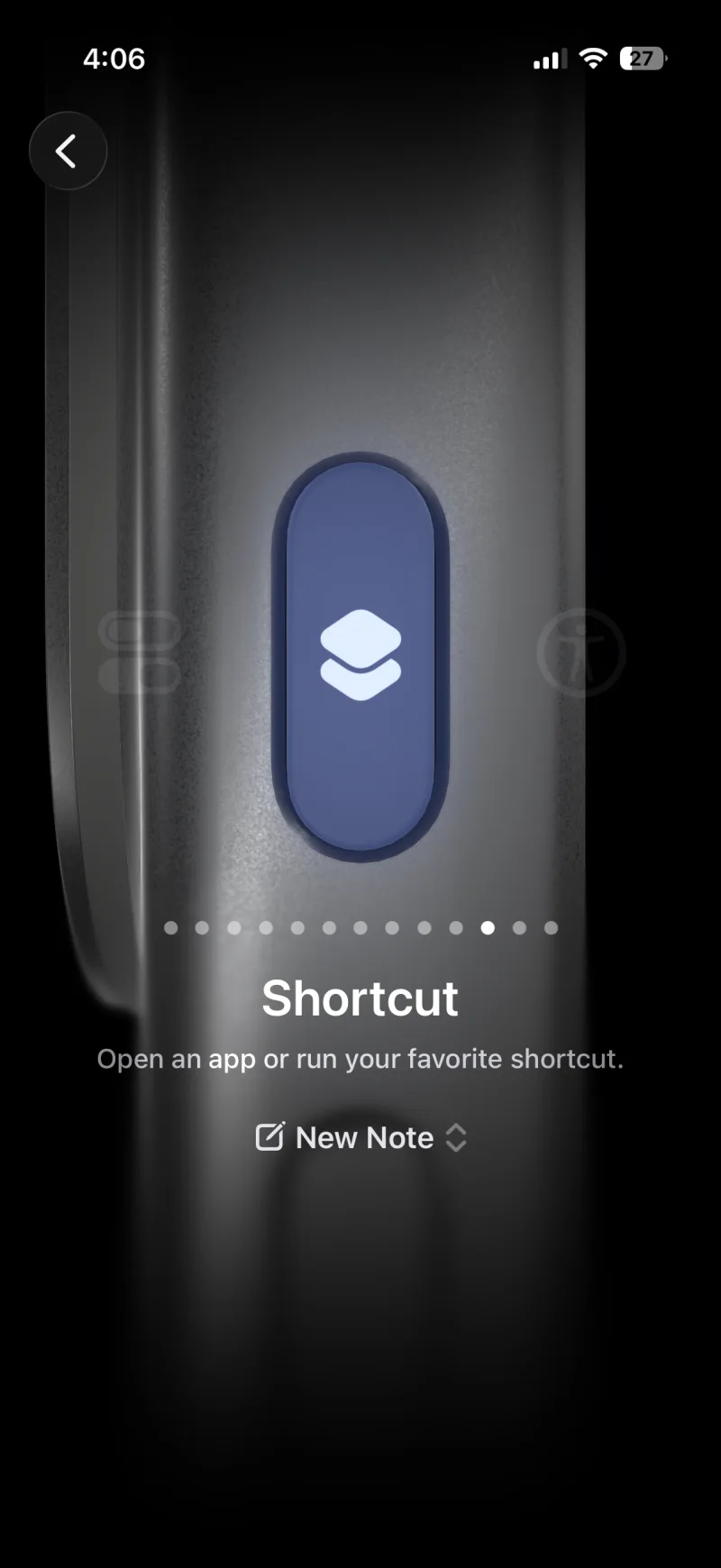
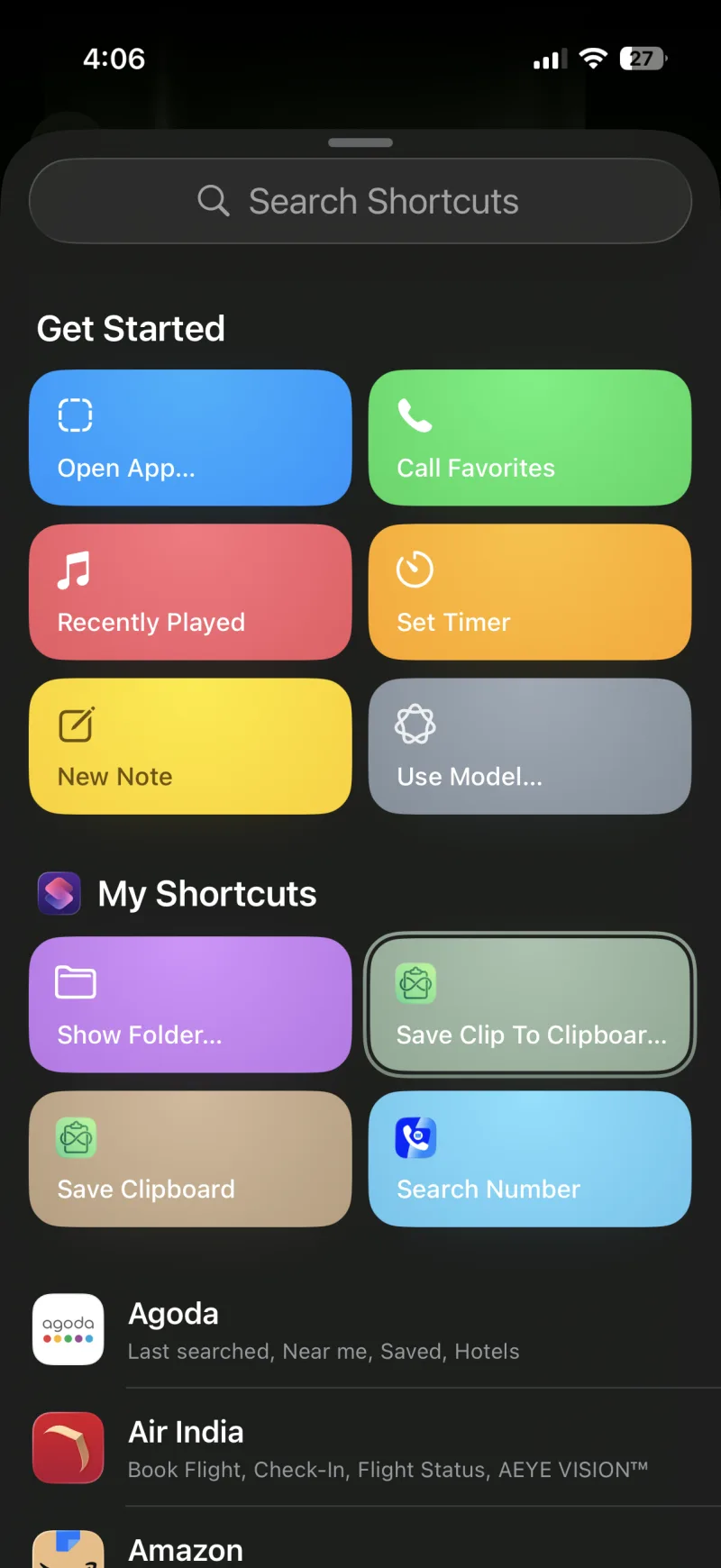
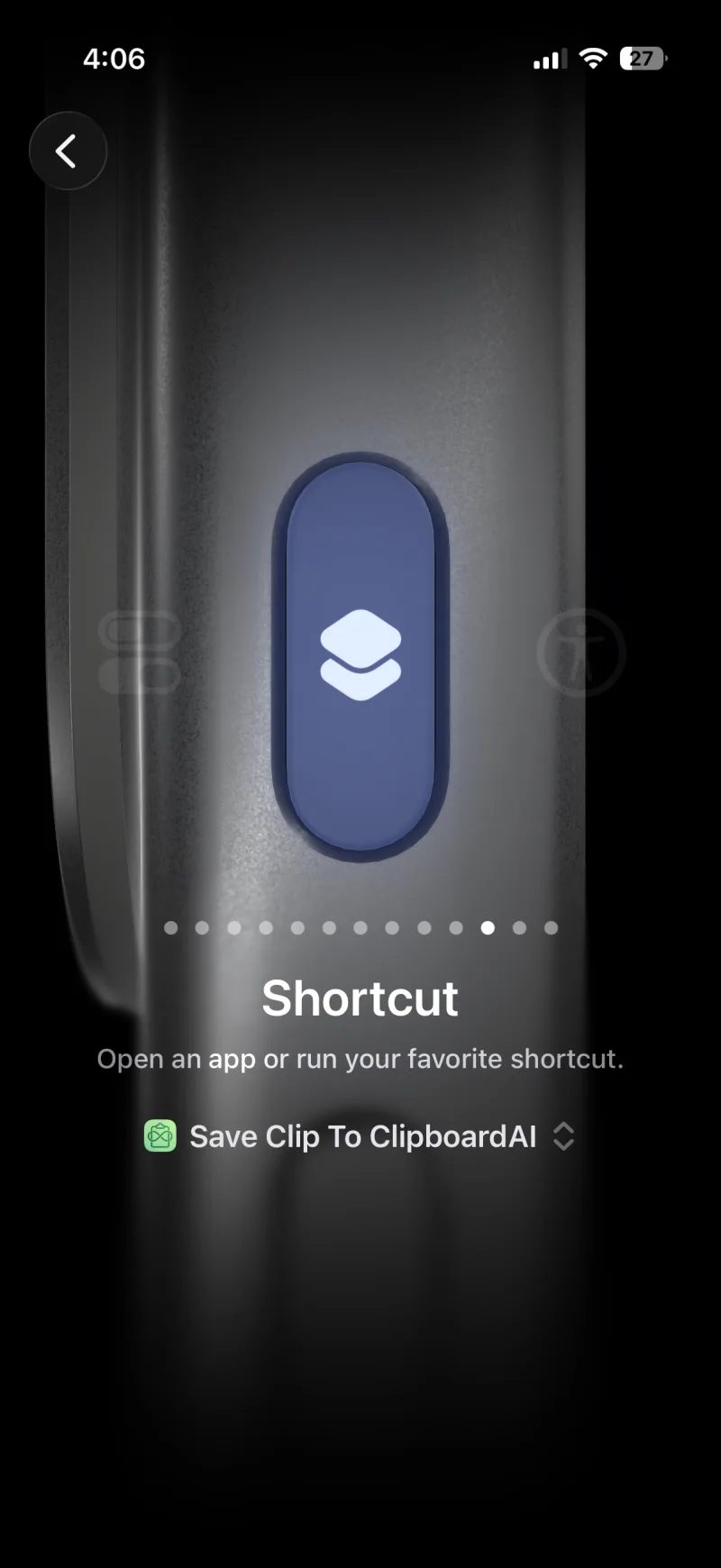
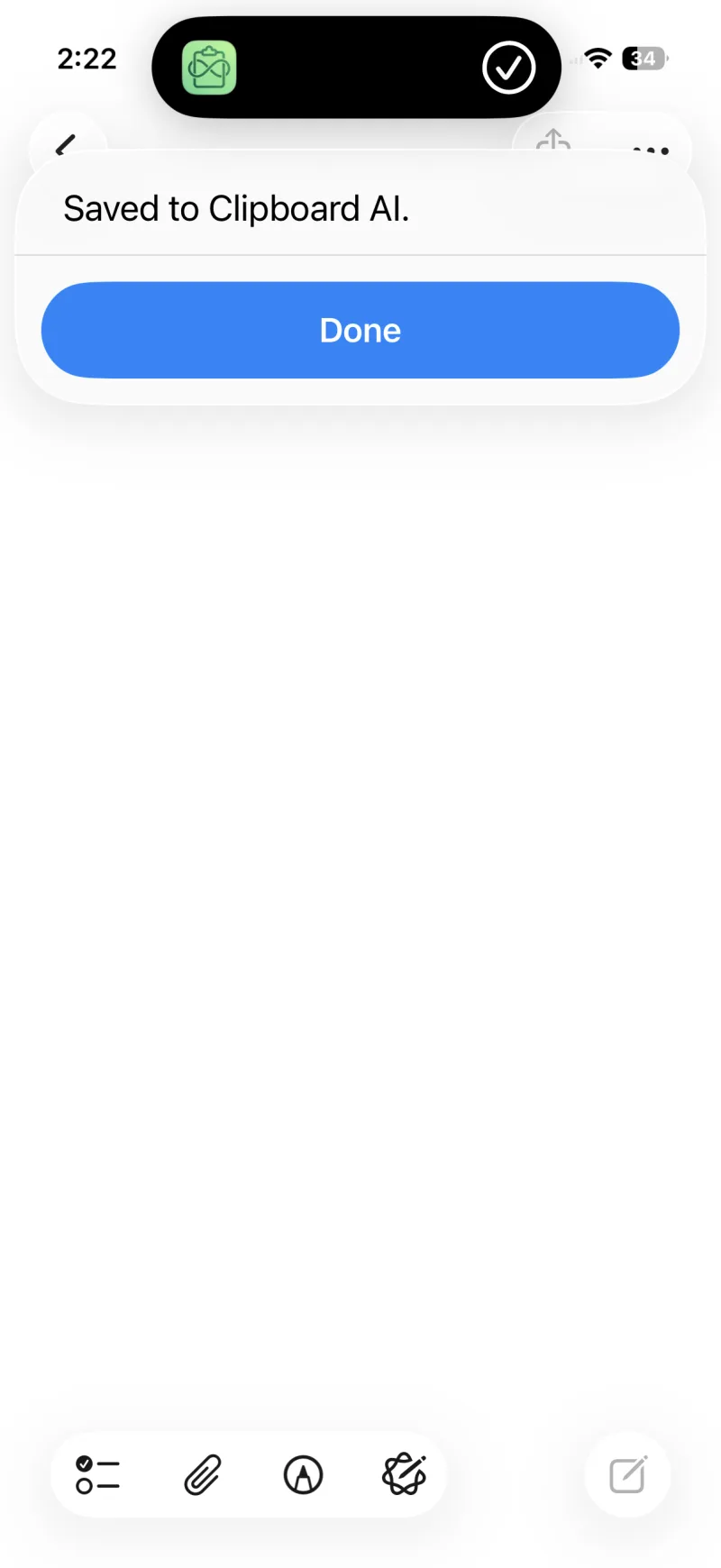
The Action Button is on iPhone 15 Pro, iPhone 15 Pro Max, and every iPhone 16 and later.
Double tap the back
Back Tap turns a double tap on the back of your iPhone into a saved clip. It works on far more iPhones than the Action Button. Here is every step.
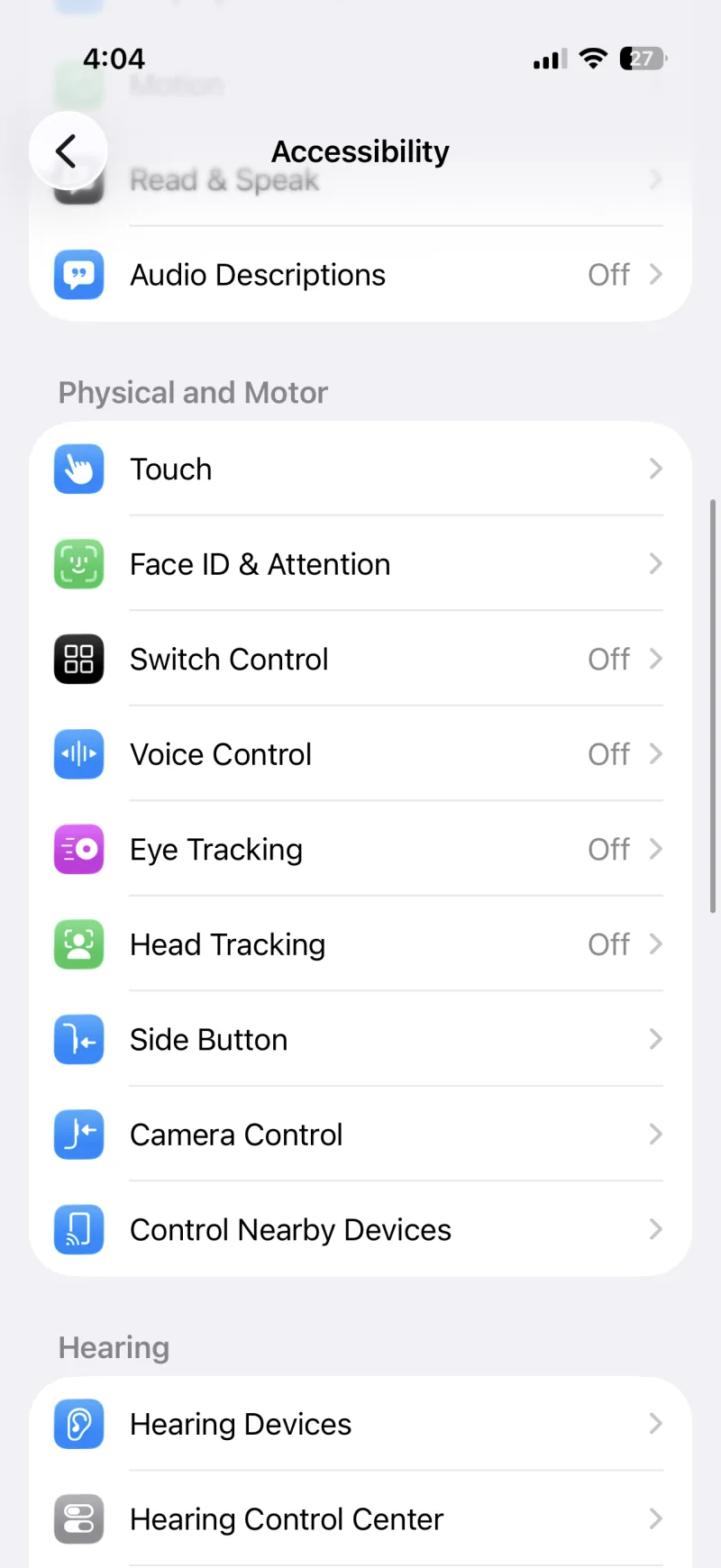
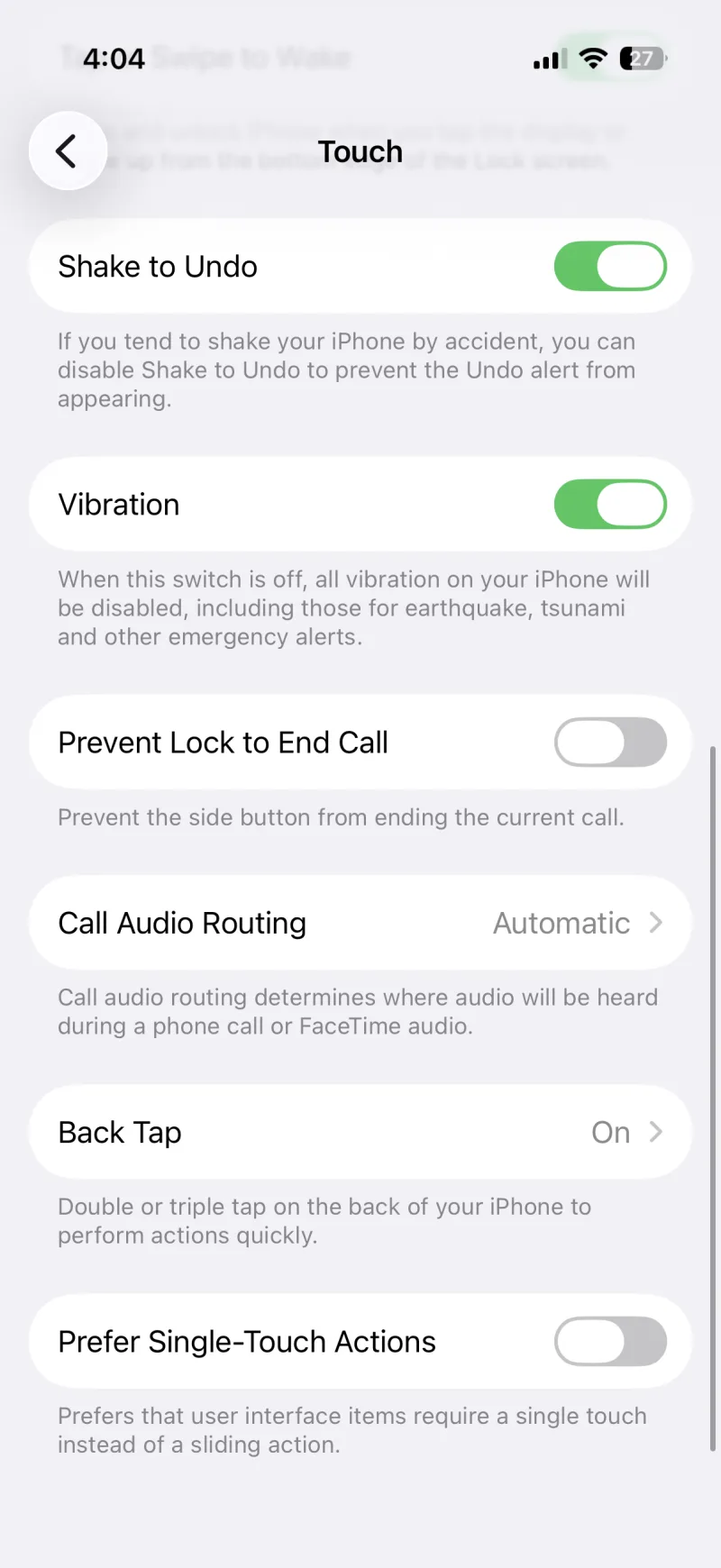
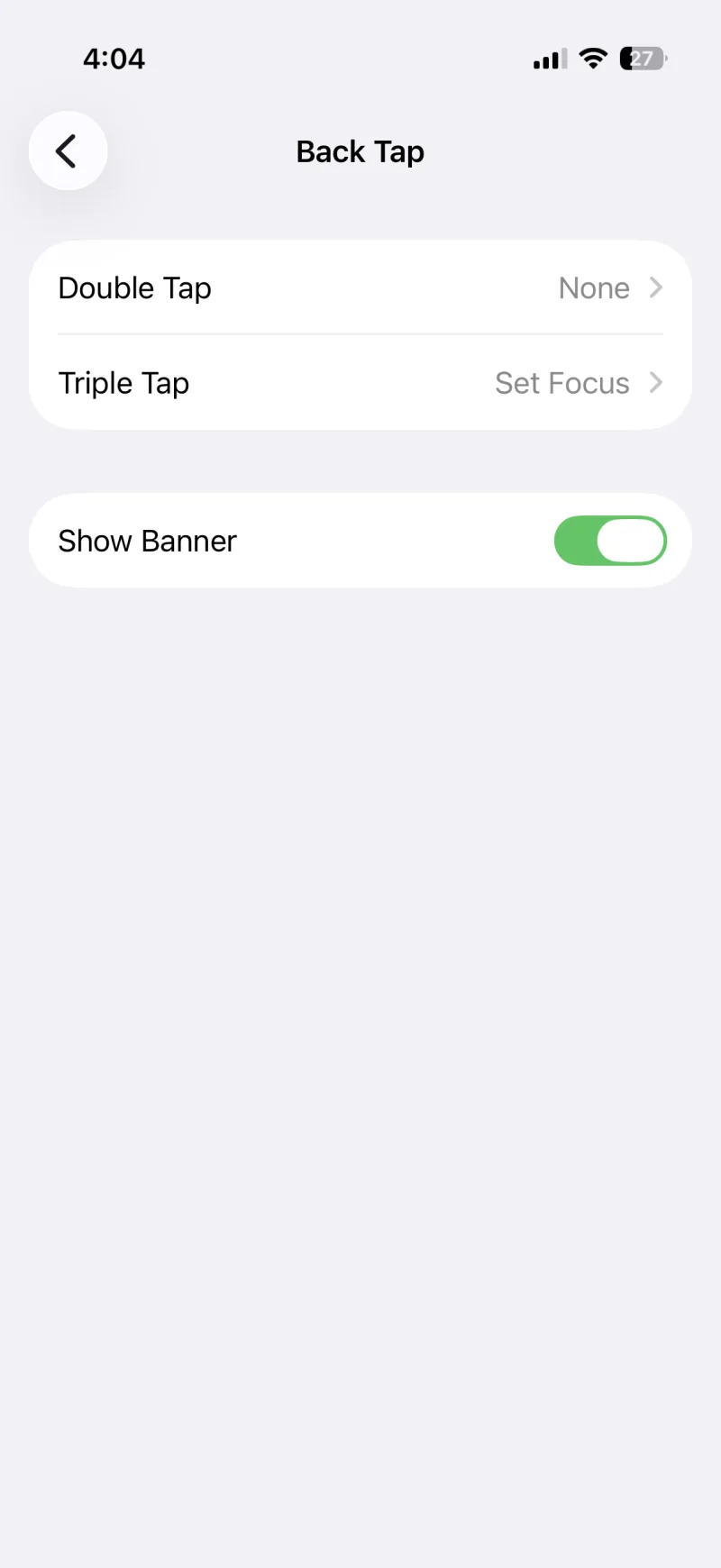
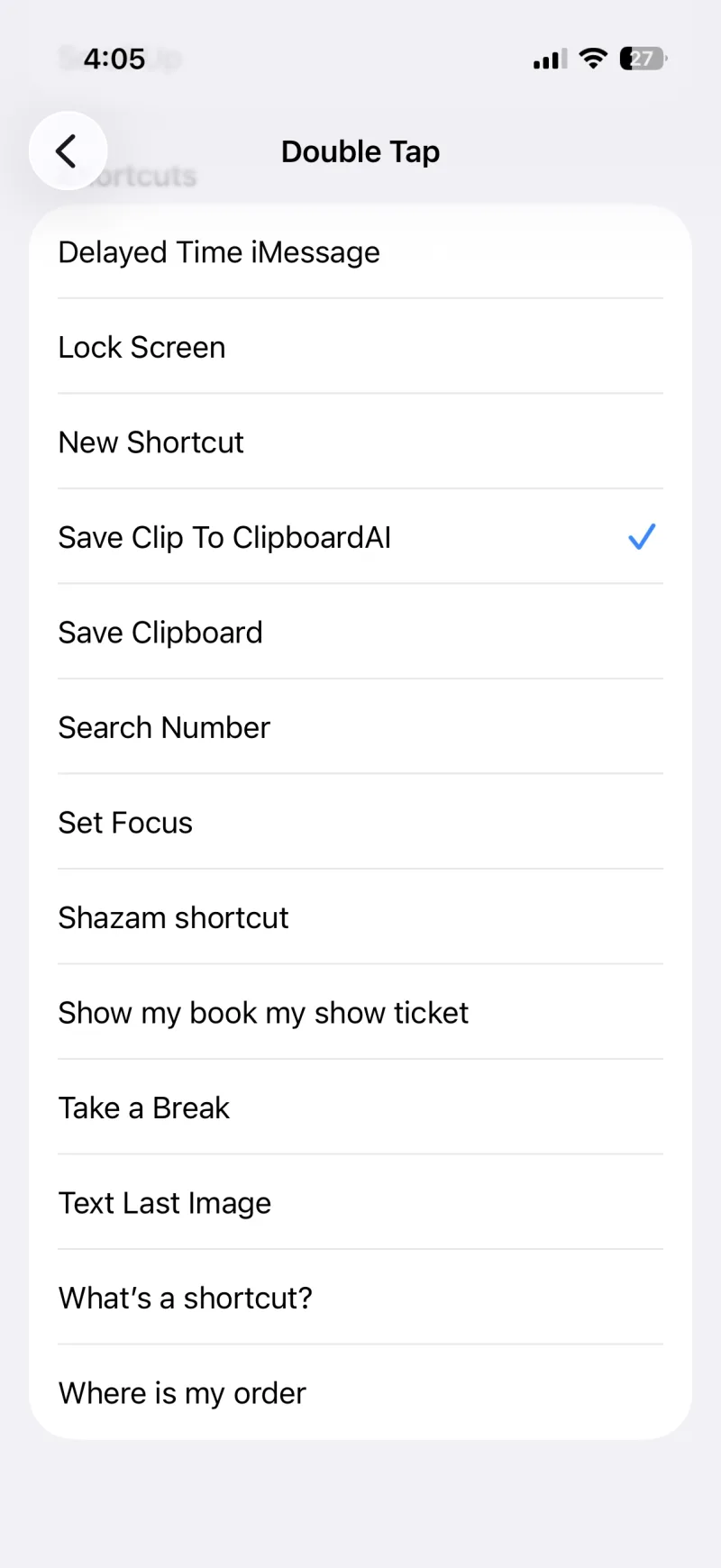
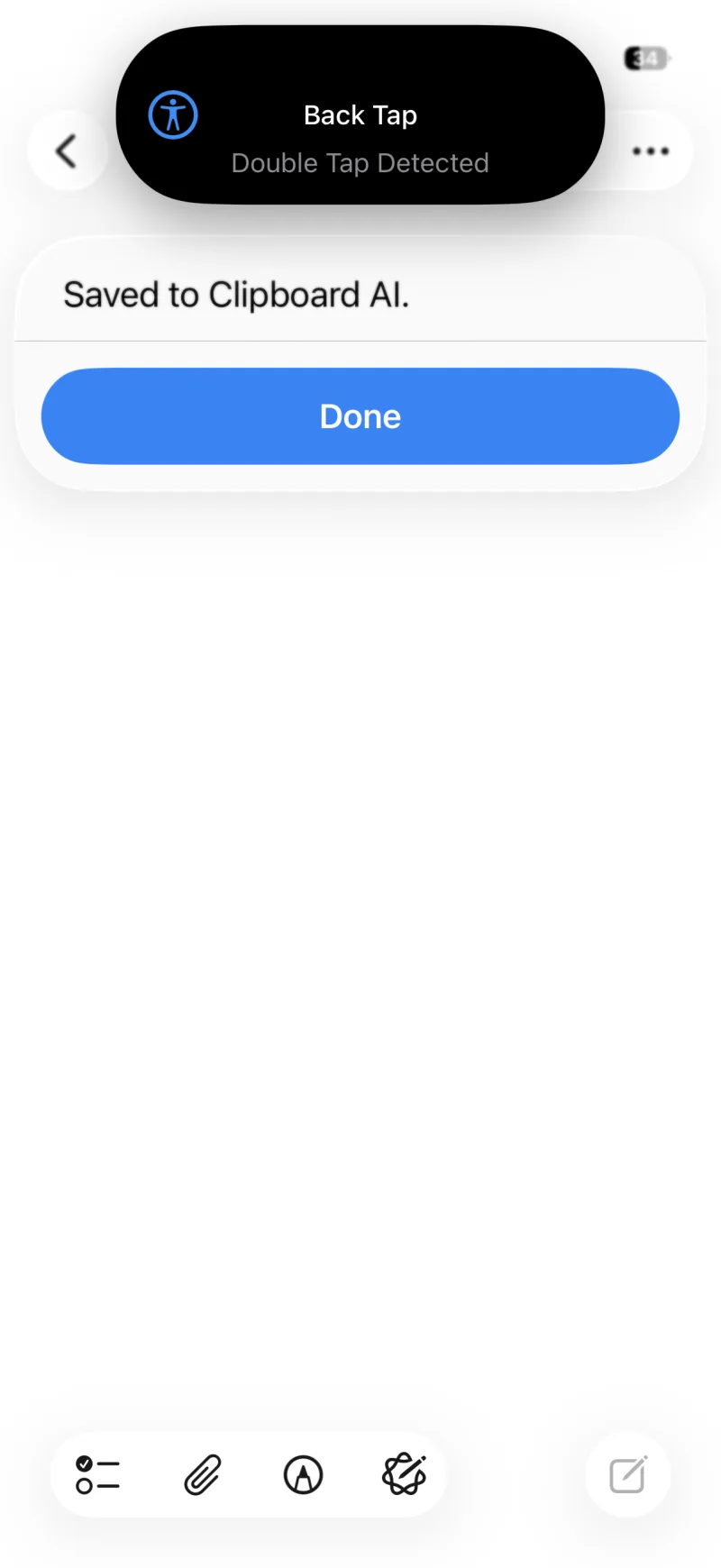
Back Tap works on iPhone 8 and later running iOS 14 or newer.
Or just ask Siri
No shortcut to add for this one. Copy something, then say any of these:
- "Save to clipboard"
- "Save to Clipboard AI"
- "Save my clipboard to Clipboard AI"
- "Save clipboard with Clipboard AI"
The first time, Siri asks to turn the shortcut on. Tap Turn On and you are set for good.
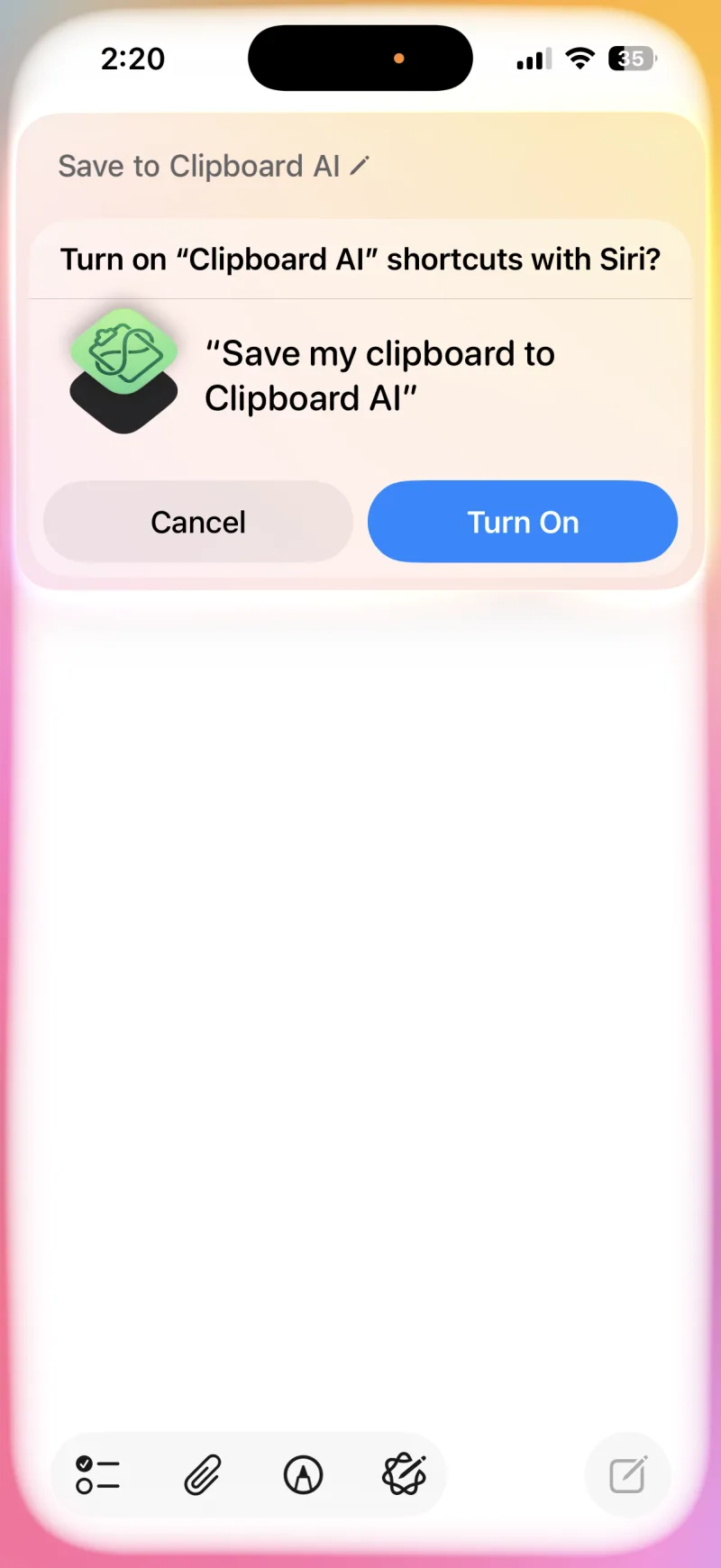
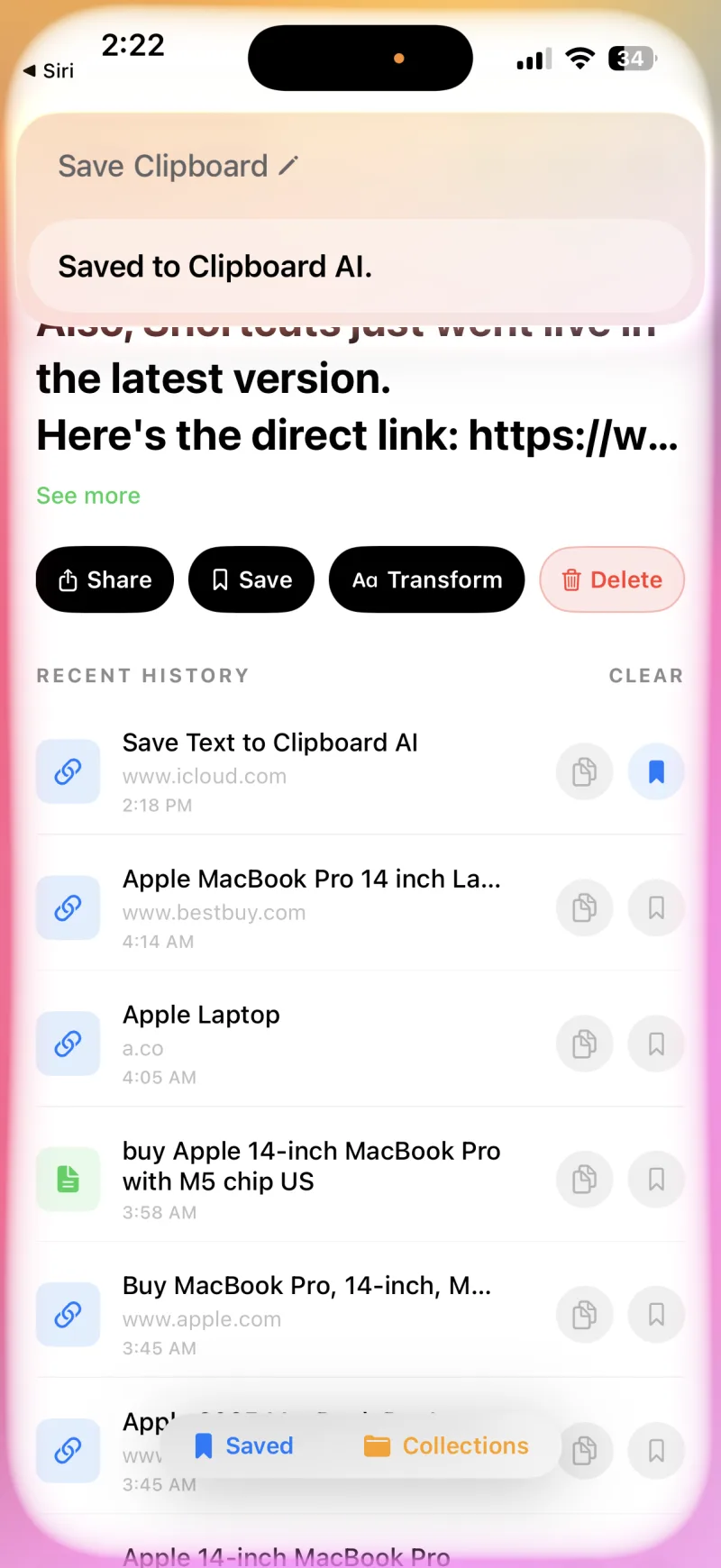
The Siri command brings Clipboard AI forward for a second so it can read your live clipboard. That is an iPhone privacy rule, not a glitch.
No shortcut at all: the Control Center button
On iOS 18 and later there is a fourth way that needs nothing installed. Add the Save Clipboard control to Control Center, or to one of the two buttons on the Lock Screen, and a tap saves whatever you copied. It brings the app forward for a moment, the same way Siri does. See Widgets, Control Center, and the Lock Screen.