
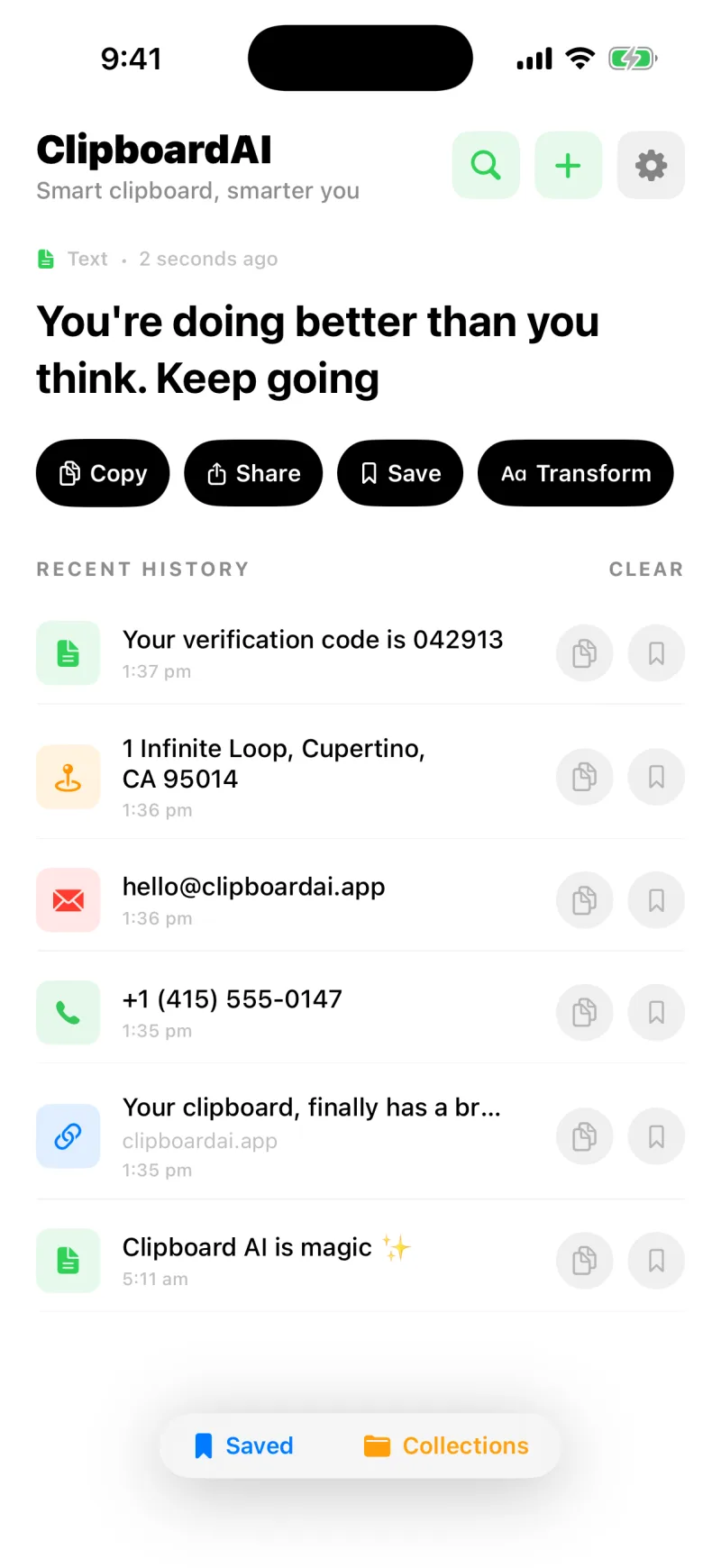
Recent History is great for the things you just copied. Pinning is how you keep the clips that matter so they are always one tap away, no matter how much you copy afterwards.
Pin a clip
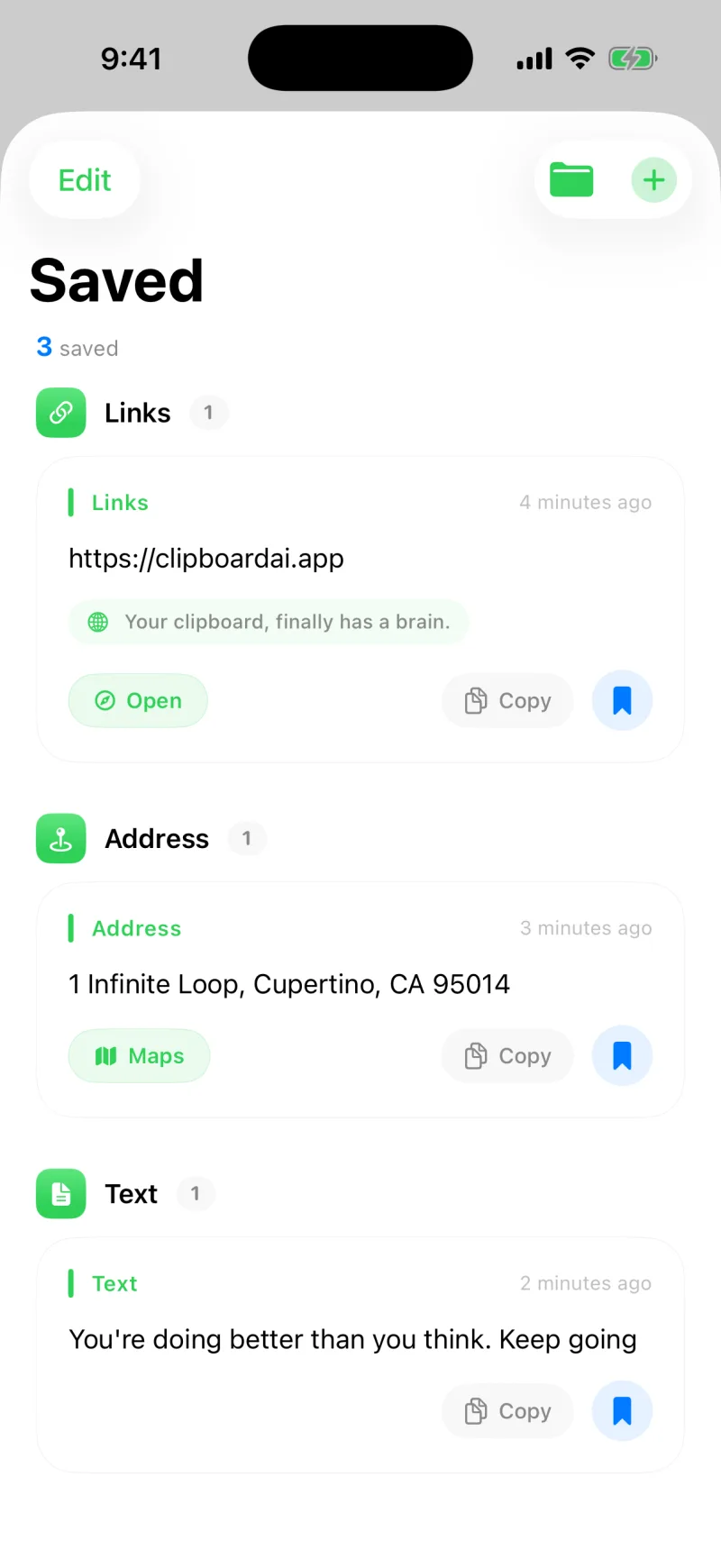
On the home screen, tap Save under the clip at the top, or tap the bookmark icon on any clip in your history. Pinned clips move into the Saved tab, grouped by category so they are easy to find.
Add a quick note
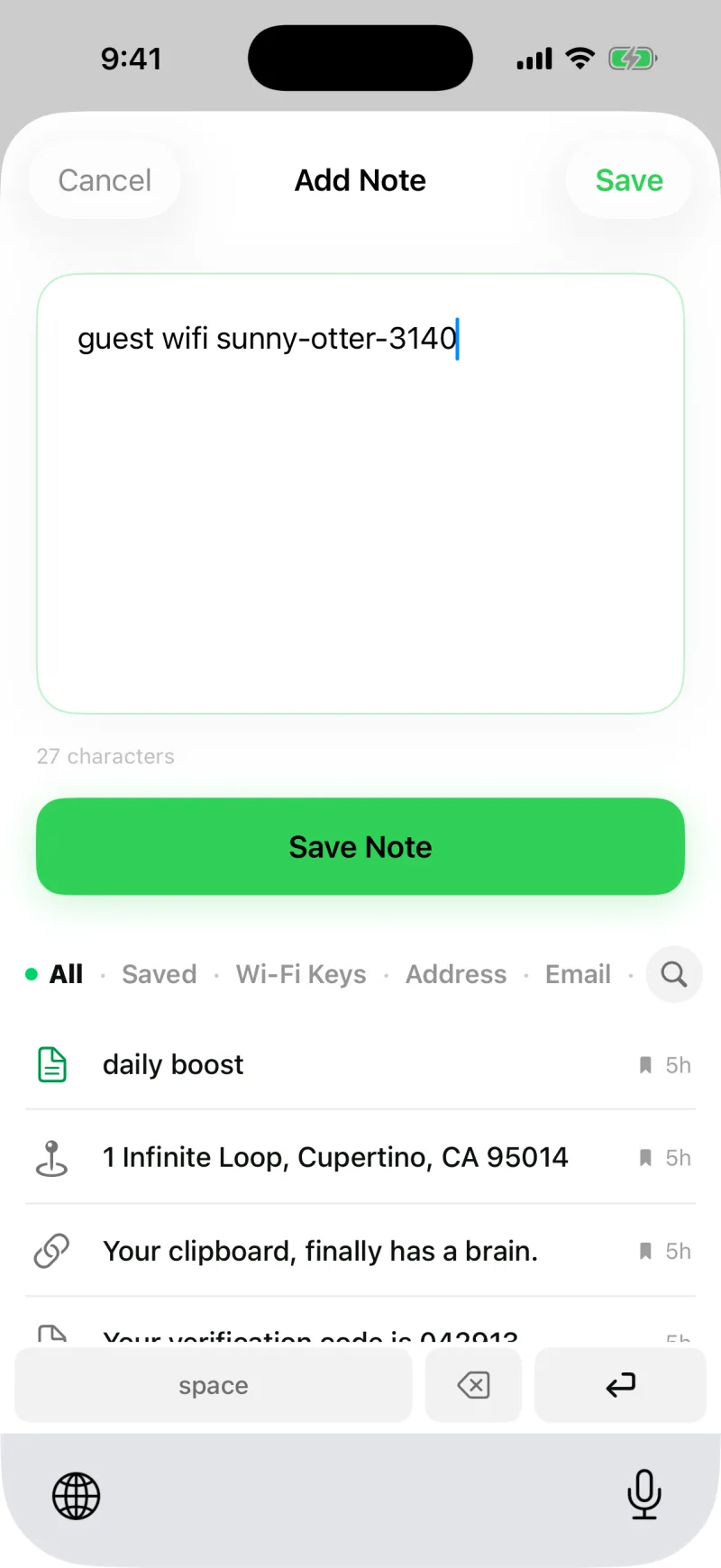
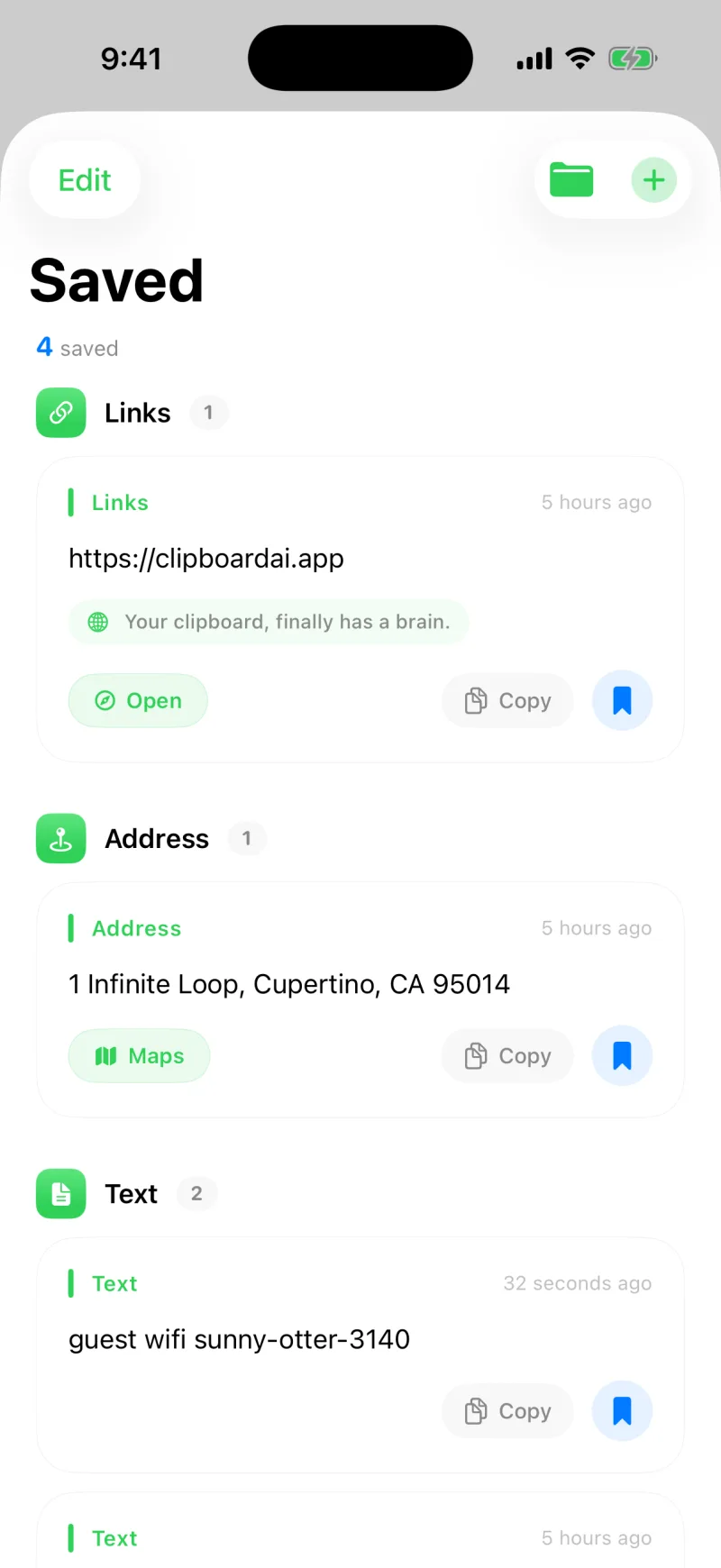
Want to save something you have not copied yet, like a snippet you type often? Tap the plus button and choose Add Note. Type your text, and Clipboard AI saves it straight to your pinned clips, category and all.
You can keep up to 5 saved clips on the free plan, and your history holds your last 10 copies. Clipboard AI Pro makes both unlimited, along with Collections and sync across your devices. If you hit the limit, the save you just made is held and completes on its own the moment you upgrade.
Edit a clip's text
Saved a clip with a typo, or want to trim it down before you reuse it? Open the clip, tap Edit Text, change the wording, and tap Save. The cleaned-up version is what pastes from then on. The clip at the top of the home screen has its own Edit button too, so the thing you just copied can be fixed without opening it, and a link clip offers Edit Link instead.
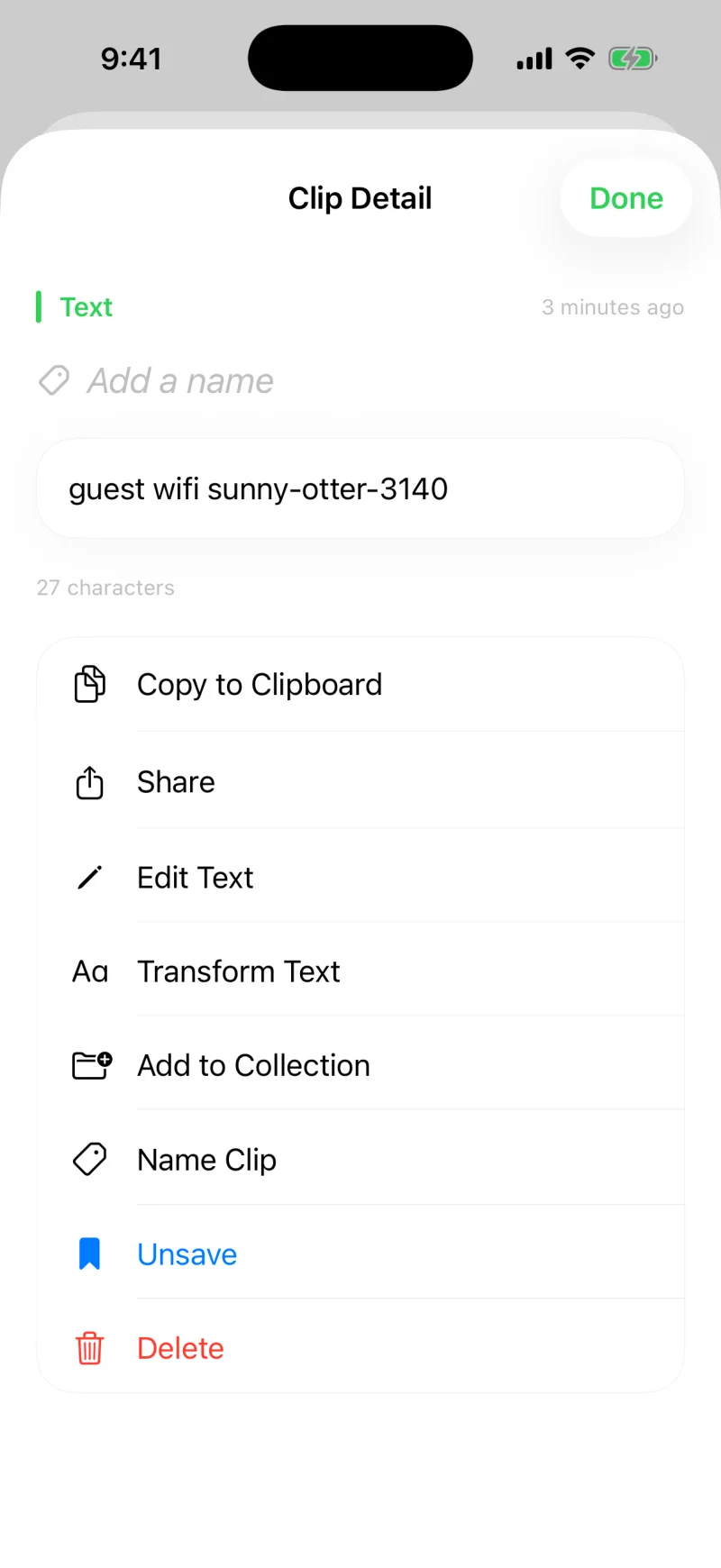
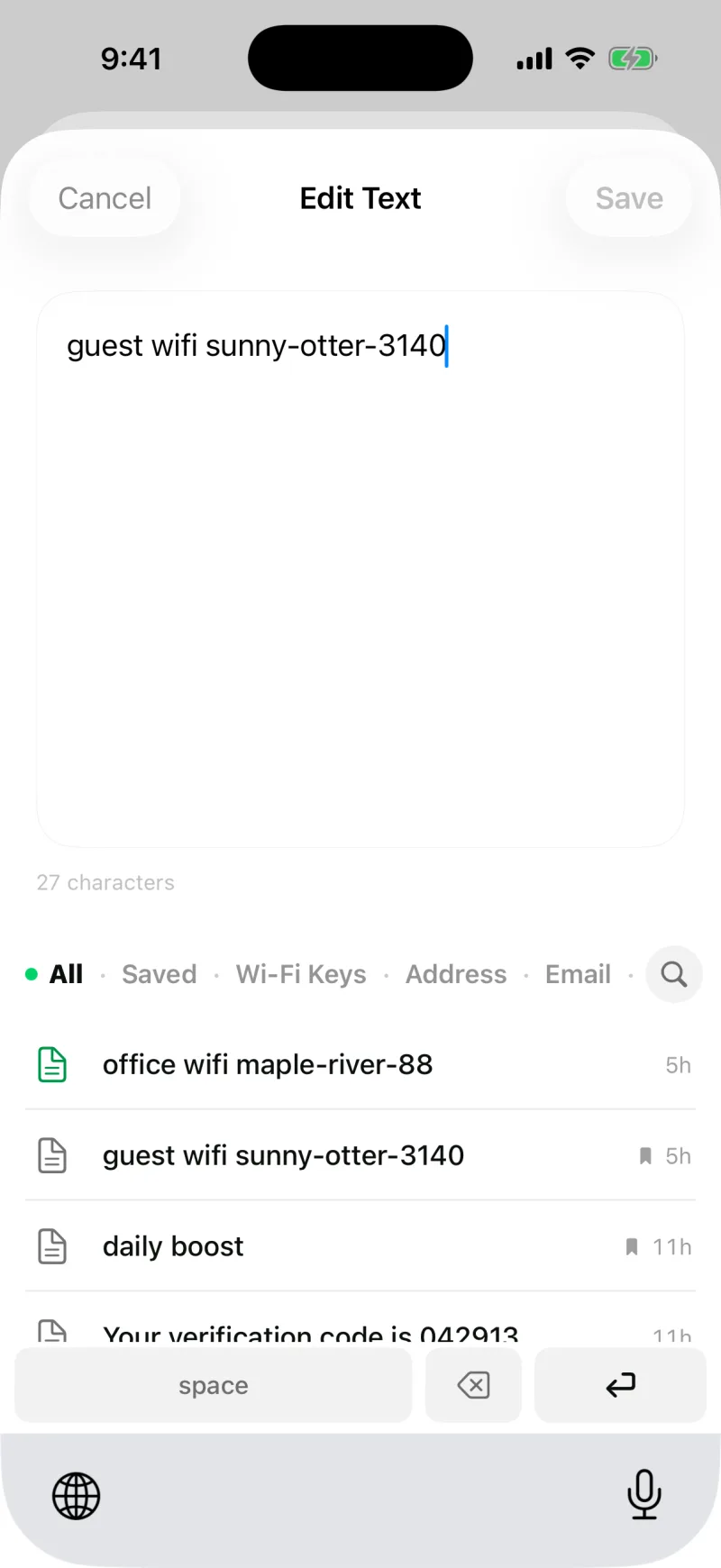
Changing the text does not touch the clip's name, its Collection, or its pinned status. Only the content updates.
Name them so they are easy to spot
A wall of saved text can be hard to scan. Give a clip a short name like "Guest WiFi" or "Standup link" and that is what shows in your lists, while the real content still pastes. See Give your clips custom names.
For sets of clips you reuse together, make a Collection. See Organise clips into Collections.