
You do not always want to open the app. A widget on the Home Screen puts your saved clips, or a whole collection, one tap from the clipboard, and a button in Control Center or on the Lock Screen saves whatever you just copied. Here is every surface, and how to add each one.
Touch and hold the Home Screen, tap Edit then Add Widget, search for Clipboard AI. The Collection widget copies a clip with one tap. The Save Clipboard button lives in Control Center and on the Lock Screen.
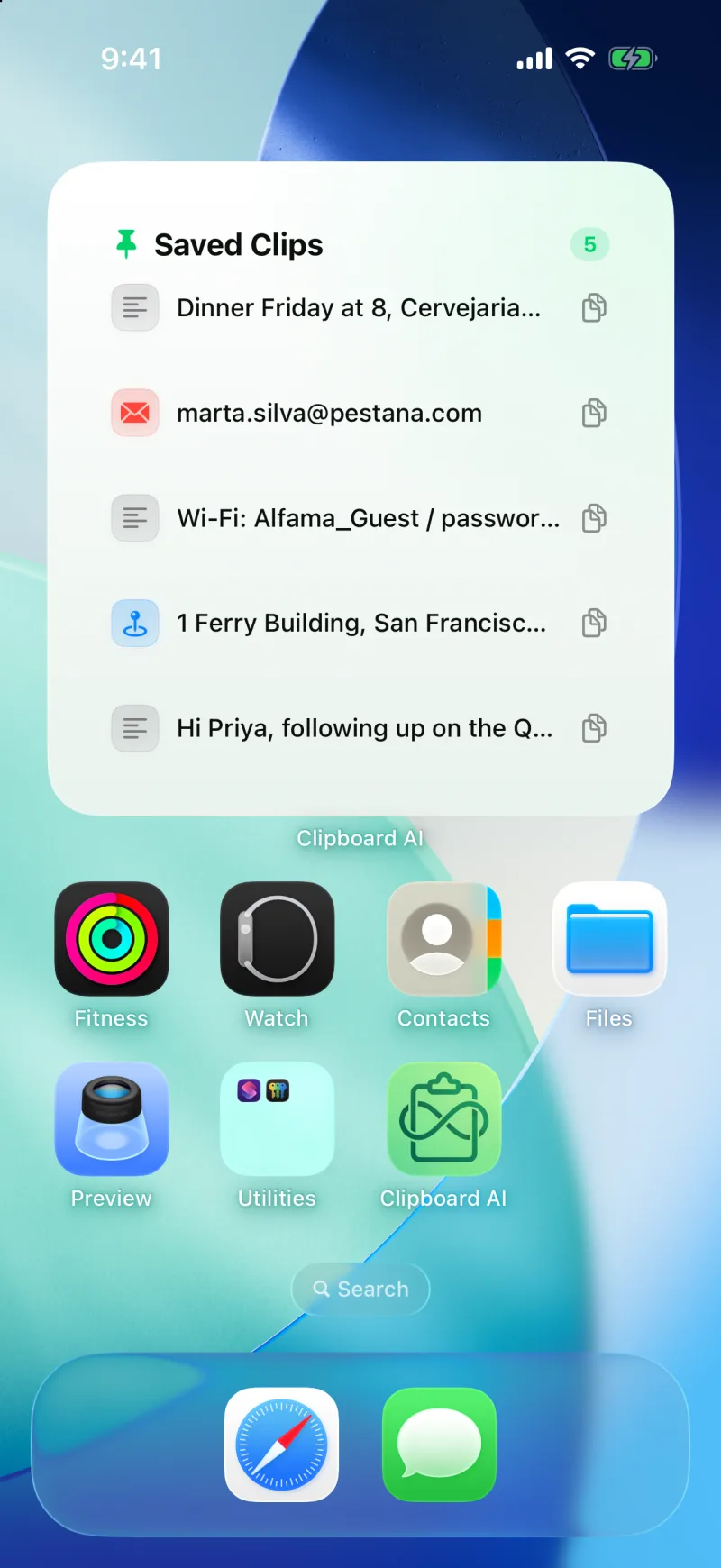
The widgets
- Collection (medium or large). Shows your Saved clips or any one collection, and a tap on a row copies that clip without opening the app. The row shows a tick for a moment so you know it is on the clipboard. Pick which collection it shows when you add it, or later with Edit Widget.
- Recent Clips (medium or large). Your latest copies at a glance. Tap to open the app.
- Pinned Clips (medium or large). The clips you saved, at a glance. Tap to open the app.
- Your Clipboard (medium or large). Your collections and clip types with their counts. Tap a tile to open that collection or that category.
- Quick Capture (small). A green Save Clipboard tile. Tap it and Clipboard AI opens for a second, saves what you copied, and shows how many clips it has kept for you.
Add a widget
- Touch and hold an empty spot on the Home Screen, then tap Edit in the top corner and Add Widget.
- Search for Clipboard AI and swipe through its widgets.
- Pick a size and tap Add Widget. For the Collection widget, touch and hold it afterwards and choose Edit Widget to pick which collection it shows.
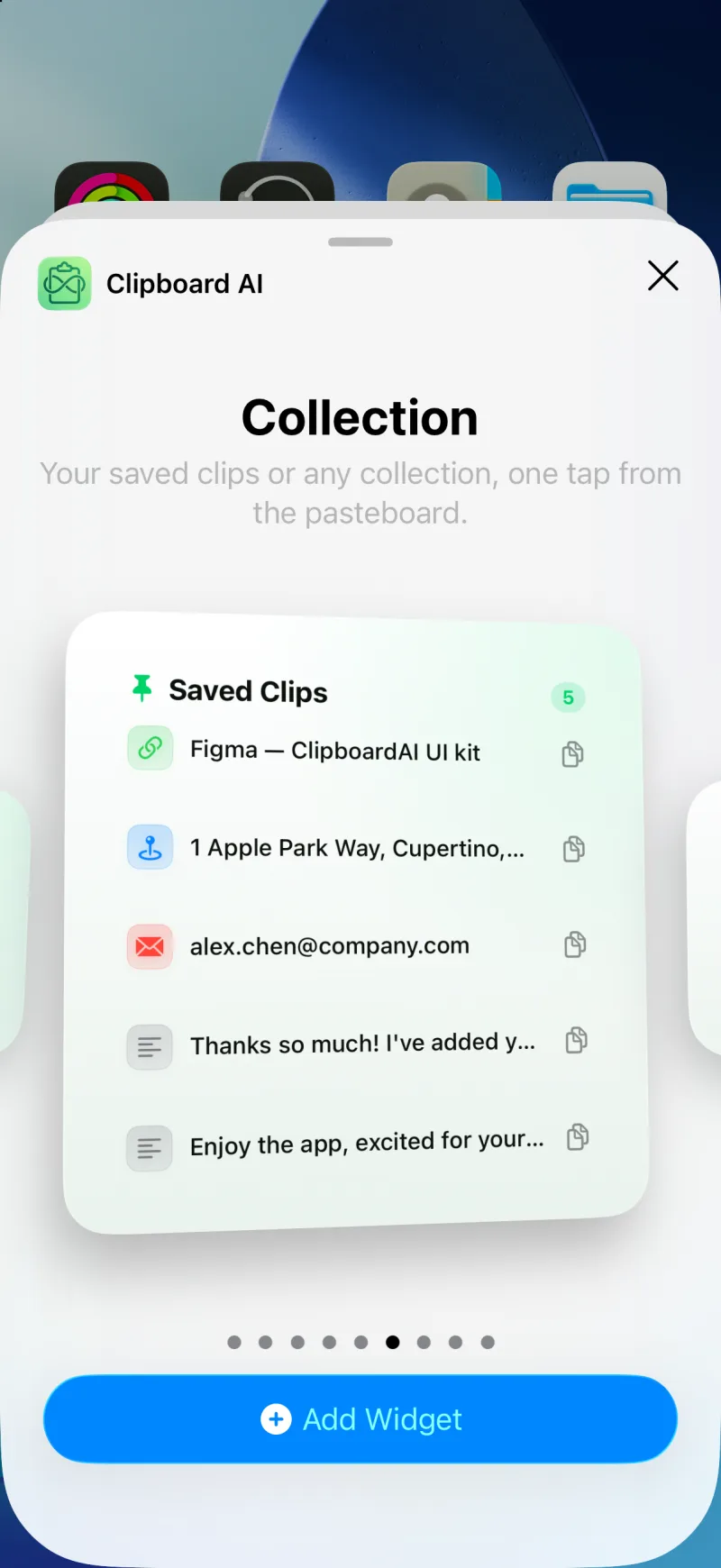
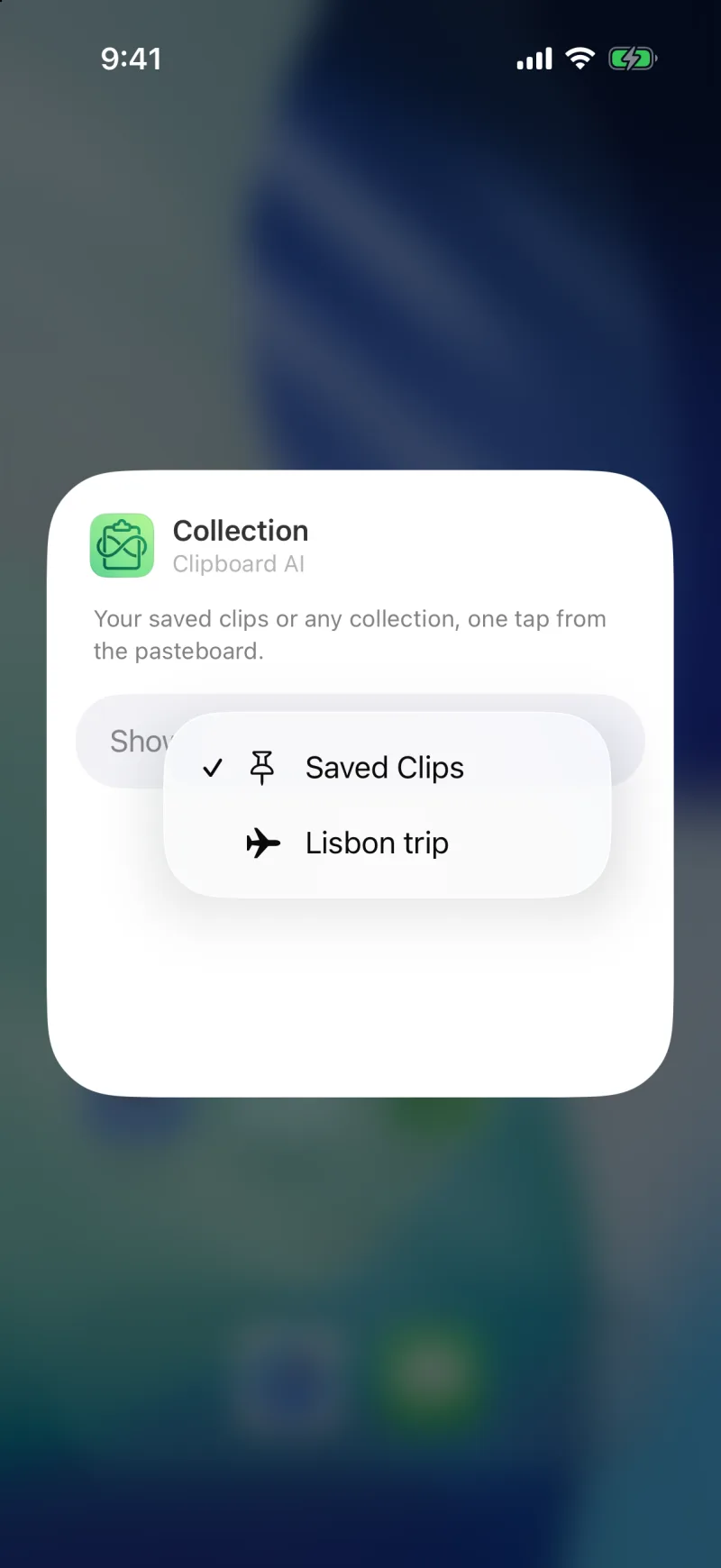
Make a Trip collection with the booking references, the hotel address, and the taxi number, put it on the Home Screen as a Collection widget, and each one is a single tap to copy while you are standing at a counter. See Organise clips into Collections.
Save Clipboard from Control Center
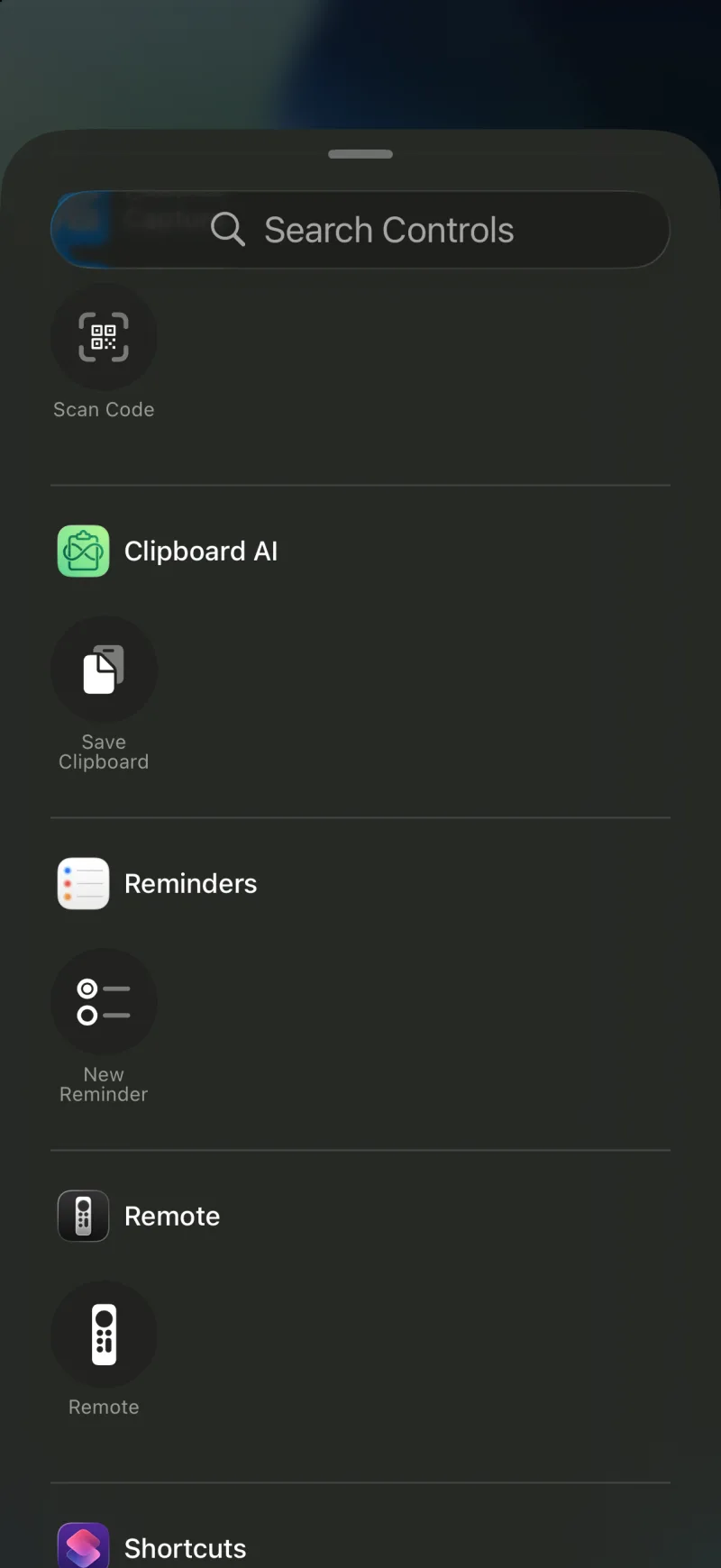
On iOS 18 and later, Clipboard AI offers a Save Clipboard control. Tap it and the app comes forward for a moment, reads your clipboard, saves it, and you are back where you were. There is no shortcut to install.
- Open Control Center, touch and hold an empty area, and tap Add a Control.
- Search for Save Clipboard and tap it to add it.
- Drag it where you want, then tap Done. It is now a swipe and a tap away in any app.
Put it on the Lock Screen
The same control can replace one of the two buttons at the bottom of the Lock Screen. Touch and hold the Lock Screen, tap Customize, choose Lock Screen, tap one of the bottom buttons, and pick Save Clipboard.
iOS only lets an app read the clipboard while it is in front. Saving from a widget, Control Center, or the Lock Screen brings Clipboard AI forward just long enough to read it. That is Apple's privacy rule, and the Action Button and Back Tap work the same way. See Save with the Action Button, Back Tap, and Siri.
If a widget looks stale or empty
- Widgets refresh when the app saves something, so a clip you copied but never saved will not be there yet. Open the app or use Save Clipboard.
- An image copied on another device may open the app instead of copying the first time, while its full-size version is still on its way.