
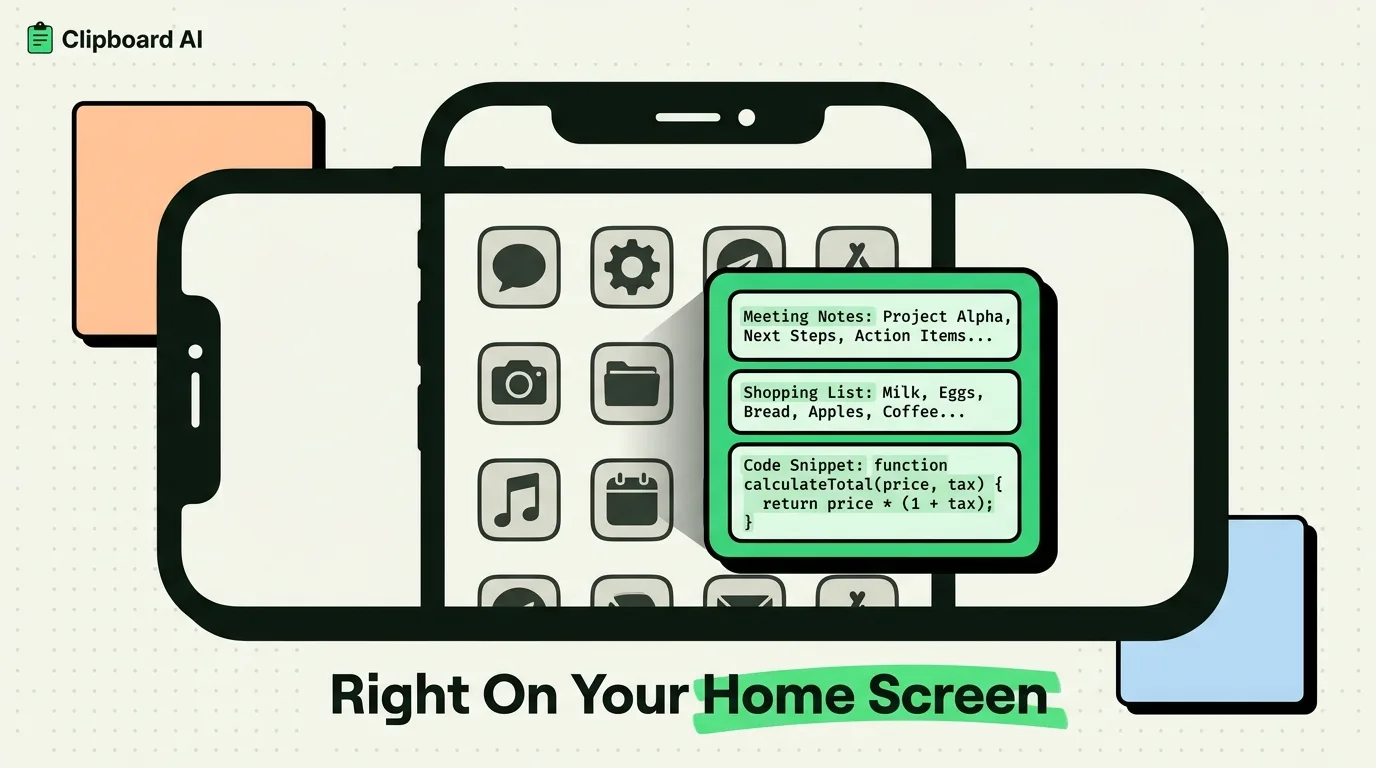
A clipboard widget puts your recent or pinned clips on your Home Screen so you can glance at them without opening an app. ClipboardAI ships a Home Screen widget with two real, distinct views: Recent Clips and Pinned Clips, both available in medium and large sizes. Tapping a clip in the widget opens ClipboardAI to that item; it does not silently copy it back to your pasteboard, and there is currently no Lock Screen or StandBy widget. If you were expecting an interactive tap-to-copy tile, small-size clip list, or a Lock Screen shortcut, this guide tells you exactly what exists today so you are not disappointed after adding one.
The direct answer
Here is what you actually get when you add a ClipboardAI widget:
- Recent Clips widget - shows your latest copied items, medium or large size.
- Pinned Clips widget - shows only the items you have pinned, medium or large size.
- Categories widget - a glanceable breakdown of your clipboard by category (links, addresses, codes, etc.), medium or large size, tapping a category opens the app to that filtered view.
- Quick Capture widget - a small, single-purpose button that saves whatever is currently on your system clipboard into ClipboardAI history. This is the only small-size widget, and it is a save button, not a clip list.
There is no widget that shows a small-size scrollable clip list, no widget family for the Lock Screen, and no StandBy Mode layout. If a headline promises those things, it is describing a feature ClipboardAI does not have yet.
What each widget is actually for
Recent Clips (medium / large)
Shows your most recently copied items as a short list. Good for a "what did I just copy" glance. Tapping an entry opens the ClipboardAI app to that clip rather than instantly re-copying it to your pasteboard - on iOS, widgets can't silently write to the system pasteboard in the background, so a launch-and-view step is unavoidable with the current design.
Pinned Clips (medium / large)
The same layout, but scoped to items you have manually pinned: your email address, a Wi-Fi password you share often, a meeting link. This is the one worth putting on your main Home Screen page if you only add one.
Categories (medium / large)
A compact dashboard view - counts or previews grouped by the app's auto-categories (links, phone numbers, addresses, codes, text). Tapping a category deep-links into that filtered list inside the app.
Quick Capture (small only)
A single tap-to-save button. It does not display any clip content. Its job is to grab whatever is on your clipboard right now and file it into ClipboardAI's history - useful as a small-size tile if you want a manual "capture this" action without opening the app first.
Setup: adding a widget to your Home Screen
- Long-press an empty area of your Home Screen until the icons jiggle.
- Tap the + button in the top-left corner.
- Search for ClipboardAI Widgets.
- Swipe through the available widgets (Recent Clips, Pinned Clips, Categories, Quick Capture) and pick a size - medium or large for the three list-style widgets, small for Quick Capture.
- Tap Add Widget, then drag it into position and tap Done.
If the widget shows as blank right after adding it, open the ClipboardAI app once - first-run widget data does not populate until the app has launched at least once on that device.
Decision guide: which widget should you actually add
| You want to... | Add this widget | Size |
|---|---|---|
| See your last few copies at a glance | Recent Clips | Medium or large |
| Always have your email, Wi-Fi password, or meeting link one tap away | Pinned Clips | Medium or large |
| Get a category-level view of your whole clipboard | Categories | Medium or large |
| Manually file the current clipboard item without opening the app | Quick Capture | Small |
| Tap a clip in a widget and have it copy instantly, no app launch | Not currently possible - none of the widgets do this today | - |
| See clips on your Lock Screen or in StandBy | Not currently available | - |
Honest limitations
- No Lock Screen widget. iOS Lock Screen widgets require a specific compact widget family (the small circular/rectangular accessory styles), and ClipboardAI does not currently ship one. If you see a guide claiming otherwise, it is describing a feature that does not exist.
- No StandBy Mode layout. Same story - no StandBy-specific widget exists yet.
- Tapping a clip opens the app, it does not silently copy. iOS restricts what a widget can do in the background for privacy reasons; a full interactive "tap to copy without opening anything" experience is not part of the current widget.
- No small-size clip list. If you want the smallest possible footprint, Quick Capture is your only small-size option, and it shows no clip content.
- Widgets refresh on iOS's schedule, not instantly. Like all iOS widgets, refresh timing is managed by the system and can lag behind your most recent copy by a few minutes.
Frequently Asked Questions
Can I add a ClipboardAI widget to my iPhone Home Screen?
Yes. Long-press the Home Screen, tap the + button, search "ClipboardAI Widgets," and choose Recent Clips, Pinned Clips, Categories, or Quick Capture.
What sizes do ClipboardAI widgets come in?
Recent Clips, Pinned Clips, and Categories are available in medium and large. Quick Capture is small only. There is no small-size version of the clip-list widgets.
Does tapping a clip in the widget copy it automatically?
No. Tapping opens the ClipboardAI app to that item. iOS does not allow widgets to silently write to the system clipboard in the background.
Is there a Lock Screen or StandBy widget?
Not currently. ClipboardAI's widgets are Home Screen only as of this writing.
Why is my widget blank after I add it?
Open the ClipboardAI app once. Widget data does not populate until the app has launched at least one time on that device.