
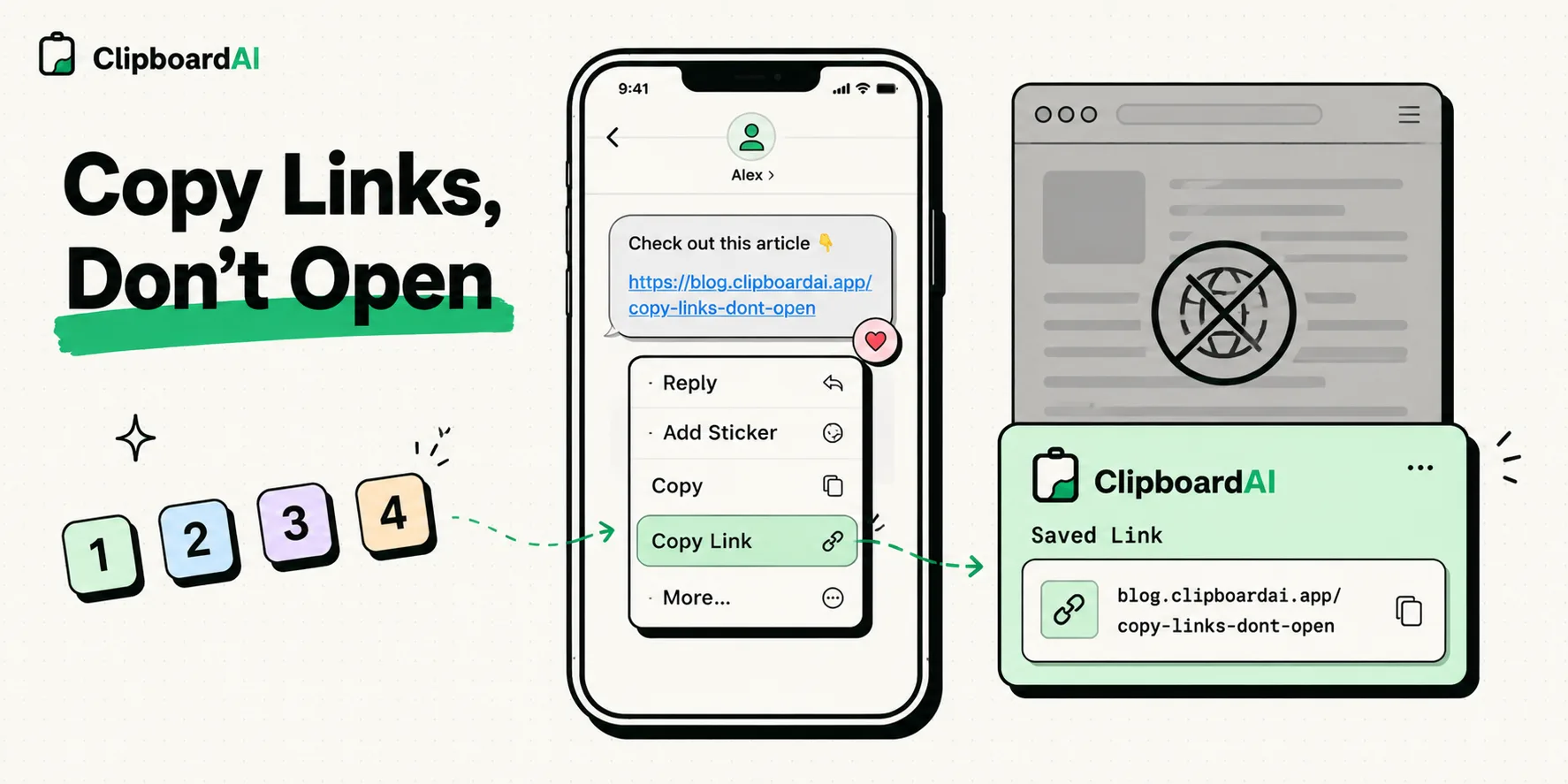
To copy a link on your iPhone without opening it, press and hold (long-press) the link to trigger a contextual preview window, then select 'Copy' from the menu options. This action captures the URL destination straight to your clipboard, preventing your web browser from launching automatically and keeping your focus on your active message or document workflow.
Here is a step-by-step guide to copying links safely across different apps, stripping tracking tags, and avoiding phishing risks on mobile.
The Danger of the Accidental Tap
Mobile browsing is built around tap triggers. While this makes navigation fast, it creates two distinct user problems:
- Workflow Interruptions: If you are reading an email or a messaging thread and want to save a referenced article for later, tapping the link forces your phone to exit your messaging app, launch Safari or Chrome, and load the page.
- Security & Phishing Risks: Tapping a link blindly in an unsolicited text or email immediately sends a request to the target server, exposing your IP address, browser user-agent, and confirming that your phone number is active.
By copying the link instead of opening it, you can inspect the destination domain first, route it through an evaluation tool, or save it to a clipboard manager database without triggering the web request.
Required Value Artifact: Link Security Verification Checklist
Before opening any copied link, run it through this verification checklist to protect your device from malicious scripts:
- Domain Verification: Paste the link into a search box to read the domain name. Does the address match the official business (e.g.,
paypal.comvs.paypal-security-update.net)? - HTTPS Status: Does the link start with
https://rather thanhttp://? (HTTPS ensures your connection to the server is encrypted). - Tracking Parameter Check: Does the URL contain a long string of characters after a question mark (e.g.,
?utm_campaign=sales&fbclid=123)? (These tags track your navigation across sites; strip them out before saving). - URL Shortener Inspection: If the URL is shortened (e.g.,
bit.ly,tinyurl.com,t.co), copy the link and paste it into a expander tool (likeunshorten.it) to verify the final destination before loading it. - Clipboard History Expiry: Ensure that copied URLs are automatically purged from your clipboard history after use, so tracking scripts don't scrape your clipboard history log later.
4 Quick Methods to Copy Links on iOS
Use these native methods to extract links across various applications on your iPhone:
Method 1: The Contextual Preview Menu (Best for Messages & Webpages)
- Navigate to the link in Safari, Messages, or Mail.
- Tap and hold (long-press) the link for 1-2 seconds.
- A preview window of the page will pop up, along with a menu list.
- Select Copy from the menu. (Avoid tapping outside the menu, as this can trigger the browser launch).
Method 2: The Share Sheet Routing (Best for Email & Documents)
If the preview screen is turned off:
- Long-press the link text to bring up the context menu.
- Select Share... from the list.
- Tap Copy in the system Share Sheet.
Method 3: The Safari Tab Bar Swipe (Best for Open Pages)
If you have a webpage open but don't want to tap the active site elements:
- Tap and hold the Address Bar at the bottom or top of Safari.
- Select Copy from the bubble menu.
- This captures the active URL without refreshing the page.
Method 4: Siri Shortcuts URL Extractor (Automated Cleaning)
If you have a block of text containing multiple links, you can extract them all at once:
- Copy the text block.
- Run a Siri Shortcut containing the Get URLs from Input action followed by Copy to Clipboard.
- This extracts only the raw link URLs, leaving behind the rest of the text.
Managing Copied Links in ClipboardAI
When copying links frequently, managing them in a structured database is highly beneficial:
- Categorized Lists: ClipboardAI automatically recognizes when a copied item is a web address and sorts it into the
Linkscategory tray. - Link Truncation: Set custom rules to automatically strip tracking variables (like Facebook's
fbclidor Google'sutmcampaigns) from all copied links. - Universal Clipboard Sharing: Copy a link safely on your phone and paste it directly into your Mac's browser window, avoiding the need to message the link to yourself.
Honest Caveats: Haptic Touch and Security Risks
Understand these technical constraints when copying links on iOS:
- Accidental Tapping Sensitivities: If you apply too little pressure or release your finger too quickly when attempting a long-press, the operating system will register a tap and open the link.
- Preview Tracking: When the preview pop-up renders, Safari loads a cached snapshot of the page. This still sends a minor request to the target server. To Disable Previews: Tap the "Hide Preview" button at the top of the context pop-up to make link holds strictly text-based.
- Mobile-Formatted URLs: Links copied from mobile apps often contain mobile subdomains (e.g.,
m.wikipedia.org). When pasting these onto a desktop browser, they can look distorted or load with low-resolution layouts.
Hardening Your Mobile Link Workflows Today
Set up your phone for secure, fast link management:
- Download ClipboardAI on your mobile device.
- Enable the Custom Keyboard: Confirm that the extension has full access in your settings.
- Turn Off Safari Link Previews: Open Safari, long-press any link, and tap Hide Preview in the top-right corner of the contextual menu to block silent preview loads.
- Practice the Hold-to-Copy Action: Test the hold menu on a safe link inside a messaging thread to get used to the touch timing.