
The Clipboard AI keyboard is how you paste any saved clip inside any app. It takes a minute to switch on, and turning on Full Access is what lets it actually show your clips.
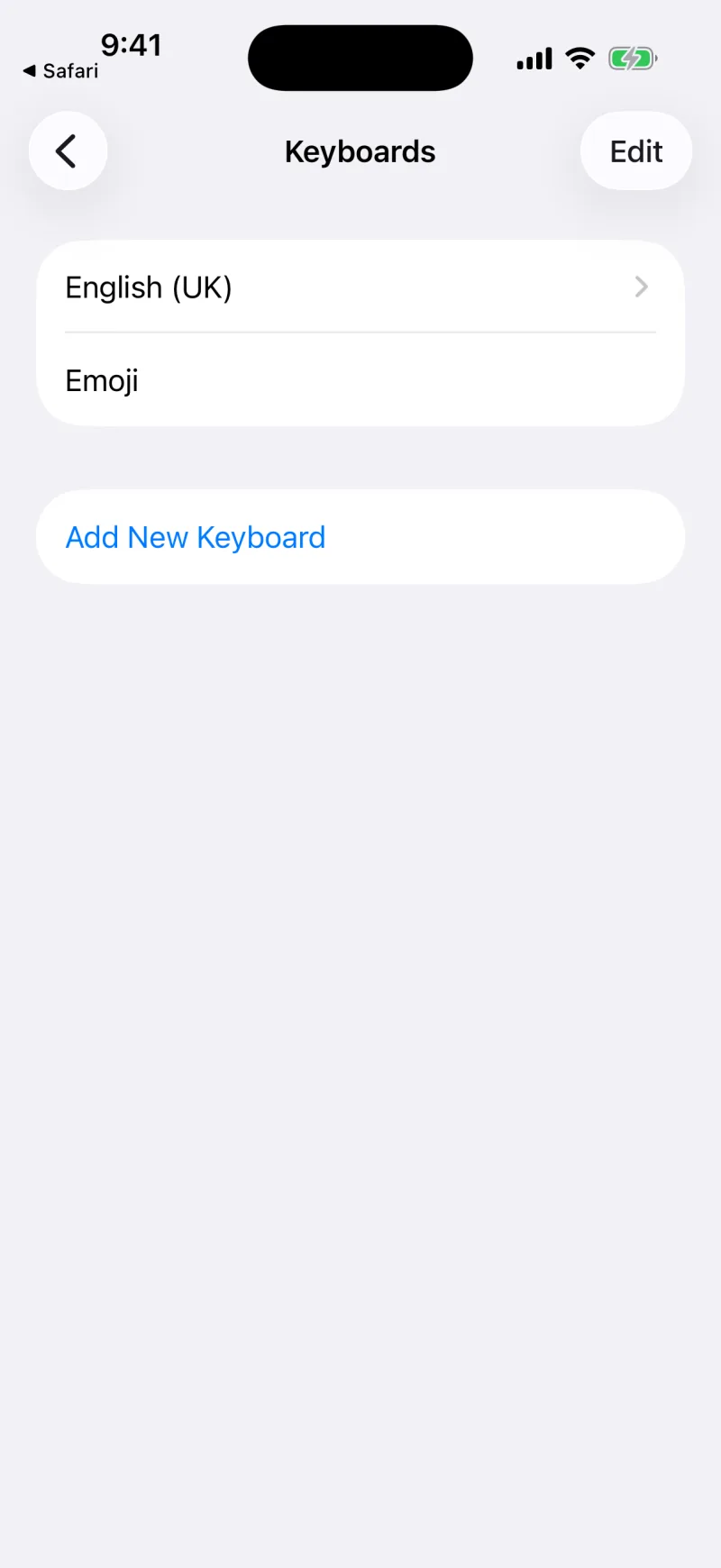
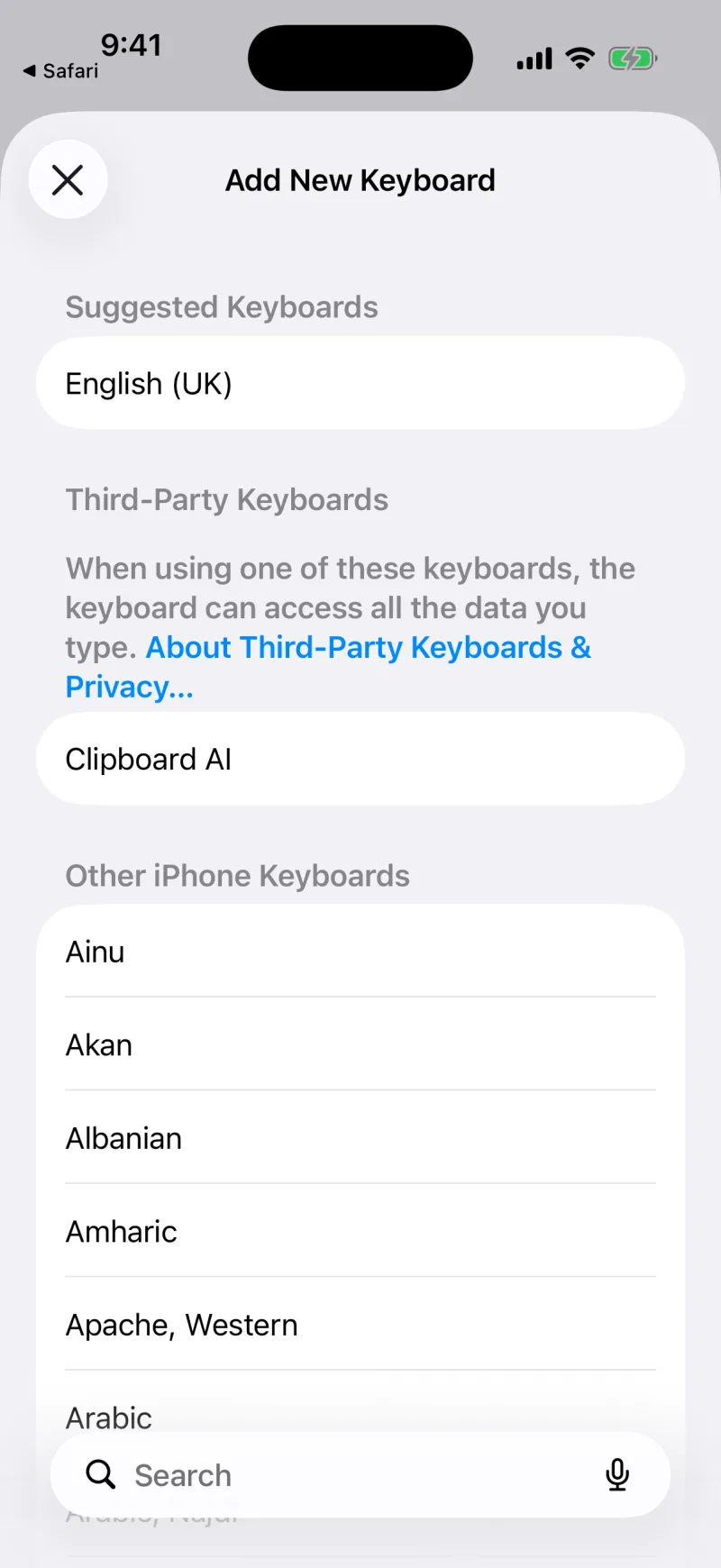
Settings > General > Keyboard > Keyboards > Add New Keyboard > Clipboard AI, then open it again and turn on Allow Full Access.
Add the keyboard
Open the Settings app and go to General > Keyboard > Keyboards. Then follow these three steps.
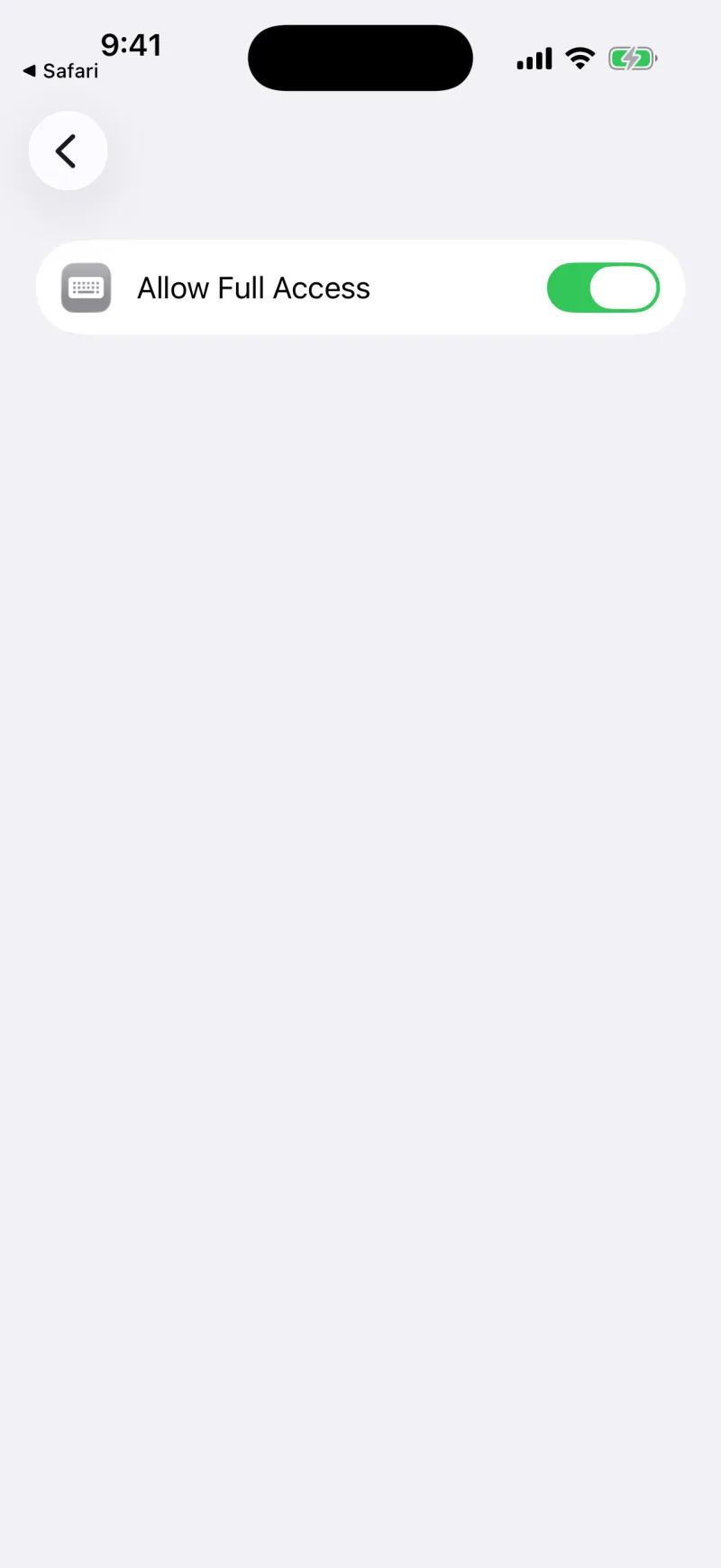
Without it, iOS blocks the keyboard from reading your saved clips, so the keyboard would open empty. Full Access is what connects the keyboard to your library. Clipboard AI uses it only to show your own clips.
The app checks for you
You do not have to guess whether it worked. The first-run guide in Clipboard AI watches for the keyboard being added and for Full Access being switched on, and says so the moment each one is done: "Added. Full Access still off" until you flip the second switch, then "Keyboard is ready". If you got sent to Settings and came back halfway, it picks up where you were, and the try-it step that follows only counts once you have pasted with the real keyboard.
Open the Settings app, scroll to Clipboard AI, and the top of its page has a short Set Up the Keyboard guide, for the times you go looking there instead of in the app.
Use the keyboard anywhere
Now open any app with a text field. Tap the field to bring up the keyboard, then press and hold the globe key (or tap it) and choose Clipboard AI. Your saved clips appear, ready to paste.
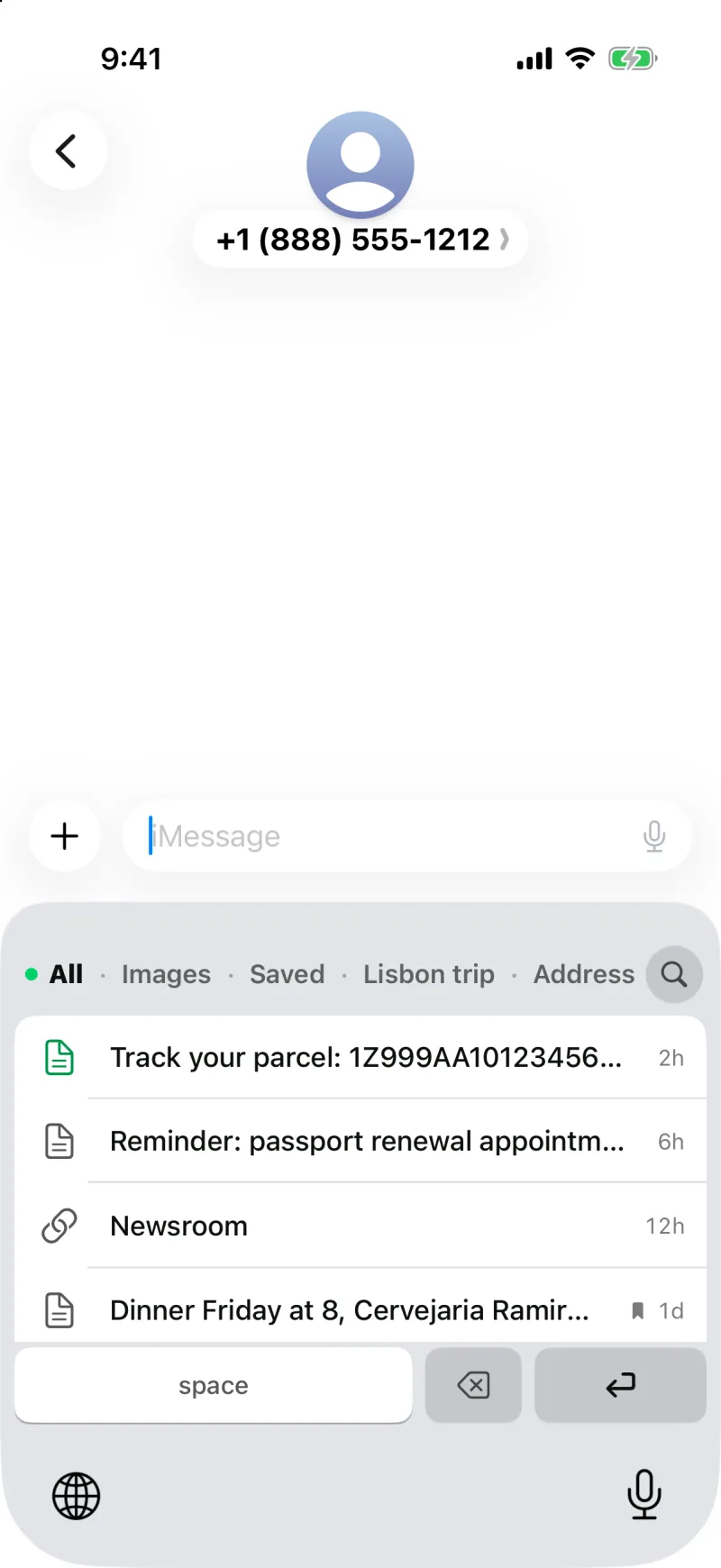
Learn the everyday flow in Paste a saved clip from the keyboard.
Keyboard not showing your clips?
If the keyboard opens empty, Full Access is almost always the reason. Go back to Settings > General > Keyboard > Keyboards > Clipboard AI and make sure Allow Full Access is on. More fixes are in Troubleshooting.