
Most issues come down to one toggle. Find your situation below and you should be back in business in under a minute.
The keyboard opens empty or will not show my clips
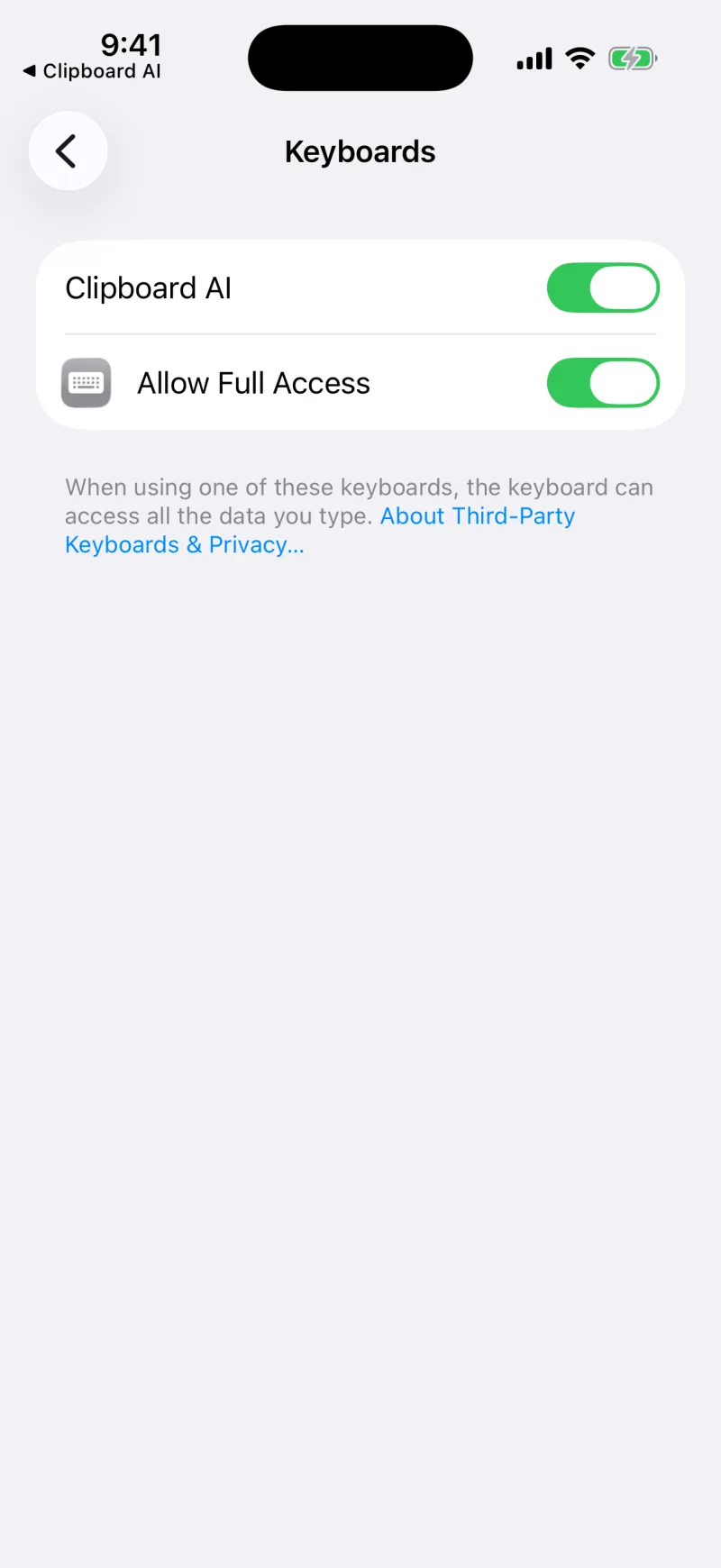
This is almost always Full Access. iOS blocks third-party keyboards from reading saved data until you allow it, so without Full Access the Clipboard AI keyboard has nothing to show.
- Open Settings > General > Keyboard > Keyboards.
- Tap Clipboard AI and turn on Allow Full Access.
- Switch back to the keyboard in any app. Your clips should appear.
If you have not added the keyboard yet, start with Enable the Clipboard AI keyboard.
The "Allow Paste" prompt keeps appearing
That pop-up shows because iOS is set to Ask before letting Clipboard AI read your clipboard. Switch it to Allow and it stops for good.
- Open Settings and tap Clipboard AI.
- Tap Paste from Other Apps and choose Allow.
Full walkthrough with screenshots: Skip the paste prompt.
My clips are not syncing to another device
Sync needs a few things lined up. Check each one:
- Pro is active on the device, since sync is a Pro feature.
- The same iCloud account is signed in on every device.
- iCloud Sync is on in Clipboard AI Settings on each device.
- Every device is up to date: iOS 3.1 or later, Mac 2.5 or later. Older versions re-uploaded the whole library at every launch, which could throttle your iCloud account and hold up new clips on all of your devices.
Then open the iCloud Sync section and tap Sync now. If one device still looks behind, force-quit and reopen it. That clears a stuck session without losing anything. See Understand the sync status panel.
An image is stuck "syncing"
Images are larger than text, so they can take a little longer to arrive, especially on a slow connection. Give it a moment, then:
- Make sure both devices are online and on the same iCloud account.
- Bring the receiving device to the foreground and tap Sync now.
- If two of your devices are on the same Wi-Fi, keep them both open for a moment so the image can transfer directly.
Clips are slow to arrive on my other devices
Update every device to iOS 3.1 / Mac 2.5 or later. Older versions re-uploaded the whole library to iCloud at every launch, which could throttle your account and hold up new clips on all of your devices. Then leave both apps open for a moment; nearby devices on the same Wi-Fi hand clips to each other directly.
The keyboard is the wrong colour
With Color Scheme set to System, the keyboard follows the app you are typing in, like every keyboard on iOS. Set it to Light or Dark in Clipboard AI's Settings to keep one look everywhere. See Why the keyboard is light or dark.
A photo I copied shows up as a file path
A photo copied out of Messages used to appear in the keyboard as a file link rather than the picture. Update to iOS 3.2 or later of Clipboard AI; the keyboard now offers the picture itself, and photos in HEIC, the format iPhones shoot, are recognised on every capture path.
I cannot see the sparkles, or Ask says it is not available
Ask and the Apple Intelligence rewrites need iOS 26 or later on an iPhone that supports Apple Intelligence (iPhone 15 Pro or newer), with Apple Intelligence turned on in the Settings app under Apple Intelligence & Siri. Right after turning it on, the model can take a little while to download; the app says "still getting ready" until it is. See Ask your clips a question.
A rewrite ran on my device when I expected the private cloud
That is normal. Apple's private cloud is only used on iOS 27, only for longer text, and only while the day's allowance lasts; the on-device model handles everything else. The result is the same kind of rewrite either way, and the line under it always tells you which one ran.
I deleted a clip by mistake
There is no undo: a deleted clip is erased straight away, on purpose. If the clip came from your Mac and sync is on, the deletion has already travelled there too. To make sure it cannot happen again, keep Ask Before Deleting switched on in Settings. See Deleting clips: what is erased, what is kept.
A clip landed in the wrong category
Categories are detected automatically and get it right the vast majority of the time, but an unusual format can occasionally be filed as plain Text. It is still saved, searchable, and ready to paste. You can always pin it or add it to a Collection so it is easy to find.
Email hi@clipboardai.app with what is happening and which device you are on. We read every message and we are happy to help.