
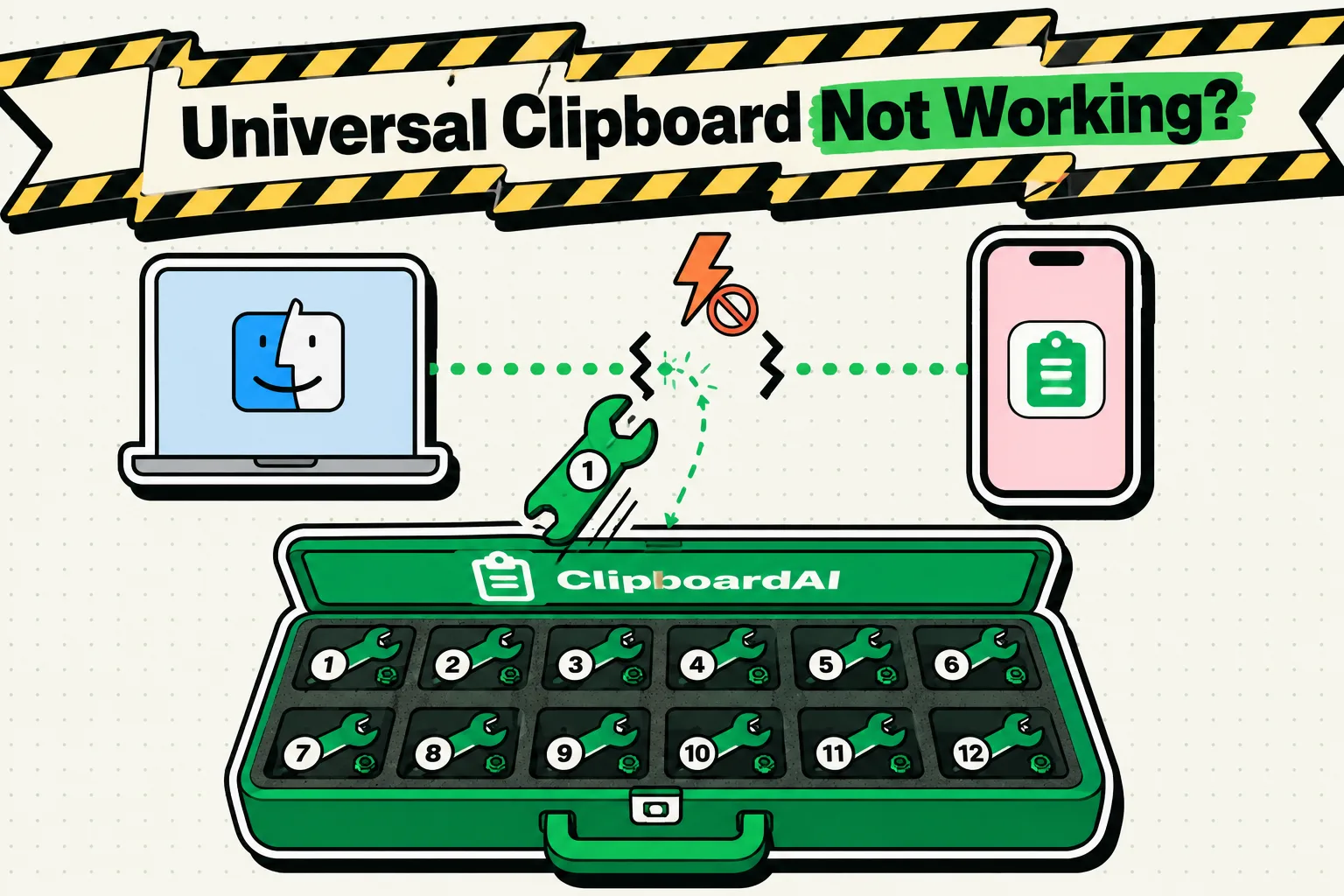
To fix Universal Clipboard not working on your Mac, iPhone, or iPad, make sure all devices are signed into the same Apple Account (Apple ID), have Wi-Fi and Bluetooth enabled in Settings, and have Handoff toggled on. If they still fail to sync, turn Handoff off and on again, restart your devices, and verify you are pasting within the 2-minute window. Universal Clipboard relies on peer-to-peer connections that can easily drop due to network congestion or cache conflicts.
Here is a comprehensive troubleshooting checklist and decision matrix to get your cross-device copy-paste working again.
The Human Scenario: The Command+V Void
You are drafting an email on your Mac and need to paste an address you just copied from a text message on your iPhone. You press Cmd+V on your keyboard, expecting the text to appear.
Instead, one of three things happens:
- The Spin: Your Mac displays a progress bar saying "Pasting from iPhone..." that hangs and then disappears.
- The Ghost Paste: Your Mac pastes whatever you copied on your computer two hours ago, completely ignoring the new phone copy.
- The Silent Failure: Nothing happens at all.
You copy the text again, bring your phone closer to the Mac, and try once more. Still nothing.
Technical Limitations: How Universal Clipboard Actually Works
Universal Clipboard is a sub-feature of Apple's Continuity framework. It does not send your copied text to a cloud server and down to your other devices. Instead, it works locally:
- The Discovery Phase: Your devices use Bluetooth Low Energy (BLE) to detect proximity (must be within 30 feet or 10 meters).
- The Transmission Phase: Once proximity is established and a copy event is registered, the devices create a direct peer-to-peer Wi-Fi connection to transmit the pasteboard package.
- The Time Window Limit: Copied items only stay active on the cross-device pasteboard for 2 minutes. If you do not paste the text within 120 seconds of copying it, the clipboard link expires, and the receiving device reverts to its local copy history.
Troubleshooting Decision Matrix
Use this matrix to identify the issue based on your specific system symptoms:
                  Universal Clipboard Issue?
                             │
            ┌────────────────┴────────────────┐
     Pastes Old Text?                Pasting Status Bar Hangs?
            │                                 │
     [Handoff / Apple ID Error]        [Wi-Fi / Bluetooth Congestion]
            │                                 │
     1. Toggle Handoff Settings        1. Toggle BLE / Wi-Fi Radios
     2. Check Matching Apple IDs       2. Move Devices Closer
3. Verify 2-Minute Window 3. Disable Active VPNs| Symptom | Primary Cause | Recommended Fix |
|---|---|---|
| "Pasting from..." dialog hangs indefinitely | Wi-Fi/Bluetooth packet loss or interference | Toggle Bluetooth & Wi-Fi in Settings; turn off VPNs. |
| Pastes local device text instead of copied text | Handoff sync has stalled or Handoff is disabled | Turn Handoff off/on; verify identical Apple ID login. |
| Copying text works, but copying images fails | Direct peer-to-peer Wi-Fi connection block | Ensure both devices are on the same local subnet. |
| Clipboard works from Mac to iPhone, but not vice-versa | Corrupted local Bluetooth cache on the Mac | Delete Mac Bluetooth preference plist file. |
| Sync stops working after a software update | Compatibility mismatch or broken Handoff keys | Sign out and back into Apple Account on both devices. |
The 12 Proven Fixes (Step-by-Step)
Start with the simplest fixes and work your way down the list.
1. Toggle Handoff Settings
This forces the Continuity daemon (sharingd) to reboot and re-index active devices.
- On iPhone/iPad: Go to Settings > General > AirPlay & Handoff and toggle Handoff off, wait 10 seconds, then toggle it back on.
- On Mac: Go to System Settings > General > AirDrop & Handoff. Toggle off Allow Handoff between this Mac and your iCloud devices, wait, and toggle it back on.
2. Toggle Wi-Fi and Bluetooth via Settings (Not Control Center)
Toggling connections from the Control Center only disconnects active accessories; it does not reset the system radios.
- On iOS: Go to Settings > Bluetooth and toggle it off/on. Repeat for Settings > Wi-Fi.
- On Mac: Toggle both radios off and on from the system menu bar or System Settings.
3. Verify Apple Account Details
Both devices must be signed into the exact same Apple Account. Check your name at the top of Settings on both devices to verify that the emails match character-for-character.
4. Perform a Sequenced Device Reboot
Continuity sync files can become locked by background system services. Shut down your Mac, iPhone, and iPad. Turn them back on in sequence, starting with the iPhone, to let the Bluetooth beacons register cleanly.
5. Check the 2-Minute Expiration Window
Remember that you have exactly 120 seconds to paste what you copied. Test copying text and immediately pasting it. If it works within 10 seconds but fails after a minute, the issue is not a connection breakdown but the default Apple timeout limitation.
6. Temporarily Turn Off VPNs and Network Guards
Many VPNs and firewalls restrict local peer-to-peer network discovery. Disable any VPN (like NordVPN, ExpressVPN, or corporate profiles) on both devices and test copying again.
7. Reset Network Settings (iOS/iPadOS)
If your iPhone's connection cache is corrupted, resetting the network framework will resolve persistent sync bugs.
Resetting network settings will erase all saved Wi-Fi passwords, VPN details, and cellular preferences. Make sure you have your Wi-Fi keys written down before proceeding.
- Go to Settings > General > Transfer or Reset iPhone.
- Tap Reset and select Reset Network Settings.
- Confirm with your device passcode.
8. Check Mac Firewall Rules
A strict macOS firewall configuration can block incoming clipboard packages.
- Open System Settings > Network > Firewall.
- Ensure the Firewall is not set to Block all incoming connections.
- If active, click Options and ensure that system services (like sharingd) are allowed to receive connections.
9. Move Devices Closer
Move your iPhone directly next to your Mac keyboard. BLE signals are easily blocked by computer monitors, metal desks, and surrounding routers.
10. Check Software Compatibility
Continuity works best when devices run corresponding OS versions. Ensure your iPhone is on the latest version of iOS, and your Mac is running the latest macOS update. Mismatched major updates (e.g., iOS 18 with macOS Monterey) often break Handoff sync security tokens.
11. Delete Bluetooth Preference Cache (Mac)
If your Mac's Bluetooth plist file is corrupted, BLE discovery will fail.
- Turn off Bluetooth on your Mac.
- Open Finder, press
Cmd+Shift+G, and type/Library/Preferences/. - Locate
com.apple.Bluetooth.plistand move it to the Trash. - Restart your Mac, turn Bluetooth back on, and pair your accessories.
12. Sign Out and Back Into iCloud
This refreshes your device's security tokens with Apple's servers. Go to Settings, tap your name, scroll down, and tap Sign Out. Choose to keep a copy of your data on the device, restart, and sign back in.
A More Reliable Alternative: ClipboardAI Sync
Universal Clipboard is highly convenient when it works, but its 2-minute limit, lack of a history log, and frequent connection drops make it unreliable for busy workflows.
If you use multiple Apple devices daily, you can use ClipboardAI's iCloud Sync features:
- No Expiration: Copied items are stored in your private, encrypted iCloud database. They do not expire after 2 minutes.
- Persistent Ledger: You can copy 10 things on your Mac, walk away, and paste them individually on your iPhone using the custom keyboard history panel.
- No BLE Proximity Rule: Devices do not need to be within 30 feet of each other. You can copy a link on your office Mac and paste it onto your iPhone while on cellular data block away.
If you want copying between devices to just work, with a full history instead of a single slot, see the Clipboard AI clipboard manager for Mac or how people copy on iPhone and paste on Mac every day.
Frequently Asked Questions
Why is Universal Clipboard not working between my iPhone and Mac?
The most common causes are Handoff being turned off, the devices being signed into different Apple Accounts, Bluetooth or Wi-Fi being off, or one device being asleep. Toggle Handoff off and on (Settings > General > AirPlay & Continuity on iPhone, System Settings > General > AirDrop & Handoff on Mac), confirm the same Apple Account on both devices, make sure Bluetooth and Wi-Fi are on, wake both screens, and restart if needed. Also paste quickly: a copy only stays available for about two minutes.
How long does Universal Clipboard keep what I copy?
About two minutes. After that window the receiving device falls back to its own local clipboard, so paste soon after you copy. If you need clips to stick around, a clipboard manager like ClipboardAI keeps everything you copy until you delete it.
Does Universal Clipboard have a history?
No. Universal Clipboard holds exactly one item at a time and every new copy overwrites the last, so there is no list to browse and no way to recover an earlier copy. To keep a searchable history across iPhone, iPad, and Mac you need a clipboard manager such as ClipboardAI.
Does Universal Clipboard work without Wi-Fi?
No. You do not need an internet connection, but the Wi-Fi radio must be turned on because the clipboard contents travel over a direct peer-to-peer Wi-Fi link between the devices. Bluetooth only handles discovery; Wi-Fi carries the data.
Why does my Mac say "Pasting from iPhone" but nothing appears?
Bluetooth discovery worked but the peer-to-peer Wi-Fi transfer failed or timed out. Toggle Wi-Fi off and on from Settings on both devices, move them closer together, and disable any VPN. If it keeps happening, run killall pboard in Terminal on the Mac to restart the pasteboard server, then copy again.