
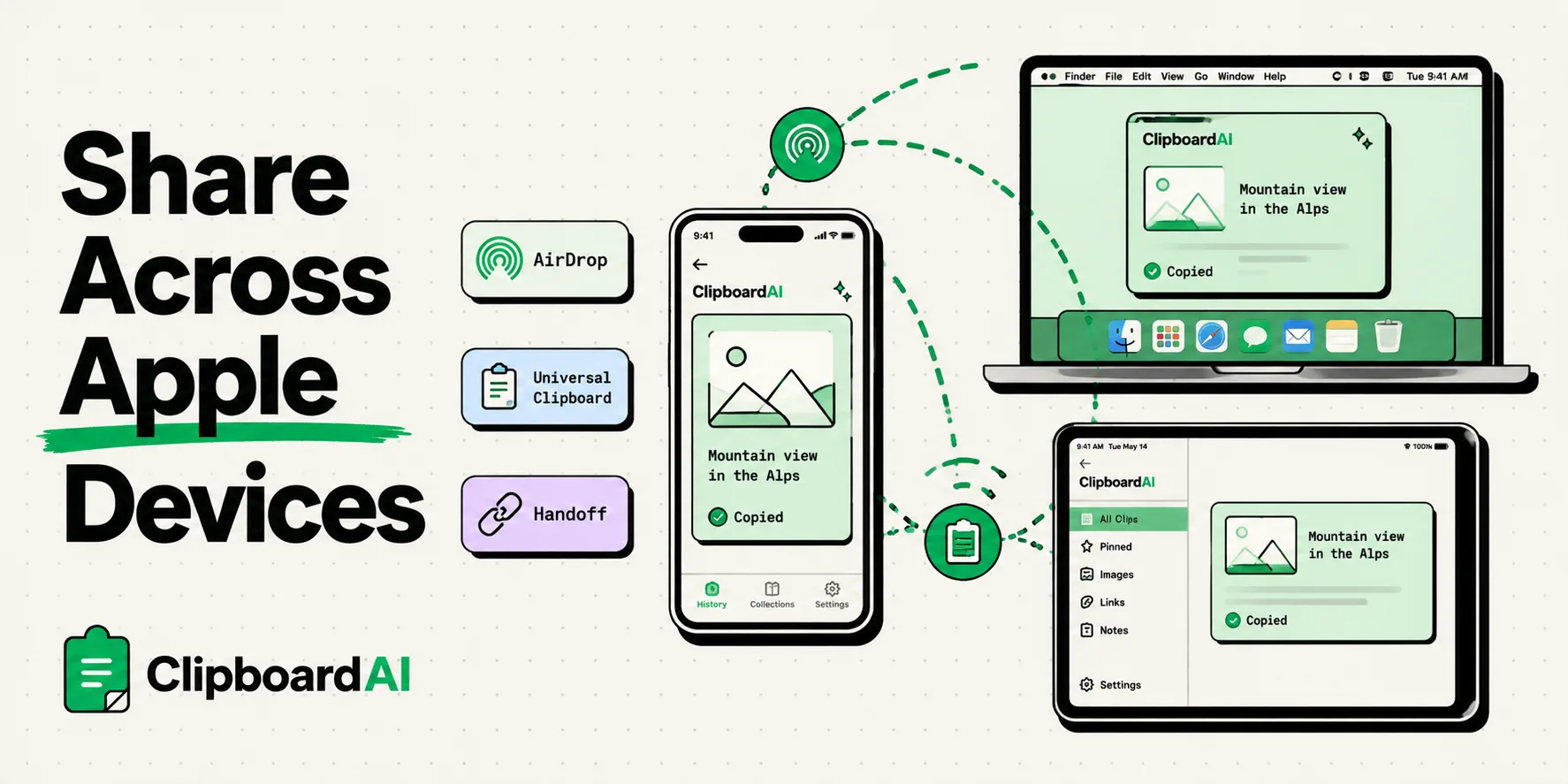
Sharing files, text, and media between your Apple devices in 2026 is a matter of choosing the correct tool based on file size, distance, and security. Whether you are AirDropping a raw 4K video from your iPhone to your Mac, syncing text snippets via Universal Clipboard, or maintaining a multi-device copy log using ClipboardAI, setting up these integrations properly will eliminate the need to message yourself files. Let’s break down every native and third-party transfer method available today.
The Landscape of Apple Ecosystem Sharing
The primary strength of the Apple ecosystem is continuity. Apple has spent years building wireless bridges that allow your iPhone, iPad, Mac, and Apple Watch to operate as a single, connected workspace.
However, because there are so many sharing features (AirDrop, Handoff, iCloud Drive, Universal Clipboard, and Shared Albums), many users default to clunky workarounds. They text photos to themselves, email web links to their work accounts, or save temporary text blocks into random Apple Notes files.
Understanding when to use each native tool and when to integrate a third-party clipboard manager will dramatically reduce digital friction in your daily routine.
4 Core Sharing Methods Explained
Let’s review the primary wireless transfer tools built into your Apple hardware:
1. AirDrop: For Large Files and Photos
AirDrop uses a combination of Bluetooth (to discover nearby devices) and peer-to-peer Wi-Fi (to transfer data quickly). It is the fastest way to move heavy files (like raw photos, PDFs, or movie files) between devices that are physically close to each other.
To use AirDrop, both devices must have Wi-Fi and Bluetooth turned on and be within approximately 30 feet of each other. You do not need to be on the same local Wi-Fi network, as the devices create their own direct wireless link.
2. Universal Clipboard: For Temporary Text and Images
Universal Clipboard is a part of Apple's Continuity suite. When enabled, copying text or an image on your iPhone automatically makes it available to paste on your Mac or iPad (and vice versa).
While convenient, Universal Clipboard has a major drawback: it is a single-item buffer. If you copy a line of code on your Mac, it instantly overwrites the address you copied on your iPhone. There is no historical record, making it easy to lose important data.
3. Handoff: For Active App Sessions
Handoff allows you to start a task on one device and immediately resume it on another. For example, if you are reading an article in Safari on your iPhone, a Safari icon will appear in your Mac’s dock. Clicking that icon opens the exact same web page on your desktop.
This feature is supported by Apple Mail, Safari, Pages, Numbers, Keynote, Maps, and several third-party applications.
4. iCloud Drive: For Shared Files and Document Backups
iCloud Drive is Apple’s cloud-based storage system. It is best used for files that you need to access across all your devices, regardless of distance. When you save a document to your iCloud Desktop or Documents folder on your Mac, it is instantly accessible through the Files app on your iPhone or iPad, even if those devices are miles apart.
Value Artifact: Apple Ecosystem Sharing Decision Matrix
Use this matrix to select the best sharing tool based on your data type, proximity, and sync requirements:
| Data/File Type | Proximity Requirement | Optimal Sharing Tool | Recommended Configuration | Common Bottleneck |
|---|---|---|---|---|
| Large Videos/Photos (100MB+) | Within 30 feet | AirDrop | Set visibility to "Contacts Only" or "Everyone for 10 Minutes" | Bluetooth handshake errors or disabled Wi-Fi |
| Simple Text Snippets | Within 30 feet | Universal Clipboard | Turn on Handoff in iOS General settings | Overwrites previous copies; no history log |
| Active App Sessions (Safari/Mail) | Within 30 feet | Handoff | Match Apple ID and enable Bluetooth on both devices | App must support Apple's Continuity APIs |
| Multi-Device Clipboard History | Anywhere (Via iCloud) | ClipboardAI | Enable history sync in ClipboardAI settings | Requires active iCloud storage allotment |
| Collaborative Documents | Anywhere (Cloud-based) | iCloud Collaboration | Send "Share Link" via Messages or Mail | Requires recipient to have an active Apple ID |
| Long-Term File Archive | Anywhere (Cloud-based) | iCloud Drive | Store files in dedicated app folders in Files | Bandwidth limits on slow cellular data networks |
Troubleshooting Common Apple Continuity Failures
Even though Apple’s ecosystem is highly polished, Continuity features frequently fail. Here is how to fix the most common connection issues:
The AirDrop "Failed to Receive" Loop
If your Mac refuses to recognize your iPhone, or if transfers fail mid-progress:
- Toggle Bluetooth and Wi-Fi: Turn Bluetooth and Wi-Fi off and back on for both devices.
- Check AirDrop Visibility: On iOS, go to Settings > General > AirDrop and confirm it is set to Everyone for 10 Minutes.
- Turn Off Personal Hotspot: Having Personal Hotspot active on your iPhone disables peer-to-peer Wi-Fi channels, blocking AirDrop entirely. Disable it in your settings.
Universal Clipboard Sync Failures
If text copied on your iPhone will not paste on your Mac:
- Verify Apple ID Matching: Ensure both devices are signed into the exact same iCloud account.
- Enable Bluetooth and Wi-Fi: Confirm both radios are active and that the devices are within 10 feet of each other.
- Restart Handoff: On your iPhone, go to Settings > General > AirDrop & Handoff and toggle Handoff off and back on. On your Mac, go to System Settings > General > AirDrop & Handoff and do the same.
Honest Caveats: Security and Ecosystem Lock-In
Before relying fully on Apple’s sharing features, note these functional limitations:
- Ecosystem Lock-In: Native Continuity features only work between Apple devices. If you need to move a text block or file from an iPhone to a Windows PC or an Android tablet, AirDrop and Universal Clipboard are completely unavailable. You will need to use web-based clipboard tools or cloud drives to bridge the operating system gap.
- Universal Clipboard Overwrite Hazard: Because Apple’s Universal Clipboard has no backup database, it is easy to accidentally overwrite critical data. If you copy a client's address on your iPhone, walk over to your Mac, and copy a random URL before pasting the address, the address is permanently lost from both devices.
- How ClipboardAI Solves This: ClipboardAI maintains an on-device history log of your copies, preventing Universal Clipboard from deleting your data. If you overwrite a copy across devices, you can open ClipboardAI’s history list and retrieve the original text block in seconds.
Frequently Asked Questions
Why does AirDrop require both Bluetooth and Wi-Fi?
AirDrop uses low-energy Bluetooth to discover nearby devices and establish a secure, local connection. Once the connection is confirmed, it switches to a high-speed peer-to-peer Wi-Fi connection to transfer the files, giving you fast transfer speeds without using mobile data.
Can I share my clipboard history with a Windows PC?
Yes, but not through native Apple features. You can run ClipboardAI on your iOS devices and access your synced records through a web browser or a dedicated desktop client, bypassing the native Apple ecosystem limits.
Does sharing files via iCloud Drive use my cellular data?
Yes, if you are not connected to a Wi-Fi network. If you save files to iCloud Drive over cellular networks, it will consume your data plan. You can disable "Use Cellular Data" for iCloud Drive in your iPhone's settings menu to prevent this.