
This is the payoff. Once the keyboard is on, any saved clip is one tap away inside any app, without leaving what you are doing.
Switch the keyboard on first. See Enable the Clipboard AI keyboard, including the important Allow Full Access step.
Paste a clip
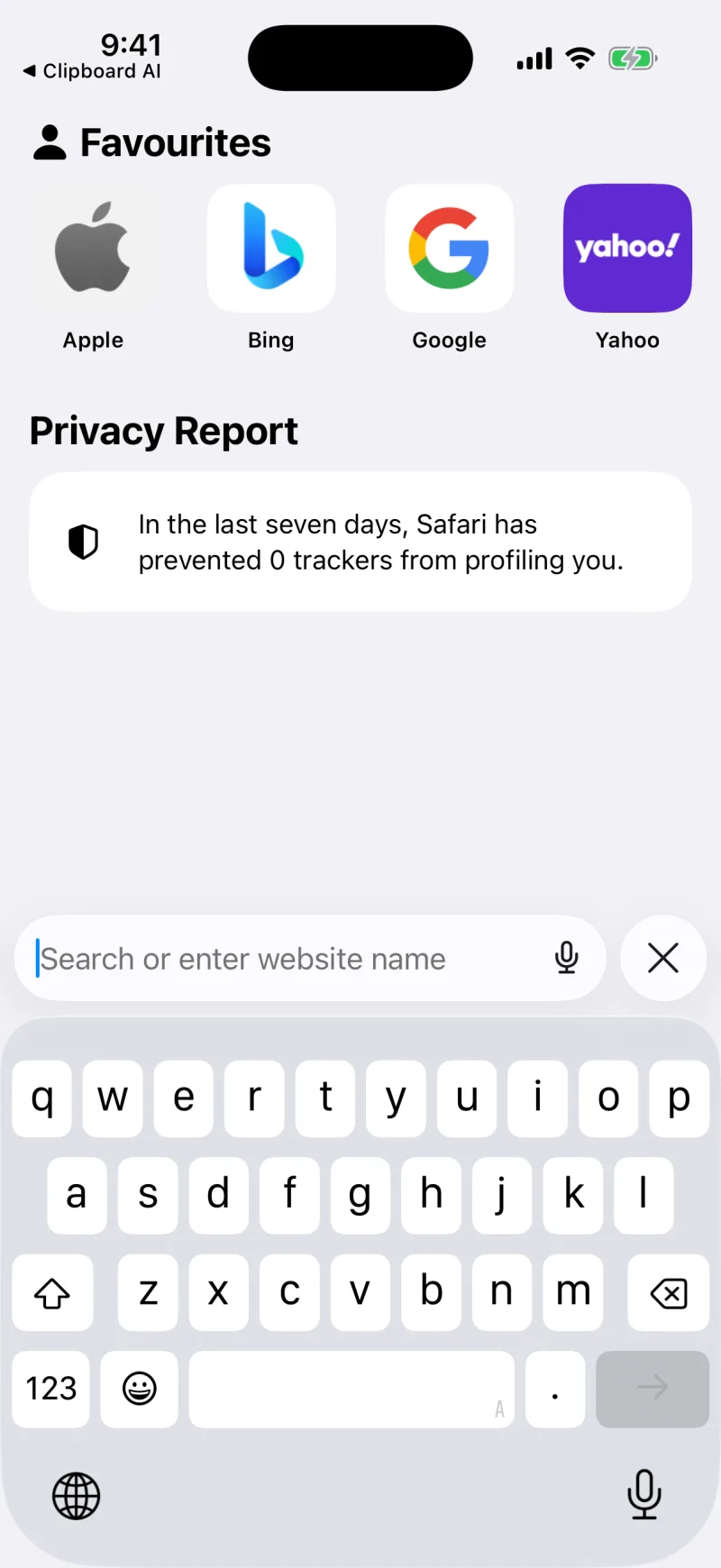
- Tap into any text field to bring up the keyboard.
- Press and hold the globe key (or tap it) and choose Clipboard AI.
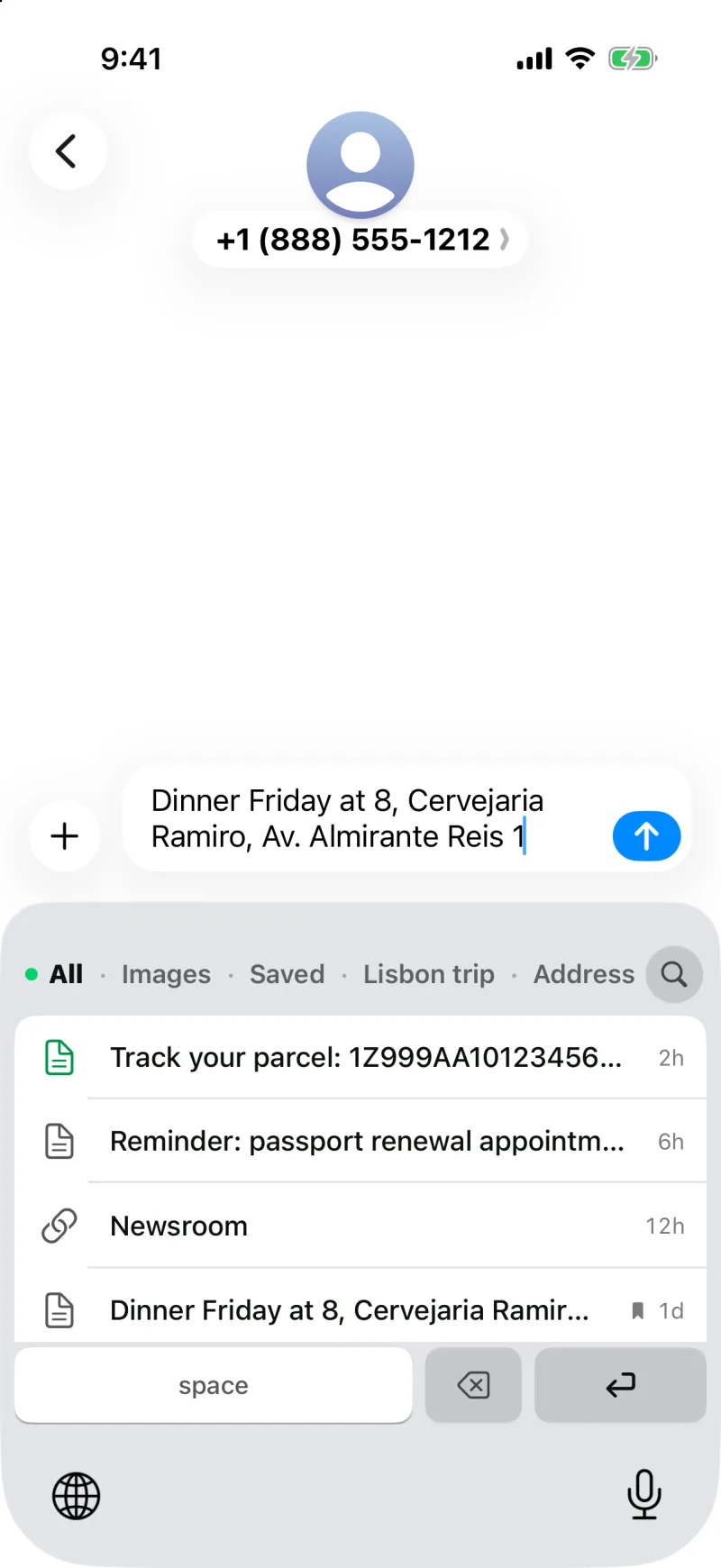
- Tap any clip in the list. It drops straight into the field.
Find the right clip fast
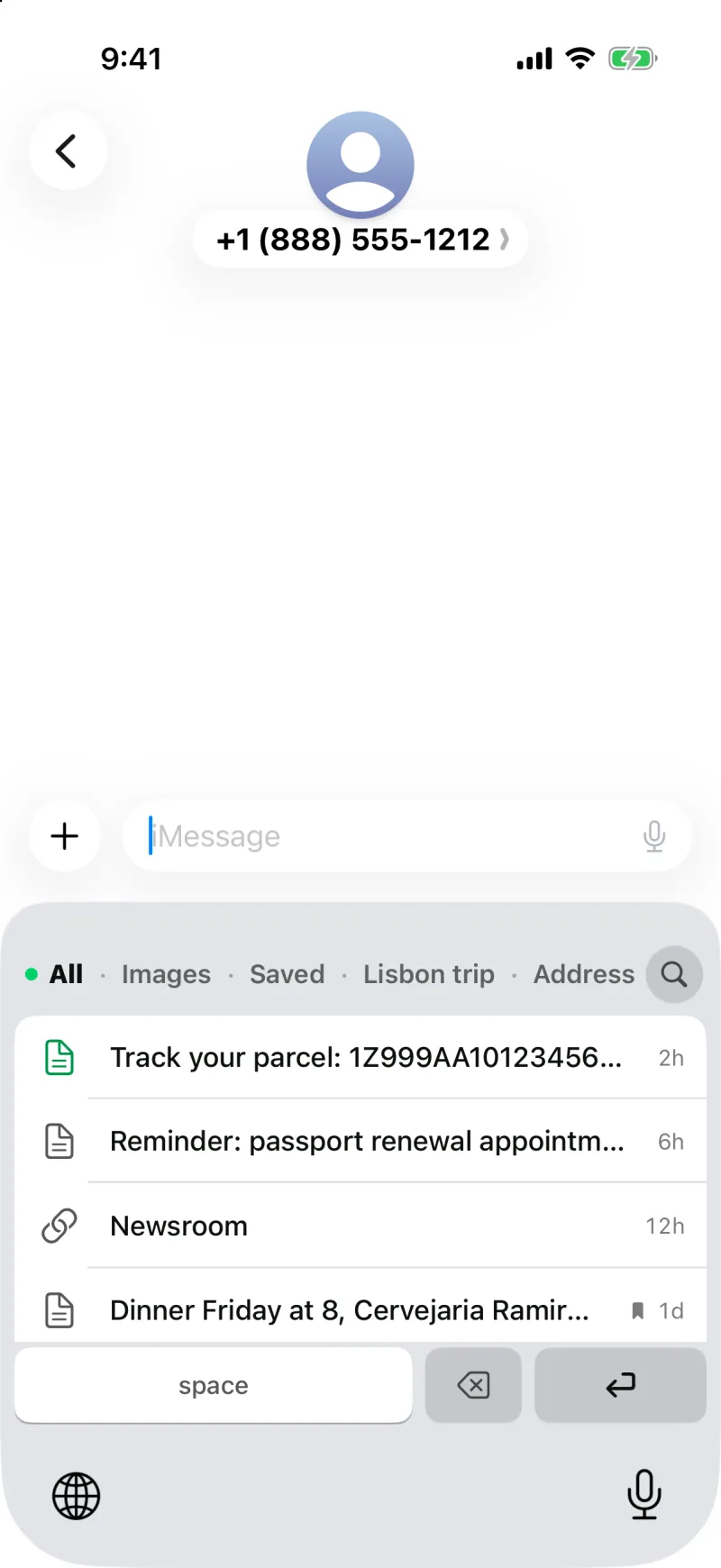
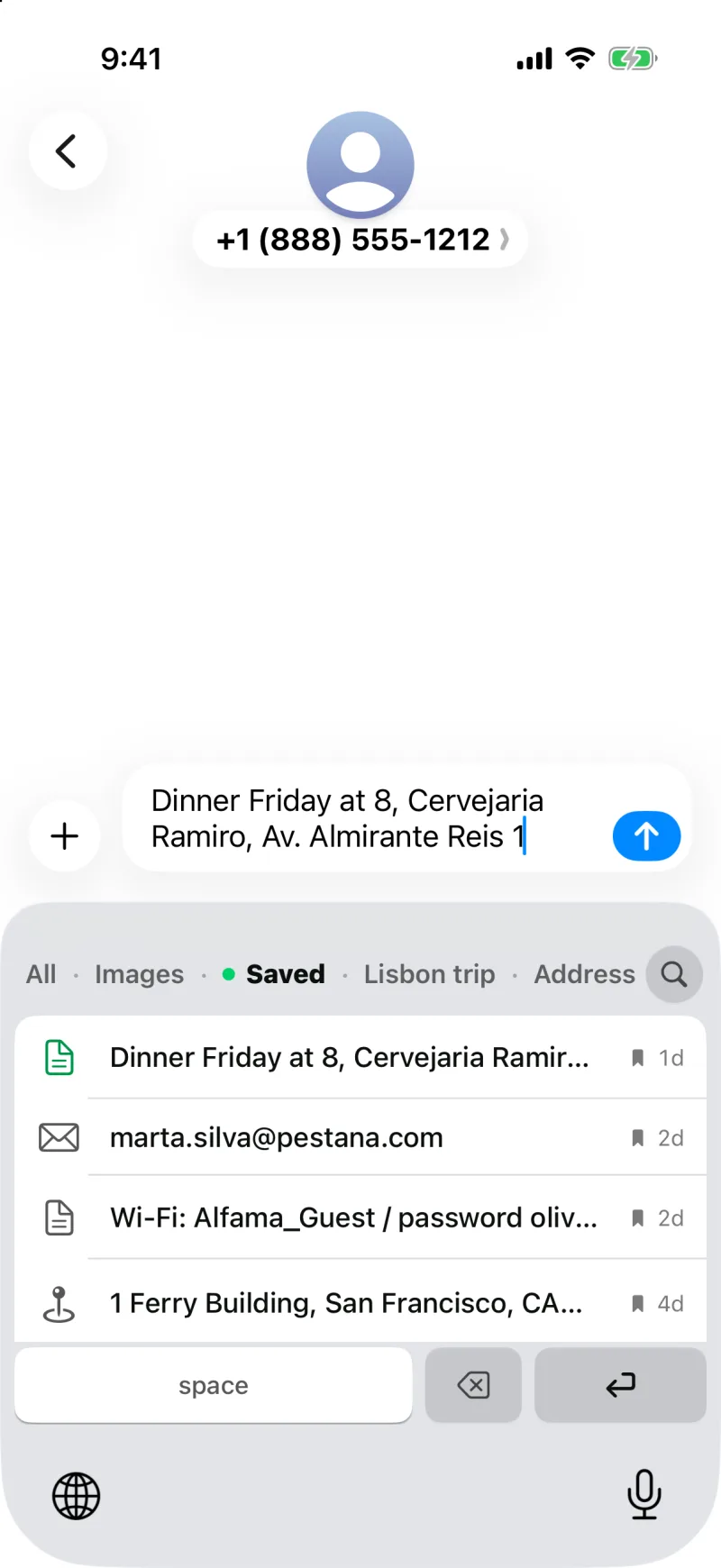
The row at the top of the keyboard is a filter: All, Images, Saved, each of your collections, then the categories that have clips in them, like Links, Email, Phone, Address, and Codes. Tap one and the list narrows to it. All shows your newest copies first, so the thing you just copied is at the top, and Saved holds the ones you kept on purpose, which never age out of the keyboard however big your history gets.
Need something further back? The search button in the keyboard's header opens Clipboard AI to search your whole library, and on an iPhone with Apple Intelligence you can ask for it in plain words.
A verification code or a password shows a padlock instead of its contents in the keyboard, so nothing private is readable over your shoulder. Tapping it still pastes the real value.
Saved an image? Tap it on the keyboard to copy it, then paste it into your message or note. A photo copied out of Messages, a gift card, a screenshot a friend sent: the keyboard offers the picture itself, ready to paste.
Switching back
Tap the globe key again to cycle back to your normal keyboard whenever you want to type. For small edits you do not even have to: the row under your clips has space, delete, and the field's own action key (Go, Search, or return), so you can paste a clip, add a space, and send without leaving Clipboard AI.
The keyboard sits on the same backdrop as every other keyboard, and it follows the light or dark choice you make under Color Scheme in Clipboard AI's Settings. If it ever comes up the wrong colour, see Why the keyboard is light or dark.