
Copied something an hour ago and need it now? Search finds any past copy in a second, and category filters help you narrow it down fast.
Search your clips
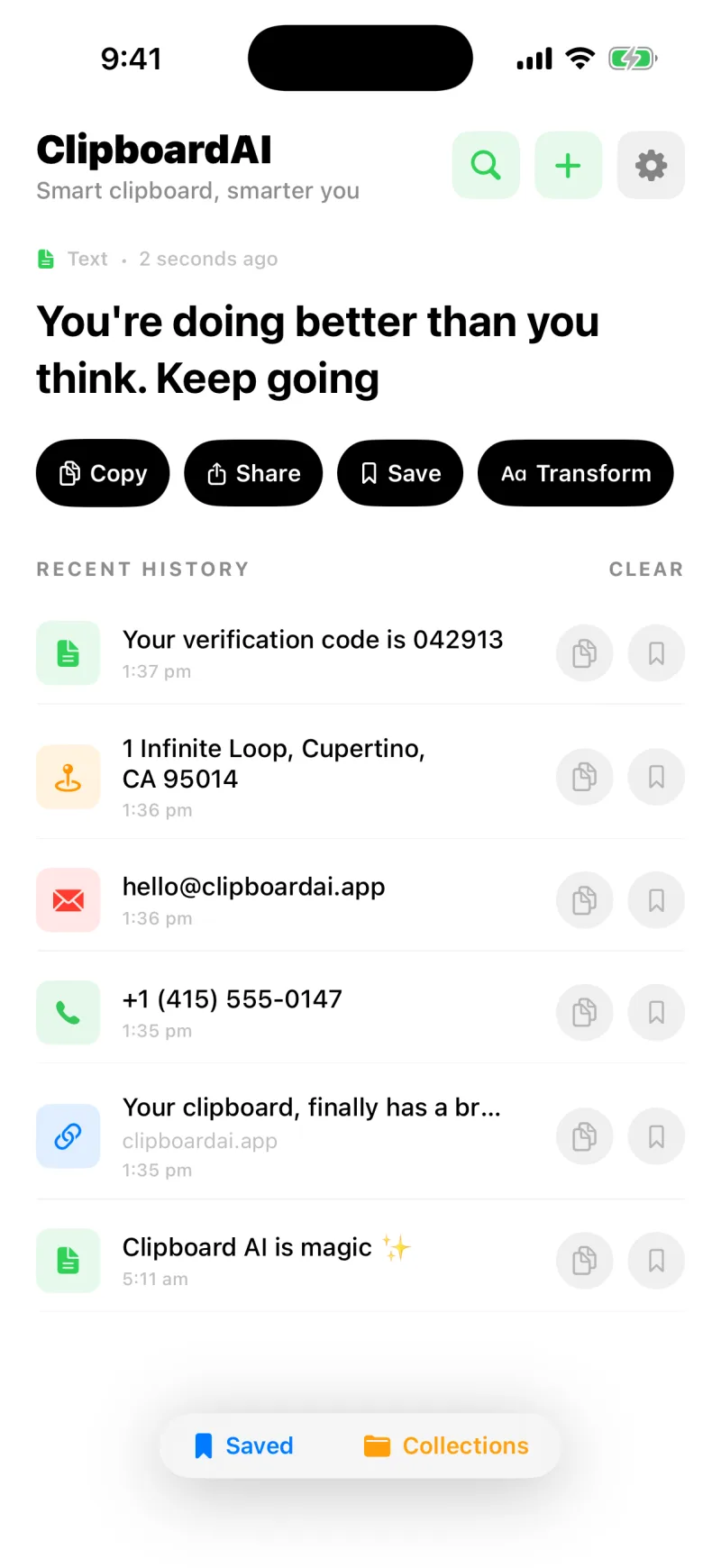
- On the home screen, tap the magnifying glass in the top corner.
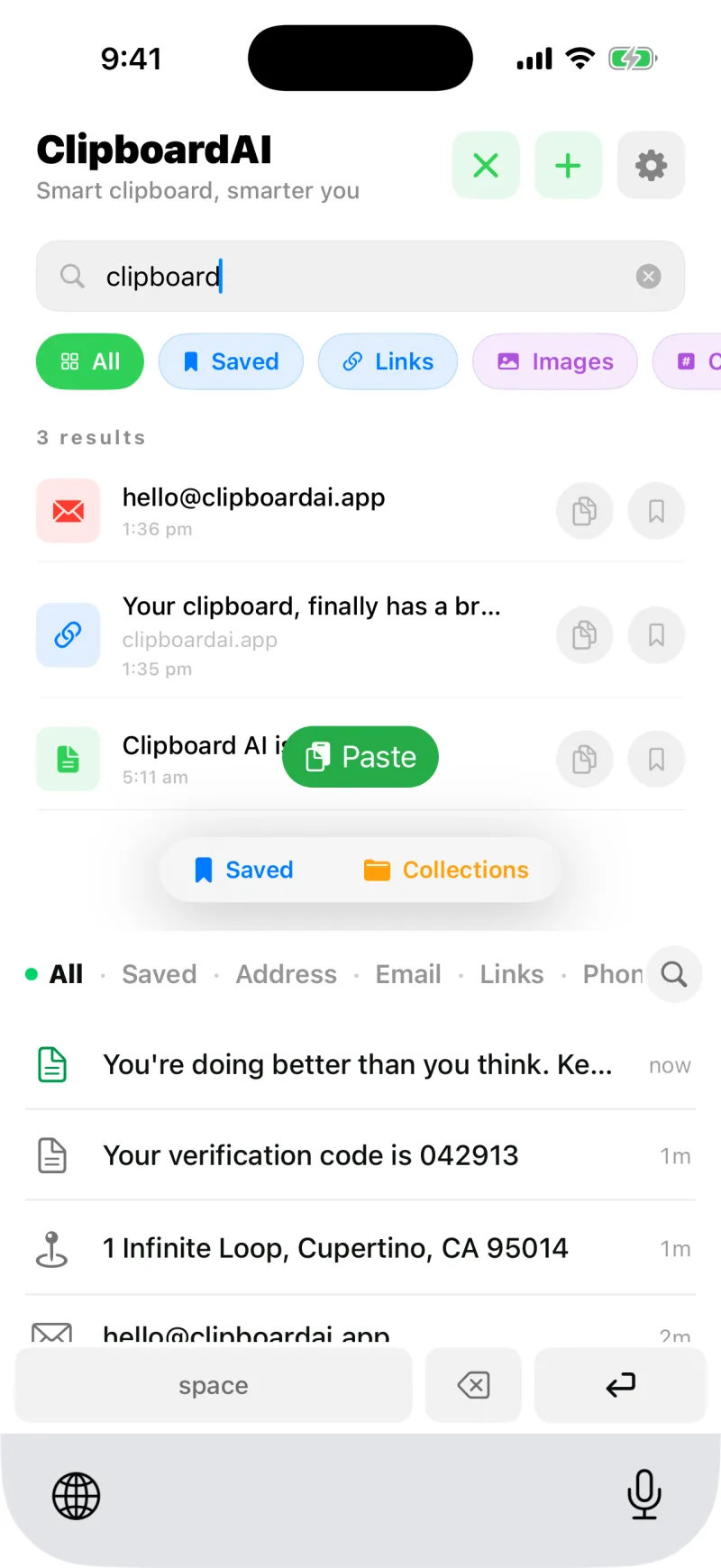
- Start typing. Results filter as you go, matching the clip text, its category, and link titles.
- Tap a result to open it, then copy, paste, pin, or transform it.
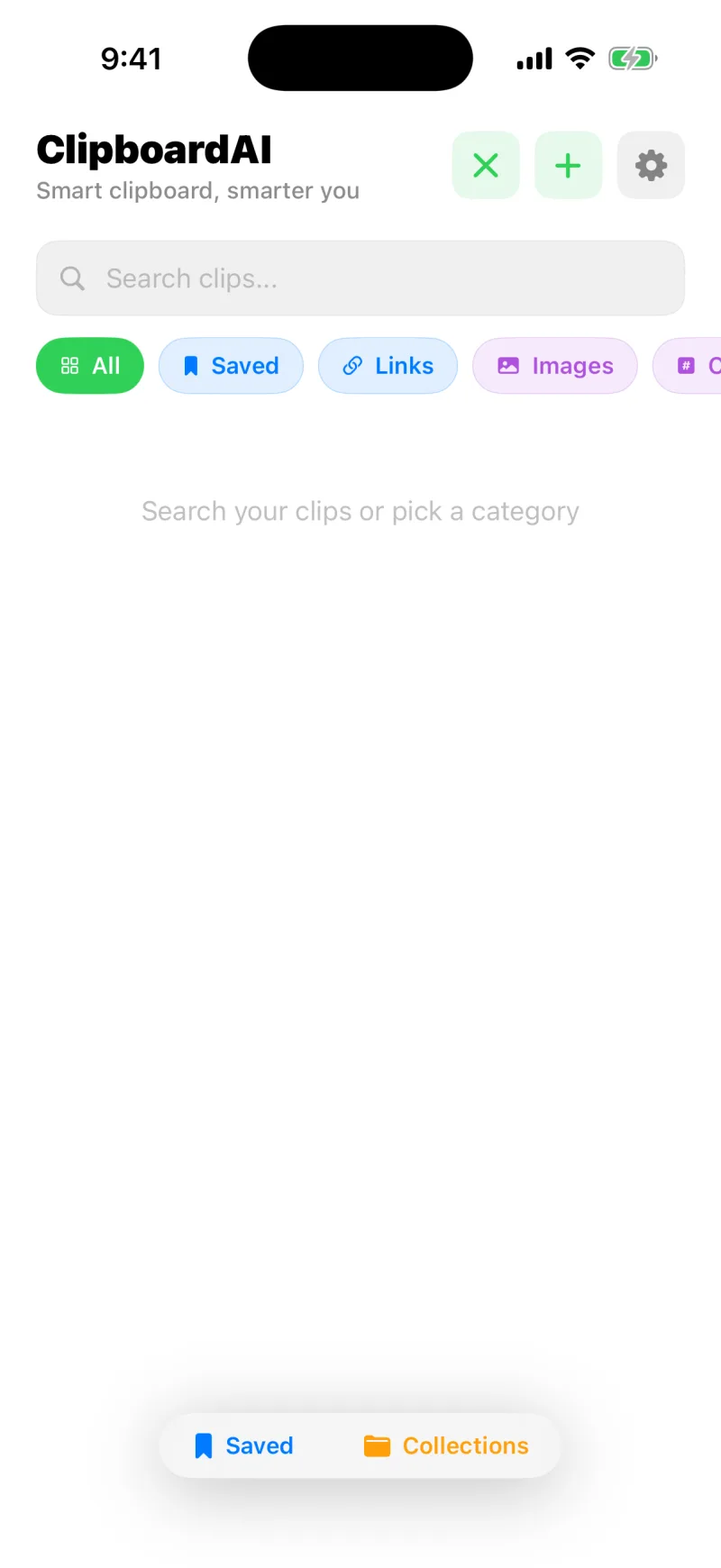
Filter by category
Tap a category chip under the search bar to show only one kind of clip: Links, Saved, Address, Email, Codes, Phone, or Images. Combine a category with a search word to zero in even faster, like filtering to Links and typing part of a domain.
Search looks inside the content, so a few letters from the middle of a clip is enough to surface it. It reads the text inside your screenshots too, and the short caption each new screenshot gets when it is saved.
Or just ask
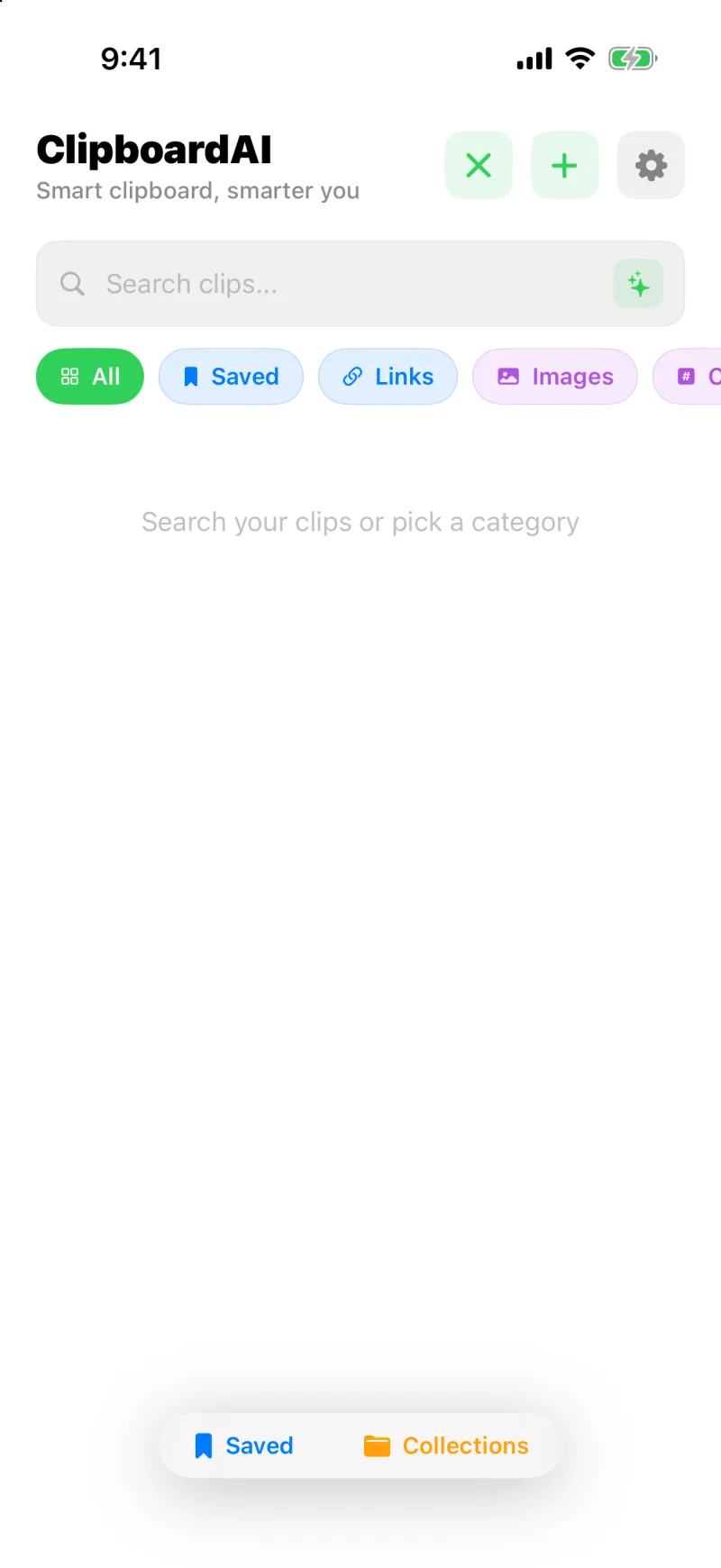
On an iPhone with Apple Intelligence, the search field has a second mode. Tap the sparkles at its right end and describe what you want in plain words: "the wifi password", "hotels I copied for the trip", "links from Safari last week". Apple Intelligence works out what to search for, the app finds the real clips, and you get a one-line answer with the matches underneath. See Ask your clips a question.
Search from the Home Screen
Turn on Find Clips in Spotlight in Settings and your clips appear in the iPhone's own search, the one you get by pulling down on the Home Screen, without opening the app first. Codes and sensitive clips are never included. See Find your clips in Spotlight.
Every clip is sorted for you the moment it is saved. See Smart categories, explained.