
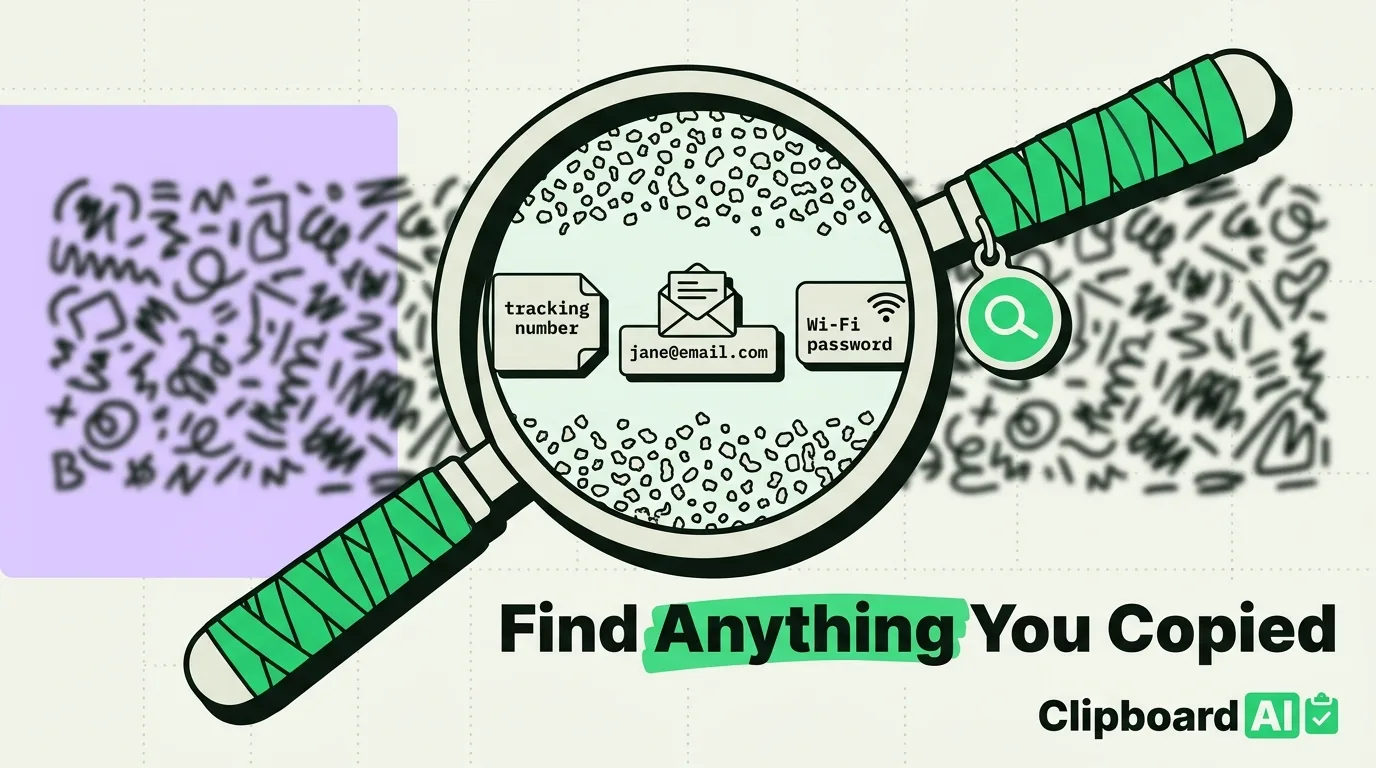
Searching clipboard history is a different problem from having clipboard history in the first place. If you don't yet have a clipboard manager installed, start with how to access clipboard history on iPhone. This guide assumes you already have one running and covers how to actually find something specific inside weeks of saved clips, fast, using search operators, category filters, and a few habits that make the difference between an instant result and endless scrolling.
The Human Scenario: One Word Buried in Three Weeks of Clips
You copied a tracking number seseveral days ago. You remember it had "UPS" somewhere near it, but not the number itself, not which app you copied it from, and not the exact day. Scrolling a chronological list back three weeks is not a real option. This is what search is for, and it only works well if you know how to use it.
Search Basics: What Actually Gets Matched
In ClipboardAI, the search bar does a live, full-text match against everything you've ever copied (subject to your retention settings), not just titles or the first few words. Typing "UPS" surfaces every clip that contains those characters anywhere: a tracking number, an email, a note you wrote yourself. That's the default, and for most searches it's all you need.
The Search-First Habit
Instead of trying to remember exactly what you typed, search for the most distinctive fragment you can recall; a name, a domain, a partial number. Distinctive beats exact. Searching "amazon" surfaces every Amazon link you've copied; searching "the" surfaces everything and helps no one.
Category Filters: Narrowing Before You Search
ClipboardAI automatically sorts clips into categories as you copy them: Links, Phone Numbers, Emails, Addresses, and general Text. If you know roughly what kind of thing you're looking for but not the exact content, filter first:
Looking for something you copied?
├── Know it's a phone number? ────────> Filter: Phone Numbers, then scan/search
├── Know it's a link? ─────────────────> Filter: Links, then search by domain
├── Know it's an address? ─────────────> Filter: Addresses, then search by street/city
├── Remember roughly when? ────────────> Skip search, scroll chronologically to that window
└── Remember a distinctive word? ──────> Search directly, skip filtering
Combining a category filter with a keyword search is the fastest path when you have both signals: "I copied a phone number, and I think the area code started with 415."
A Cheat Sheet for Hard-to-Find Clips
| What you remember | What to search | Why it works |
|---|---|---|
| A website or sender name | The domain or name itself (e.g. "amazon", "delta") | Full-text match catches it anywhere in the clip |
| Roughly when you copied it | Nothing - scroll to that date in chronological view | Reverse-chronological order puts recent items on top |
| The type of content, not the content | Filter by category first (Links/Phone/Email/Address) | Narrows the pool before you even type |
| A partial number (last 4 digits, area code) | Just those digits | Partial matches still surface results |
| Nothing specific, just "it was recent" | Browse chronologically instead of searching | Search needs at least a fragment to be useful |
Why Native iOS Search Doesn't Exist for This
There's no gap in your knowledge here, iOS genuinely has no clipboard history to search. The system pasteboard holds one item, replaced on every copy, with no log kept anywhere. Apple's clipboard-related features (the "app pasted from X" banner in iOS 14, the explicit paste permission prompt in iOS 16) are about transparency and consent for reading the current clipboard, not about searching the past. A search feature requires a persistent history to search, which is exactly the piece a clipboard manager adds.
Honest Caveats
- Search only covers what was actually captured. If you copied something before installing a clipboard manager, it was never saved and can't be searched, this isn't a retroactive tool.
- Auto-categorization isn't perfect. An oddly formatted phone number or address can land in general Text instead of its expected category. If a category filter comes up empty, search across everything instead of narrowing.
- Your history has a retention setting. Under Auto-Delete Old Clips (iOS and Mac), you can choose Never, 30 days, 60 days, 3 months, 6 months, or 1 year. If you've set anything shorter than "Never," clips older than that window are gone and won't turn up in search, so if you rely on long-term searchability, check this setting.
- Search is local to the device unless sync is on. Turning on iCloud sync in ClipboardAI settings makes your history (and therefore your search results) consistent across iPhone and iPad; without it, each device only searches its own local history.
Frequently Asked Questions
How is searching clipboard history different from just having clipboard history?
Having history means clips are saved somewhere. Searching means you can find a specific one quickly out of potentially thousands, using keywords, partial matches, or category filters, instead of scrolling chronologically.
Can I search by category instead of keyword?
Yes. Filtering by Links, Phone Numbers, Emails, Addresses, or Text narrows the pool before or instead of typing a keyword, which is often faster when you remember the type of content but not its exact wording.
Does search work on clips from weeks or months ago?
Yes, as long as they haven't been removed by your Auto-Delete Old Clips setting (Never, 30 days, 60 days, 3 months, 6 months, or 1 year). If that setting is anything shorter than Never, older clips are gone and won't appear in search results.
Why can't I search my clipboard using a built-in iOS feature?
Because iOS itself keeps no clipboard history at all, just the single most recent item. There's nothing native to search; the feature only exists inside third-party clipboard managers that maintain their own saved history.