
The Bottom Line
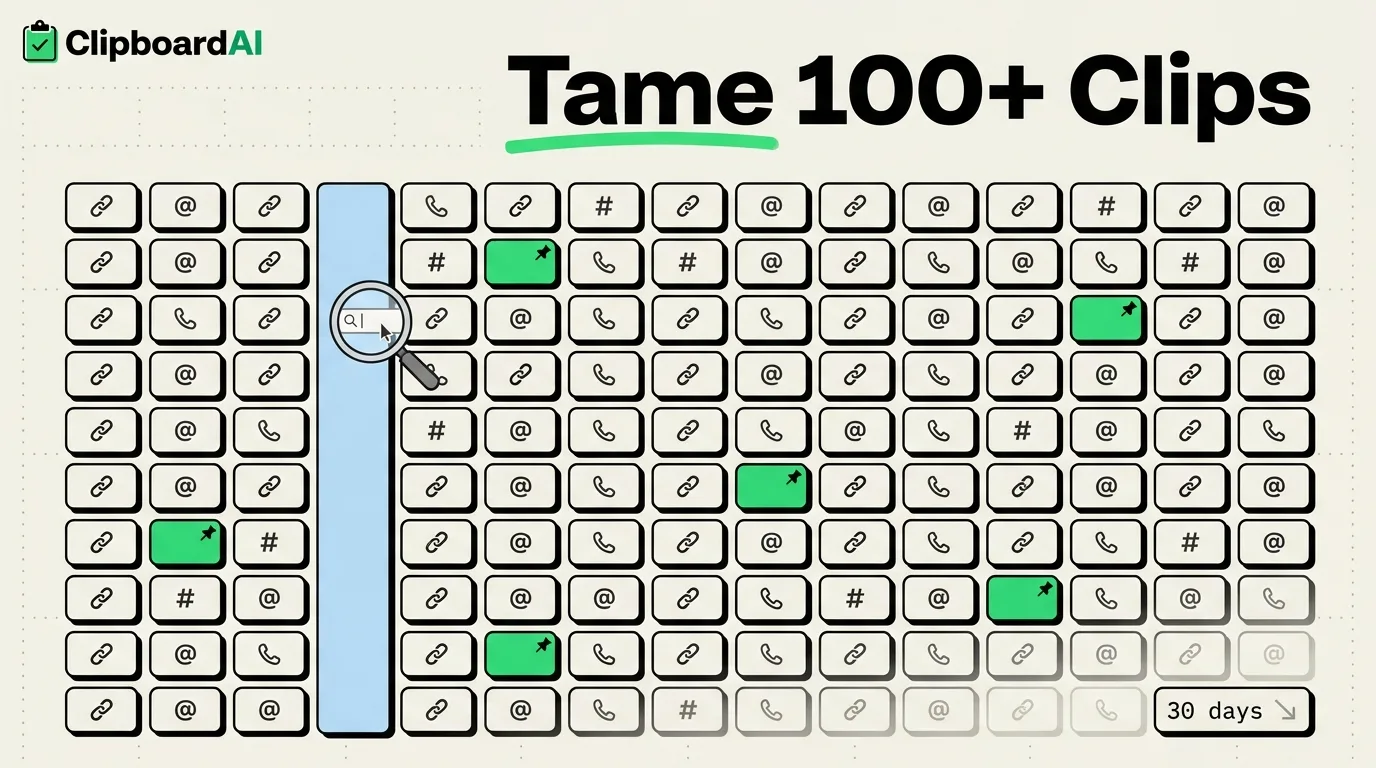
Once a clipboard history passes about 100 items, scrolling stops working as a way to find anything. The fix is three habits: search instead of scroll, pin the handful of things you reuse constantly, and set an auto-delete window so old clips age out instead of piling up forever. Here is how each one works in ClipboardAI specifically. Getting to a hundred clips takes a paid tier in most apps, so it is worth knowing where each free tier stops first.
Search Beats Scrolling
Every clip is full-text searchable. Instead of scrolling back through history to find a tracking number you copied yesterday, type a keyword, like part of the address or a few digits of the number, into the search bar and it filters instantly. This is the single biggest difference between a clipboard manager and iOS's native clipboard, which has no history to search at all.
Pin What You Reuse
Pinning keeps specific clips fixed at the top of your history regardless of how many new items you copy afterward. Good candidates for pinning:
- Your email address and phone number, for form-filling
- A Wi-Fi password you give out to guests repeatedly
- Standard responses or templates you send often
- An address you ship to or reference constantly
Pin these once and they stop competing with the flood of one-off clips for your attention.
Let Categories Do the Sorting
ClipboardAI automatically tags clips by type, links, phone numbers, emails, addresses, and codes among them, without you doing anything. If you know you are looking for a link and not text, filtering by category narrows a 100+ item history down to a manageable handful in one tap.
Group Related Clips into Collections
For an ongoing project, custom collections let you group related clips together instead of leaving them scattered across your whole history in chronological order. If you are planning a move, for example, you can collect the new address, the moving company's confirmation number, and the utility setup link into one place instead of hunting through unrelated clips to find them again.
Prune What You Do Not Need
Set Auto-Delete Old Clips (in Settings) to automatically age out old history: choices are Never, 30 days, 60 days, 3 months, 6 months, or 1 year. There is no shorter window than 30 days, so if you need something gone same-day, delete it manually by swiping it away. For anything sensitive, do not rely on auto-delete alone; remove it right after you are done with it.
Which Habit to Start With
| Your situation | Start here |
|---|---|
| You can never find that one thing you copied last week | Search, then pin your top 3-5 recurring items |
| Your history is full of one-off codes and links you never need again | Set Auto-Delete to 30 days |
| You're managing several ongoing projects at once | Custom collections, one per project |
| You mostly re-paste the same handful of things all day | Pin those items and ignore the rest of your history entirely |
What This Will Not Fix
None of this prevents clutter from accumulating in the first place, it just makes the clutter searchable and manageable. If your workflow generates dozens of new clips a day that you genuinely never need again, the more useful fix is a shorter auto-delete window, not more organization tools layered on top.
Frequently Asked Questions
Is there a limit to how many clips ClipboardAI can store?
The free tier keeps a running history, and a 7-day free trial lets you try unlimited history before deciding if you want to keep it, with your auto-delete setting controlling how large that history grows.
Can I export clips instead of just organizing them?
Yes, you can share a clip or a group of clips out to Messages, Mail, or Notes the same way you would share any other content on iOS.