
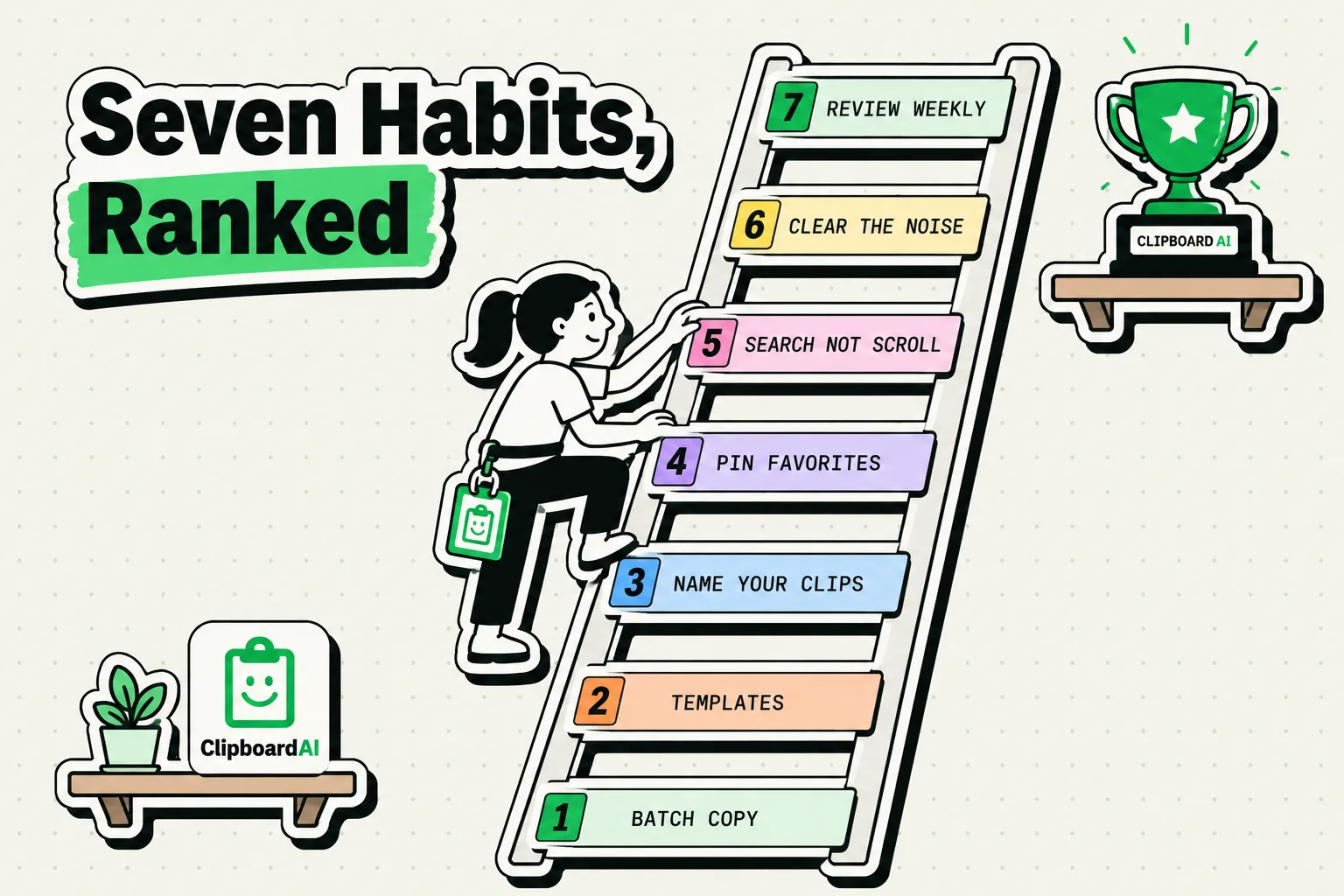
The difference between someone who fights their clipboard all day and someone who barely thinks about it usually comes down to a handful of small habits, not a special app or a secret trick. Below are seven of them, what each one actually fixes, and a one-week plan for building the ones that apply to you. No invented research citations, no fake percentages - just the mechanics of why each habit works and how to start.
Habit 1: Batch copy instead of copy-switch-paste-repeat
The default pattern most people fall into: copy one item, switch to the destination app, paste, switch back, copy the next item, switch, paste, switch back. Every single item costs two app switches.
Batch copying breaks this: copy everything you need first, in one pass through your sources, then switch once and paste everything from your history in sequence. If you need to move five items between apps, that's roughly 2 app-switches instead of 10 - the exact time saved depends on your phone and how fast you switch apps, but the switch-count math holds regardless.
This only works if something is actually saving each copy as you go - the stock iOS pasteboard holds one item, so the moment you copy the second thing, the first is gone. A clipboard history tool like ClipboardAI is what makes batching possible at all.
Try it: next time you're gathering information from a few sources, copy everything without pasting anything first. Open your clipboard history afterward and paste in order.
Habit 2: Pin the handful of things you paste constantly
If you type or re-find your email address, home address, phone number, or a recurring meeting link more than once a week, that's a candidate for pinning. Pinned items sit at the top of your history - tap once to copy, no searching required.
Common pins: personal email, work email, home address, phone number, a recurring Zoom or Meet link, Wi-Fi password (for guests), a short bio for form fields. The setup cost is about thirty seconds; the payoff is every future instance of typing that string by hand, gone.
Habit 3: Search your clipboard before you re-search the web
If you copied a link or quote days ago and can't remember the source, your clipboard history is often faster to search than re-Googling it, because it only contains things you already decided were worth keeping - not every page you ever visited. Search a keyword from what you remember, and if you copied it, it's there.
This extends past links: a phone number from a site you visited last week, a tracking number, a quote from an article. Anything you copied is a searchable record, whether or not you remember where it came from.
Habit 4: Keep a small library of templates for repeat messages
If you send some version of the same message regularly - a follow-up, a meeting recap, a standard reply - write it once, pin it, and reuse it. Tap to copy, paste, swap in the specifics (name, date), send. It's a lighter-weight version of iOS Text Replacement that works for longer blocks of text without needing to memorize a shortcut trigger.
Habit 5: Stop protecting whatever's currently on your clipboard
Without history, every copy is a small decision: is this more important than whatever's on my clipboard right now? That low-grade calculation is minor on its own, but it adds up across a day of copying.
With history, the calculation disappears. Copy freely, in any order - nothing is at risk of being lost, because there's a running list instead of a single slot. People who've used a clipboard manager for a while consistently describe this as one of the more noticeable, if hard-to-quantify, changes to how they use their phone.
Habit 6: Let categorization do the filing for you
Manually sorting clipboard items into folders is exactly the kind of task people intend to keep up with and then stop doing within a week. Automatic categorization - sorting copies into Links, Addresses, Phone Numbers, Codes, and Text as they come in - solves this without requiring the discipline. ClipboardAI runs this categorization on-device, so nothing about what you copy leaves your phone to get sorted.
The practical benefit: instead of scrolling a flat chronological list to find a phone number from last week, you jump straight to the Phone Numbers category and scan a much shorter list.
Habit 7: Sync your history across devices, not just the current item
Apple's own Universal Clipboard already lets you copy on one device and paste the single most recent item on another, over Bluetooth, for about two minutes. That's useful, but it's not history - it's a one-item relay.
If you research on your phone during a commute and want that whole set of copied links and notes waiting on your iPad or Mac later, you need a clipboard manager with its own sync, separate from Universal Clipboard. ClipboardAI syncs your full history through your own private iCloud account, protected by Apple in transit and at rest at the same tier as iCloud Photos or Notes, so the entire session is there, not just the last thing you touched.
Building these habits: a one-week plan
| Days | Focus |
|---|---|
| 1-2 | Install ClipboardAI and use your phone as normal. Review what accumulated each night - most people are surprised by the volume. |
| 3-4 | Identify your 5 most-repeated items and pin them. Use the pins instead of retyping for two full days. |
| 5 | Try batch copying the next time you're gathering information from more than one source. |
| 6-7 | Search your history instead of re-searching the web at least once. Write 2-3 templates for messages you send often. |
You don't need all seven habits at once. Pinning and batch copying alone cover most of the time savings; the rest compound on top.
Honest caveats
- None of this requires ClipboardAI specifically. Any clipboard manager with history, pinning, and search covers habits 1 through 5. Categorization quality and cross-device sync (habits 6 and 7) vary more by app.
- History isn't free of risk. A clipboard manager that remembers everything you copy will, by default, remember passwords and other sensitive strings too, unless it filters them out or you delete them yourself. Review what you're storing periodically.
- Your clips stay on your device by default. Everything is stored locally, and it only leaves your device if you turn on iCloud sync, which runs through your own private iCloud account, protected by Apple in transit and at rest at the same tier as iCloud Photos or Notes. No clip ever passes through a ClipboardAI server, and you can leave sync off entirely. As with any clipboard history, it's still good practice to keep your most sensitive secrets out of what you store.
Frequently Asked Questions
What is batch copying and how does it help?
Copying several items in a row before pasting any of them, instead of switching apps to paste after every single copy. It requires a clipboard history tool, since the stock iOS pasteboard only holds one item at a time.
What should I pin in a clipboard manager?
Whatever you type or re-find more than once a week: email address, phone number, home address, a recurring meeting link, Wi-Fi password. If you notice yourself copying the same thing three times in a few days, pin it.
Does a clipboard manager replace iOS Text Replacement?
Not exactly - they overlap. Text Replacement is built into the keyboard and best for short phrases. A clipboard manager's pinned items work better for longer templates and anything you'd rather select from a list than recall a trigger phrase for.
Is ClipboardAI's sync secure?
Yes. Everything is stored on your device by default, and sync runs through your own private iCloud account, encrypted in transit and at rest at the same protection tier as iCloud Photos or Notes. No clip content ever touches a ClipboardAI server, there is no account to create, and you can turn sync off entirely to keep everything local.