
Most people use their iPhone clipboard the way Apple designed it: copy one thing, paste it once, move on. Power users build actual systems on top of it, using pinned templates, keyboard extensions, and iOS Shortcuts together so information moves through their day without re-typing or re-finding it. None of this requires any hack or jailbreak. It's a handful of deliberate habits stacked on top of a clipboard manager. Here's what they look like in practice, and where they still hit real limits.
Workflow 1: the keyboard extension as your default paste method
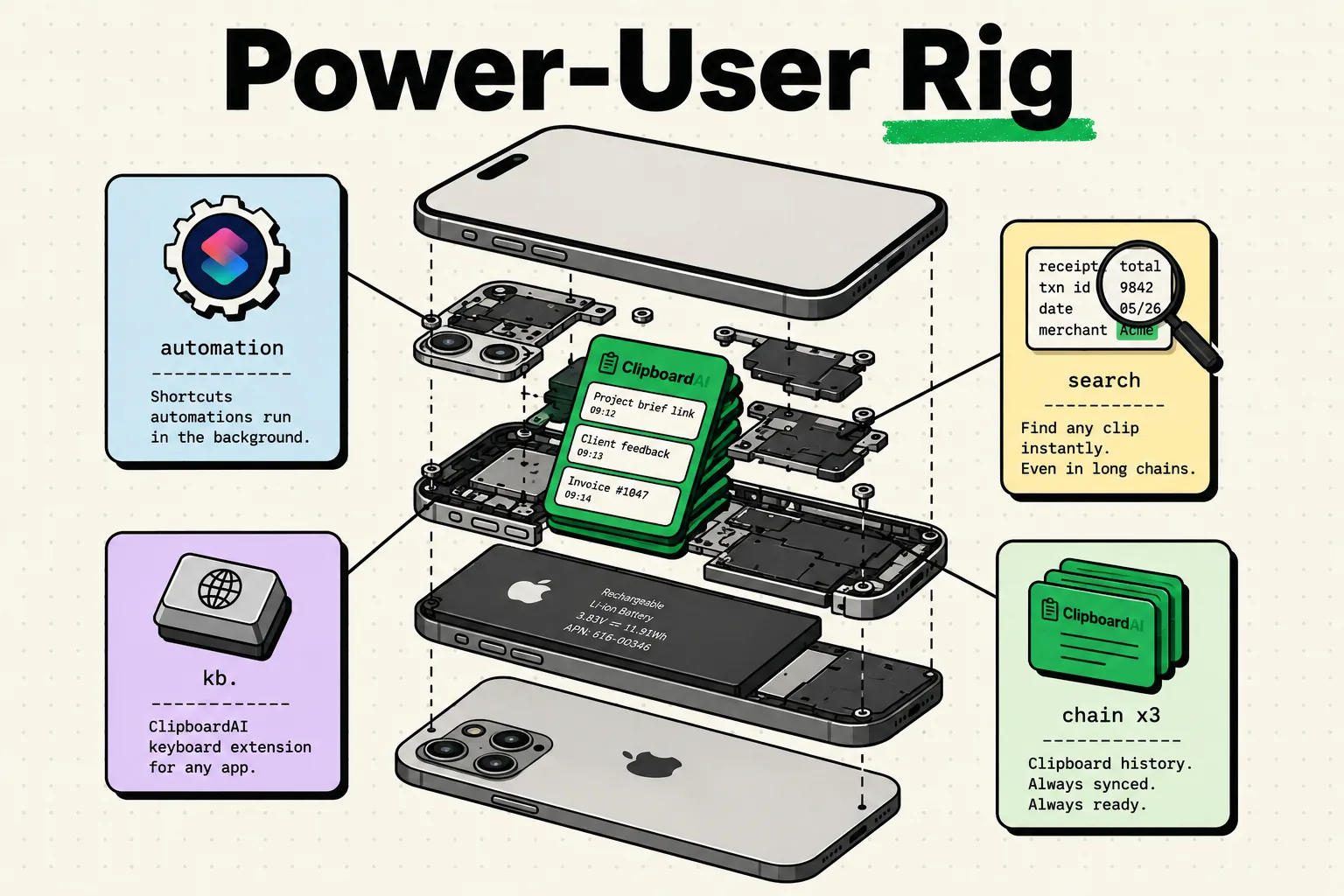
If you install a clipboard manager and never use anything but the app itself, you're leaving most of the value on the table. The keyboard extension is what removes app-switching from the equation: tap the globe icon to switch keyboards, tap a clip to paste it, tap the globe again to go back to your normal keyboard, all without leaving the app you're typing in.
Compare that to the app-switching version: leave your current app, open the clipboard manager, find the clip, copy it, switch back, paste. Every step is a chance to lose your place or get distracted by a notification along the way. The keyboard extension collapses that into two taps inside the app you're already using.
Setup: Settings > General > Keyboard > Keyboards > Add New Keyboard, select your clipboard manager's keyboard, and enable "Allow Full Access" (required for the keyboard to read your saved clips; it does not, by itself, mean your data leaves the device - check the specific app's privacy documentation for what it does with that permission).
Workflow 2: iOS Shortcuts that act on clipboard content
Shortcuts can read and modify whatever's currently on your clipboard, which opens up small automations that save real friction:
- Format a phone number: copy a number in any format, run a shortcut that reformats it to your preferred style, and the clipboard now holds the cleaned-up version.
- Get directions from a copied address: copy an address, run a shortcut that opens Maps with directions from your current location.
- Track a package: copy a tracking number, run a shortcut that opens the matching carrier's tracking page.
- Draft a quick email: copy an email address, run a shortcut that opens a pre-addressed, pre-formatted email.
None of these require more than Apple's built-in Shortcuts app and a few minutes of setup per shortcut. Start with the one action you repeat most often, not all four at once.
Workflow 3: the research-then-assemble pattern
Rather than researching and writing in the same pass, treat them as two separate modes:
Gathering mode: open your sources and copy everything that might be relevant, without stopping to organize or paste it anywhere. Quotes, URLs, numbers, whatever looks useful. Let your clipboard history collect it all.
Assembly mode: open the document you're actually writing, and work backward through your clipboard history, pasting each item into its logical place. Because everything is already captured, you're not re-opening ten browser tabs to re-find a quote you saw twenty minutes ago.
This matters most for anything involving multiple sources at once (research papers, competitive analysis, trip planning) where switching between "finding information" and "writing it down" repeatedly is what kills momentum.
Workflow 4: a pinned-template library
The difference between "occasionally useful clipboard history" and "a real productivity tool" is intentional curation. Pin the things you type over and over: email openers and sign-offs, standard responses to common questions, code snippets, addresses you reference often. Give each one a name you'll actually remember, and group them by context (work, personal, shopping) so you're not scanning an undifferentiated list.
A practical starting library looks something like this:
| Category | Example pinned clips |
|---|---|
| Work templates | Meeting-request reply, standard email sign-off, out-of-office note |
| Reference info | Home address, a frequently quoted phone number, Wi-Fi password for guests |
| Code/technical | A regex you always forget the syntax for, a common terminal command |
| Personal | Shipping address, a recurring calendar link, a go-to restaurant order |
Ten pinned clips is a reasonable starting point. Add to it only when you notice yourself typing the same thing for the third time; resist the urge to pre-build a huge library before you know what you actually reach for.
Workflow 5: cross-app context without switching back
The core productivity killer on a phone is context switching: you leave an app to check something, and by the time you're back, you've lost your train of thought. A clipboard manager reduces one specific cause of this: needing to re-open a source app because you copied something from it earlier and it's since been overwritten.
Copy several things from one app in a row, switch to where you actually need them, and paste each one from history instead of re-opening the original source. Adding a clipboard widget to your Home Screen extends this further, giving you a glance at recent clips without opening any app at all.
Putting it together: a simple starting setup
You don't need all five workflows on day one. A reasonable order to adopt them:
- Enable the keyboard extension first. This is the highest-leverage change and takes two minutes.
- Pin 5-10 clips for whatever you already type repeatedly. Don't overthink the initial list; it'll be wrong and that's fine.
- Build one Shortcut that acts on clipboard content, starting with whichever repetitive task annoys you most.
- Only after those three are habits, layer in the research-then-assemble pattern for the next research-heavy task you tackle.
Honest caveats
- None of this replaces remembering to copy things in the first place. A clipboard manager captures what you copy; it has no way to save information you never touched your clipboard with.
- Shortcuts that read clipboard contents only work within what Shortcuts itself supports. Complex parsing or conditional logic is possible but has a real learning curve if you've never built a Shortcut before.
- The keyboard extension needs "Allow Full Access." That's an iOS requirement for any keyboard extension to communicate with its parent app, not a red flag specific to clipboard managers, but it's worth understanding what that permission does in whichever app you use before granting it.
Frequently asked questions
What are the best clipboard workflows for iPhone?
Using a keyboard extension for in-app paste access, chaining iOS Shortcuts to act on clipboard content, separating research and writing into distinct capture-then-assemble passes, and maintaining a small library of pinned, named templates for text you type repeatedly.
How do power users actually use clipboard managers differently from casual users?
The main difference is intentional curation: naming and organizing pinned clips by context, building one or two Shortcuts around repetitive tasks, and using the keyboard extension as the default paste method instead of switching to the app itself.
Can iOS Shortcuts read and modify clipboard contents?
Yes. Shortcuts includes actions for getting and setting clipboard content, which you can combine with formatting, URL, or app-opening actions to build small automations triggered by whatever you've just copied.
What is a clipboard keyboard extension?
A custom keyboard that replaces your standard one temporarily, showing your saved clipboard history so you can tap to paste without leaving the app you're typing in. It requires "Allow Full Access" in Settings, which is an iOS-wide requirement for any keyboard extension that needs to talk to its parent app.
How many pinned clips should I start with?
Ten is a reasonable starting point, covering whatever you already retype most often. Add more only when you notice a specific repeated pattern rather than trying to anticipate everything you might need in advance.