
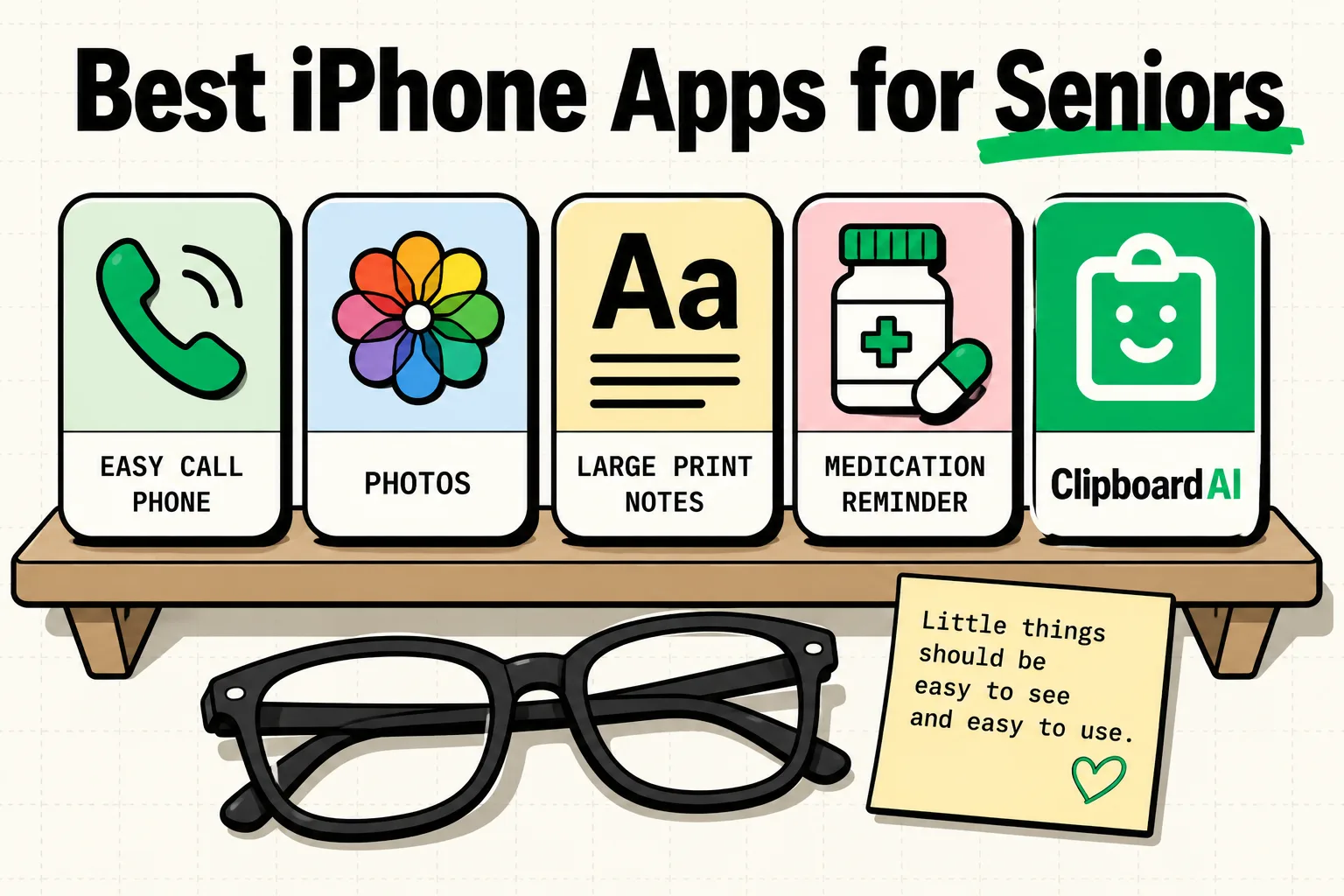
The best iPhone apps for seniors in 2026 prioritize clean visual interfaces, high-contrast text, simple navigation, and automated data entry. To reduce technical friction, the most useful tools include Magnifier (pre-installed for reading menus and labels), Medisafe (for medication tracking), Audible (for easy audiobook listening), Apple Health (for fall detection and medical IDs), and ClipboardAI (to save and paste addresses, phone numbers, and insurance details without typing on tiny virtual keys).
Technical Friction: Designing an iPhone for Aging Hands and Eyes
For older adults, the iPhone can be both a lifeline and a source of intense frustration. The challenges aren't just about software features; they are physical and cognitive. Declining eyesight makes small text hard to read, minor hand tremors make typing on small keyboards error-prone, and complex menu paths (swiping down, long-pressing, double-tapping) are unintuitive.
A senior-friendly app is not one that has "fewer features." It is one that has large touch targets, clear labels, high readability, and does not require complex finger coordination.
We compiled this list of essential apps and settings to transform the iPhone into a secure, accessible, and frustration-free tool.
Senior App Accessibility Comparison
Each recommended app serves to bridge a specific physical or cognitive challenge. Here is how they compare:
| App Name | Main Function | Cost | Interface Complexity | Key Accessibility Feature | Offline Access |
|---|---|---|---|---|---|
| Magnifier | Reading Aid | Free (Built-in) | Very Low | Zoom control + flashlight | Full Offline |
| Medisafe | Pill Reminders | Free / $4.99/mo | Low | Large pop-up alerts with sound | Full Offline |
| Audible | Audiobooks | Subscription | Medium | Car mode (giant buttons) | Yes (after download) |
| Apple Health | Health & Safety | Free (Built-in) | Medium | Automatic fall detection | Full Offline |
| ClipboardAI | Keyboard Helper | Free (Beta) | Low | Custom keyboard with saved templates | Full Offline |
1. Apple Magnifier: The Digital Reading Glass
Many older adults carry physical reading glasses or struggle to read low-light restaurant menus, prescription bottles, and serial numbers on appliances.
Magnifier is a utility pre-installed on iOS that uses the iPhone's camera like a high-powered magnifying glass.
- The Workflow: Add the Magnifier app to the dock or configure it to open via a triple-click of the power button. Open the app, slide the scale to zoom in, and turn on the built-in flashlight if the lighting is poor.
- Why It Works: Unlike the standard Camera app, Magnifier allows you to freeze the frame so you can read text without holding your hand perfectly still. It also includes contrast adjustments to make yellowed text easier to read.
2. Medisafe: Tracking Medications Safely
Managing multiple prescriptions with different dosages and schedules is a high-stakes challenge. Forgetting a dose or taking a double dose is dangerous.
Medisafe is a medication reminder app featuring visual pill shapes and distinct audio alerts.
- The Workflow: Enter each medication name, schedule, and dose. The app sends a loud, clear notification when it is time to take a pill. It shows a visual representation of what the pill looks like (e.g., a blue round capsule) so you can verify it.
- Why It Works: It does not require complex navigation. If the senior does not mark the pill as "taken," the app can send an automated text alert to a designated family member or caregiver.
3. ClipboardAI: Eliminating the Typing Struggle
Typing long, complex strings of characters - such as home addresses, email addresses, Medicare numbers, or online shopping passwords - on a tiny phone screen is frustrating and error-prone. One typo in a billing form can cancel an order or delay a delivery.
ClipboardAI lets seniors save standard, frequently used text snippets and paste them using large, easy-to-tap buttons.
- The Workflow: A family member can help the senior save their home address, emergency contacts, pharmacy phone numbers, and insurance details into ClipboardAI. The senior switches to the ClipboardAI keyboard when filling out form fields. Instead of typing, they simply tap the large card representing their address or phone number to insert it.
- Why It Works: It eliminates the need for manual typing, preventing typos and reducing the physical fatigue of handling small keyboards.
4. Apple Health: Critical Emergency Safety
If an older adult lives alone, immediate help during an accident or fall is essential.
Apple Health works in the background, communicating with the iPhone's built-in sensors (accelerometer and gyroscope) to monitor safety.
- The Workflow: Fill out the Medical ID section with emergency contacts, blood type, allergies, and medications. Ensure Fall Detection is active (especially if paired with an Apple Watch). If a fall is detected and the senior is unresponsive, the phone calls emergency services and sends a message to contacts.
- Why It Works: It operates entirely in the background, providing peace of mind to both the user and their family without requiring daily interactions.
Accessibility Checklist: Senior-Friendliness Settings
To make an iPhone comfortable to use, modify these default iOS settings immediately:
- Increase Text Size: Go to Settings > Display & Brightness > Text Size. Turn the slider up. To make it even larger, go to Settings > Accessibility > Display & Text Size > Larger Accessibility Sizes.
- Enable Bold Text: Turn on Bold Text in the display settings to make text stand out against light backgrounds.
- Switch to Display Zoom: Go to Settings > Display & Brightness > Display Zoom and select Larger Text. This increases the size of app icons, buttons, and system controls.
- Turn on AssistiveTouch: Go to Settings > Accessibility > Touch > AssistiveTouch. This provides a persistent on-screen button to access system tasks (like taking screenshots or returning to the home screen) without using physical buttons.
- Simplify the Home Screen: Delete unused default apps and place the remaining icons in a single row or two. Turn off app-icon notifications if they cause digital anxiety.
Honest Caveats: Privacy, Security, and Scams
While smartphones add convenience, they also introduce risks that must be managed:
- Phone Scam Vulnerability: Seniors are targeted by sophisticated phishing scams. Remind them to never copy-paste verification codes sent via SMS or give them to anyone over the phone.
- App Updates and UI Shifts: Apps regularly update their layout. These sudden visual changes can confuse older users. Keep automatic app updates on, but check in occasionally to help them navigate interface changes.
- Local Storage Security: If storing sensitive identifiers like medical insurance numbers, verify they are stored locally on-device. ClipboardAI does not send your copied history to external servers unless opted in, preventing identity theft leaks.
Frequently Asked Questions
What is the easiest iPhone for a senior to use?
Any model with a large display (such as the Plus or Pro Max models) is ideal, combined with Apple's "Assistive Access" mode (available in iOS 17 and later), which simplifies the entire user interface to just a few massive buttons.
Can ClipboardAI help with online grocery shopping?
Yes. Seniors can copy their standard grocery list from a note, pin it in ClipboardAI, and quickly paste individual items into their favorite grocery delivery app without repeatedly switching screens.
How do I prevent emergency contacts from being deleted?
Set up emergency contacts inside the Medical ID settings of the native Health app. These numbers are locked and cannot be easily deleted without entering the phone's lock screen passcode.