
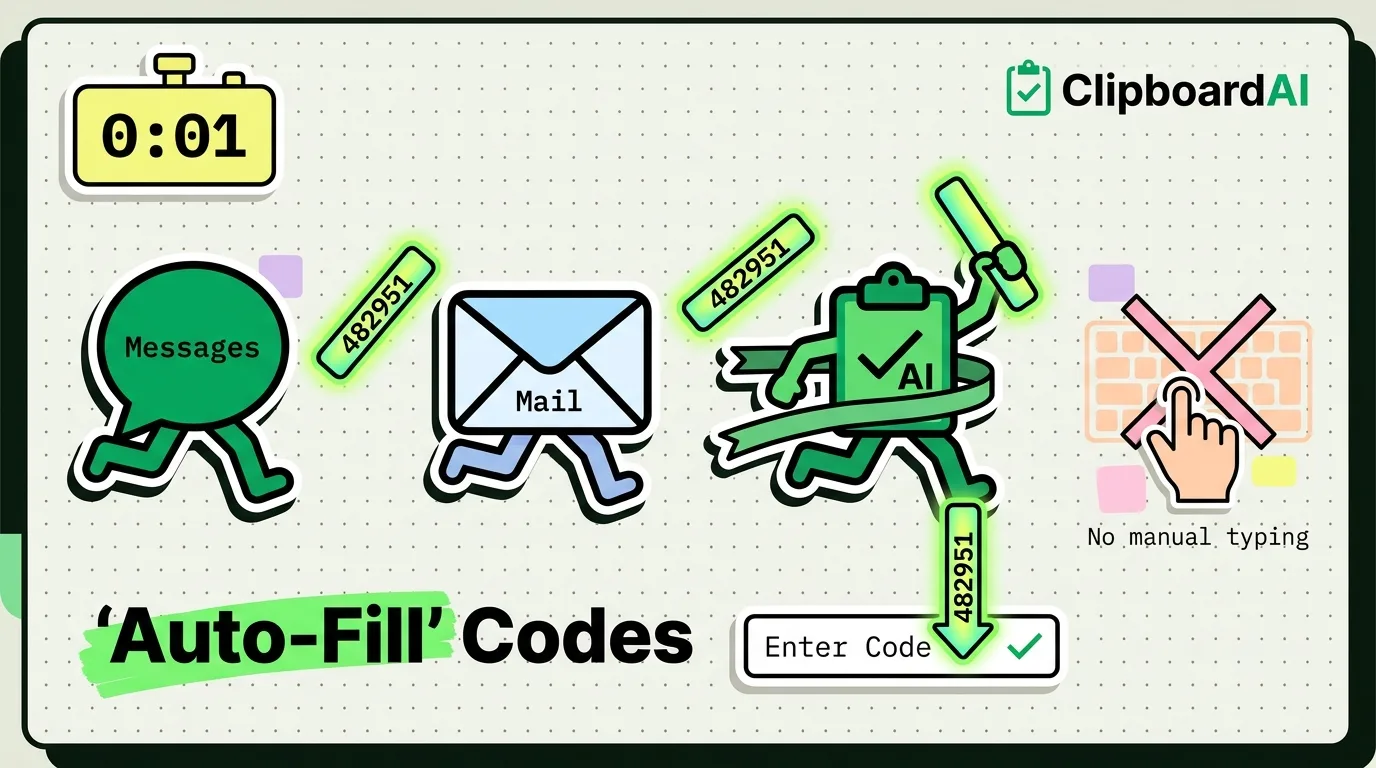
To auto-fill verification codes on iPhone, enable AutoFill for Passwords and Keychain in your Settings. When a code arrives via SMS Messages or Apple Mail, iOS will display the one-time password (OTP) directly above your keyboard for one-tap entry. You can also configure iOS to automatically delete these verification messages after use, preventing inbox clutter while securing your accounts.
Two-factor authentication (2FA) is critical for online security, but typing these codes manually is a friction-filled chore. You receive the text, close your active app, open Messages, write down or copy the 6-digit code, navigate back, only to find the app has refreshed and you must request a new code. Configuring iOS to capture and autofill these codes automatically removes this headache.
Verification Code Troubleshooting Matrix
If verification codes are not displaying above your keyboard, use this troubleshooting matrix to fix the issue:
| Symptom | Probable Cause | The Resolution |
|---|---|---|
| Code arrives but keyboard suggestion is empty | Password AutoFill is disabled, or the app/website has incorrect metadata. | Go to Settings > Passwords > Password Options and ensure AutoFill Passwords and Passkeys is active. |
| AutoFill works for SMS but fails for Email codes | You are using a third-party mail client (like Outlook or Gmail) that iOS cannot monitor. | Use the native Apple Mail app for your verification email accounts; iOS only monitors native inbox APIs. |
| Verification messages are clogging your inbox | Auto-delete settings are disabled. | Turn on Clean Up Automatically under Settings > Passwords > Password Options. |
| The code suggestion displays the wrong numbers | The message body format is non-standard. | Tap the code to copy it, open the ClipboardAI keyboard, and paste the parsed code manually. |
| iOS AutoFill does not register the field | The developer did not tag the HTML input tag with autocomplete="one-time-code". |
Copy the code manually, and tap the ClipboardAI paste key to insert it. |
Step-by-Step setup: Enable AutoFill on iOS
To make sure your iPhone captures verification codes from text messages and emails automatically:
Step 1: Activate Password AutoFill
- Open your iPhone Settings.
- Scroll down and select Passwords.
- Authenticate with Face ID or Touch ID.
- Tap Password Options near the top of the screen.
- Toggle on AutoFill Passwords and Passkeys.
- Check the box for iCloud Keychain (or your preferred password manager, such as Bitwarden or 1Password).
Step 2: Configure Message Auto-Deletion
Once you enter a security code, leaving it in your inbox is a clutter issue and a minor security risk.
- On the same Password Options screen, find the Verification Codes section.
- Toggle on Clean Up Automatically.
- Now, after you tap a code from your keyboard suggestion, iOS will delete the source message from your Messages thread or Apple Mail inbox.
How it Works Under the Hood
The technology that powers verification code suggestions relies on two systems:
- SMS Monitoring: iOS scans incoming texts for standard 4-to-8 digit numeric sequences that occur near keywords like verification, OTP, security code, or 2FA.
- HTML Inputs: For a website to trigger the suggestion, its developer must tag the text entry field with the attribute
autocomplete="one-time-code". When Safari or an app identifies this tag, it opens a secure bridge to your keyboard suggestion bar.
Honest Caveats & Security Risks
While auto-filling codes is convenient, you should keep these security and system caveats in mind:
- SMS 2FA Vulnerability: Auto-filling SMS codes makes them easy to use, but SMS is the least secure form of two-factor authentication. Bad actors can bypass SMS security using SIM-swapping attacks. Where possible, use authenticator apps (like Microsoft Authenticator, Google Authenticator, or Bitwarden) that generate rotating TOTP codes.
- Email Client Restrictions: iOS’s email code monitoring is sandboxed. It can only parse messages arriving in the native Apple Mail app. If you use Gmail, Outlook, or Spark as standalone apps, auto-filling email codes will not work.
- The "Shared Account" Issue: If you share an Apple ID with family members, your verification codes may sync via Handoff to their devices. If they tap the prompt, they could inadvertently log into your account or view codes they do not own.
How ClipboardAI Steps In When iOS AutoFill Fails
When developers forget to add the one-time-code metadata tag to their websites, iOS AutoFill will fail, leaving you with a blank keyboard bar.
ClipboardAI acts as a backup plan. Because ClipboardAI monitors your active copy buffer, if you copy the verification message, it parses the string, extracts only the digits, and presents them in your custom ClipboardAI keyboard. You can paste the clean code with one tap, bypassing the app-switching loop without typing a single digit.
Frequently Asked Questions
Will "Clean Up Automatically" delete codes I still need?
No. The automatic deletion utility only wipes the message after you successfully tap the keyboard suggestion to insert the code. If you ignore the suggestion or copy the code manually, the message remains in your inbox.
Can I retrieve a verification code that was deleted?
Yes. If iOS deletes a verification message, it is moved to the Recently Deleted folder inside the Messages app (tap Edit in the top-left of Messages > Show Recently Deleted). It remains there for 30 days before permanent erasure.
Why do some apps block my keyboard suggestion?
Some high-security banking or corporate applications disable the system clipboard and keyboard suggestion bars to prevent background screen scraping. In these cases, you must type the code manually.